Keys and capo
Key and capo share one panel at the top right of the song. The difference is who else sees the change.
Steps
Change the key for the whole team
This needs Owner, Admin or Editor. What the roles mean
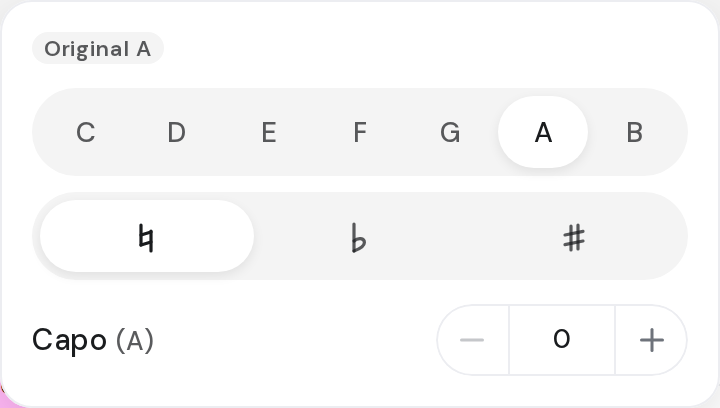
- Open the song and click the key at the top right, for example G.
- Click the new note, or ♭ or ♯.
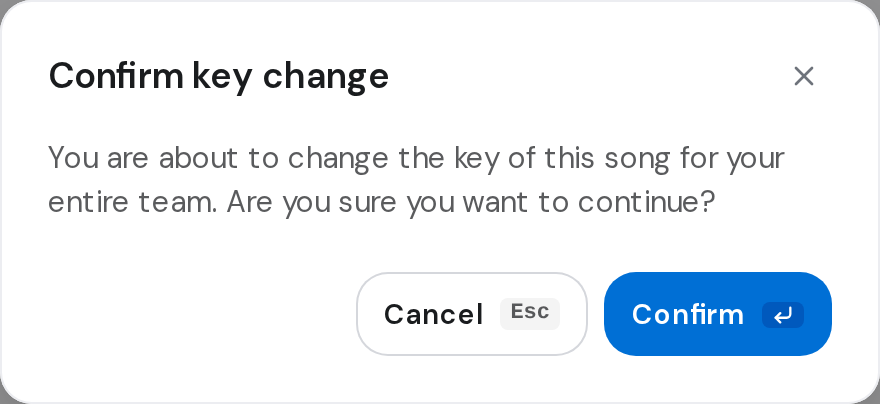
- Click Confirm on Confirm key change.
Set your own capo
- In the same panel, click − or + next to Capo (0 to 11). The shape in brackets is what you play. Only you see it.
Preview a key
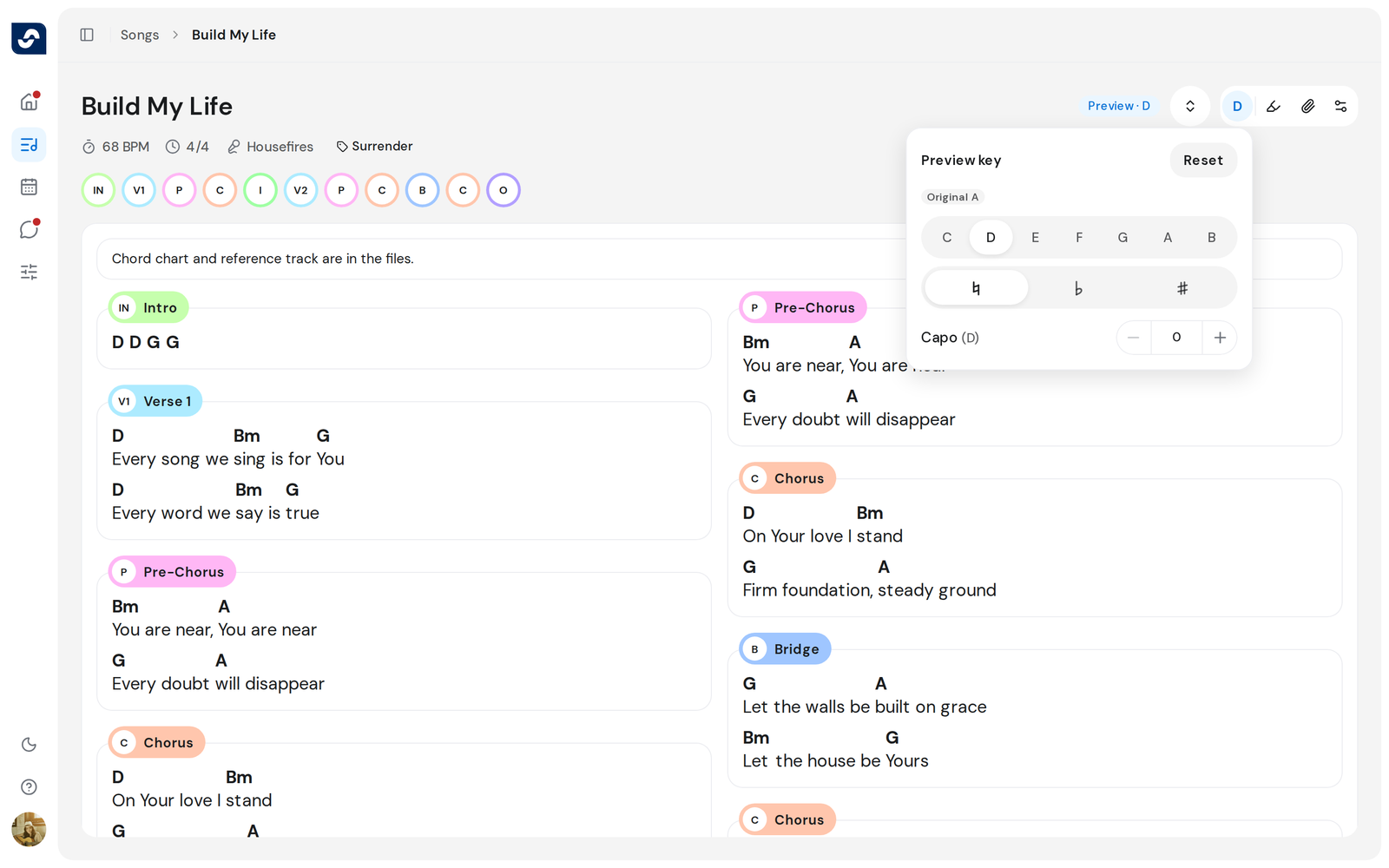
- Without permission to change the key, the panel reads Preview key. Click a note to read the song in it, or Reset.
Good to know
- ♯ isn't offered for E or B, nor ♭ for F or C. For F♯, change to F first, then open the panel again and click ♯.
- With a capo set, the key reads G +2. Your capo is saved for that song.
- A preview is only for you and ends when you leave the song.
- With Numbers or Numerals chords, preview notes are greyed out.