Turn on autoscroll and set the speed
Let the song move down the page on its own so your hands stay on your instrument.
Steps
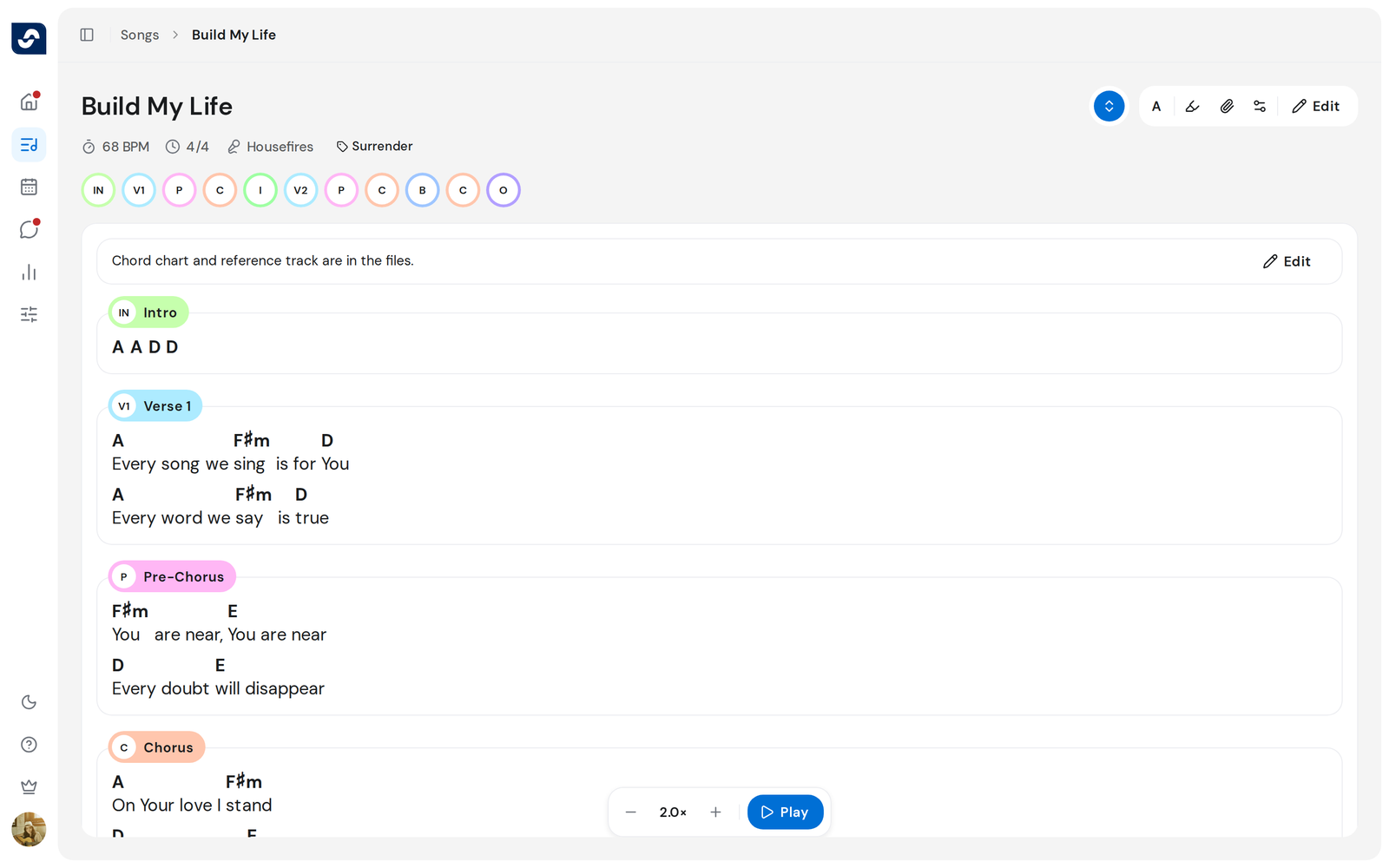
- Open the song.
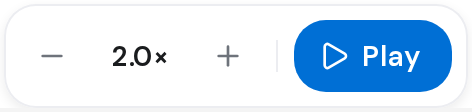
- Click Autoscroll, the up and down arrows that open the row of song tools at the top right. A control bar appears at the bottom of the song.
- Click Play, the round button on the right of the bar. The song starts moving.
- Click − or + to change the speed. It runs from 0.5× to 5.0×, half a step at a time.
- Click Pause to stop, or click Autoscroll again to turn it off.
From the keyboard
While autoscroll is on, press Space to play or pause, - to slow down, and + (or =) to speed up.
Good to know
- The speed is saved for that song, for you only. Autoscroll itself stays on for every song until you turn it off.
- With autoscroll on, repeated sections are written out as separate passes, and the song reads in one column.
- When the whole song fits on the screen, Play is greyed out. At the end of the song, Play starts again from the top.
- If a button has keyboard focus, Space presses that button instead.