Draw notes on a song
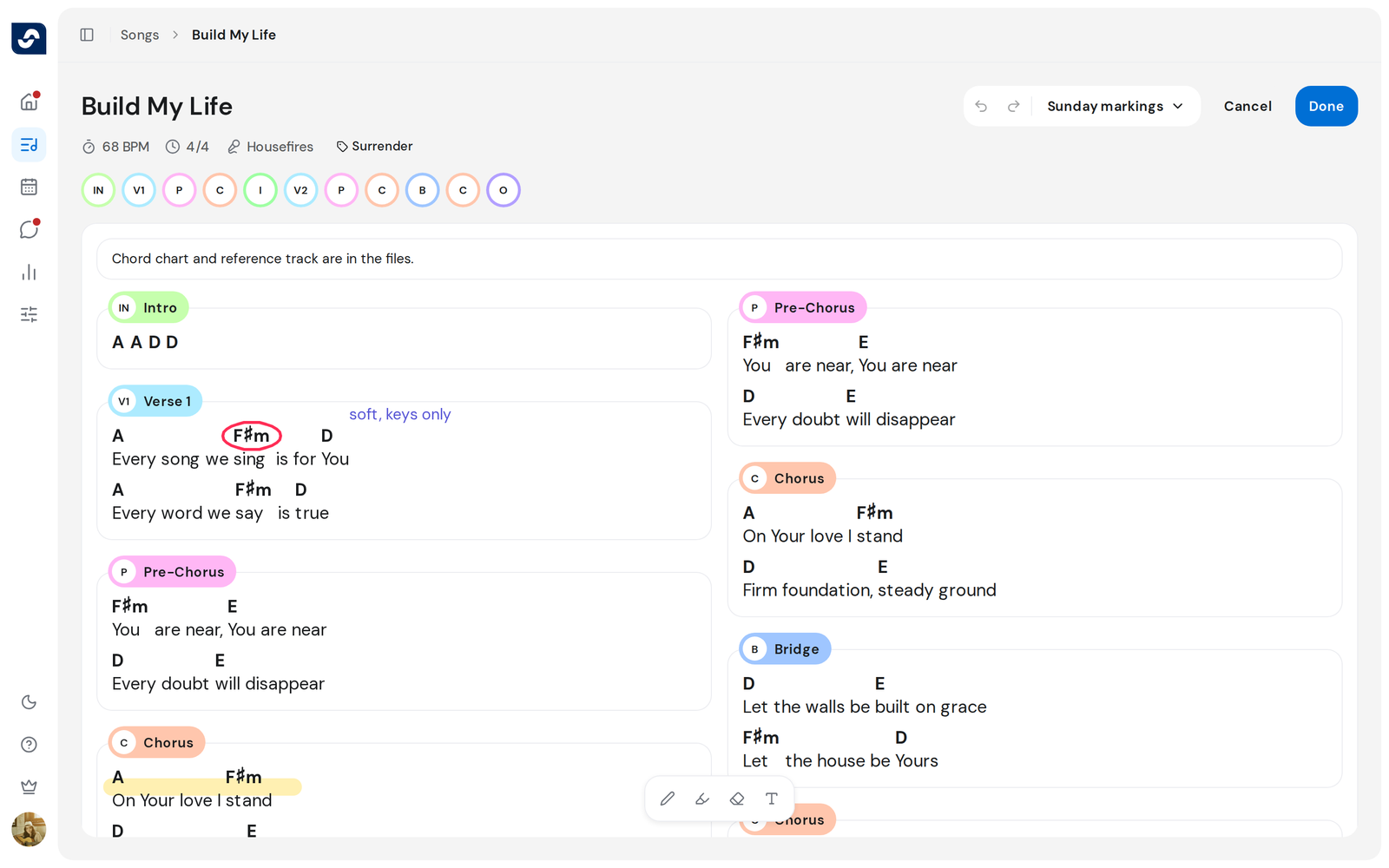
Circle a chord, highlight your entry, or type a reminder. Keep several named sets for the same song.
Steps
Draw on a song
- Open the song and click Annotations, the highlighter icon at the top right. The Drawing toolbar appears.
- Pick Pen, Highlighter, Eraser or Text, then a color and a Width (for text, a Font size).
- Draw on the song. For text, click where it goes, type, and press Enter.
- Click Undo or Redo at the top, or press ⌘ Z and ⇧ ⌘ Z (Mac), Ctrl Z and Shift Ctrl Z (Windows).
- Click Done. Your markings are saved.

Keep several sets
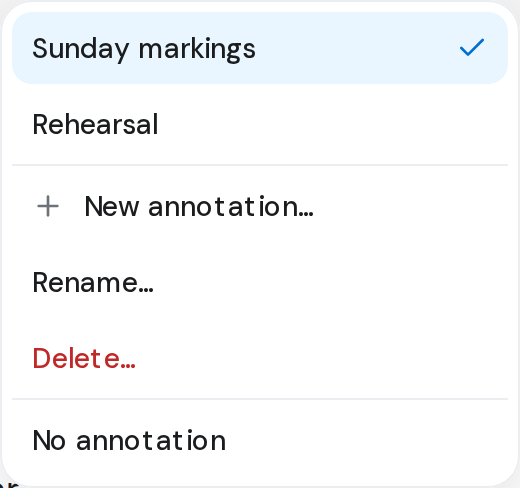
- Click the name of the set at the top. From its menu, click another set to switch, or choose New annotation…, Rename… or Delete….
- Choose No annotation to read the song with nothing drawn on it.
Good to know
- Annotations are yours alone. Nobody else on the team sees them.
- Cancel, or leaving the song with unsaved markings, asks before dropping them.
- The eraser also removes text it crosses.
- Without an internet connection, the Annotations button isn't shown.