Filter and sort your songs
Filters cut the song list down to what fits your service. Sorting sets the order.
Steps
Filter
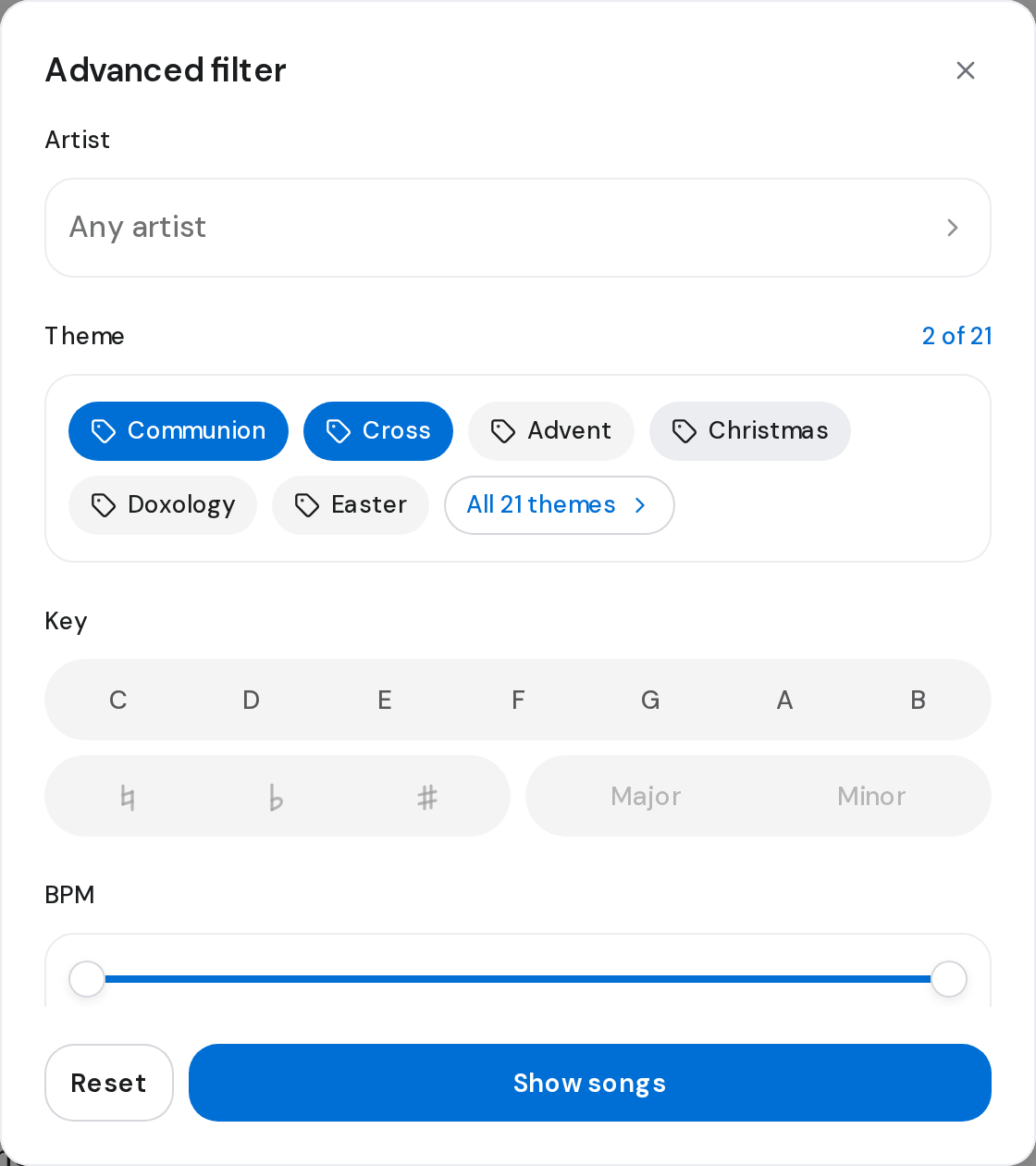
- On the Songs page, click Filters next to the search box. Advanced filter opens.
- Choose an Artist, click one or more Theme chips, pick a Key, or drag the BPM slider to set a range.
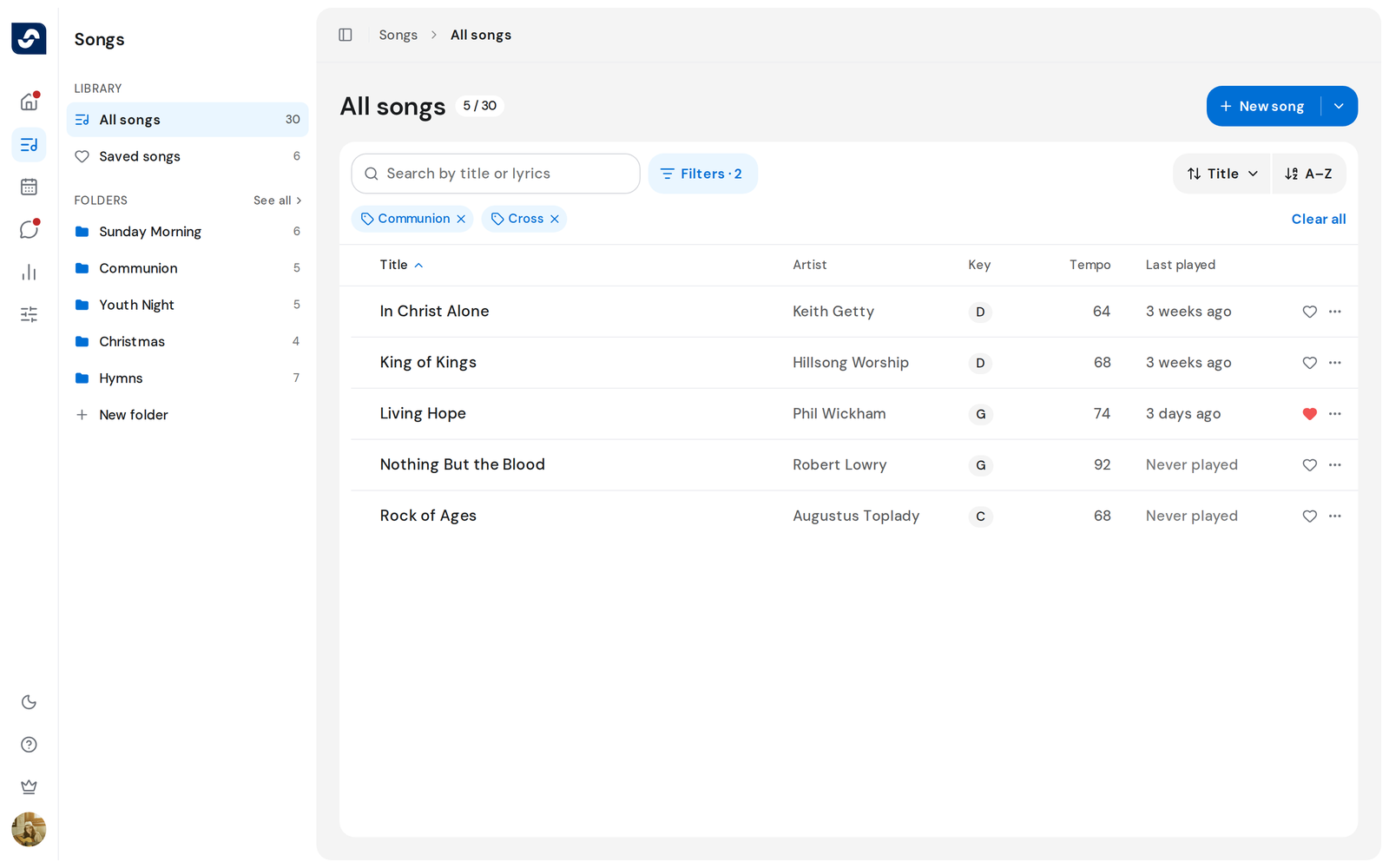
- Click Show songs. Each filter you set appears as a chip under the search box.
- Click a chip to drop that filter, or Clear all to drop them all.
Sort
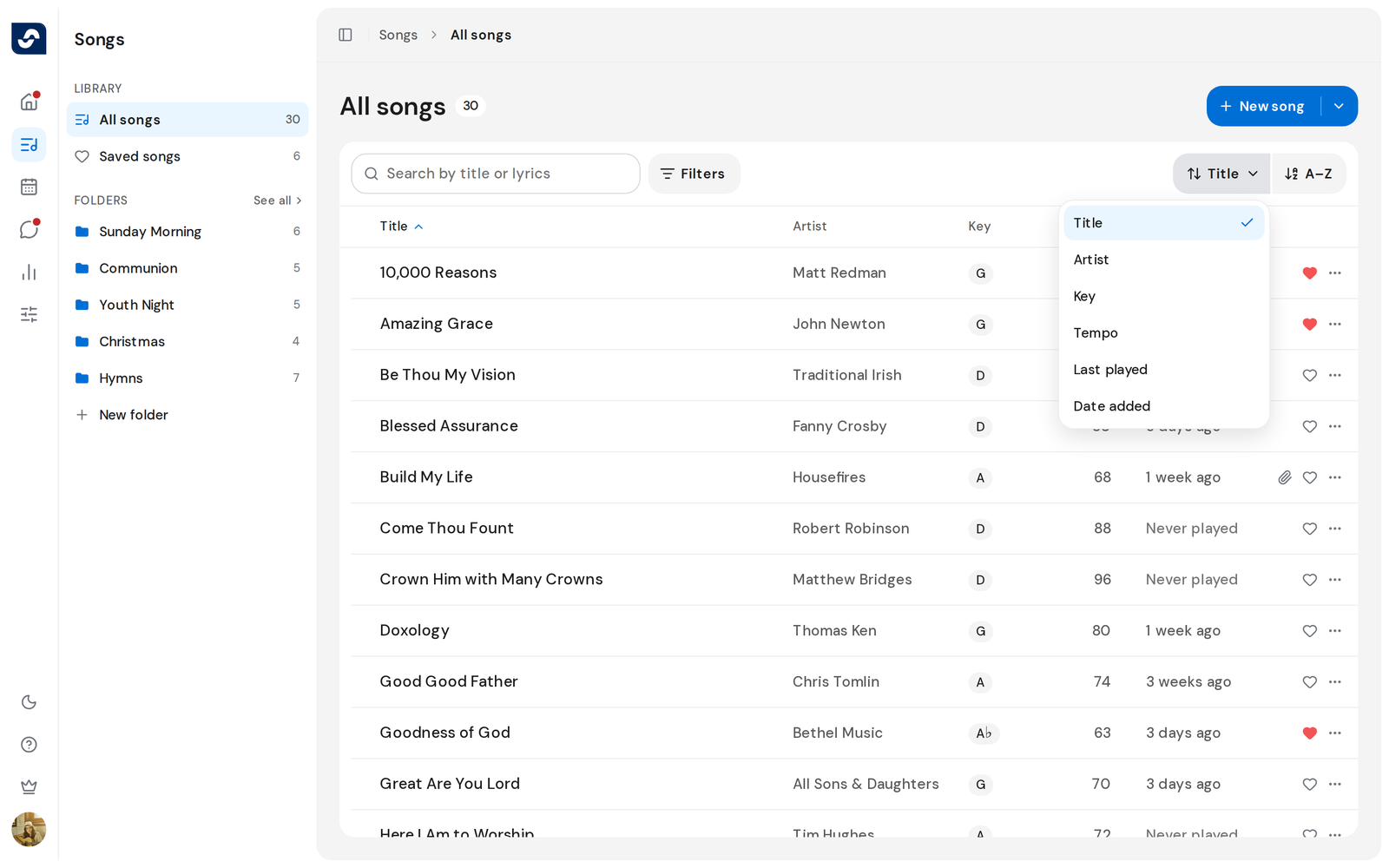
- Click a column title, such as Title, Key or Last played, to sort by it. Click it again to reverse the order.
- Or use the sort control at the top right of the list. Pick a field, such as Date added, and click the button beside it to flip the order.
Good to know
- Filters and search work together: a search runs inside the filters you set.
- While you search, the sort menu also offers Best match.
- Reset in Advanced filter clears every filter at once.
- Your sort stays after a reload, and in Saved songs and folders.