Manage artists
Every song is filed under an artist. Keeping the list tidy makes filtering by artist work.
Who can do this: Owner, Admin, Editor. What the roles mean
Steps
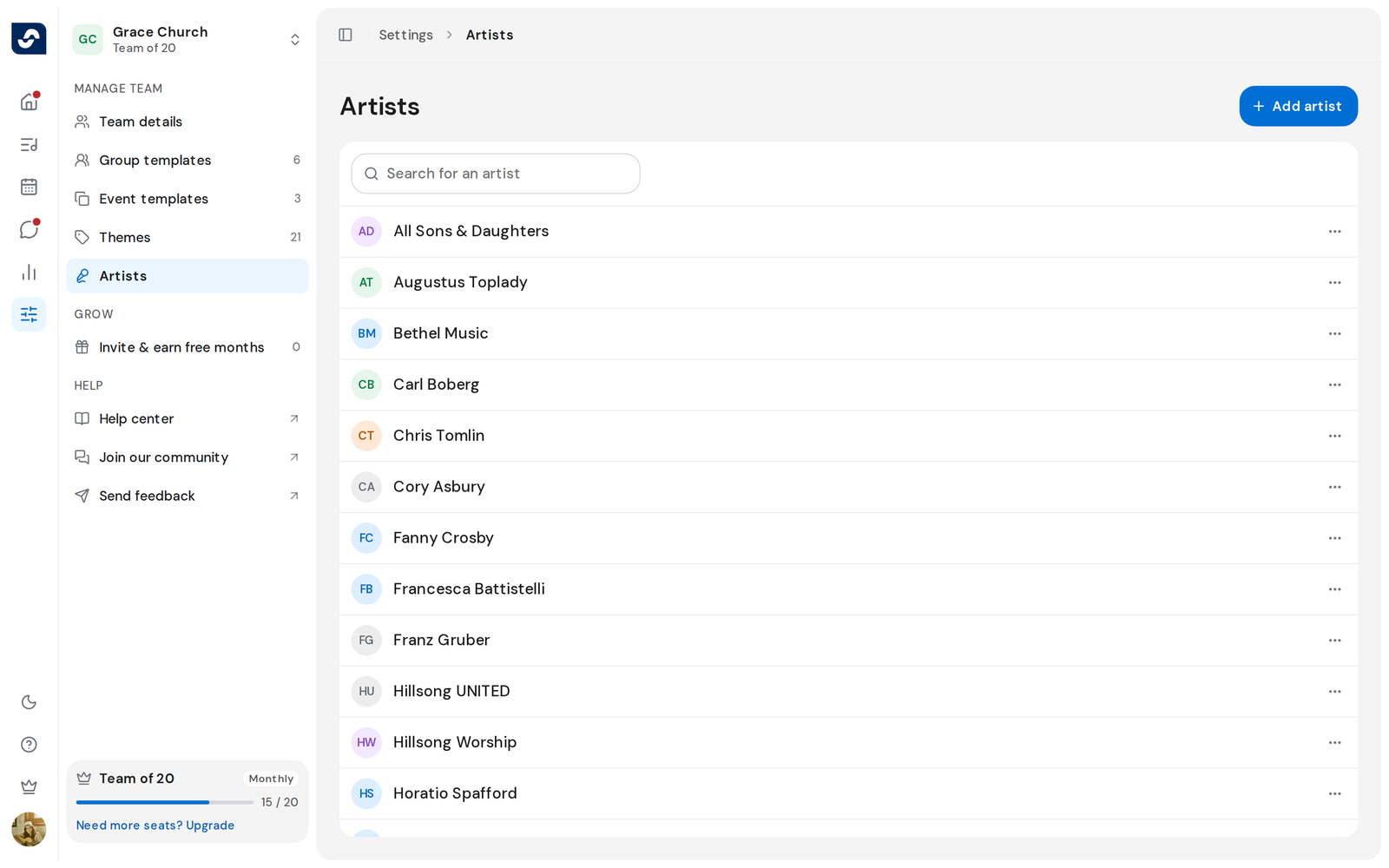
- Click Settings in the left rail, then Artists in the side panel. Your team's artists are listed A to Z.
- To find one, type in Search for an artist.
- To add one, click Add artist, type the Artist name, then click Add artist in the dialog.
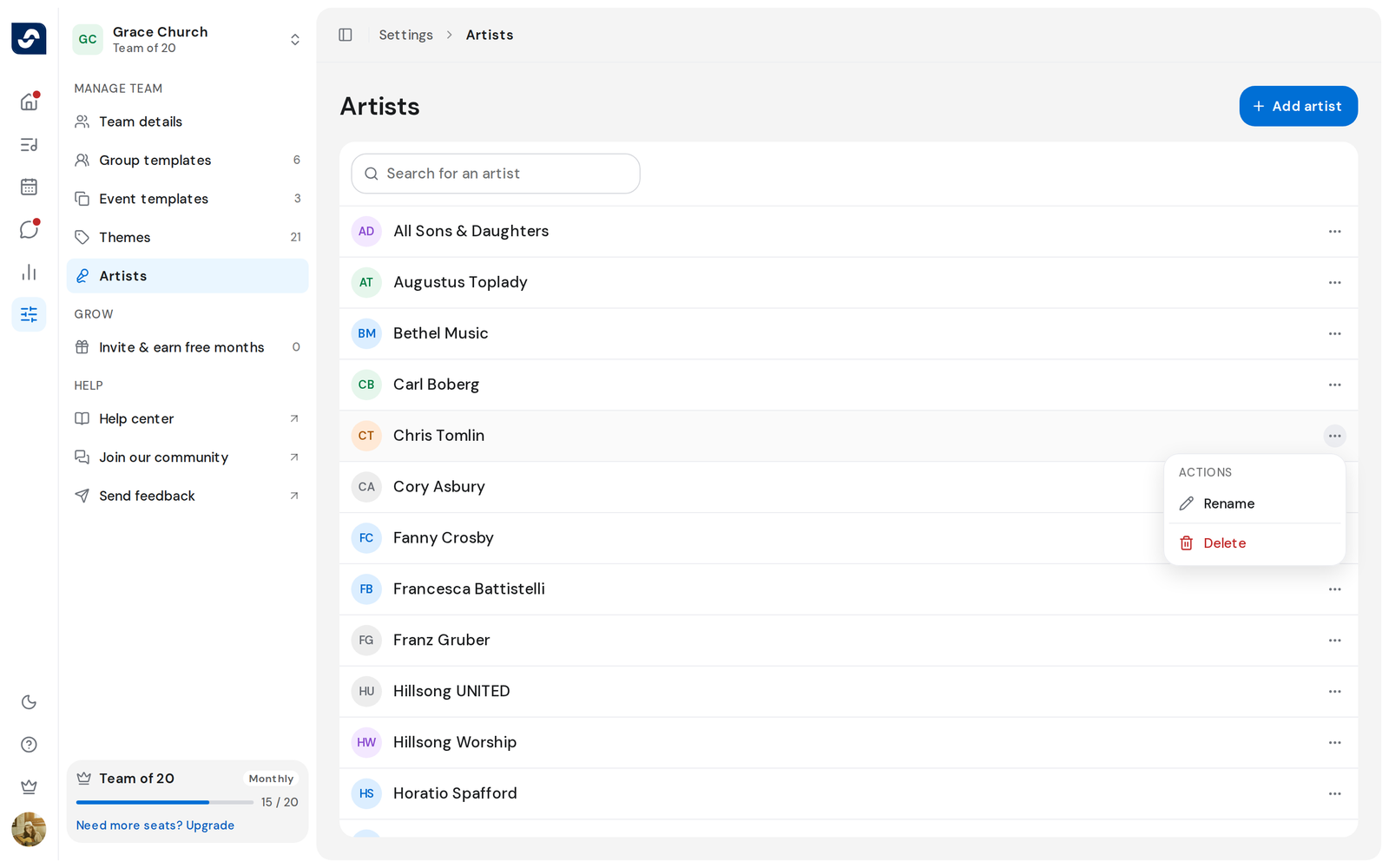
- To rename one, click ⋯ at the right of its row, then Rename. Type the new name and click Save.
- To delete one, click ⋯, then Delete, and confirm with Delete.
Good to know
- Songs by a deleted artist show Unknown. Unknown itself can't be renamed or deleted.
- A name your team already has is refused, whatever its capitals.
- You can also create an artist while editing a song. Edit a song's details