Add a song
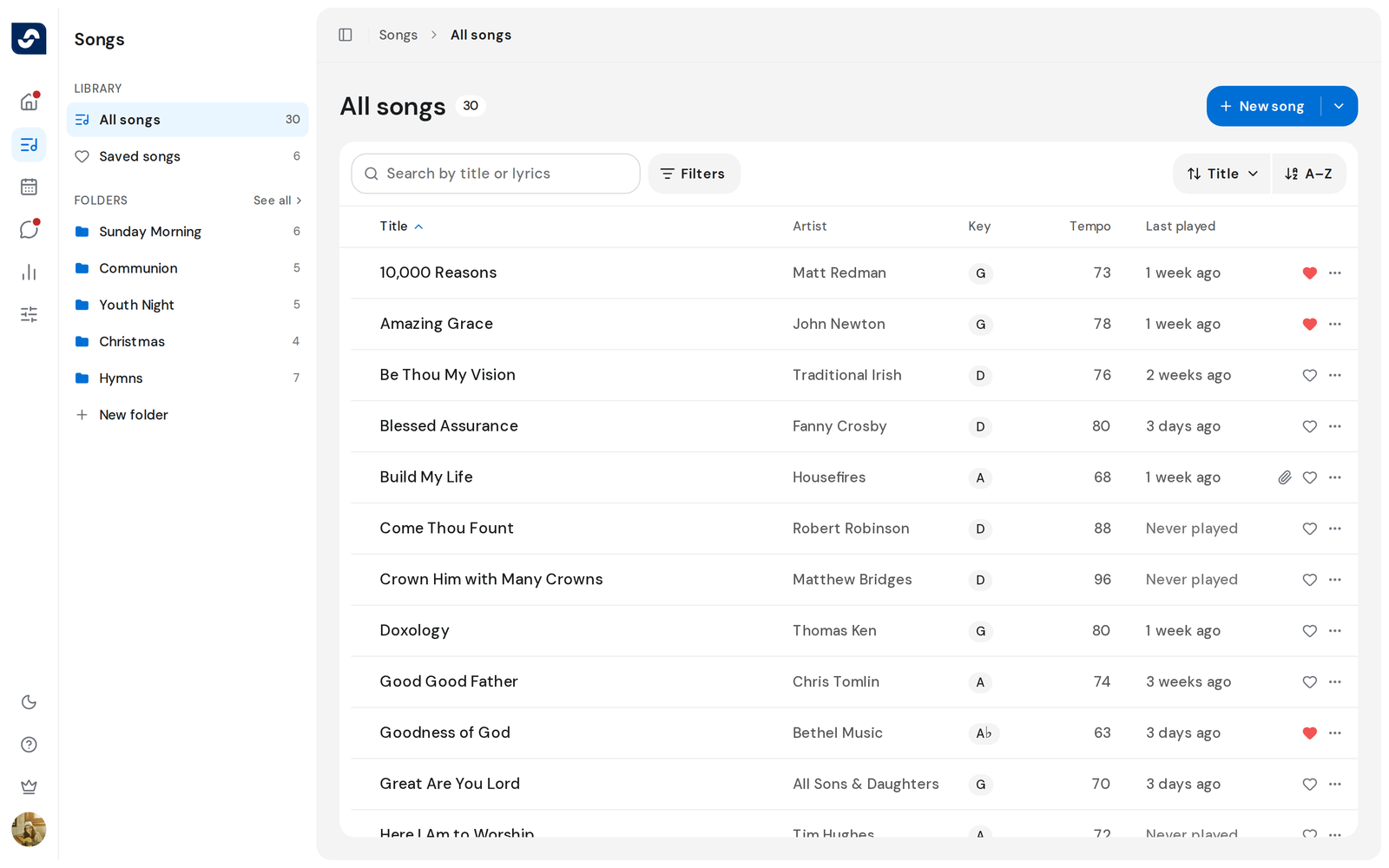
Create a new song in your team's library. Everyone on the team can then open it and use it in an event.
Who can do this: Owner, Admin, Editor. What the roles mean
Steps
- On the Songs page, click New song at the top right. The editor opens.
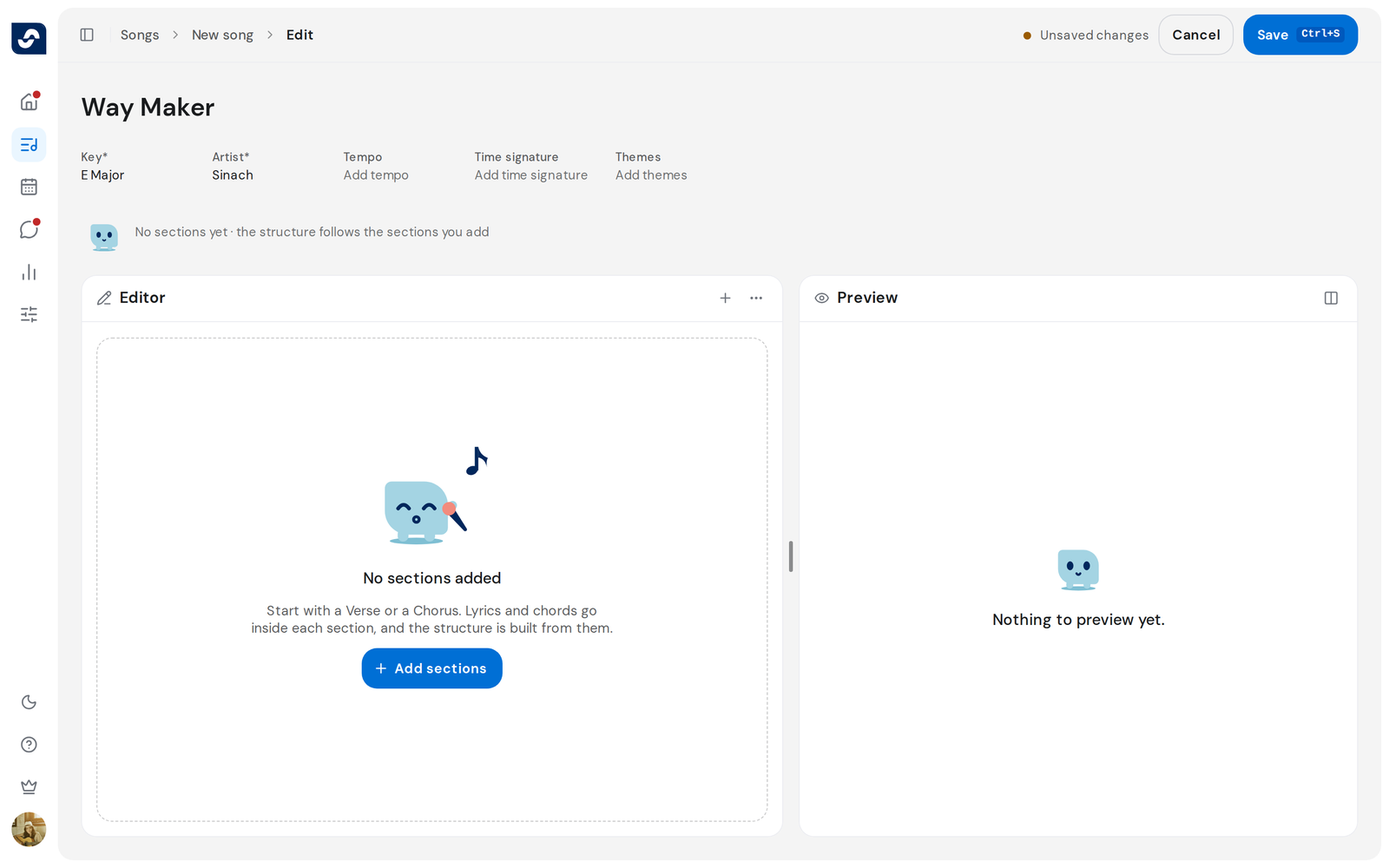
- Type the song's name where it reads Enter a title.
- Click Add key and Add artist to fill them in. Edit a song's details
- Click Add sections to write the lyrics and chords. Write chords and lyrics
- Click Save at the top right, or press ⌘ S (Mac) or Ctrl S (Windows).
Change your mind
- Click Cancel. If you changed anything, Discard changes asks first. Click Discard to leave without saving.
Good to know
- A song needs a title, a key and an artist before it saves. Point at Save to see what is still missing.
- Next to Save, the status reads Unsaved changes, Saving... or Saved.
- Leaving a new song you never typed in creates nothing.
- The arrow on New song also offers the PDF and ChordPro imports. Import songs from PDF or ChordPro