Song description and MD notes
A note the whole team reads, for the whole song or above one section: who starts, what you're skipping this week.
Who can do this: Owner, Admin, Editor. What the roles mean
Steps
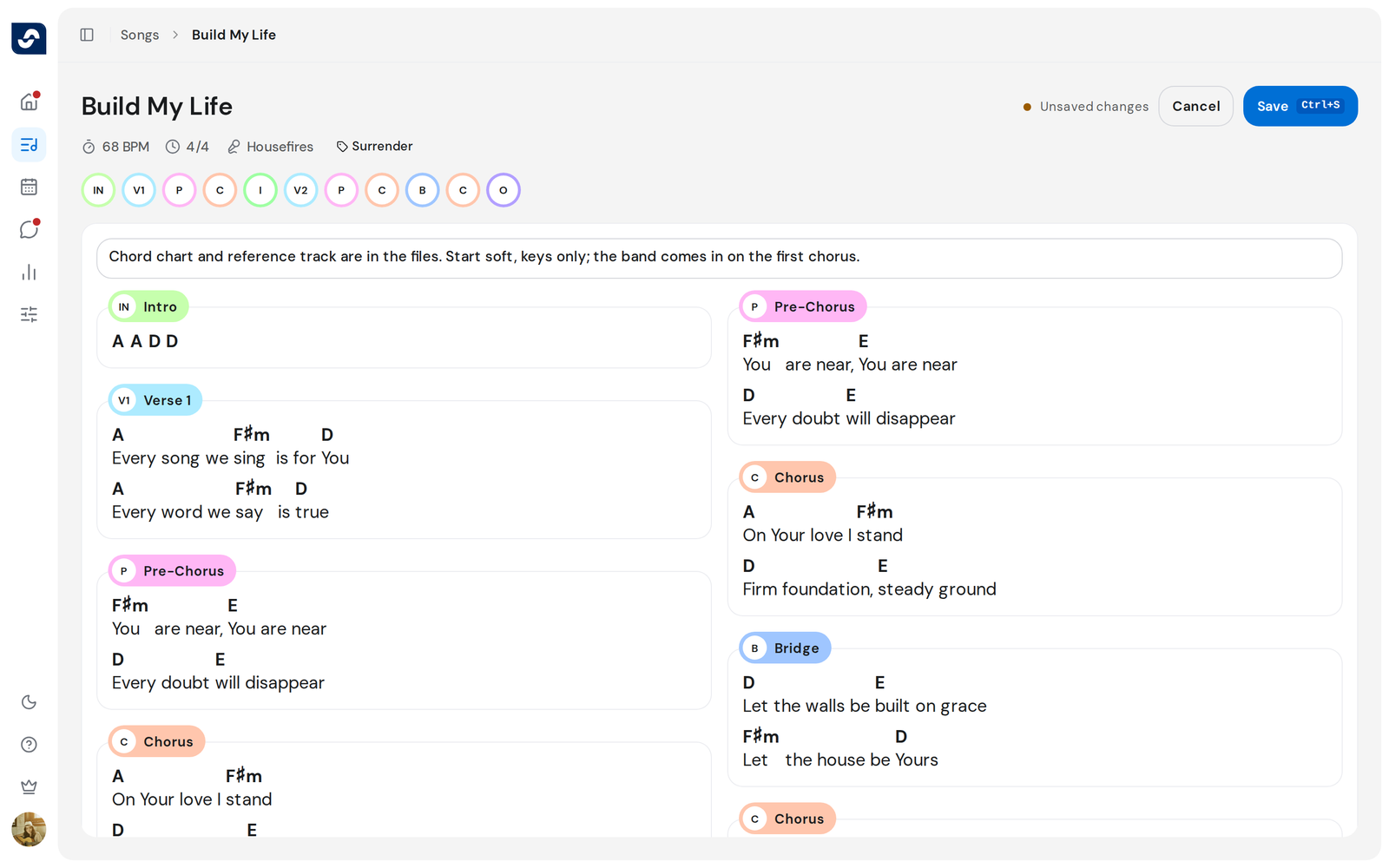
Write the song description
The description card sits above the sections while Song details is on in Preferences.
- On the card, click Add description, or Edit if there's one already.
- Type your description.
- Click Save at the top right, or press ⌘ S (Mac) or Ctrl S (Windows).
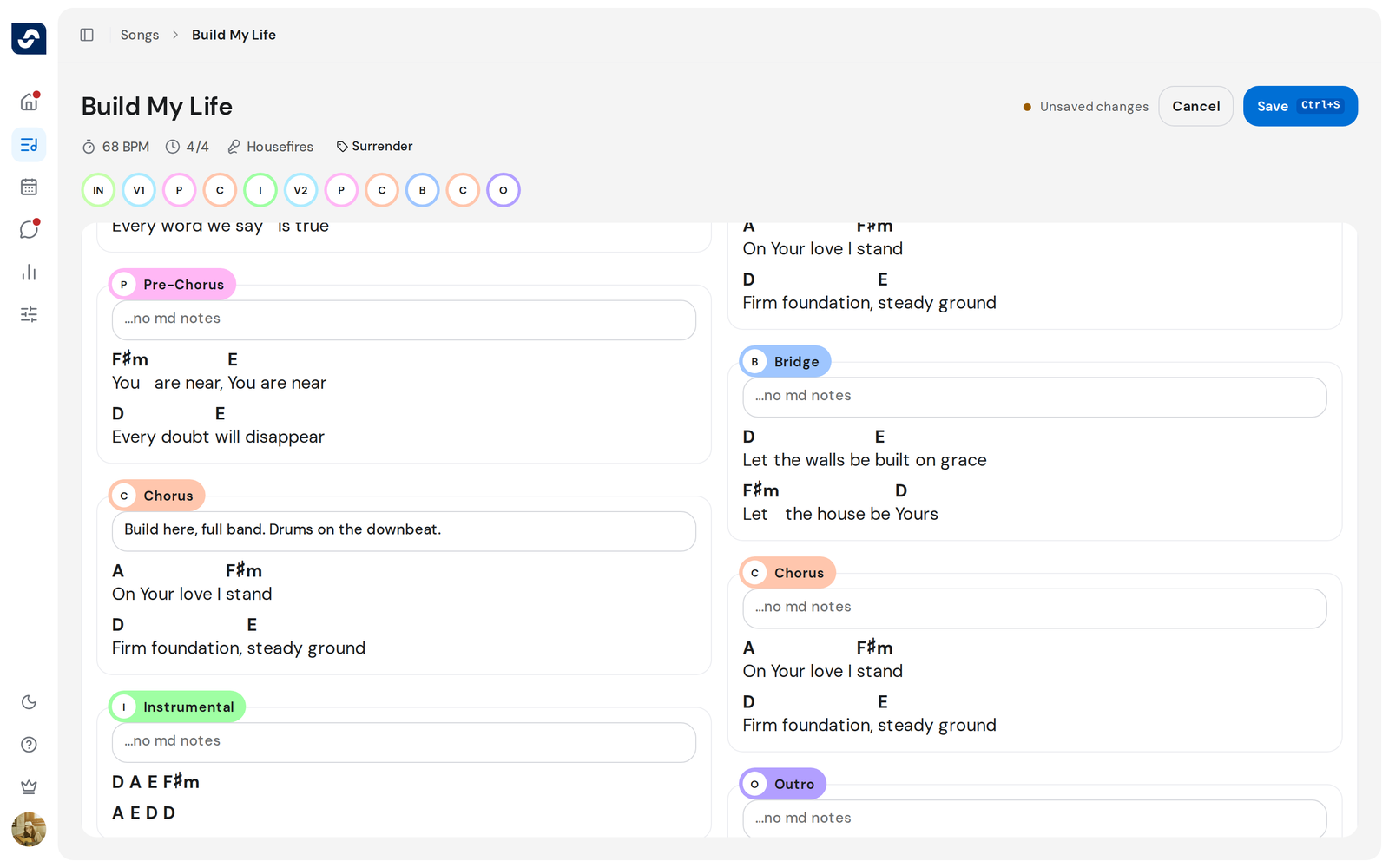
Add MD notes to sections
- Click Preferences, then Edit MD notes under Other. Or click the notebook icon at the top right of a section.
- Type in the MD notes box above any section, as many as you like.
- Click Save, or press ⌘ S (Mac) or Ctrl S (Windows).
Good to know
- Everyone on the team reads both kinds of note.
- Click Cancel or press Esc to stop without saving. Leaving the song with typed notes opens Discard changes, where you can choose Keep editing.
- The notebook icon isn't on the sections while Compact view is on.
- If a save fails, your text stays and Retry saves it again.