Choose how a song looks
Set the song up so it's comfortable to read. Nothing here changes what anyone else sees.
Steps
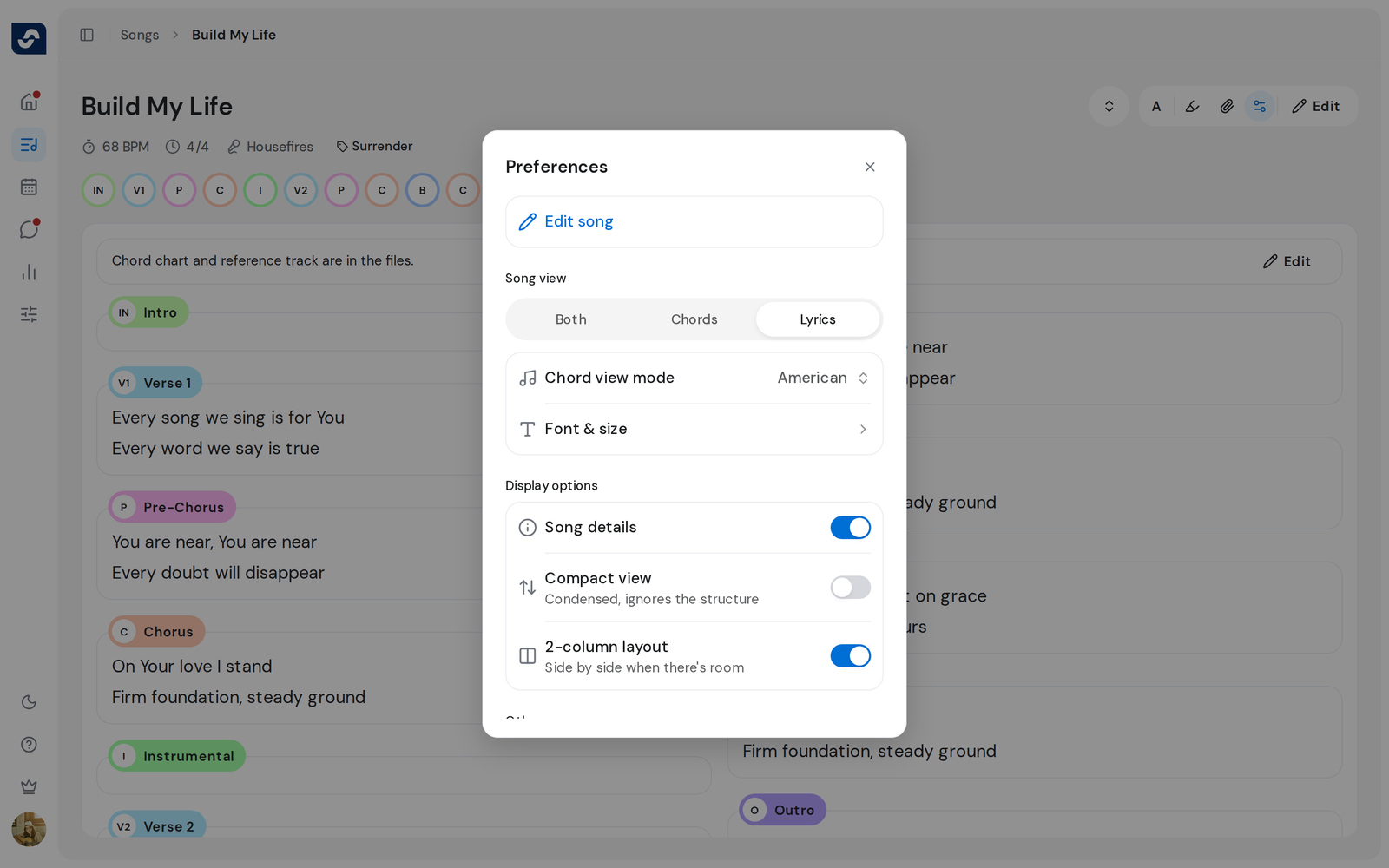
- Open any song and click Preferences, the sliders icon at the top right.
- Under Song view, choose Both, Chords or Lyrics.
- Click Chord view mode and choose American (C♯), Numbers (5/3) or Numerals (IV).
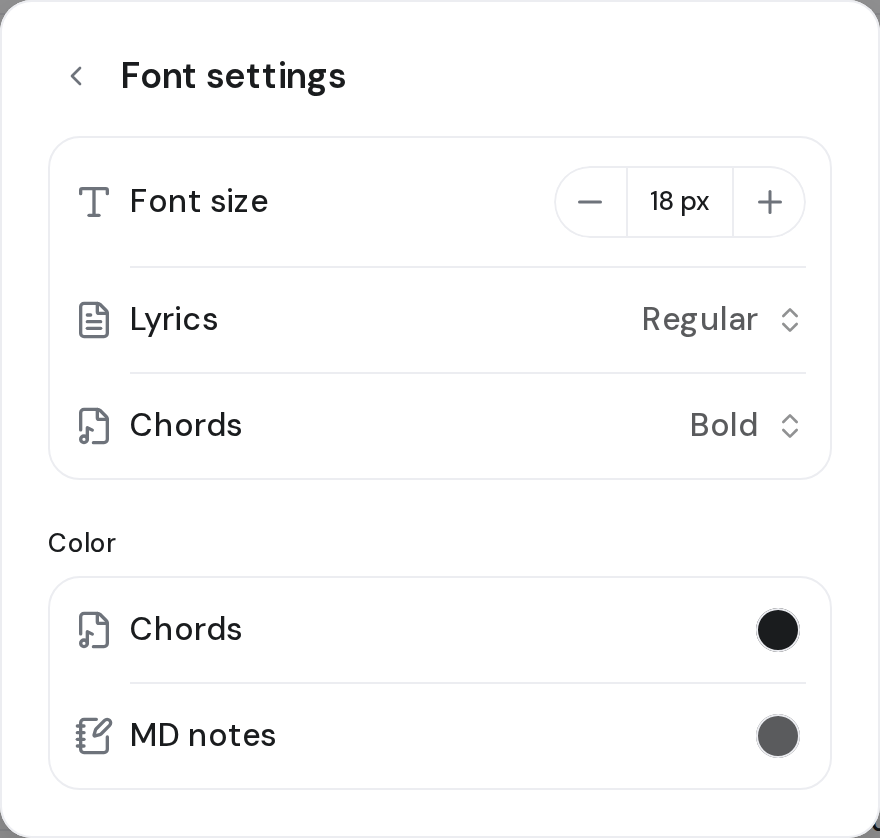
- Click Font & size. On Font settings, use − and + on Font size, and set Lyrics and Chords from Light to Bold. Under Color, pick a color for Chords and MD notes.
- Click Back. Under Display options, turn on what you want:
- Song details shows the song description above the sections.
- Compact view collapses repeated sections.
- 2-column layout puts sections side by side when there's room.
- Close the dialog. Changes already show in the song.
Good to know
- These settings are yours and apply to every song you open, not only this one.
- Font size runs from 10 px to 36 px.
- 2-column layout only splits the song when the page is wide enough. While autoscroll is on, the song reads in one column.
- Numbers and Numerals count from the song's original key, so they read the same whatever key the team plays it in.