Files, audio and PDFs on a song
Keep the reference track, the sheet music and the video with the song.
Steps
Add a file or link
Changing files needs Owner, Admin or Editor. What the roles mean
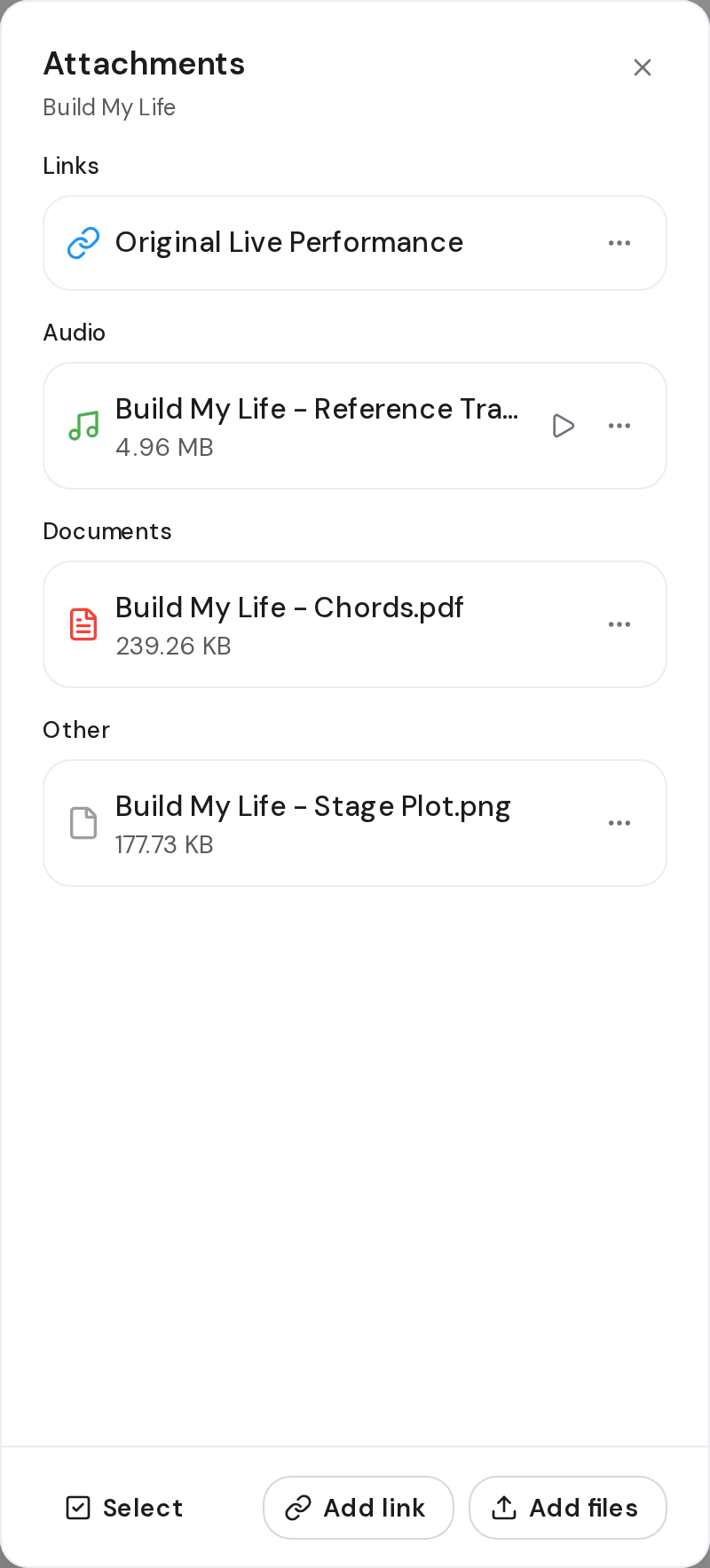
- Open the song and click Attachments, the paperclip at the top right.
- Click Add files, or drag files onto the panel.
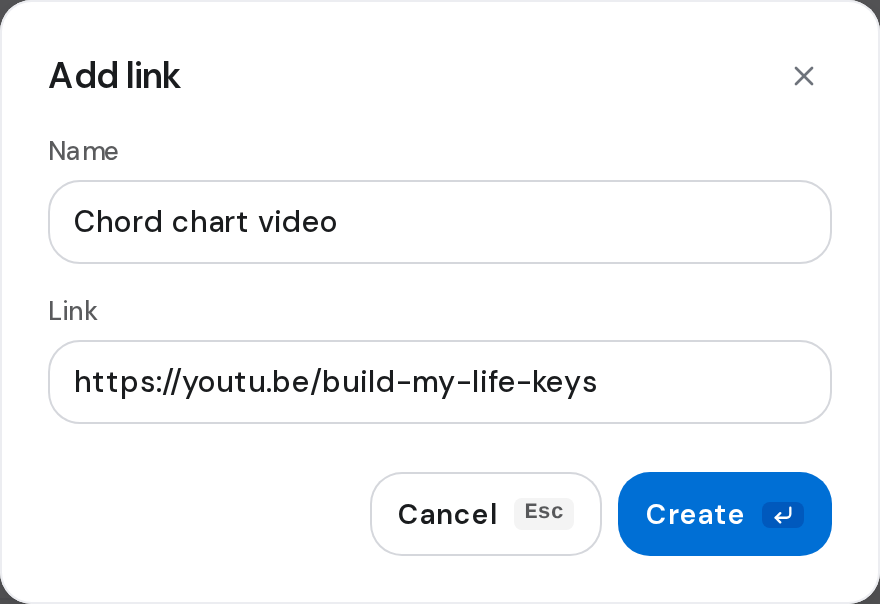
- For a link, click Add link, fill in Name and Link, then click Create.
Play or read a file
- Under Audio, click a track. The player keeps playing while you move around OnStage.
- Under Documents, click a PDF to open it in a viewer.
Rename, download or remove
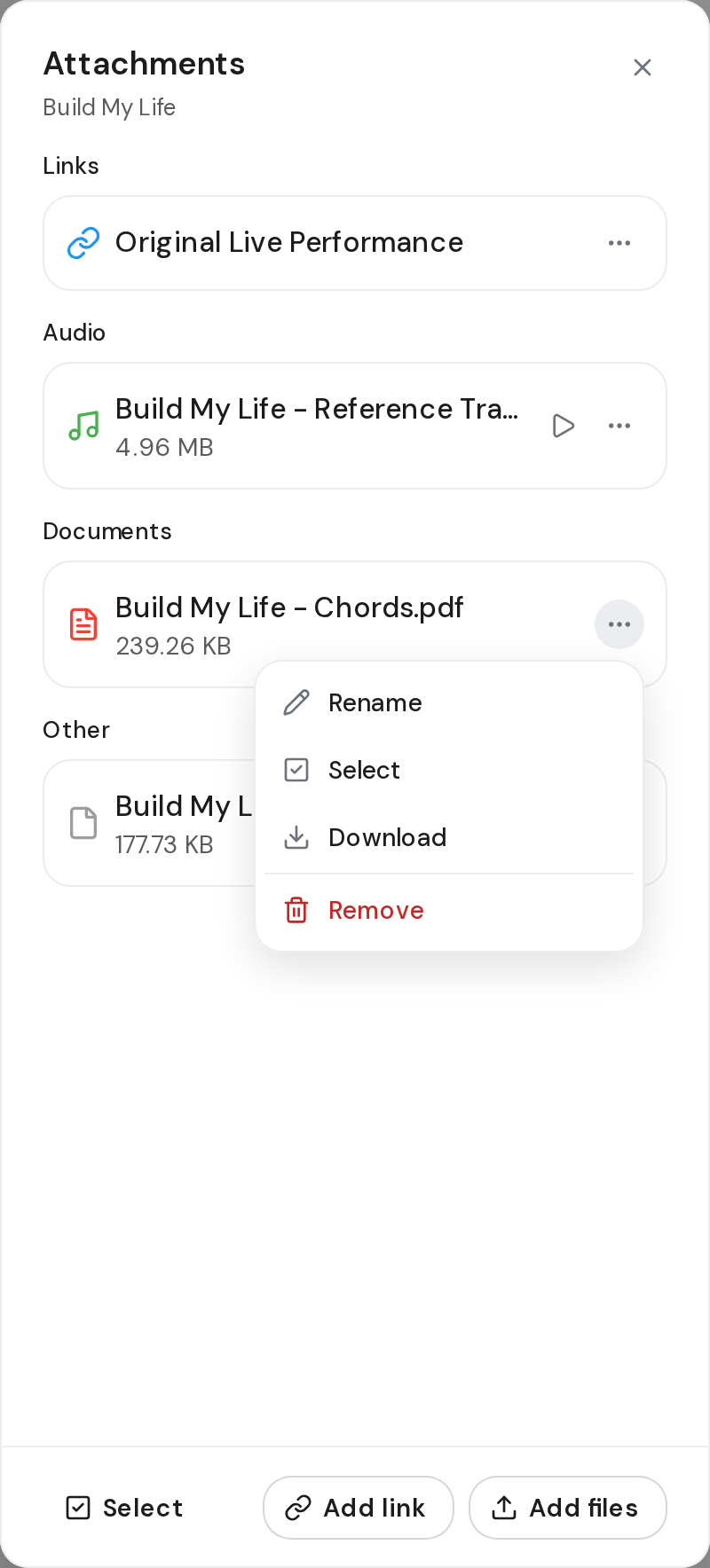
- Click the three dots on a file and choose Rename, Select, Download or Remove. Select lets you tick several.
Good to know
- Accepted: audio, PDFs, Word, text, PowerPoint and images. Very large files are refused with a message. A failed upload offers Retry.
- Everyone can play, open and download files. Members see the paperclip only on songs that already have files.
- When the team's storage is full, Storage Limit opens instead of the upload. A removed file is gone for the whole team and frees its space.
- Some audio formats can't play in the browser. Download those.