Roles in OnStage: what each one can do
Every person on a team has one role. A role is a set of things you can do, not a rank. An Editor isn't "above" a Scheduler: they look after different parts of OnStage.
The five roles
- Owner: the person who set the team up. Looks after billing and referrals. Every team has exactly one.
- Admin: helps run the team. Invites people, sets roles, changes team settings.
- Editor: looks after songs, files and templates, and can do everything a Scheduler can too.
- Scheduler: plans events and decides who's on.
- Member: reads songs, answers invitations, sets their own availability.
Owner and Admin
Owner and Admin are the two roles that run a team. Between them they cover everything in OnStage, and only two things separate them.
The Owner is the person who created the team. Every team has exactly one, and the Owner's role can't be changed. Only the Owner can buy or change the plan, and only the Owner has referrals.
An Admin looks after everything else that keeps the team running: inviting people, removing them, changing roles, renaming the team, and sharing the song library. Admins can also do everything an Editor and a Scheduler can: songs, files, templates, events, and who's on them.
Most teams need one or two Admins. Give the role to whoever organizes the schedule week to week.
- Everyone except the Owner sees Ask your team owner to upgrade where the plan options would be. An Admin can't take billing over, even for one payment.
- You can belong to several teams but own only one.
- Owner and Admin are the only roles that can invite someone to the team.
Editor
An Editor looks after the material your team plays from: songs, files and templates. It's the role for whoever keeps the library tidy.
An Editor can add, edit and delete songs, fill in song details, change a song's key for the whole team, and add or delete files. An Editor also builds the reusable parts of your planning (event templates and group templates) and can work on events themselves: the setlist, and inviting people to positions.
What an Editor can't do is anything to do with people or money. That means no inviting or removing team members, no changing roles, no renaming the team, no sharing the song library, and nothing in the plan or the subscription.
- Changing a song's key changes it for every person on the team. A capo is personal and affects only your own screen.
- An Editor can invite people who are already on the team to an event, but can't invite anyone new to the team.
- Deleting a song removes it for the whole team.
Scheduler
A Scheduler plans events and decides who's on them. It's the role for whoever puts the schedule together.
A Scheduler works on events: creating and editing them, building the setlist, and putting people from the team into positions. That's the whole role: it stops at the event.
A Scheduler can't touch the song library, the files or the templates. No adding or editing songs, no song details, no attaching files, and no event templates or group templates. A Scheduler also can't change a song's key: the key screen opens as Preview Key rather than Change Key, in the library and on an event. An Editor, Admin or Owner does that.
- If the same person needs to fix chords and keys as well as plan events, make them an Editor instead.
- A Scheduler can put people who are already on the team into an event, but can't invite anyone new to the team.
- A Scheduler can add a song to a setlist even though they can't edit the song itself.
Member
Most of a team are Members, and most of what happens on a Sunday is done by Members. The role covers everything except changing things the whole team relies on.
As a Member you can read every song in the library, accept and decline your invitations, add and edit your own blockouts, draw your own annotations, favorite songs, use chat, vote in polls, and present a setlist.
You also control how a song looks and behaves for you: your capo, your autoscroll speed, your font size, colors, view mode, and chord notation. None of that changes anything on anyone else's screen.
What a Member doesn't change is the shared material: songs, keys, chords, files, events, and who's invited to them.
- Your capo, annotations, favorites and display settings are yours alone. A song's key, lyrics, chords, notes and files are shared with the team.
- You can be a Member in one team and have a different role in another.
- If something you could do yesterday is missing today, work through Why can't I do this? Start here
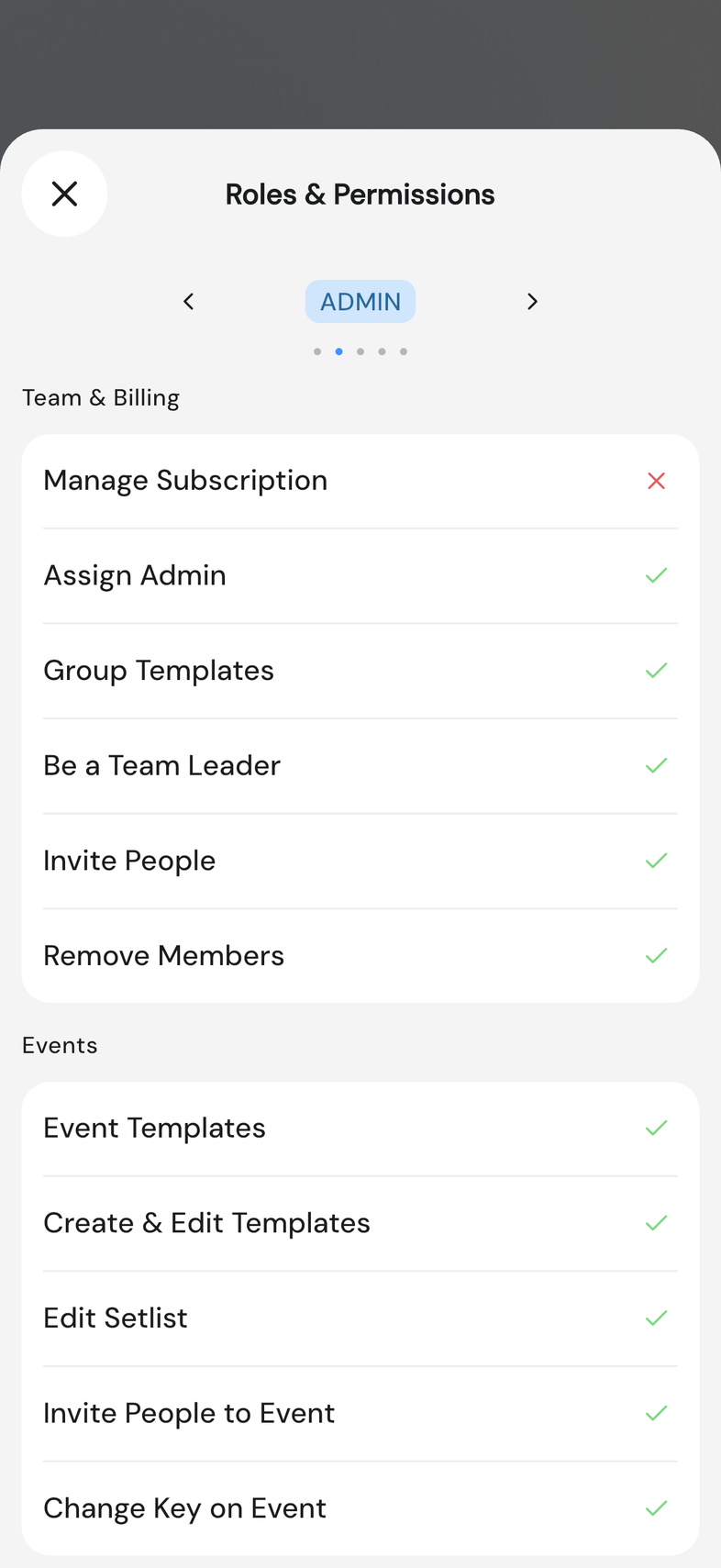
What each role can do
This is the same table you can open in OnStage, under a member's role badge.
Team & billing
| Owner | Admin | Editor | Scheduler | Member | |
|---|---|---|---|---|---|
| Manage Subscription | ✓ | ||||
| Assign Admin | ✓ | ✓ | |||
| Group Templates | ✓ | ✓ | ✓ | ||
| Be a Team Leader | ✓ | ✓ | |||
| Invite People | ✓ | ✓ | |||
| Remove Members | ✓ | ✓ |
Events
| Owner | Admin | Editor | Scheduler | Member | |
|---|---|---|---|---|---|
| Event Templates | ✓ | ✓ | ✓ | ||
| Create & Edit Templates | ✓ | ✓ | ✓ | ||
| Edit Setlist | ✓ | ✓ | ✓ | ✓ | |
| Invite People to Event | ✓ | ✓ | ✓ | ✓ | |
| Change Key on Event | ✓ | ✓ | ✓ |
Songs & library
| Owner | Admin | Editor | Scheduler | Member | |
|---|---|---|---|---|---|
| Add Files | ✓ | ✓ | ✓ | ||
| Delete Files | ✓ | ✓ | ✓ | ||
| Add & Edit Song | ✓ | ✓ | ✓ | ||
| Song Details | ✓ | ✓ | ✓ | ||
| Share Song library | ✓ | ✓ | |||
| Delete Song | ✓ | ✓ | ✓ |
Good to know
- Your role is shown on your profile. Tap the badge to see the full table above.
- You can have a different role in each team you belong to.
- Everyone controls their own capo, autoscroll speed and display settings, whatever their role.
- All of the above is hidden while you're offline. Why buttons disappear offline
Frequently asked questions
Who is the Owner?
The person who set the team up. Every team has exactly one, and that role can't be changed.
Can I change my own role?
No. Someone whose role allows it has to change it for you. Change someone's role
Which role should most of my team have?
Member. It covers reading songs, answering invitations and setting your own availability.