Storage: what you're using, and how to free it up
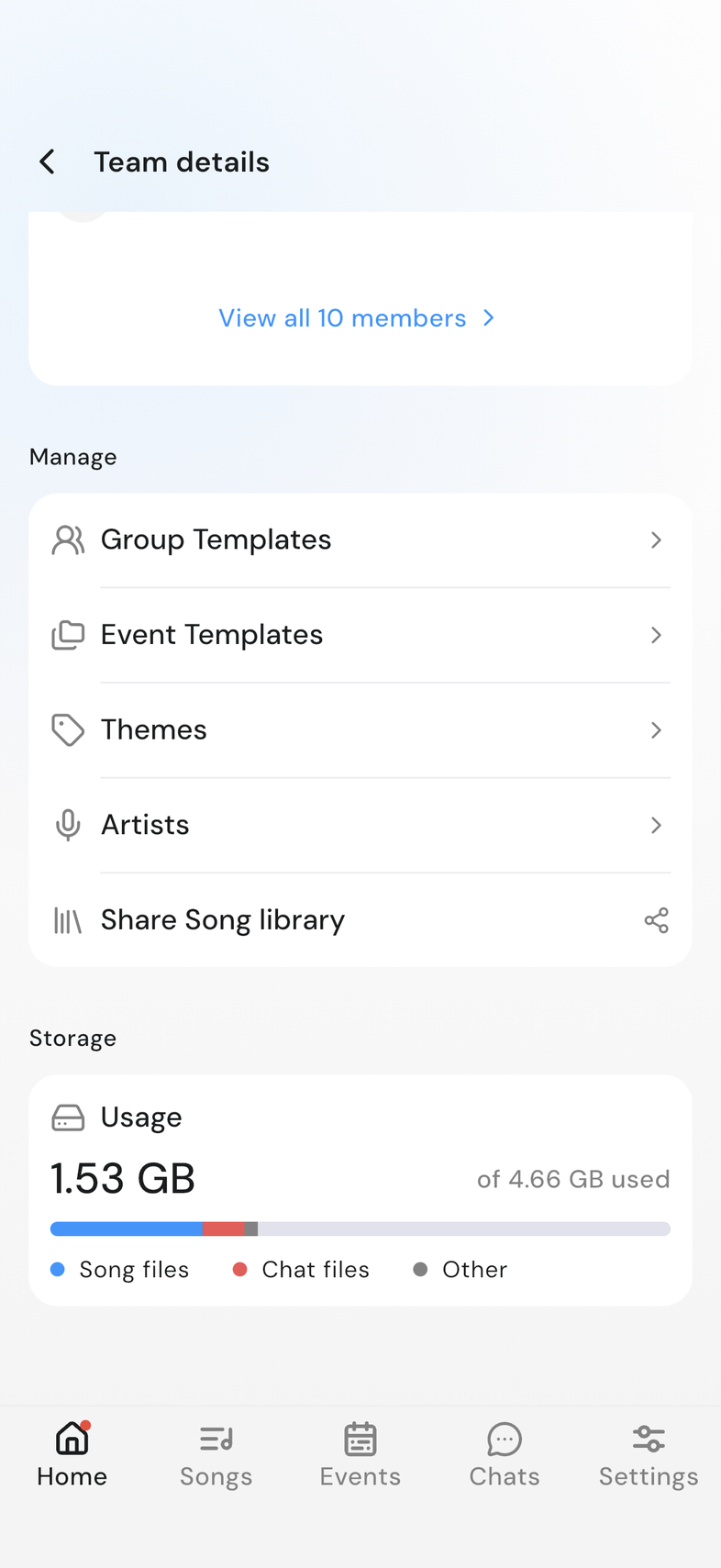
Every file your team uploads takes space from your plan's limit. Storage at the bottom of Team details shows how much has gone, and to what. Once it's used up, clearing out files the team has finished with makes room again.
Who can do this: Owner, Admin, Editor. What the roles mean Online only: You need internet for this. Why buttons disappear offline
Steps
Read the storage bar
- On Home, tap your team card to open Team details.
- Scroll to Storage.
- Read Usage. The large figure is what's used, and of … used beside it gives the total your plan includes.
- Read the bar underneath. It splits into Song files, Chat files, and Other, each with its own size.
Free up storage
Once your plan's space is used up, nothing new uploads. Clearing out song files the team has finished with makes room.
- Open Team details and check Storage to see which part is largest.
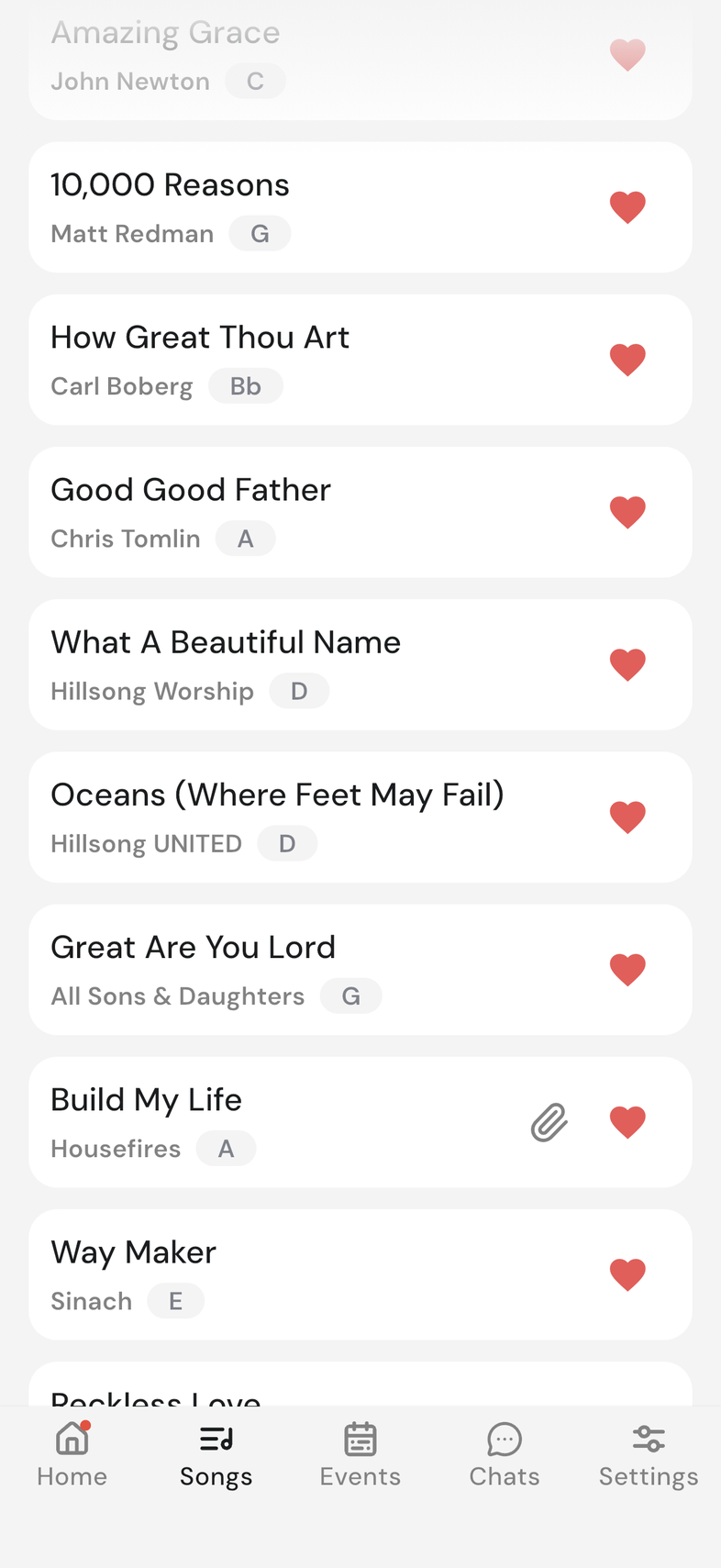
- Open the Songs tab. A paperclip on a song means it has files.
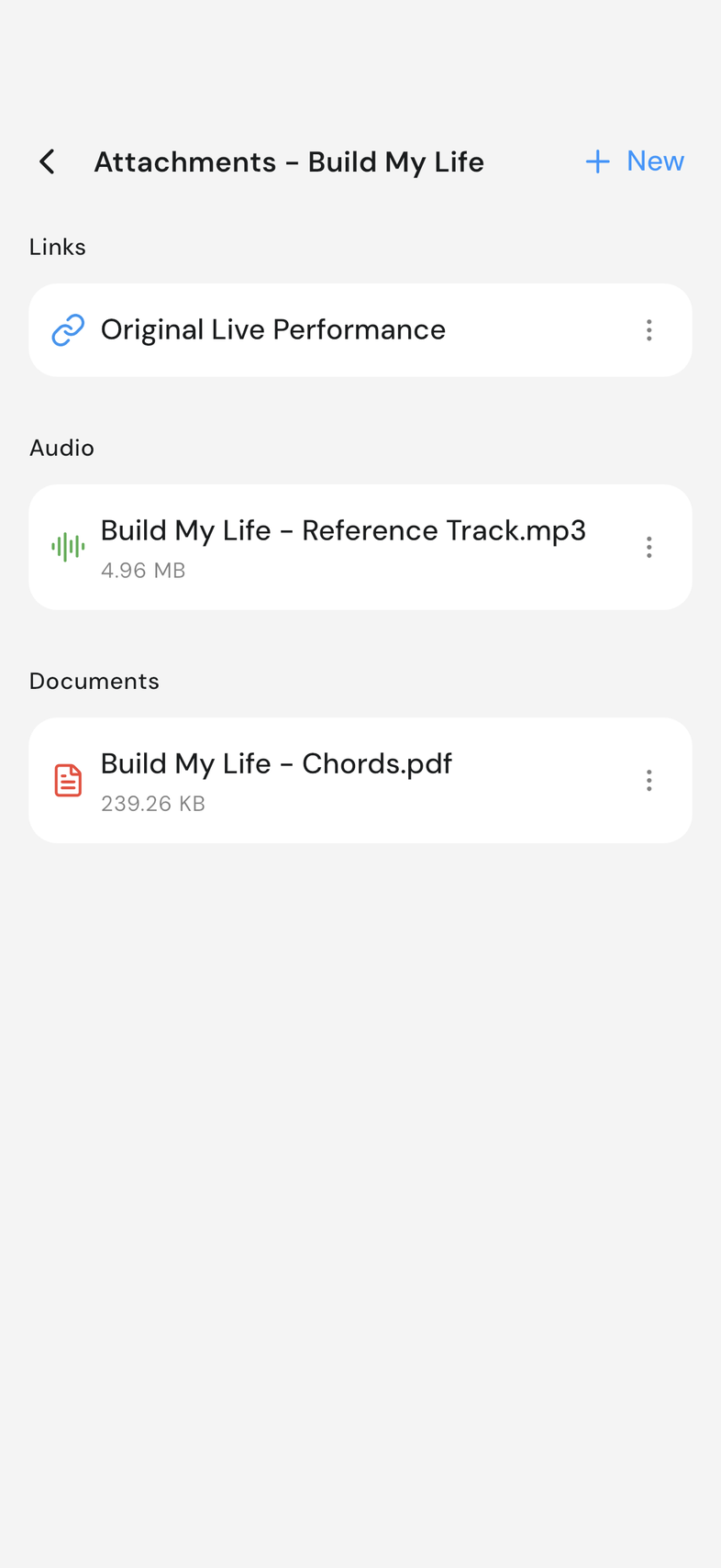
- Tap the paperclip on the song. Attachments opens.
- Look under Audio first, then Documents.
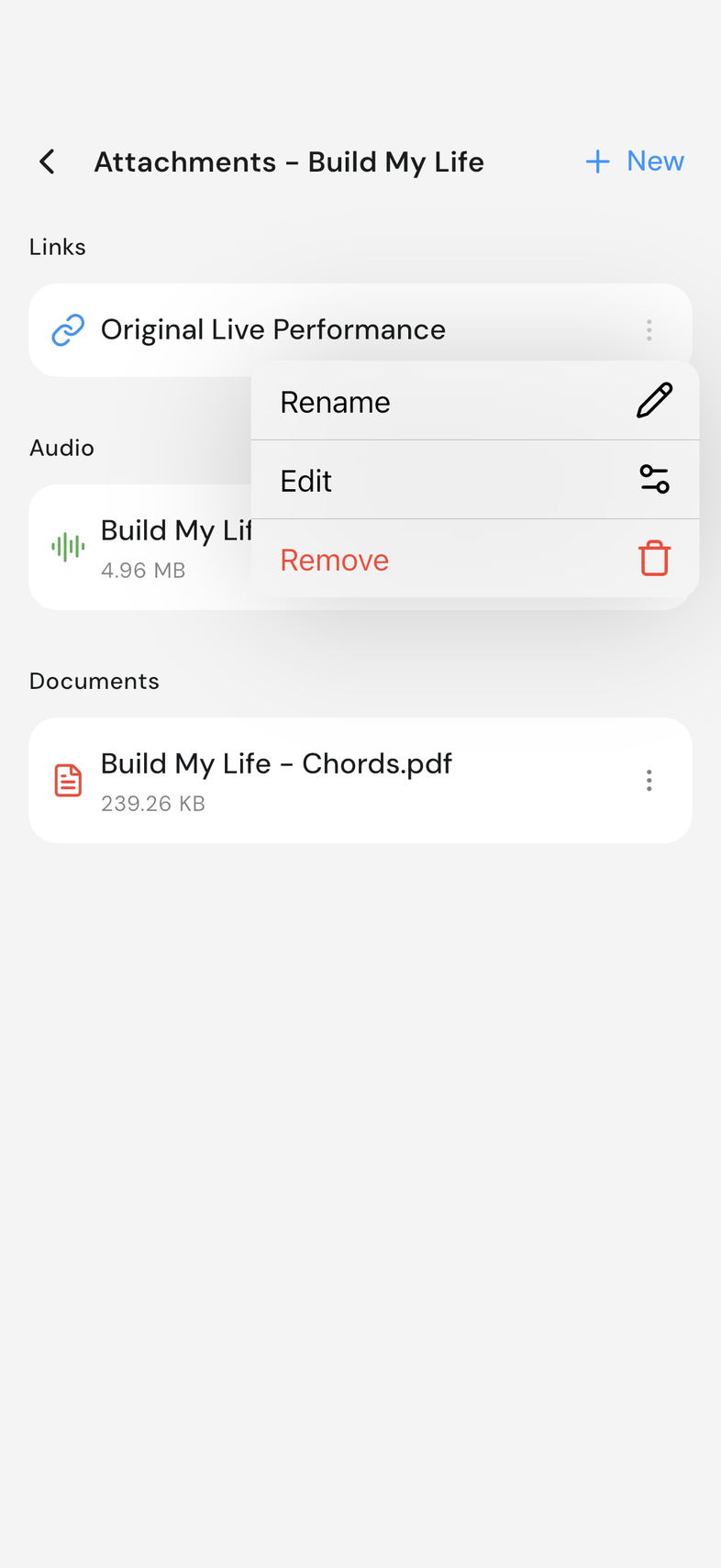
- Open a file's menu and tap Remove.
- To clear out several at once, long-press one file, tap the others, then tap Delete.
Good to know
- Other shows only when something is stored that falls into neither.
- Song files belong to the whole team. Check before removing someone else's.
- Removing a file takes it off the song for everyone.
- Chat files are the photos and files sent in chats. An Owner or Admin can delete an event chat once its event has passed. Delete an event chat
- Need the space rather than a clear-out? Only the Owner can move to a bigger plan. Upgrade your plan