Create groups and positions
A group is a part of your team, such as Band, Vocals or Tech. It holds the positions you schedule people into: Drums, Bass, Lead Vocal, Sound.
Who can do this: Owner, Admin, Editor. What the roles mean Online only: You need internet for this. Why buttons disappear offline
Steps
-
Open Team details by tapping your team's card on Home.
-
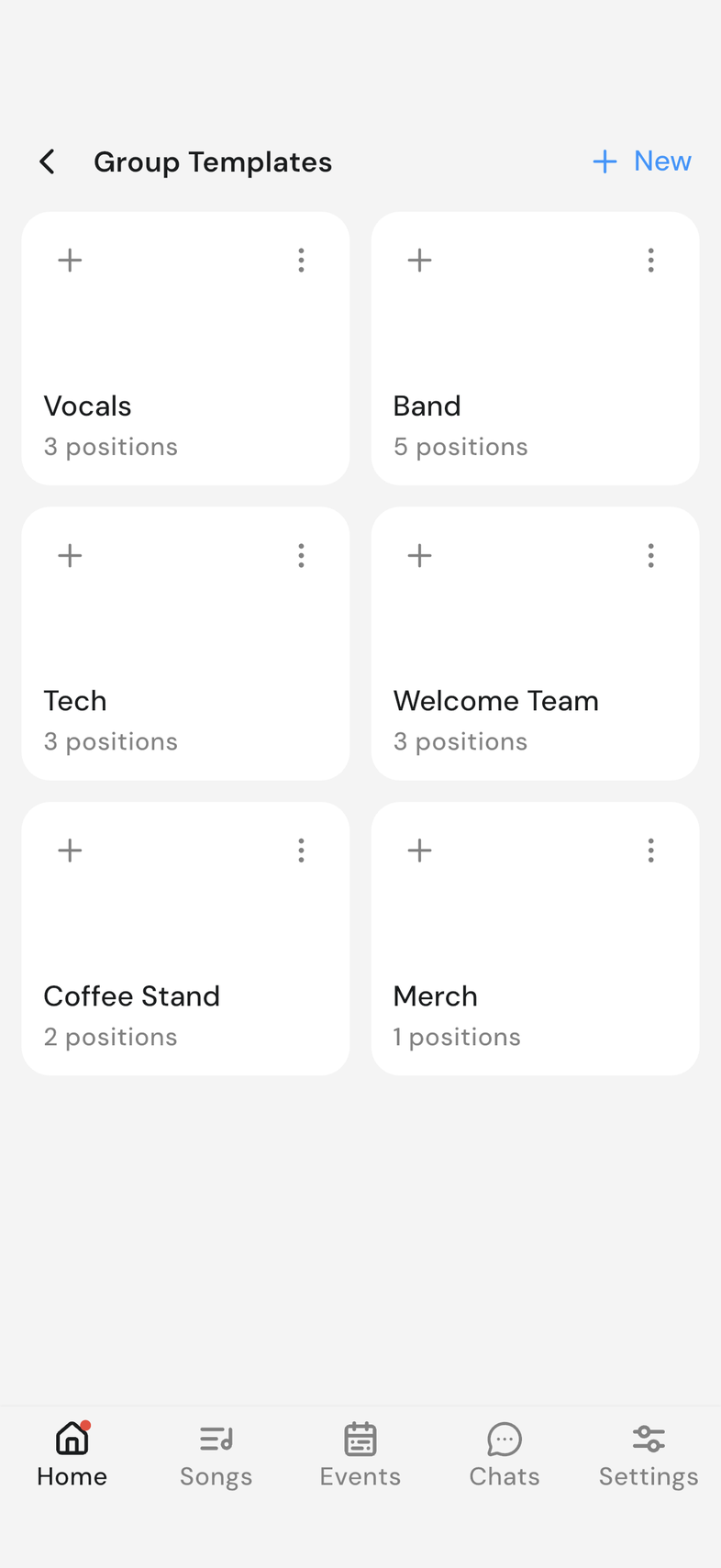
Under Manage, tap Group Templates.
-
Tap + at the top right.
-
Type a Group Name, such as Vocals, then tap Create.
-
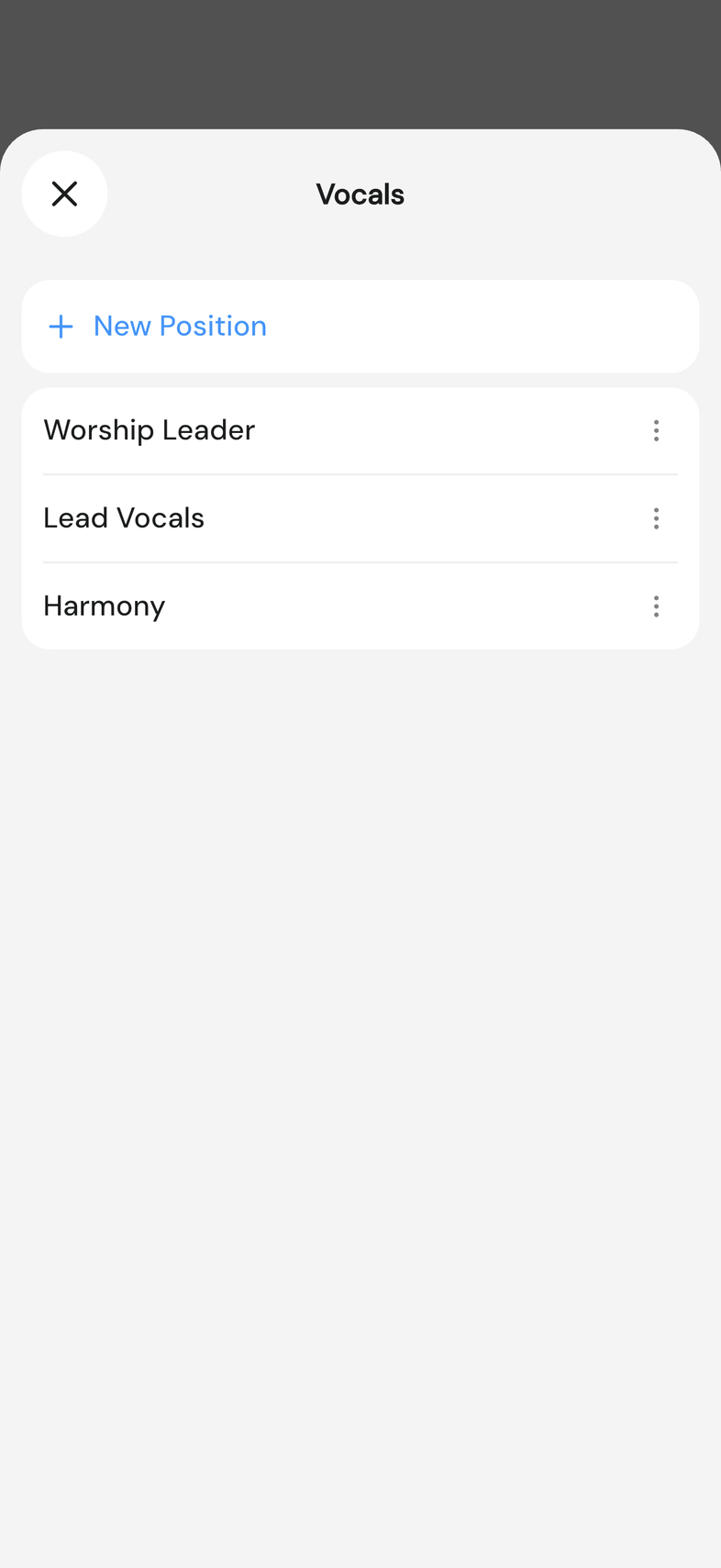
Tap the group's card. Its positions open.
-
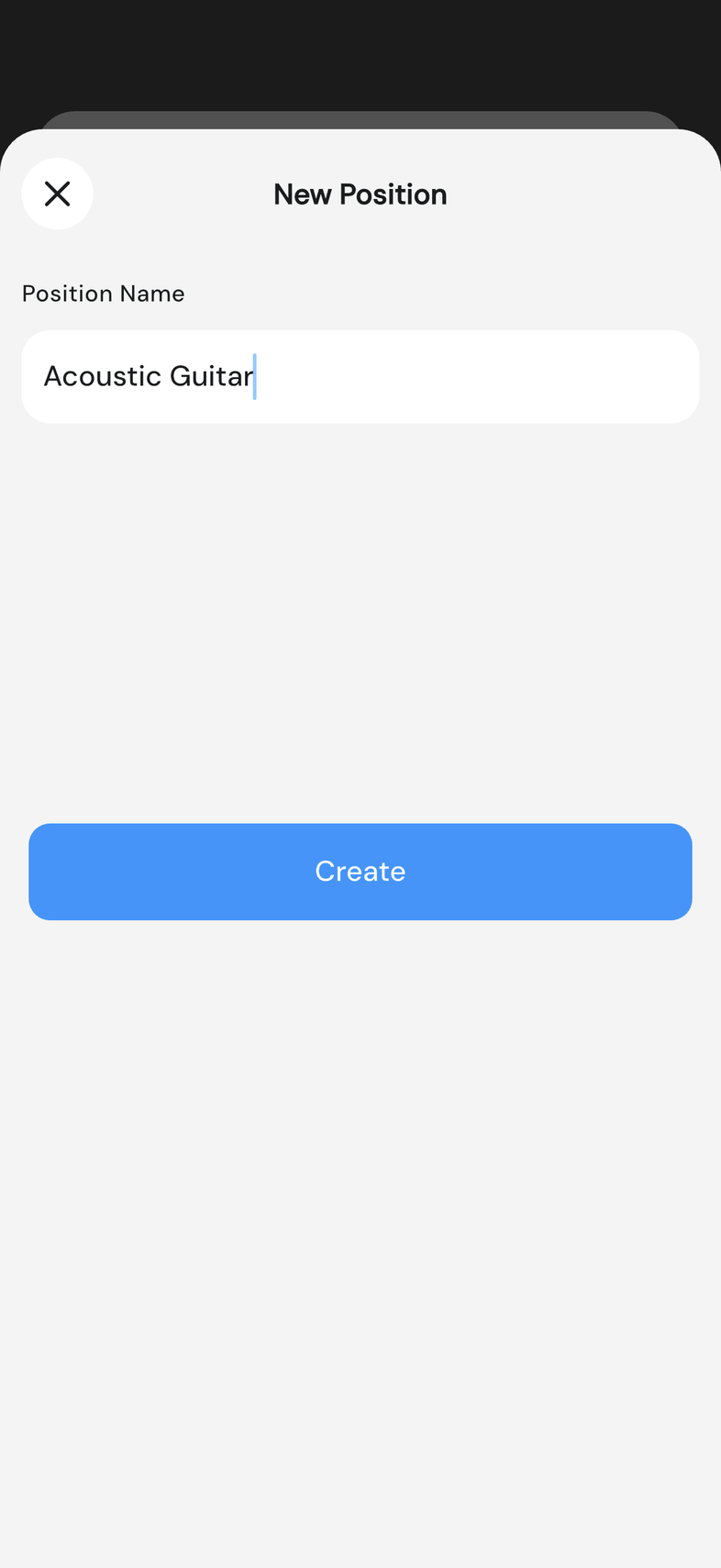
Tap New Position, type a Position Name such as Lead Vocal, then tap Create.
-
Repeat step 6 for every position the group needs.
Good to know
- Each group card shows how many positions it holds.
- To rename or delete a group, use the menu on its card.
- Groups and positions belong to the team, not to one event, so you set them up once and change them as your team grows.
- Creating a position doesn't schedule anyone. Invite someone to a position