Invite people to your team
Two ways to bring someone onto your team: share a link or code that anyone can use, or invite one person directly by email or username and pick their role up front.
Who can do this: Owner, Admin. What the roles mean Online only: Inviting, resending and joining all need internet. Why buttons disappear offline
Steps
Invite with a link or team code
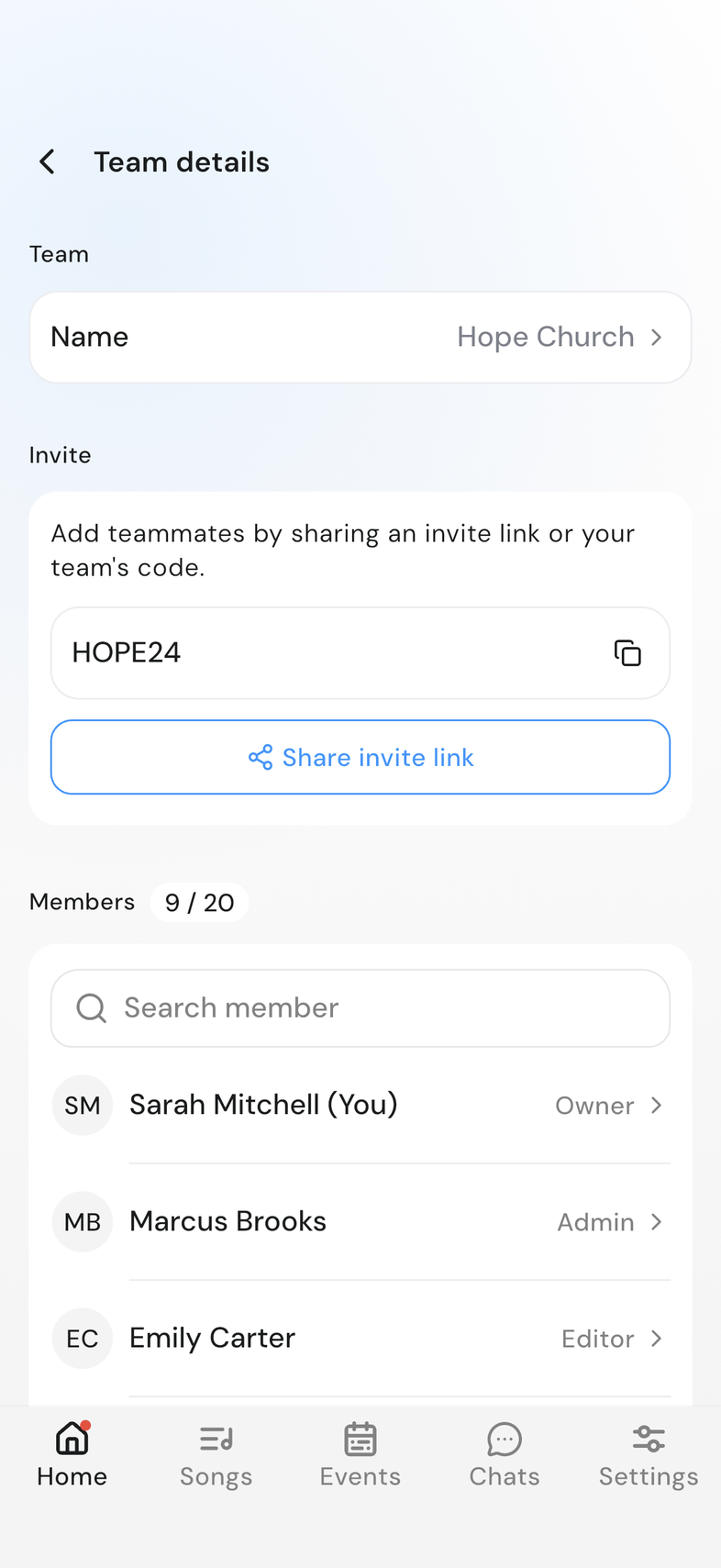
You can invite your whole team at once using a shareable invite link or your team code.
- Open Team details.
- Find the Invite card.
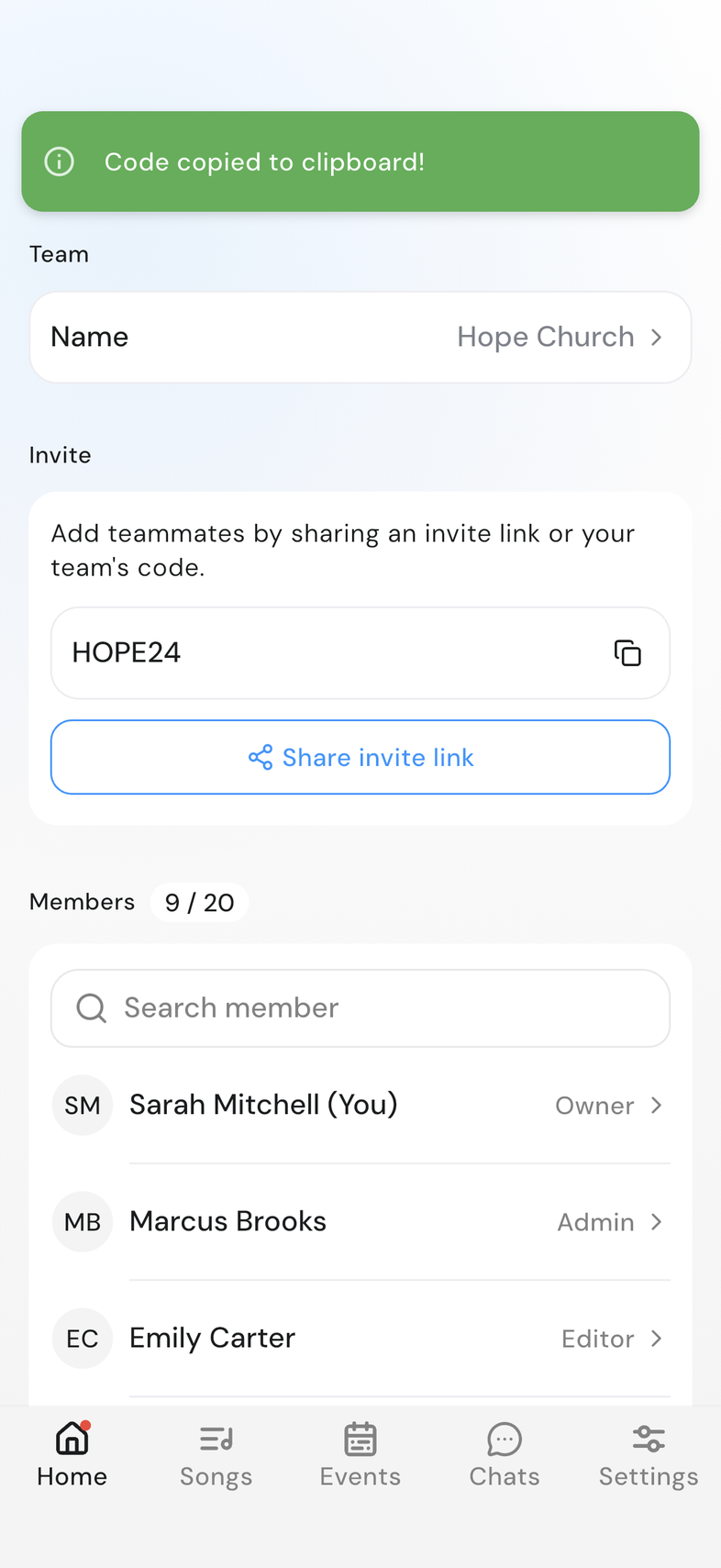
- To share your team code, tap the code or the copy icon next to it.
- To share an invite link, tap Share invite link.
- On a phone or tablet, choose where you want to send the link. On web, the link is copied automatically. Paste it wherever you want to share it.
Invite by email or username
Invite one person directly and pick the role they'll hold before you send it.
All members appears on Team details once your team has more than five people. Until then, invite with the link above instead.
-
Open Team details and tap View all members.
-
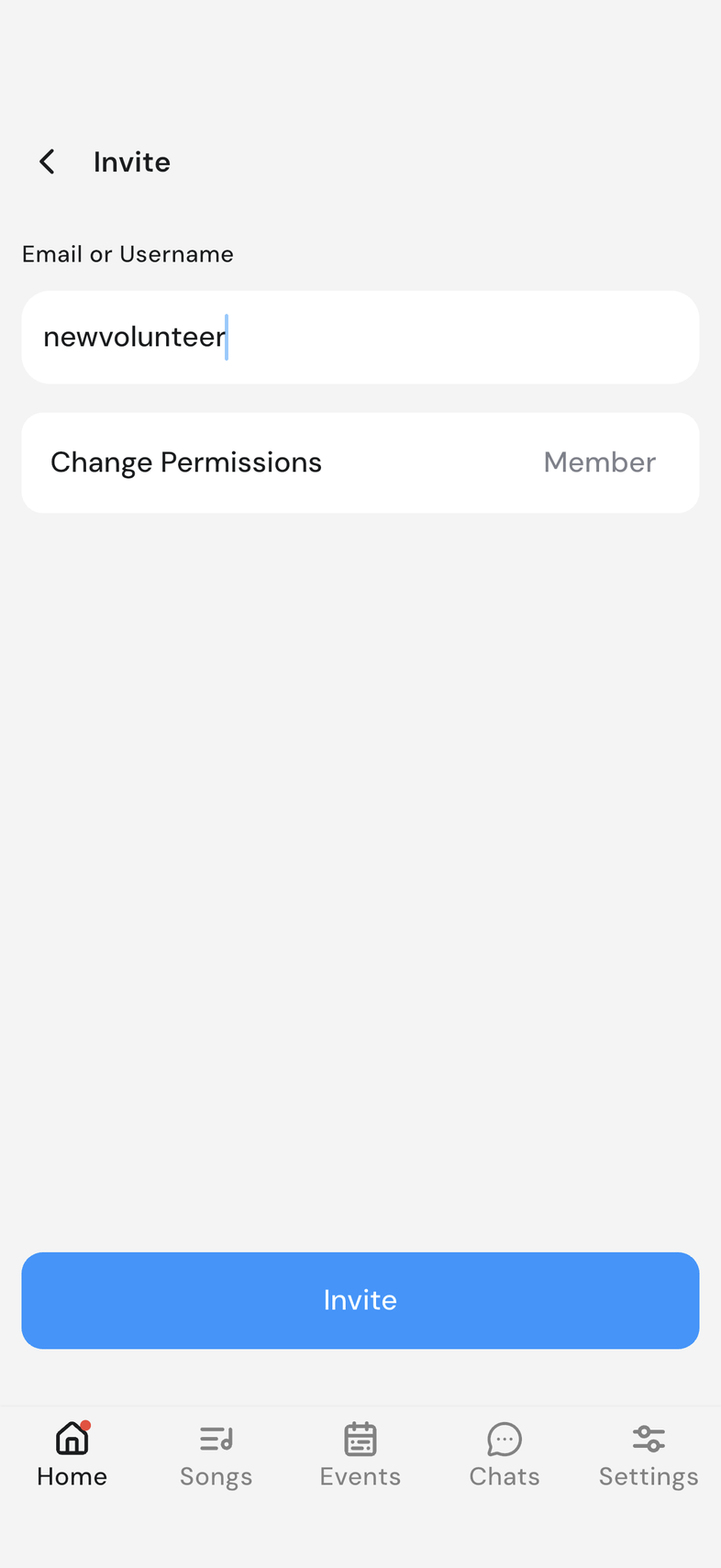
Tap + at the top right. The Invite screen opens.
-
Under Email or Username, type their email address or their OnStage username.
-
Tap Change Permissions, choose a role, then tap Save.
-
Tap Invite.
Choose the right role
Pick by the job the person actually does on your team, not by how long they've been around:
- Member: musicians, singers, and anyone who reads the setlist and answers invitations. Most of your team.
- Scheduler: whoever plans the events and fills the positions.
- Editor: whoever looks after the song library, chord charts and templates.
- Admin: the one or two people who run the team alongside you.
What each one can actually do is listed in What each role can do.
Resend an invitation
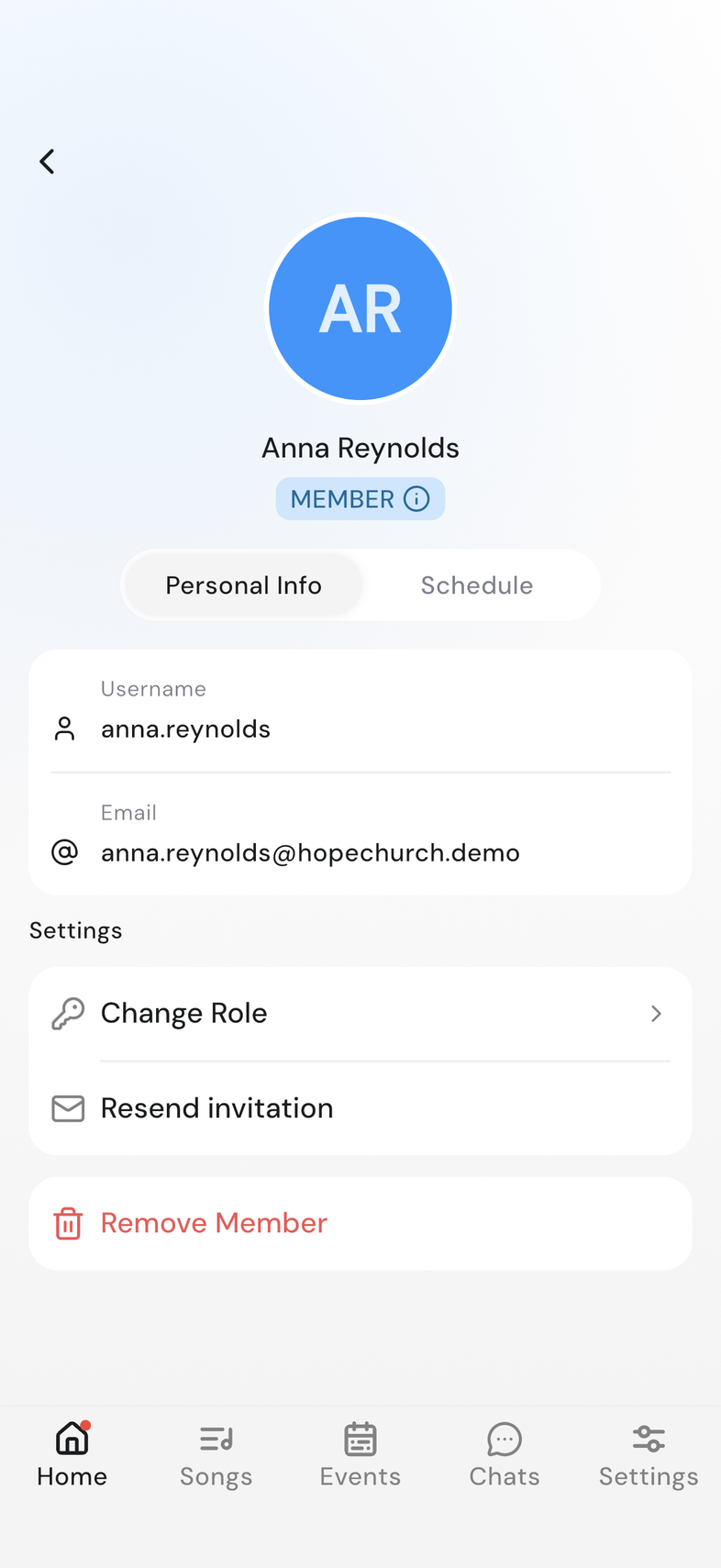
If someone hasn't accepted yet, send the same invitation again from their profile.
- Open Team details.
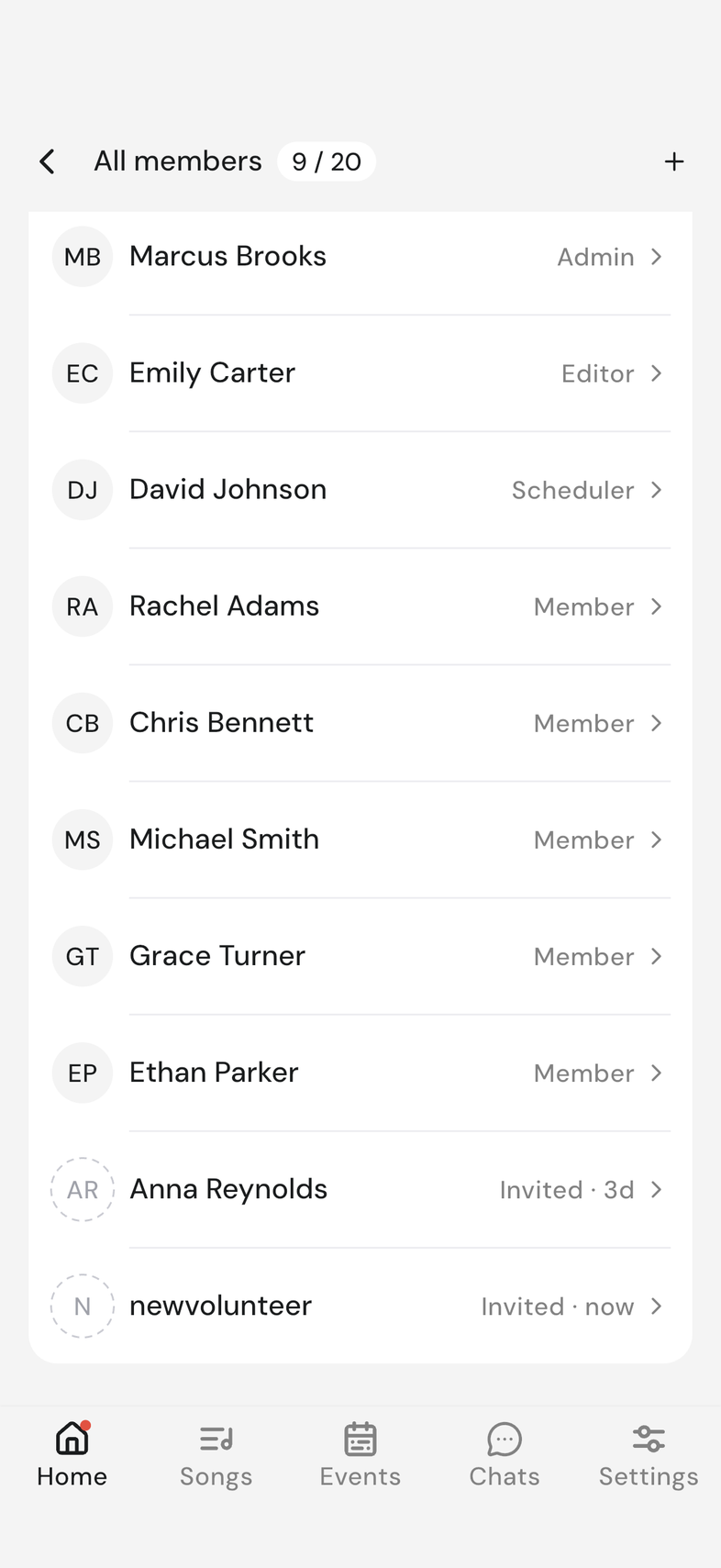
- In Members, find the person whose row reads Invited and tap it.
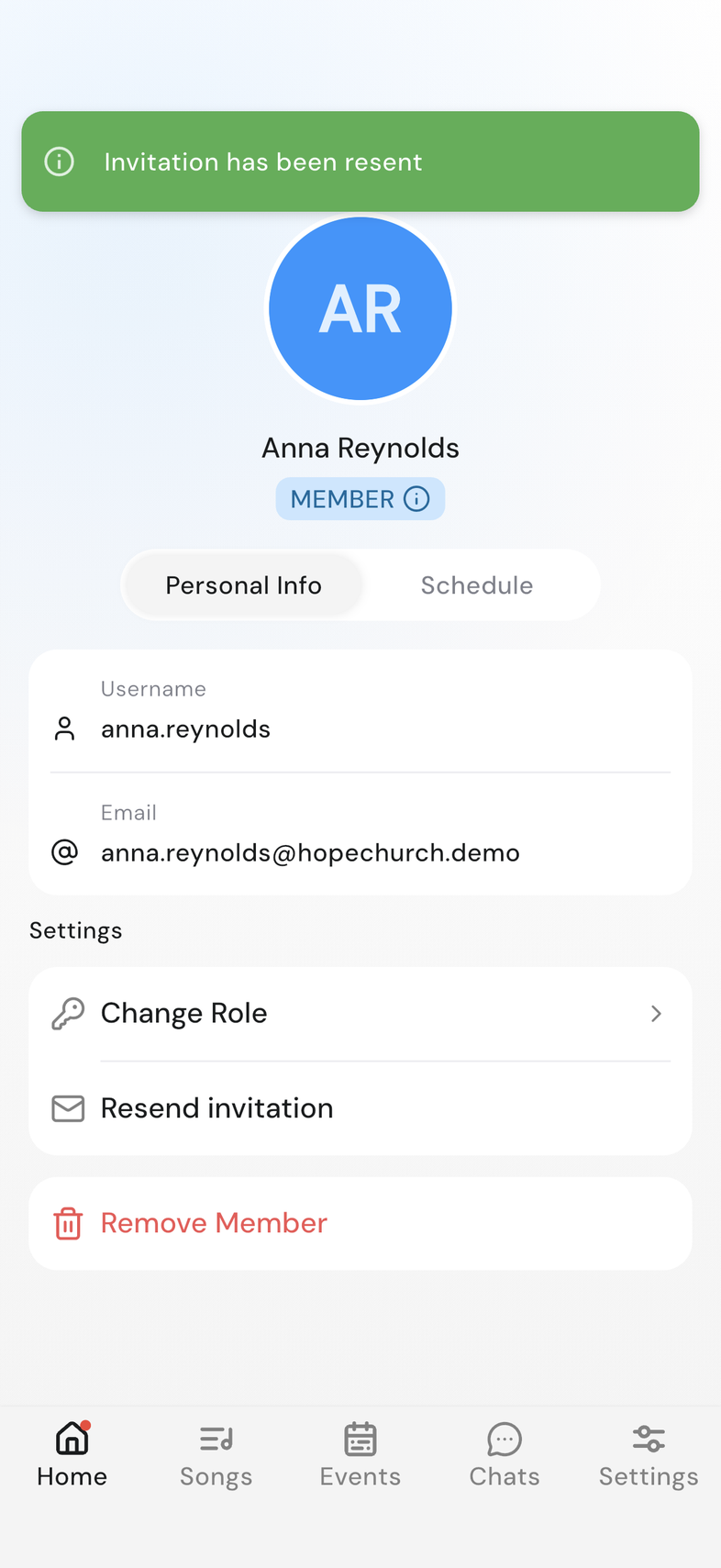
- Under Settings, tap Resend invitation.
- Invitation has been resent appears at the top of the screen.
Why you see the "invite your teammates" banner
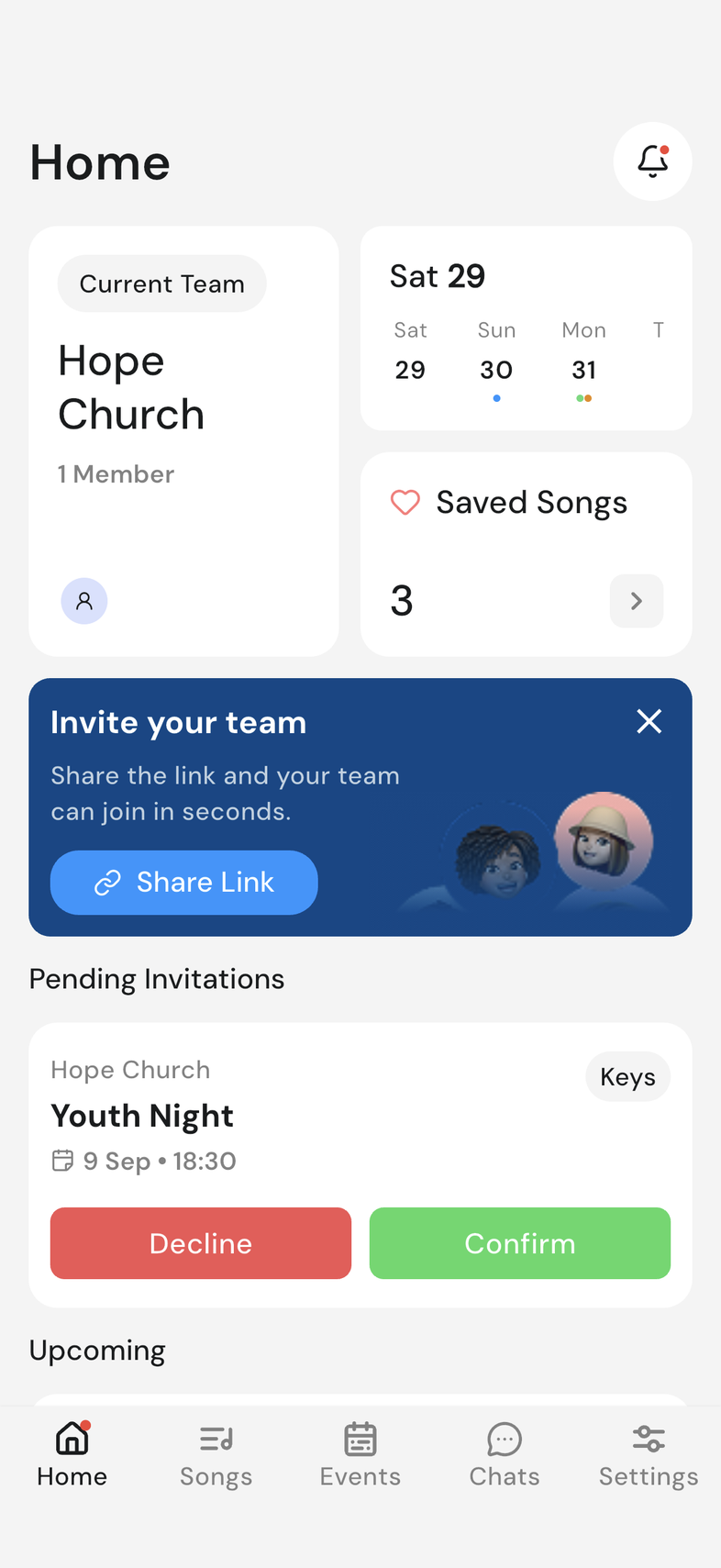
Invite your team sits at the top of Home while you're the only person on the team.
The banner appears when your team has one member (you) and nobody has been invited yet. Tap Share Link to send your team's invite link, or the X to hide the banner.
It also goes on its own as soon as a second person joins, or as soon as an invitation is waiting to be accepted.
Good to know
- Someone who taps the link joins when they sign in. Join a team with an invite code or link
- Someone who has the code instead types it on the Join team step during setup.
- The Invite card is only on the page for the Owner and Admins.
- To set someone's role yourself, invite them by email or username instead, as described above.
- They appear in the member list as Invited until they accept.
- User with email or username not found means nothing matches what you typed. Check the spelling, or send them an invite link instead.
- Team member already exists means they're already on your team, or already invited.
- You don't have permission to perform this action means your role doesn't allow inviting. Why can't I do this? Start here
- Resend invitation is only on the page while the invitation is still pending. Once they accept, it's gone.
- Pending rows sit at the bottom of the member list.
- If the invitation keeps not arriving, send them your invite link instead.
- The banner belongs to one team. In another team where you're on your own, it appears there too.
- Share Link sends the same link as Share invite link above.
- Hiding the banner changes nothing else. The Invite card on Team details always holds the link and your team code.