Plan your first event with the setup guide
When you create a new team, OnStage may walk you through your first event straight away. The guide uses the real event screens, so what you build is your team's first event, not a sample.
Who can do this: Owner. What the roles mean Where: iPhone, iPad and Android only. OnStage on phone, tablet and web Online only: You need internet for this. Why buttons disappear offline

Steps
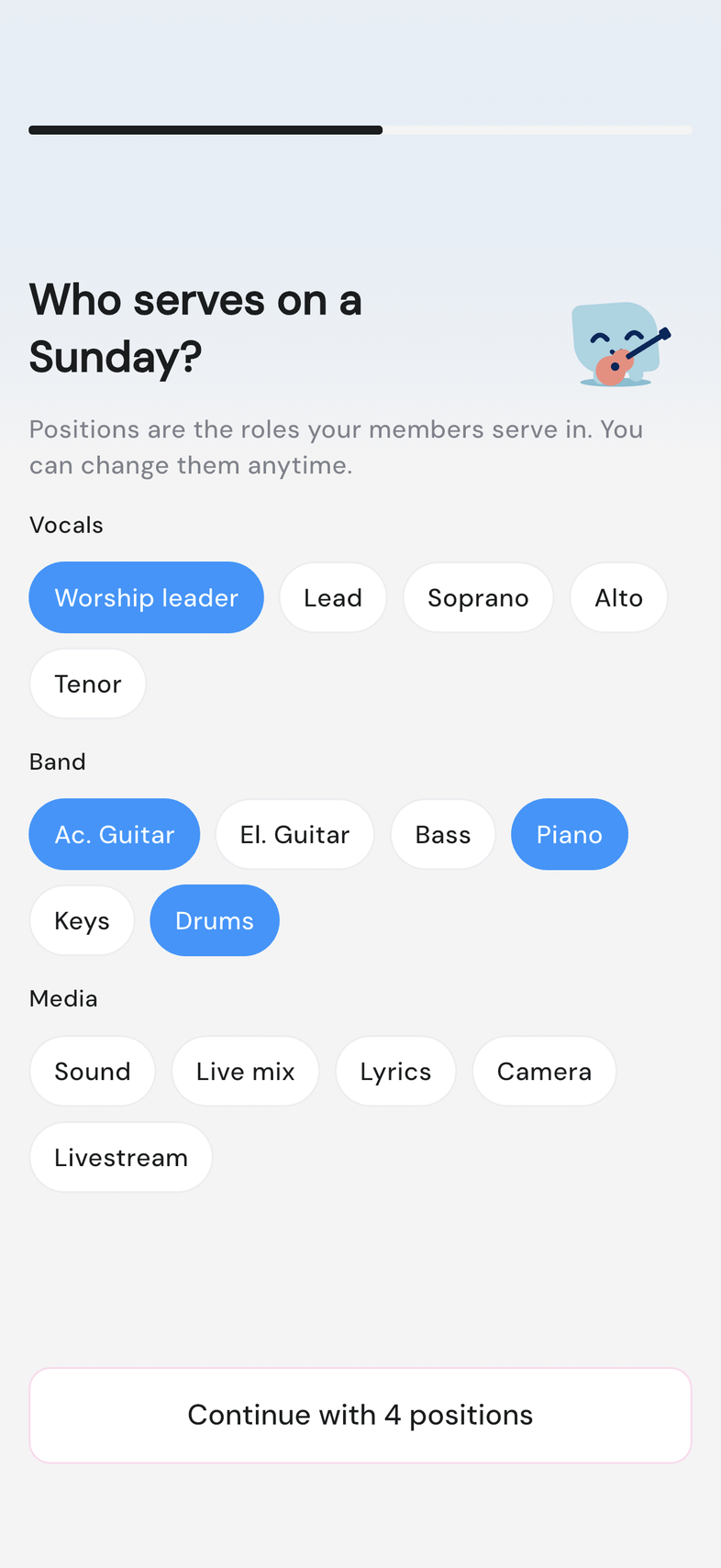
- On Who serves on a Sunday?, tap the positions your team uses under Vocals, Band and Media, then tap Continue with and the number you picked.
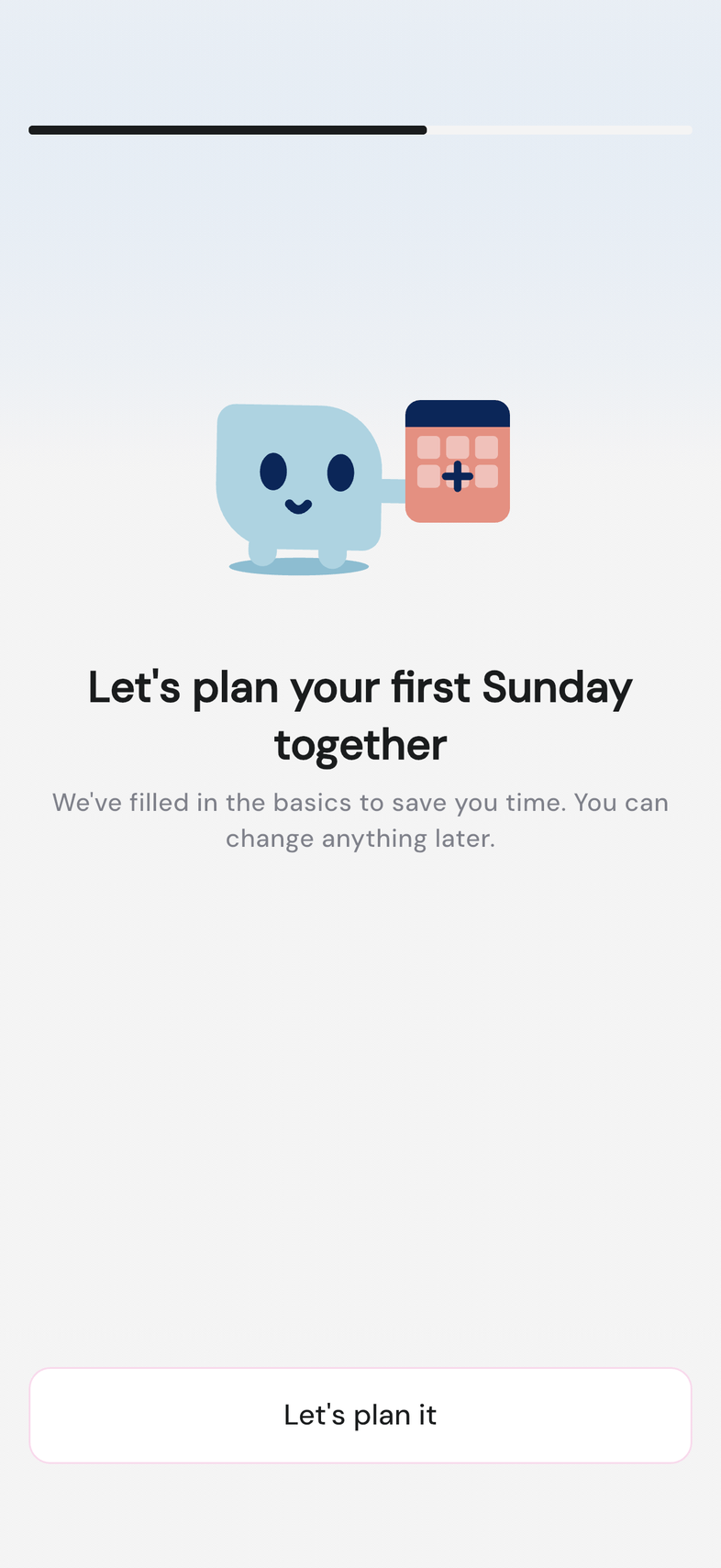
- On Let's plan your first Sunday together, tap Let's plan it. The event starts as Sunday service, next Sunday at 10:00.
- Follow the hints. Put yourself in asks you to tap a position and pick yourself, then save the event.
- Open the setlist, tap Add Songs or Moments, choose Add songs and pick a couple of songs.
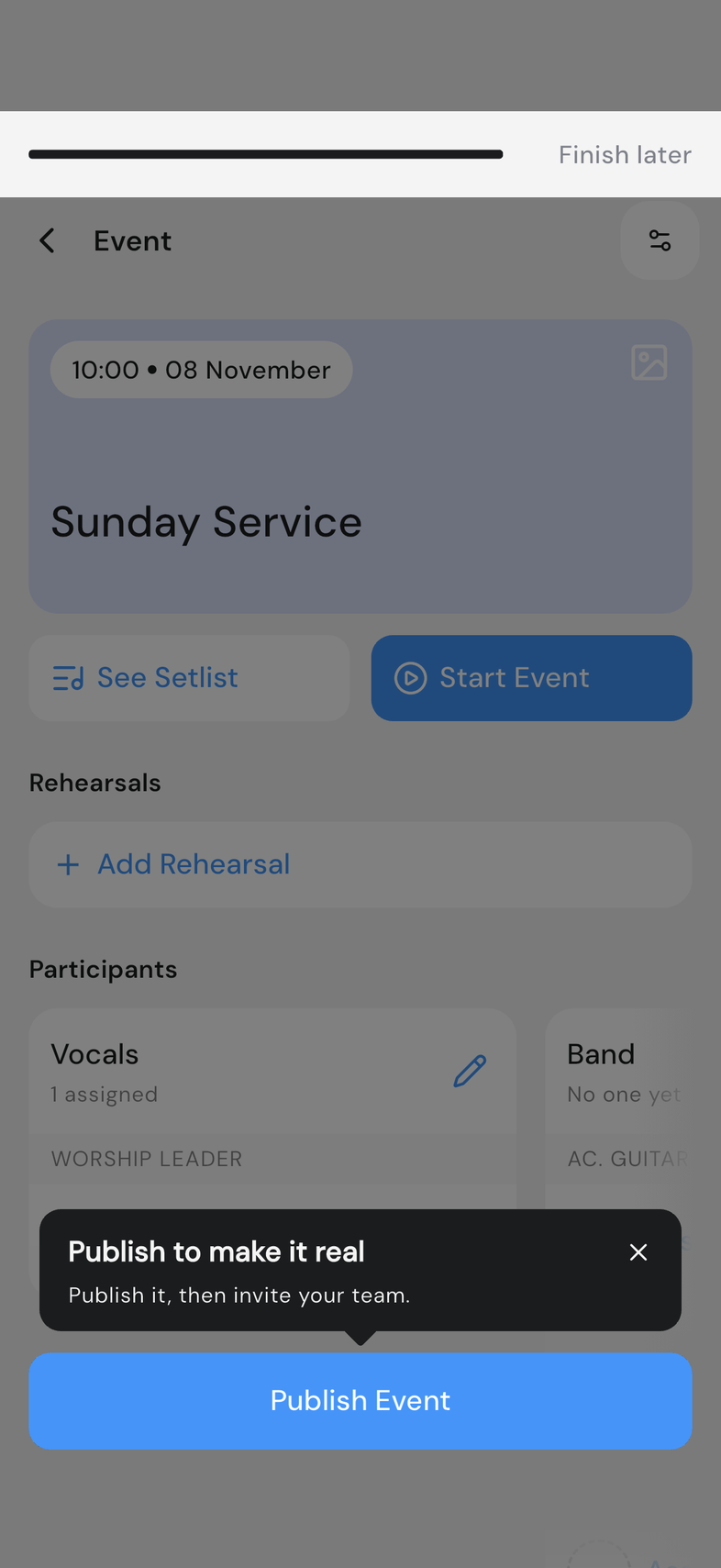
- Go back to the event. When Publish to make it real appears, tap Publish Event.
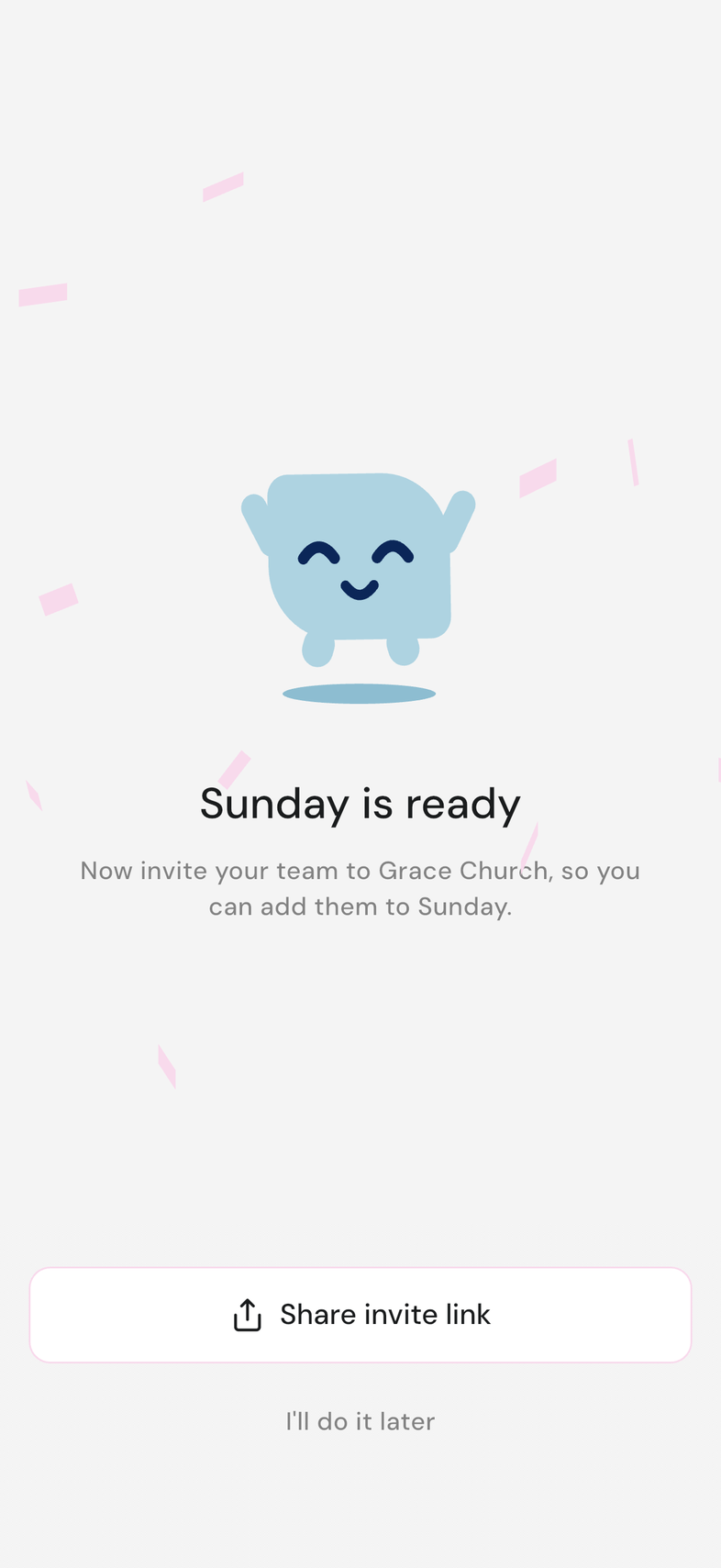
- On Sunday is ready, tap Share invite link to bring your team in, or I'll do it later.
Finish later
Tap Finish later in the strip at the top of the screen at any point. The event is kept as a draft and the guide stops.
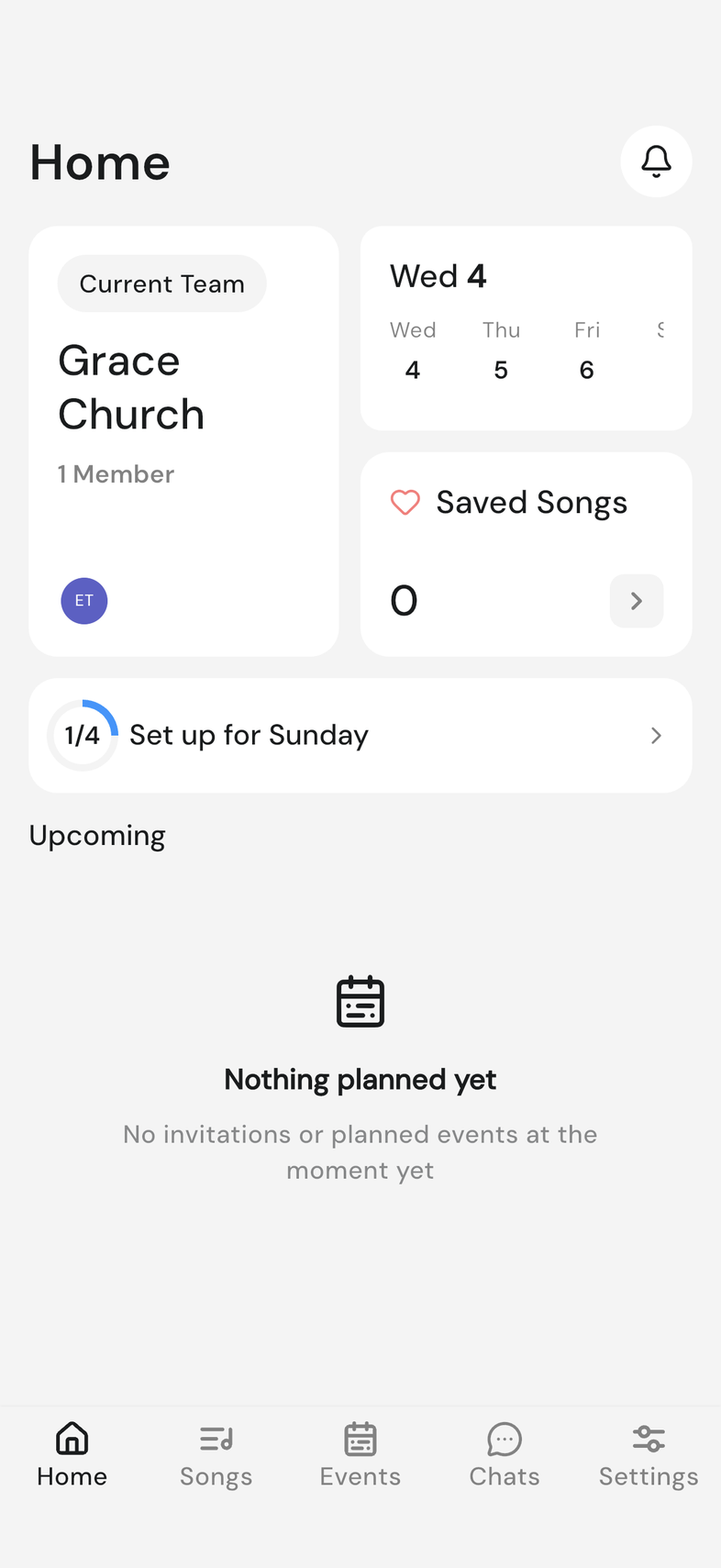
A Set up for Sunday card then sits on Home, showing how many of its steps are done. Tap it to see what's left, and tap a step to pick it up where you stopped.
Good to know
- Not every new team gets the guide. Others go straight to sharing an invite link, and the steps in Set up your team and plan your first week cover the same ground.
- The positions you pick become your team's groups. You can rename them or add more later.
- Your team doesn't see the event until it's published, and members see it once they join.
- The Set up for Sunday card goes away when every step is done, when you close it, or two weeks after you created the team.