Sign in and set up your account
OnStage uses your Apple or Google account. There is no separate password to create or remember.
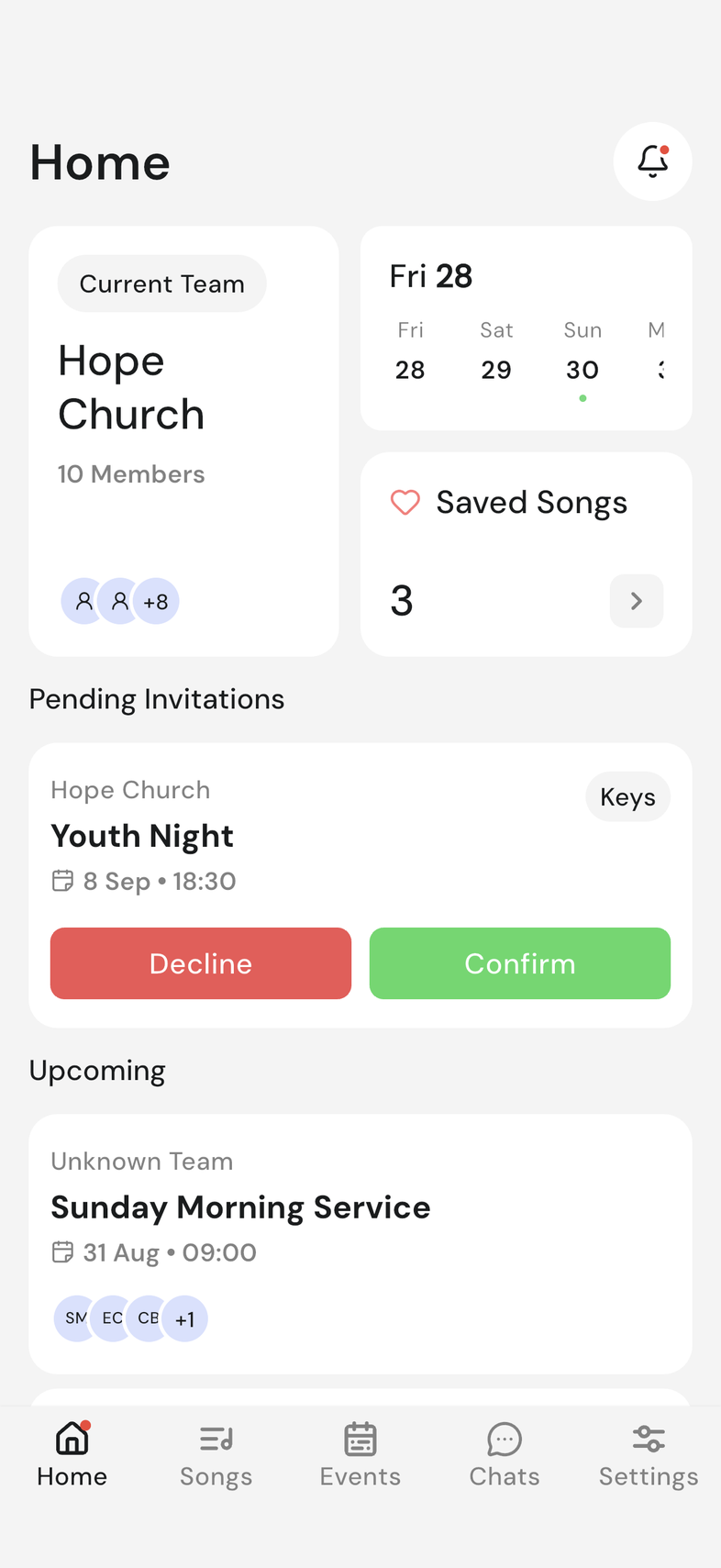
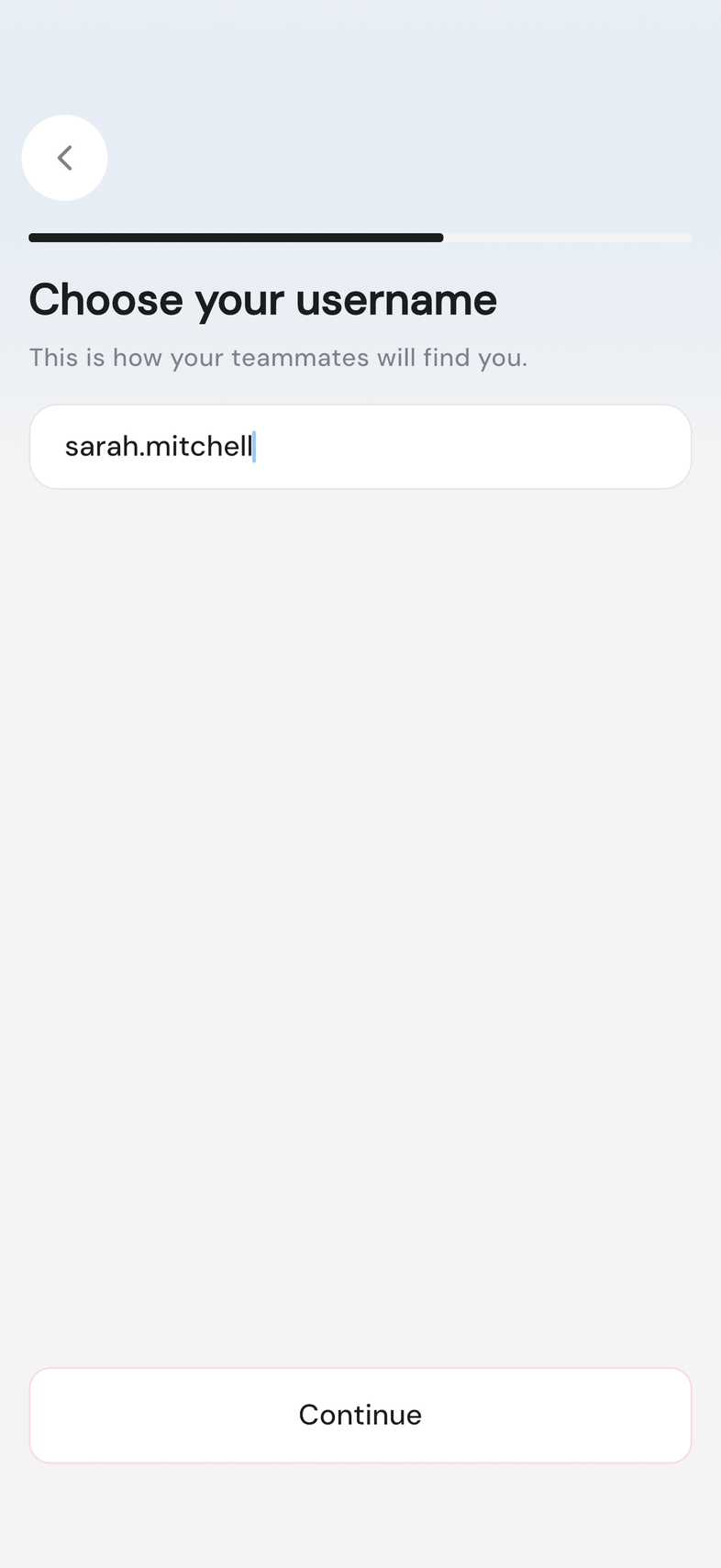
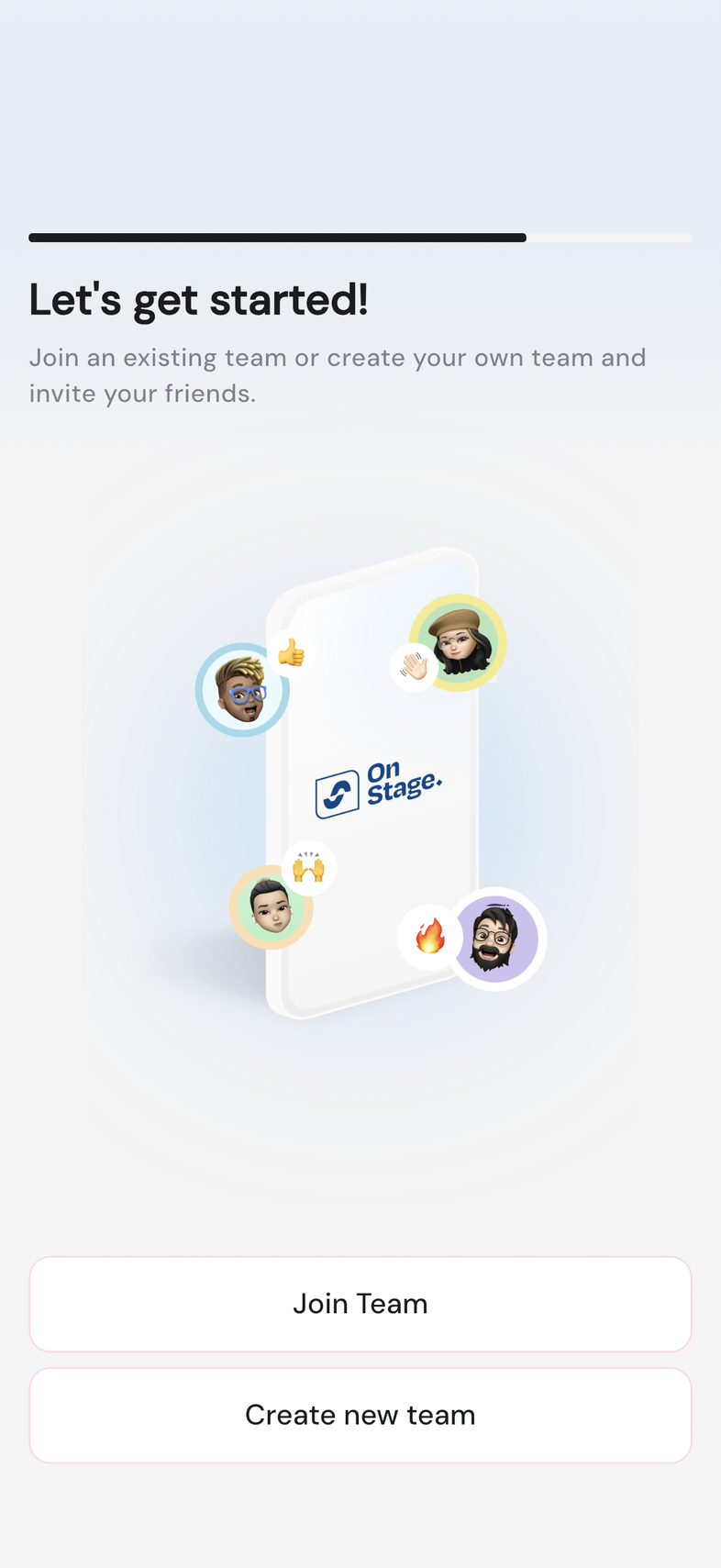
Steps
- Open OnStage. The sign-in screen appears.
- Tap Continue with Apple or Continue with Google.
- Confirm with your device when it asks.
- The first time, five short intro screens follow. Tap Next to move through them, or Skip to go straight to the end.
- On Choose your username, type a username and tap Continue.
- Choose Join Team or Create new team to finish setup.
Join a team
There are two ways in: tap the invite link your team owner sent you, or type your team's code during setup.
- Tap the invite link you were sent, then sign in. Setup ends on a Welcome to [your team] screen. Tap Let's go! and you're in.
- No link? On the Let's get started! screen, tap Join Team.
- Type the invite code your team owner gave you.
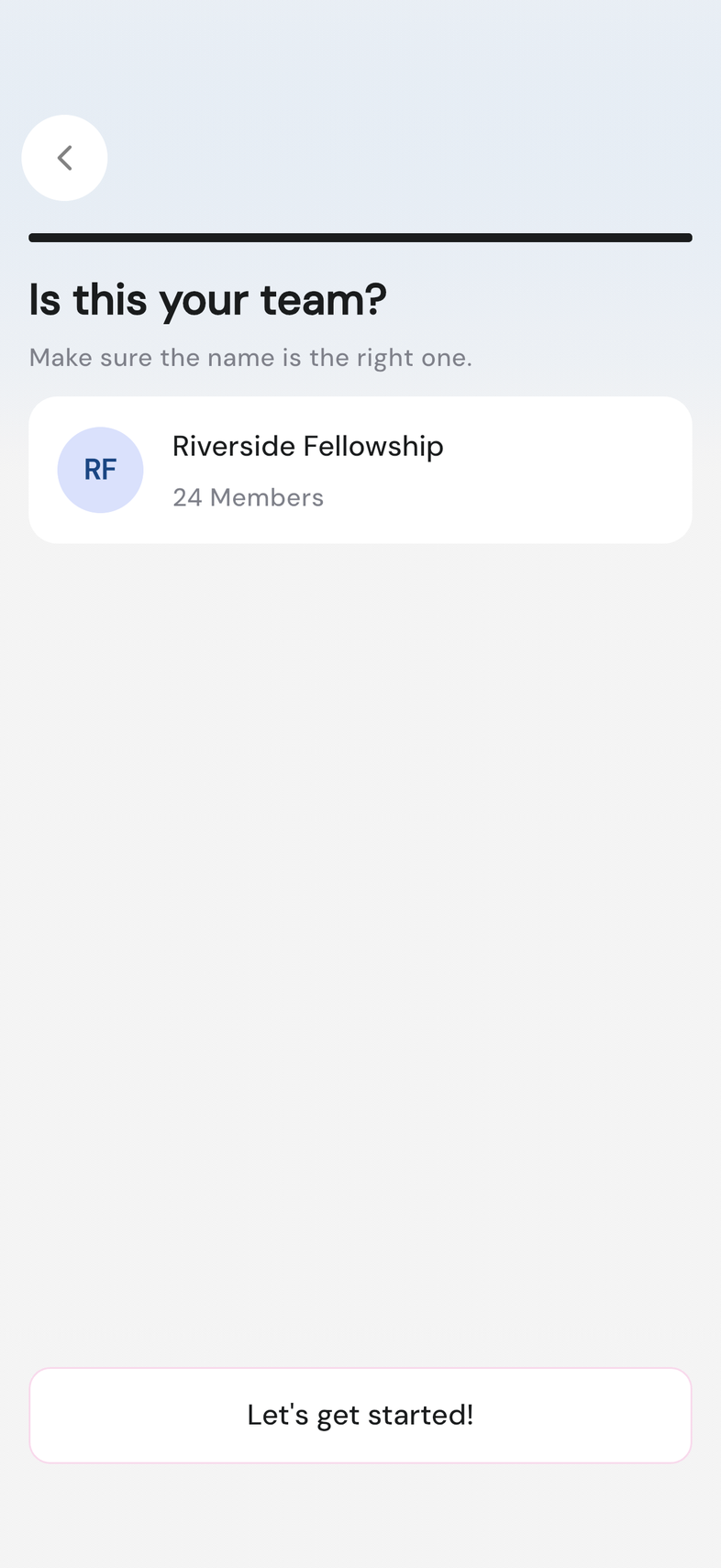
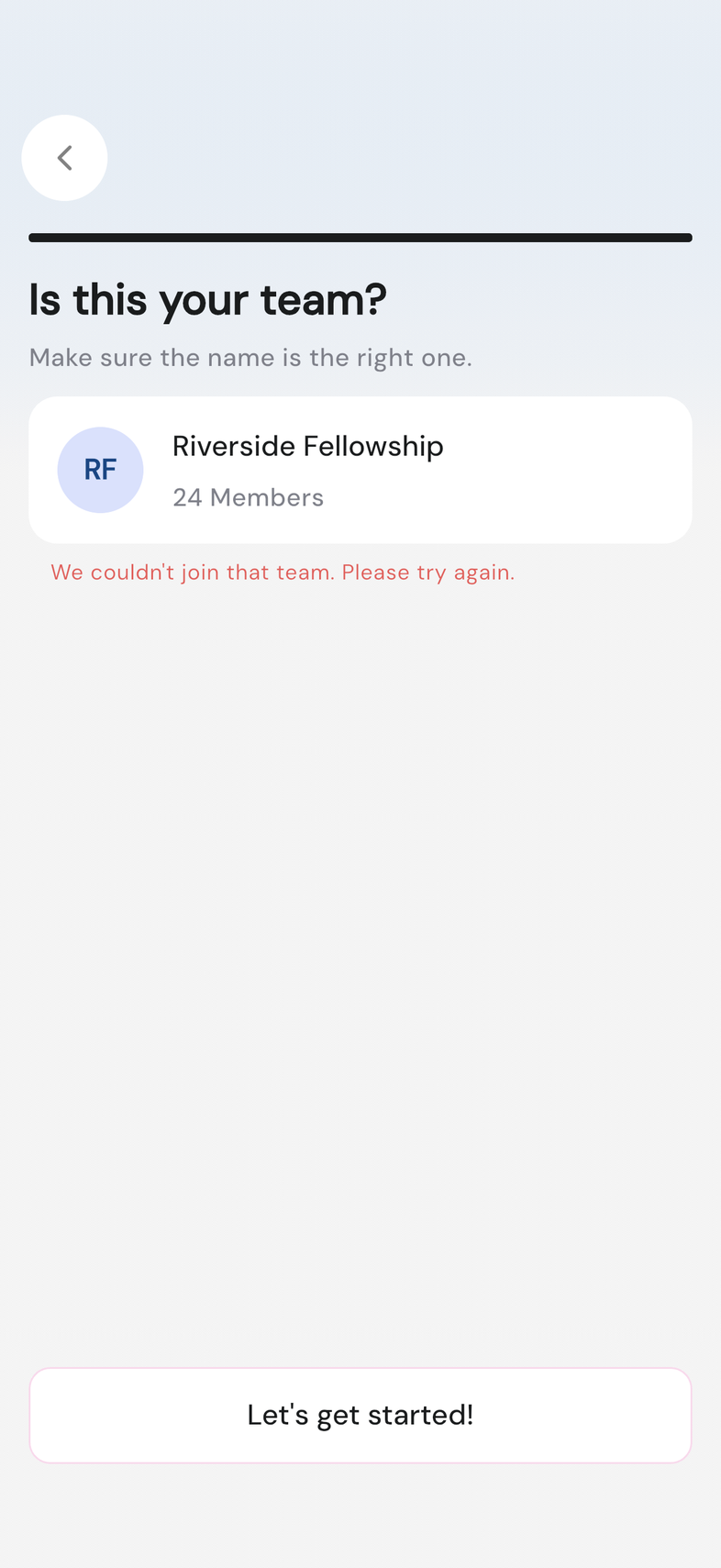
- Check the team name and the member count on Is this your team?
- Tap Let's get started!
Create a new team
If nobody sent you an invite code, make your own team during setup. You become its Owner.
- On the Let's get started! screen, tap Create new team.
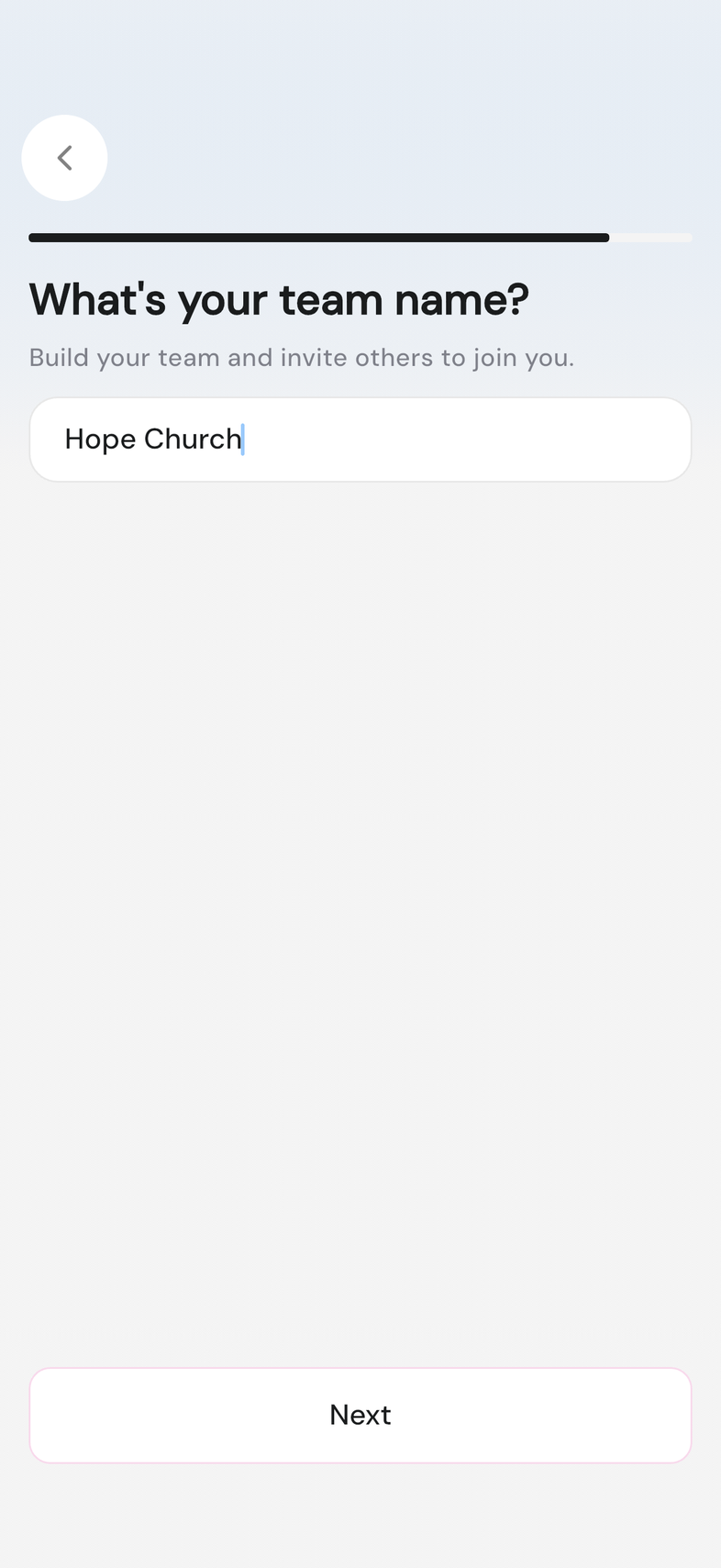
- Under What's your team name?, type a name in Team's name.
- Tap Next.
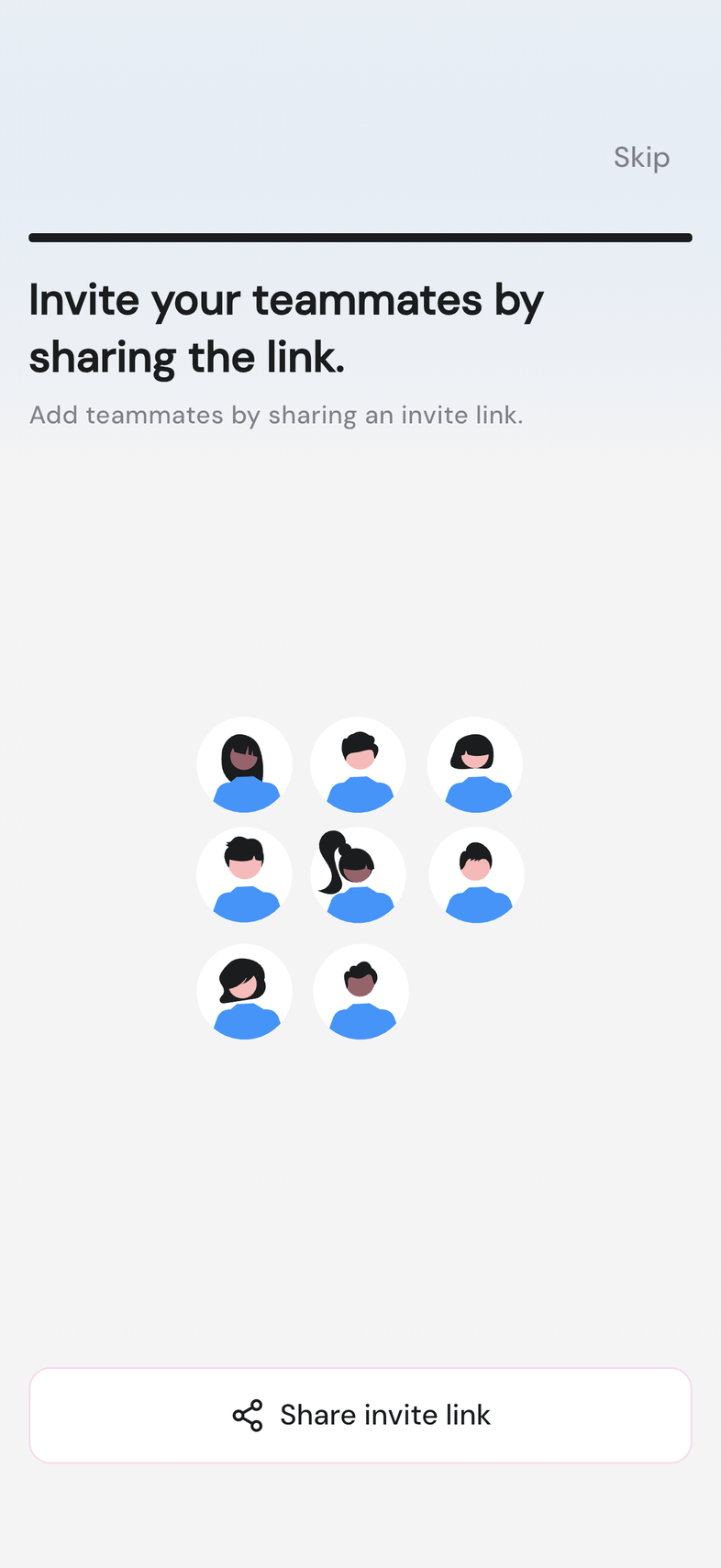
- Tap Share invite link to bring people in now, or tap Skip to do it later.
Finishing touches
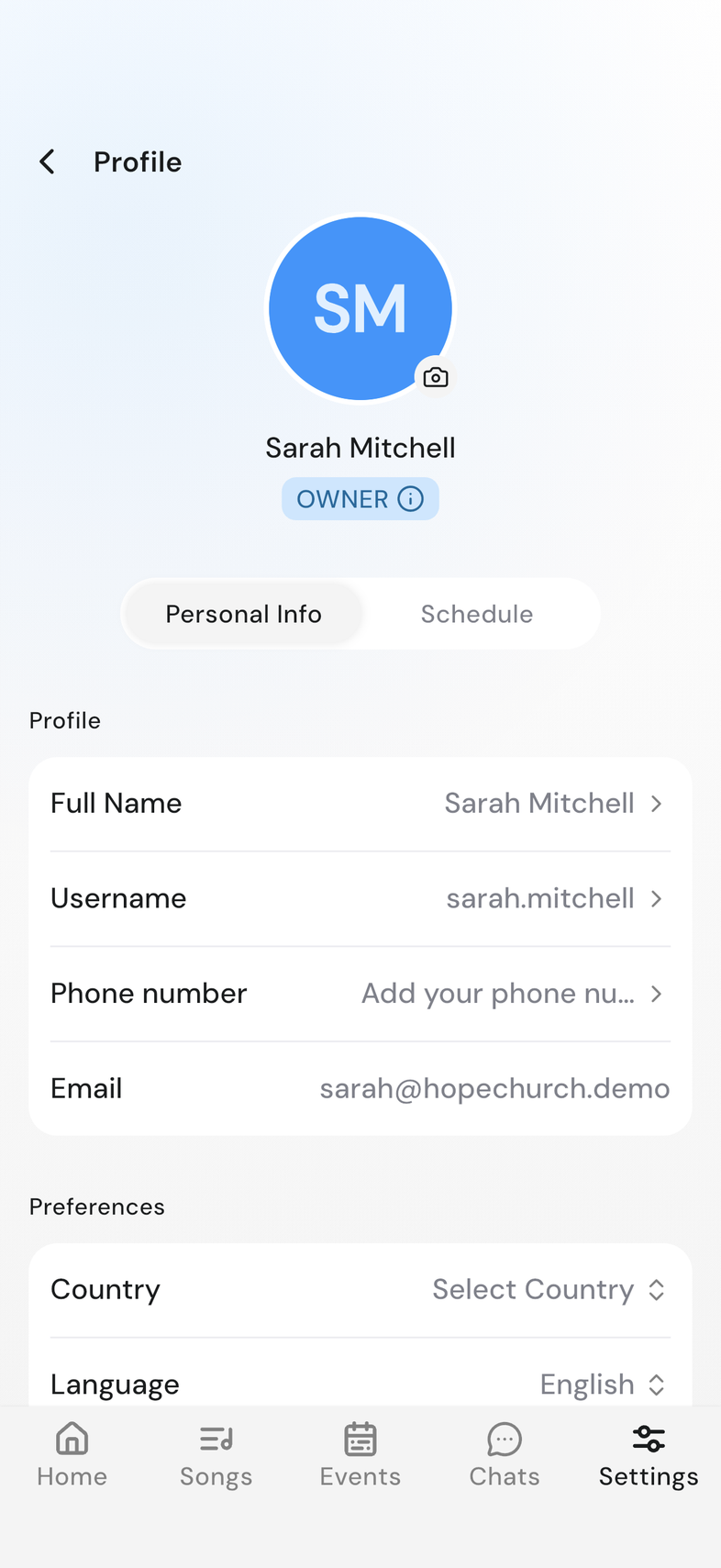
Add your full name and a photo from your profile whenever you're ready. They show up next to you on events, in chat, and in your team's member list.
Good to know
- Use the same Apple or Google account each time. That is how OnStage knows which teams you belong to.
- Skip jumps past the intro screens. The username step can't be skipped, and it has to be one nobody else has taken.
- Username can't contain spaces appears if you type a space. Run the words together or use a dash.
- If someone sent you an invite link, tap the link first and sign in from there. Your invitation is picked up as part of setup.
- No team matches that code means the code is wrong or has changed. Ask your team owner for it again.
- Already part of [team] means you're in that team already. Switch to it instead of joining again.
- This team can't take new members right now means the team can't add you at the moment. Ask your team owner.
- You can belong to several teams at once, but the team you create makes you its Owner, and you can only own one.
- The team name is what everyone sees, and you can rename it later. Nothing else is set up yet: groups, positions and songs come next.
- After setup you land on Home.