Your profile: name, photo, language and country
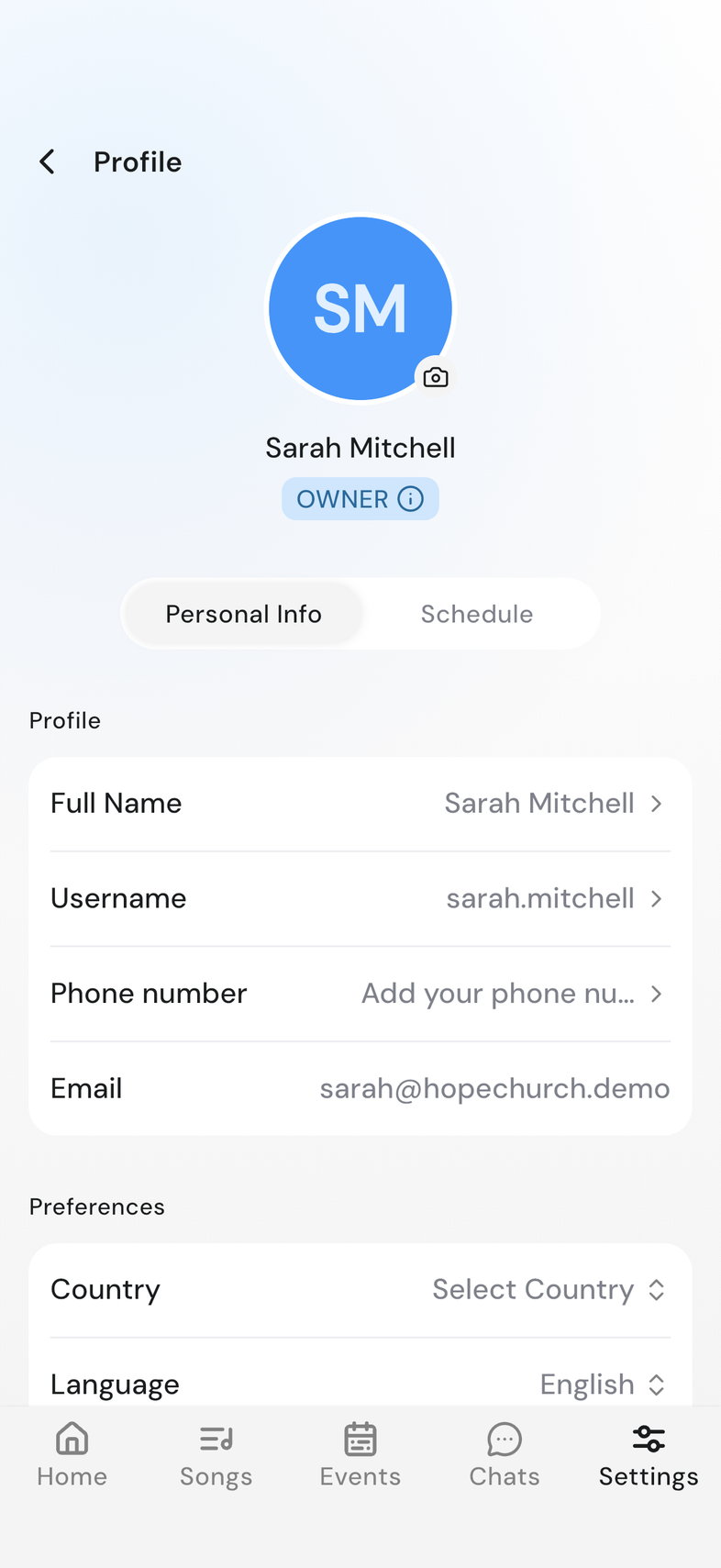
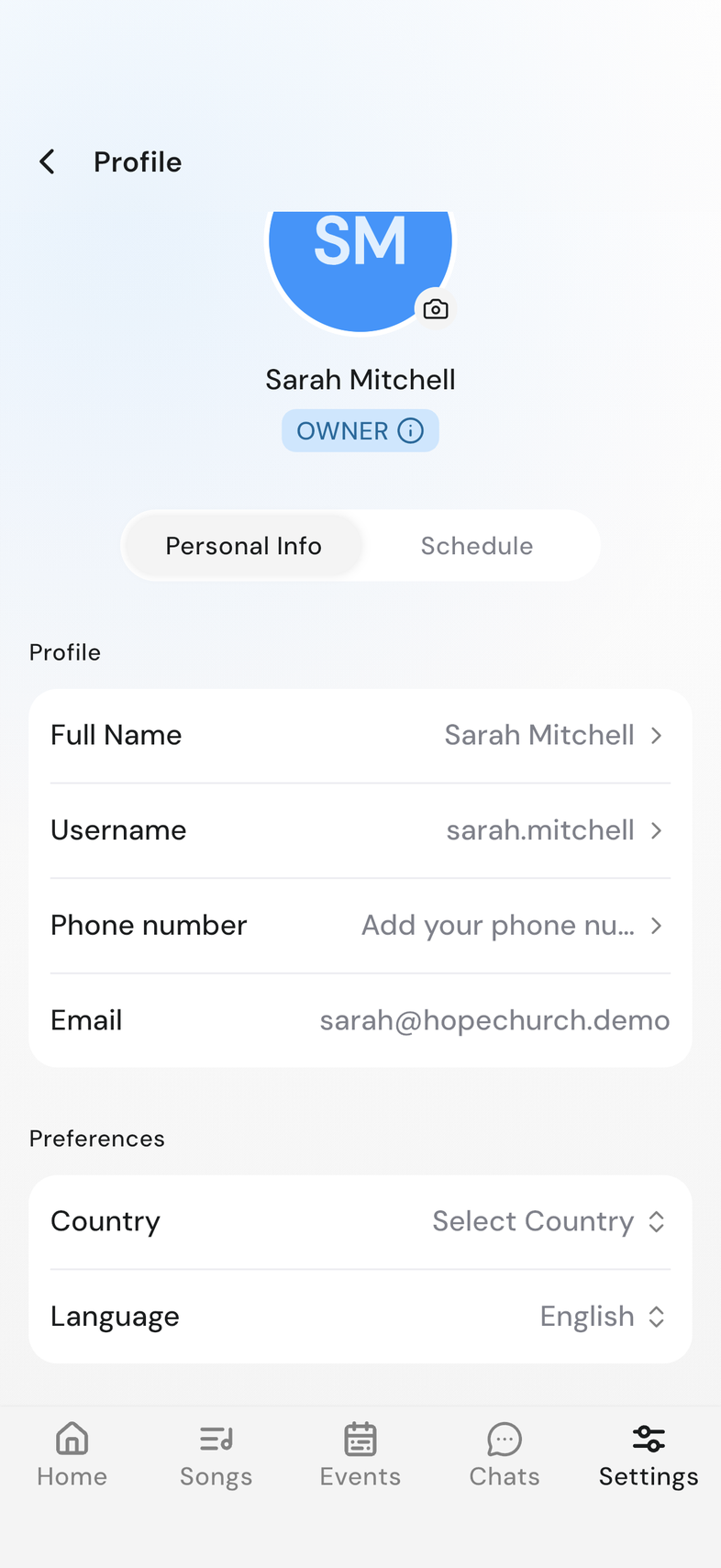
Your name and photo are what your team sees next to you in an event, in the schedule, and in chat. Your language and country sit in the same Profile screen, under Preferences.
Steps
-
Open Settings and tap Profile, under your name.
-
Tap the photo at the top, pick an image, crop it, and confirm.
-
Tap Full Name, type your name, then tap Save.
-
Tap Username, type the username you want, then tap Save.
Change your language
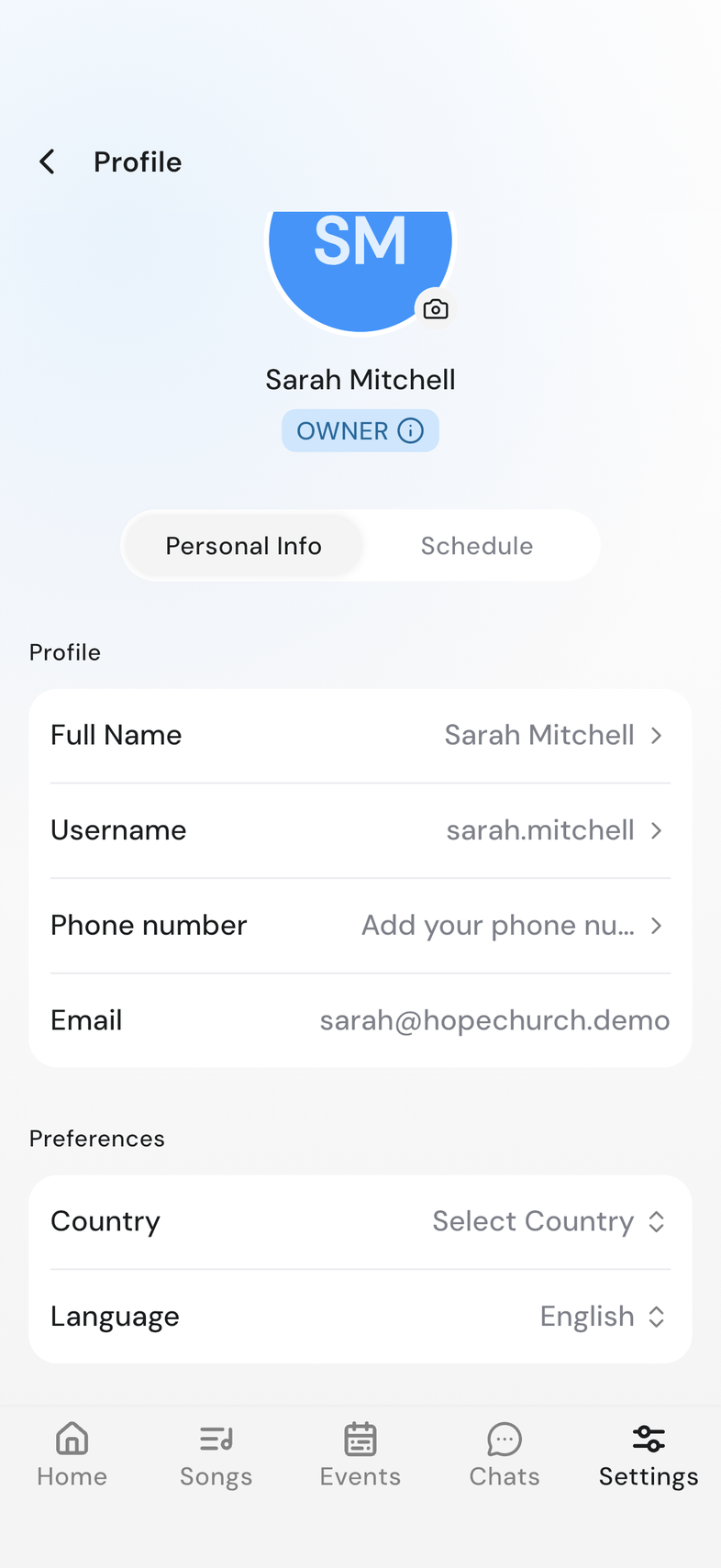
- Scroll to Preferences and tap Language.
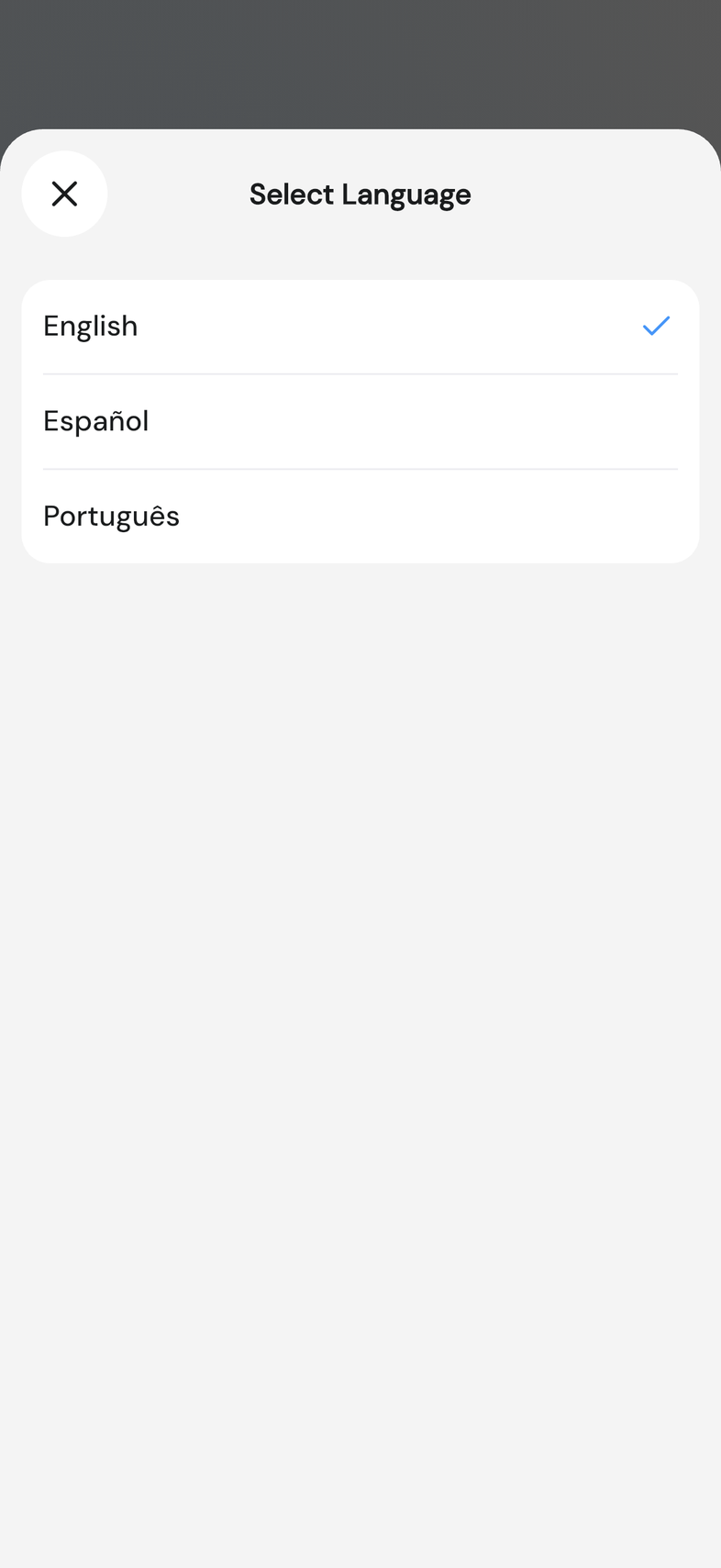
- On the Select Language sheet, choose English, Español or Português.
Set your country
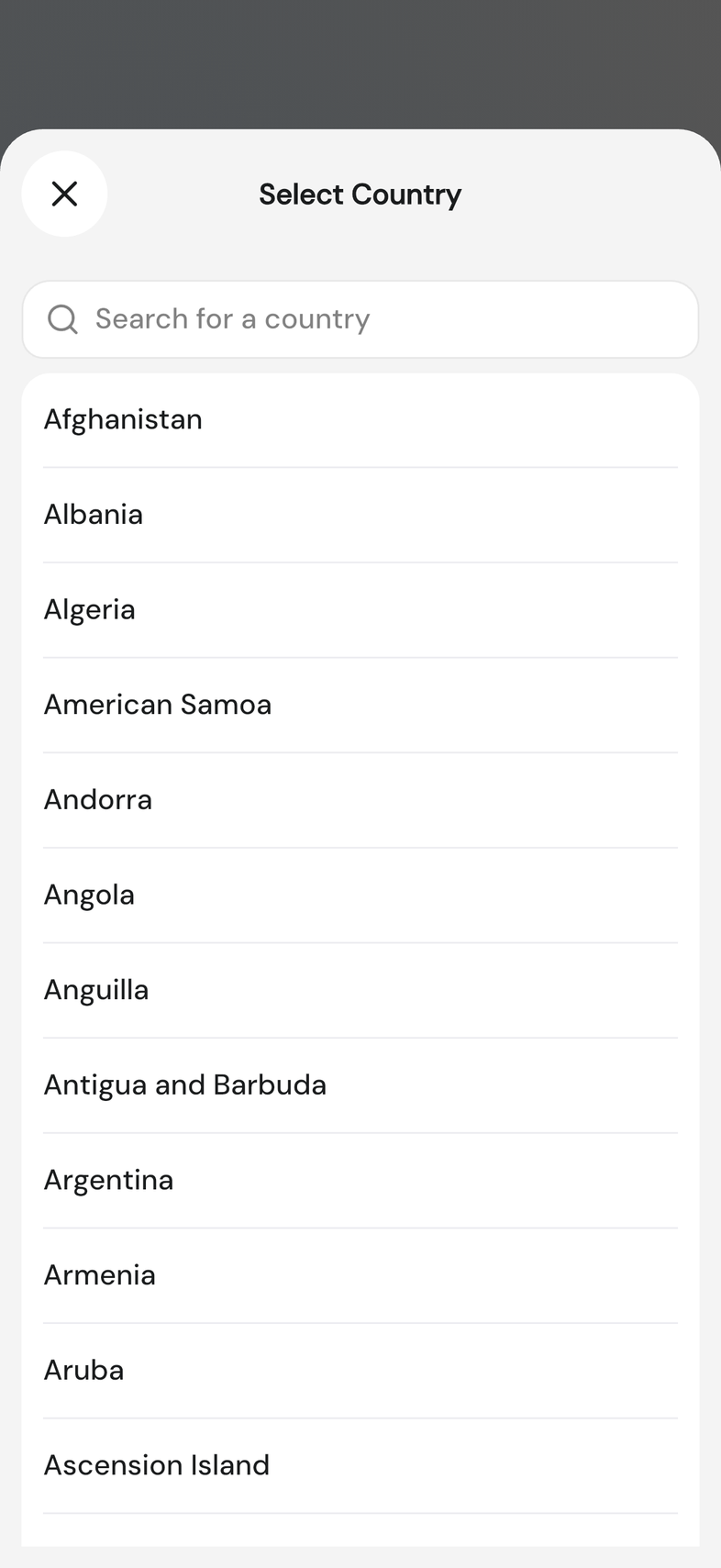
- Scroll to Preferences and tap Country.
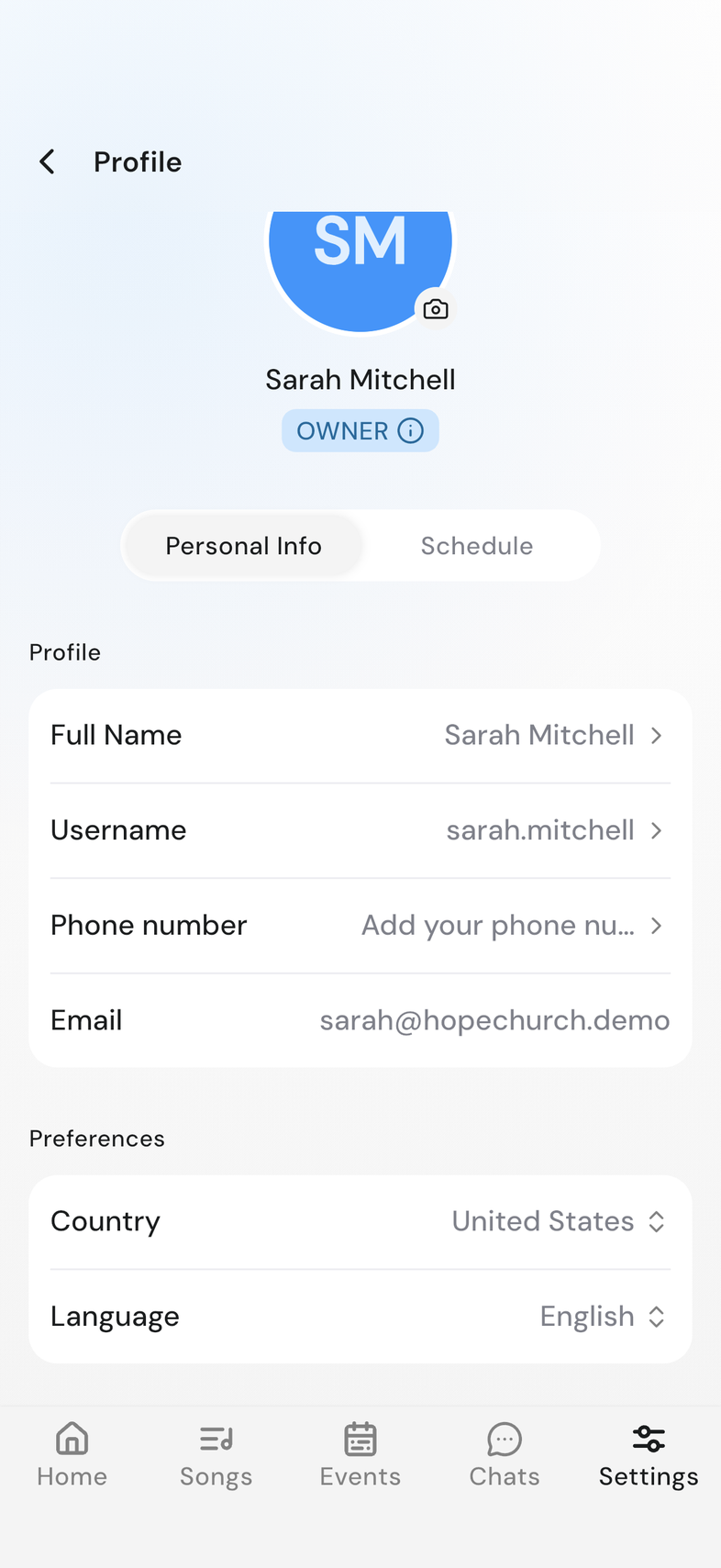
- Type in Search for a country to find yours, then tap it. The sheet closes and the row shows your country.
Good to know
- Email is shown for reference and cannot be changed.
- Save turns on once you change the value. If the save fails, a message appears at the top of the screen.
- A photo that uploads shows Photo uploaded successfully. If it shows Failed to upload photo, try again on a better connection.
- If you belong to a team, a Schedule tab sits next to Personal Info.
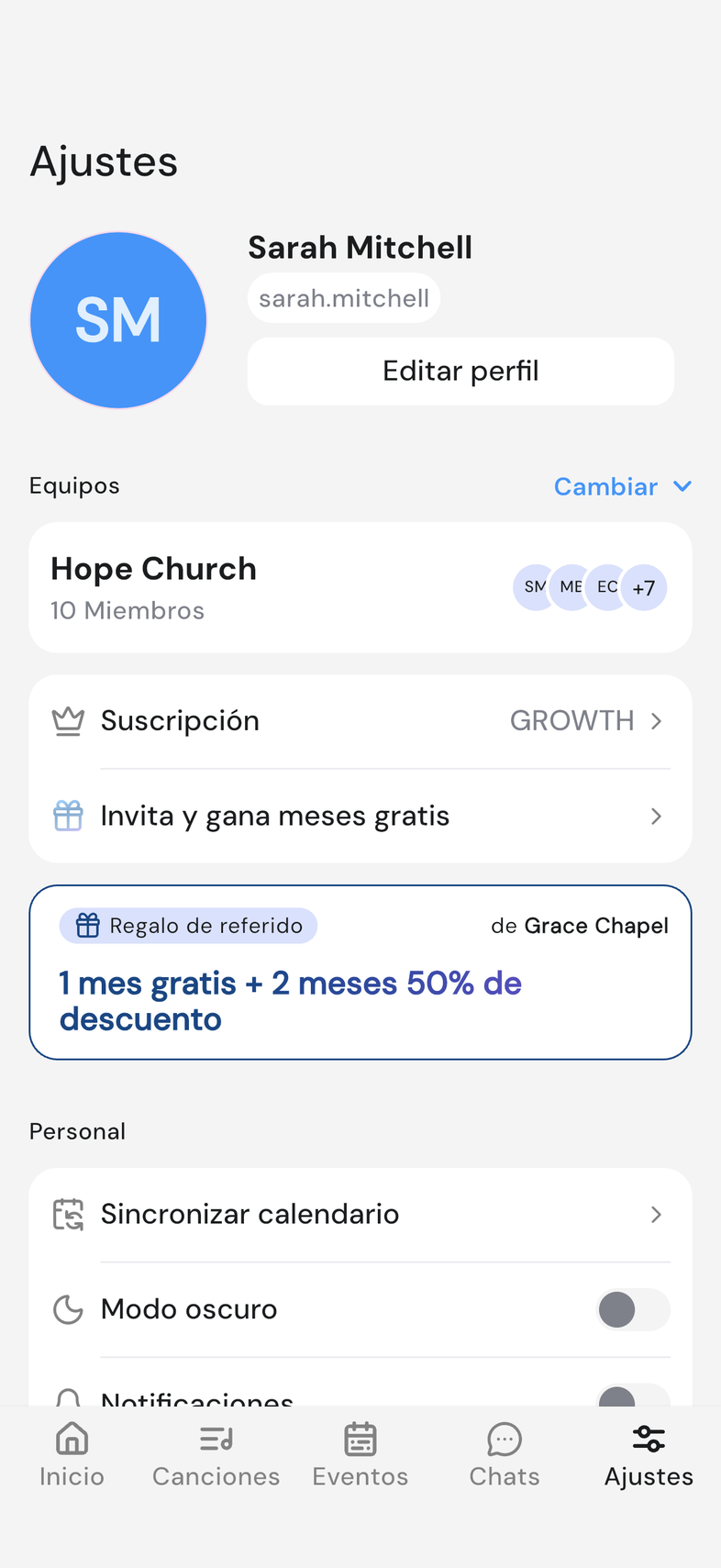
- Notifications OnStage sends you arrive in your chosen language.
- Language and country are your own setting. Nobody else on the team sees a change.
- The country row reads Select Country until you choose one. Changing it later doesn't affect your team, your events or your songs.