Manage your notifications
Notifications let OnStage reach you when OnStage is closed, and everything you've been told collects behind the bell on Home.
Steps
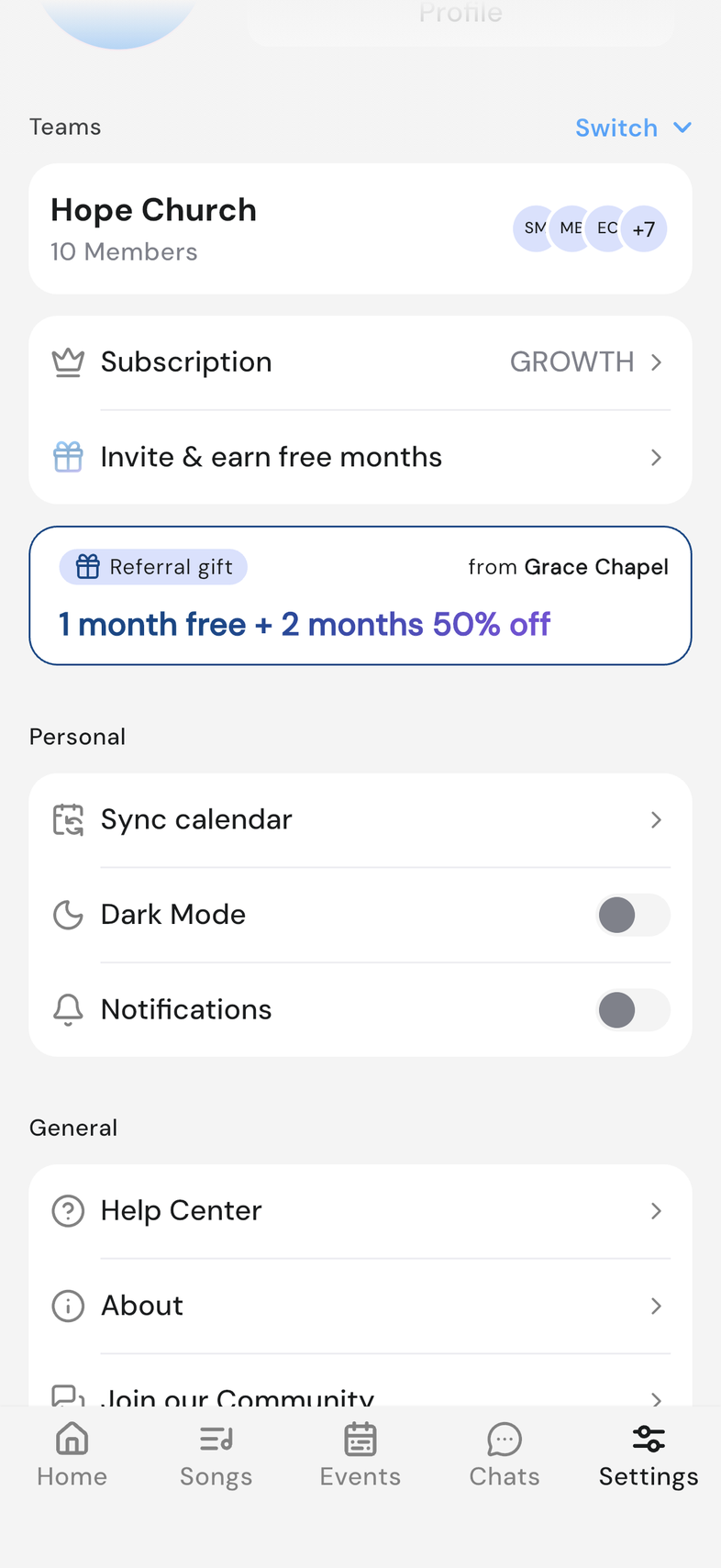
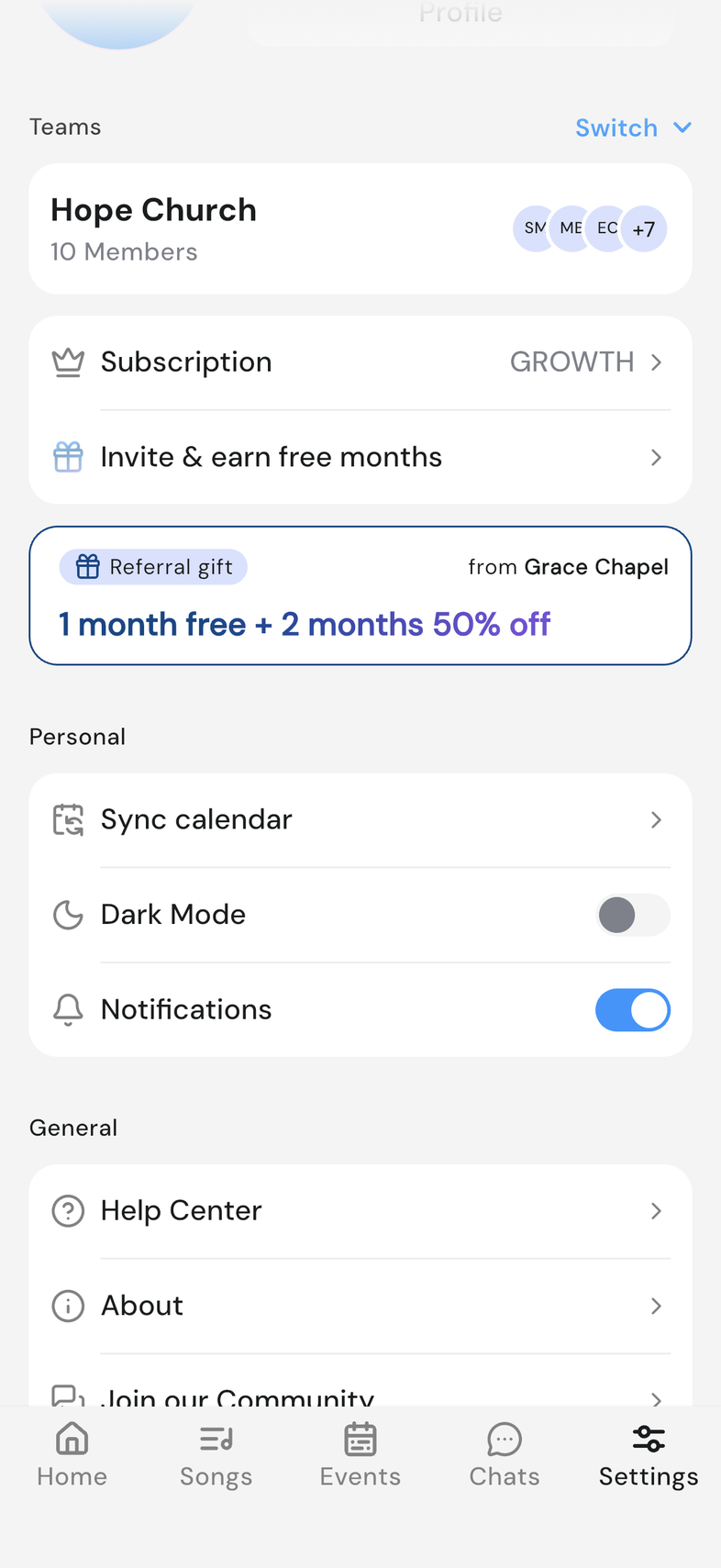
Turn notifications on or off
- Open Settings.
- Scroll to Personal.
- Turn Notifications on or off.
- The first time you turn it on, your device asks for permission. Allow it.
Not arriving with the switch on? The switch in OnStage and the one in your device settings both have to be on. If you turn notifications off in your device settings, OnStage's switch turns itself off the next time you open the app. If Notification Permission appears, tap Open Settings and allow notifications for OnStage, then return and turn Notifications on again.
See your notifications
-
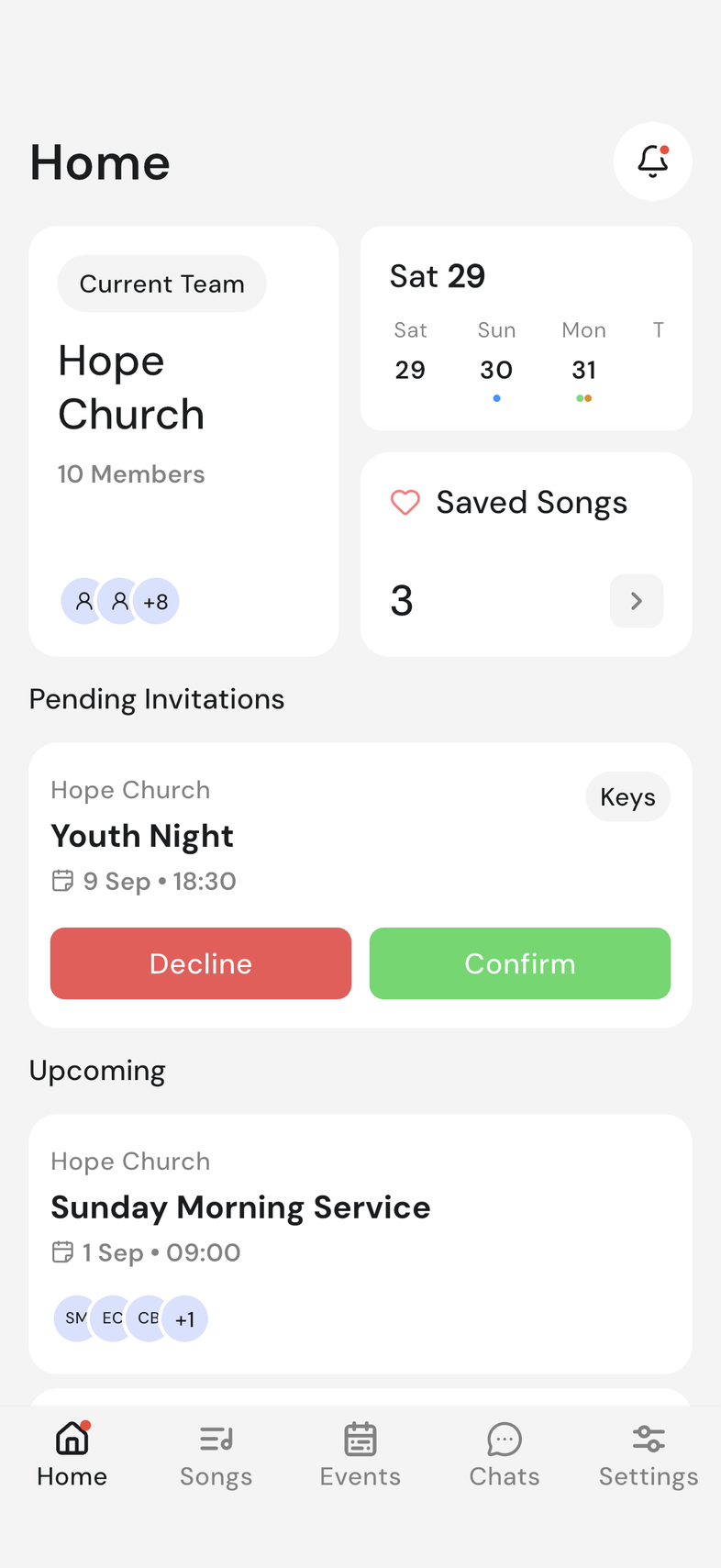
Open Home.
-
Tap the bell at the top of the screen. A red dot on it means something is new.
-
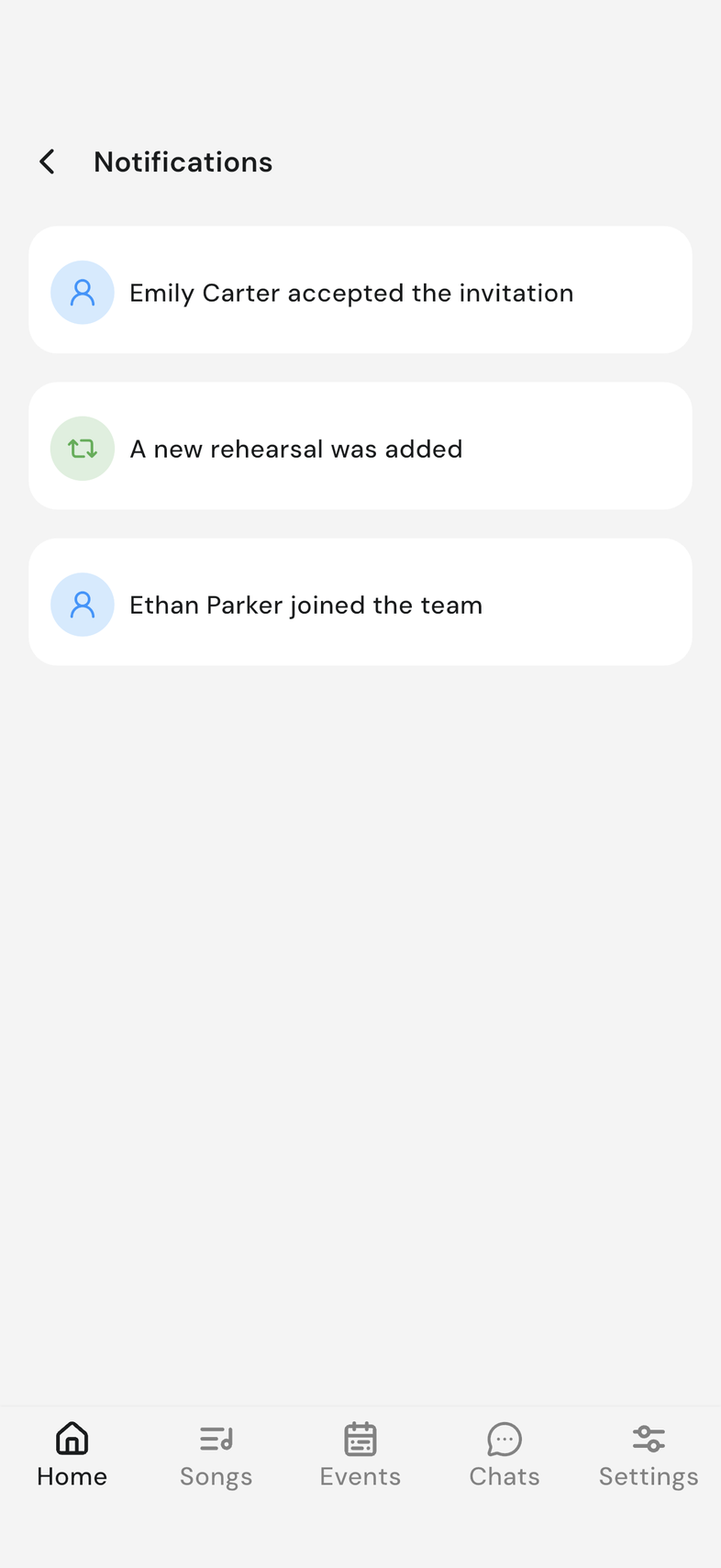
On the Notifications screen, scroll down to load older ones.
-
For a team invitation, tap Confirm or Decline without leaving the list.
- Tap an event notification to open that event.
Good to know
- The on/off switch is iPhone, iPad and Android only. OnStage on phone, tablet and web
- The switch is your own setting. It doesn't change what anyone else on the team receives.
- Opening the notification list marks everything as seen, so the red dot clears. Pull down on the list to refresh it.
- Some notifications are there to tell you something and do nothing when you tap them. With nothing waiting, the screen shows No notifications yet.
- Still not arriving after checking both switches? Contact support