Connect OnStage to Holyrics
Holyrics puts lyrics on your church's screen. Connect it, and it uses your team's songs and events, so nobody types the setlist twice.
Where: iPhone, iPad and Android only. OnStage on phone, tablet and web
Steps
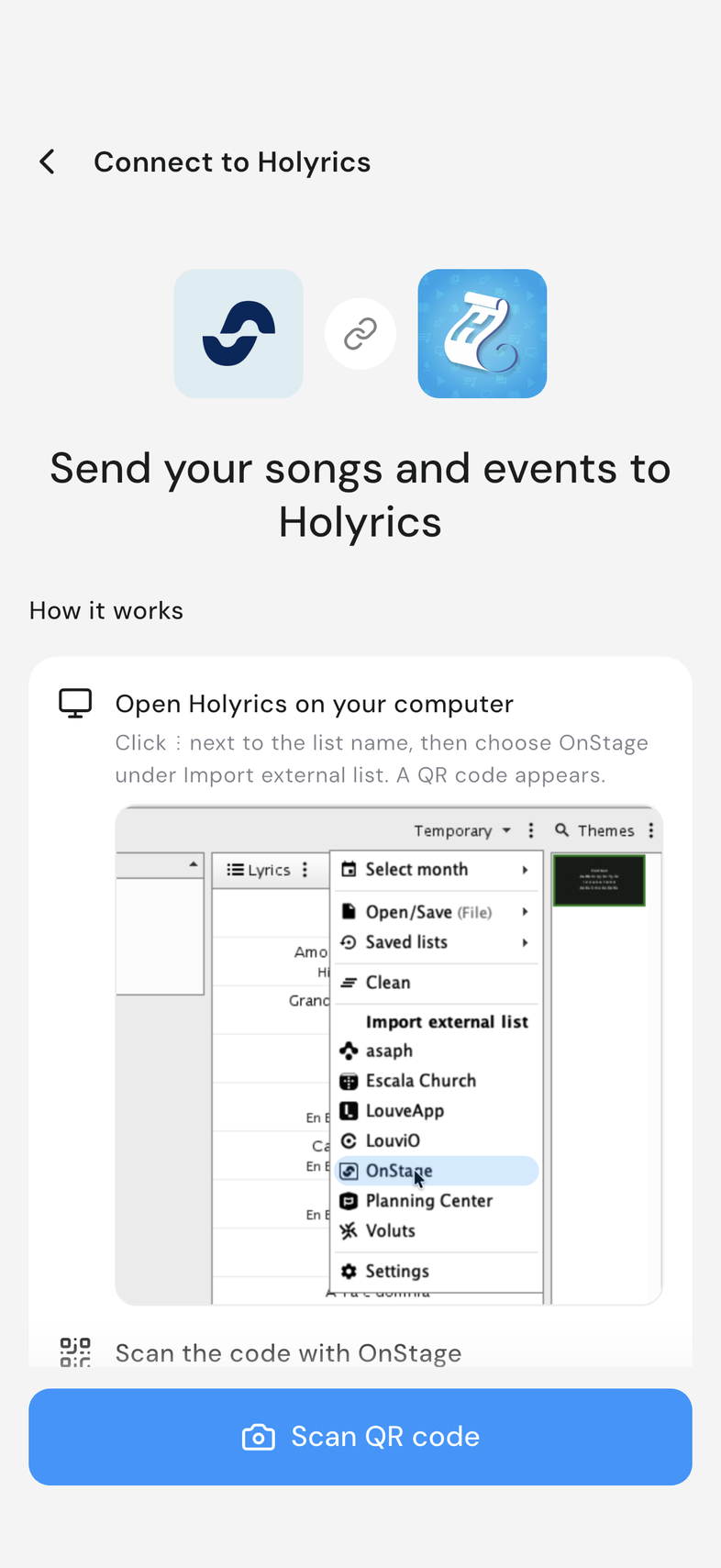
- In Holyrics, click ⋮ next to the list name, then choose OnStage under Import external list. A QR code appears.
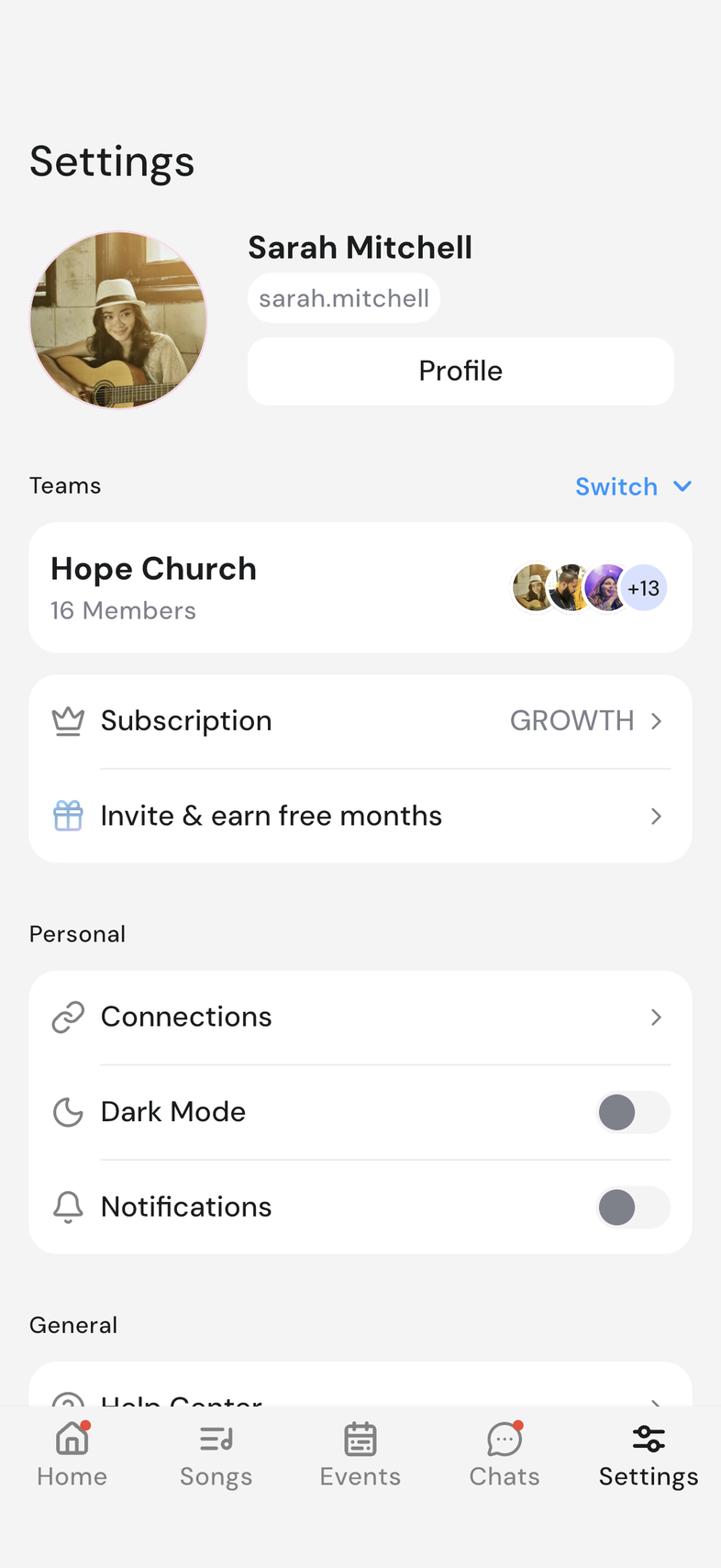
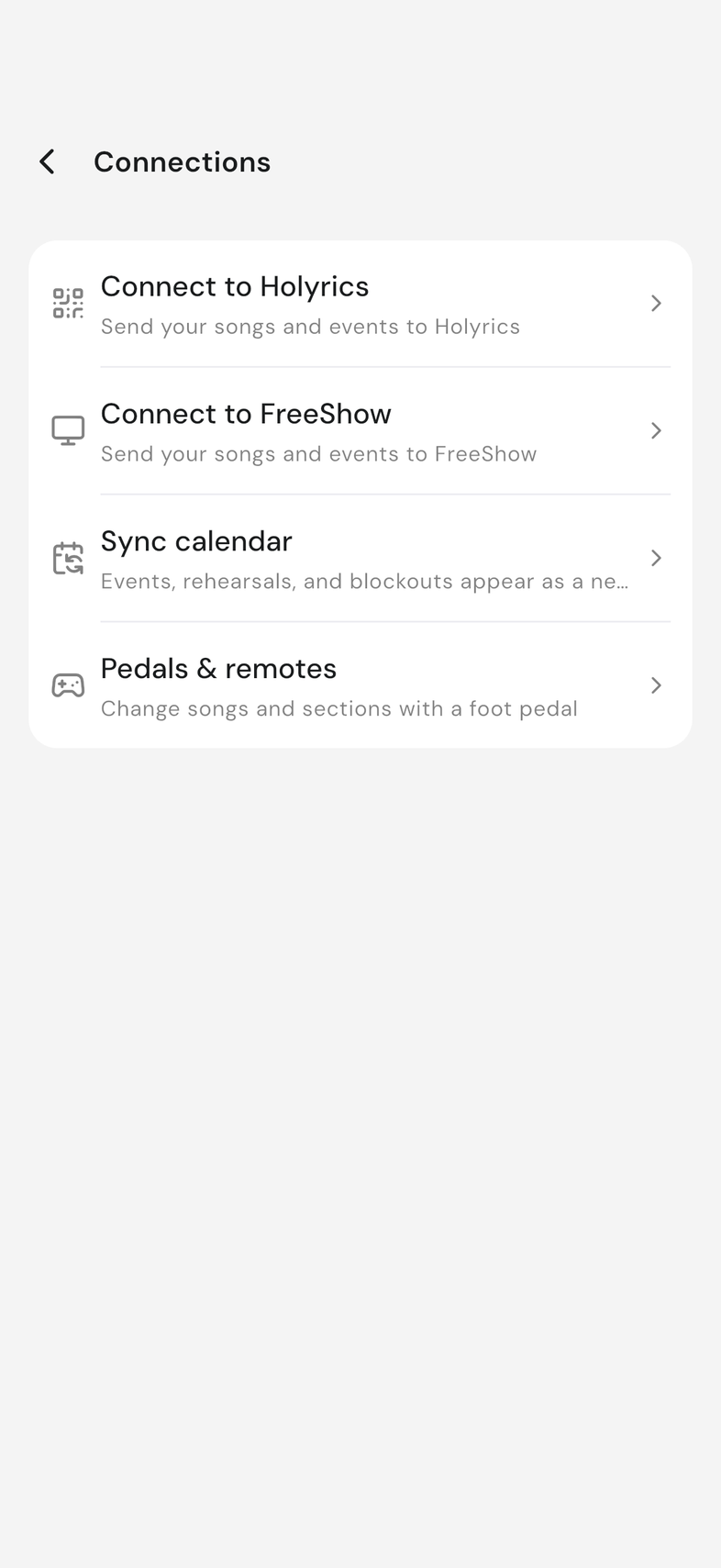
- In OnStage, open Settings and tap Connections.
- Tap Connect to Holyrics, then Scan QR code.
- Point your camera at the QR code in Holyrics.
- Choose the team Holyrics can use, then tap Connect this team.
OnStage confirms the connection and returns to Settings.
Good to know
- Holyrics can read your team's songs and events, but can't change them.
- This QR code has expired or QR code not recognized: refresh the code in Holyrics, then tap Scan again.
- You're not a confirmed member of that team: tap Choose another team, or ask an admin to confirm your invite.
- This isn't a Holyrics QR code: the camera caught a different code.
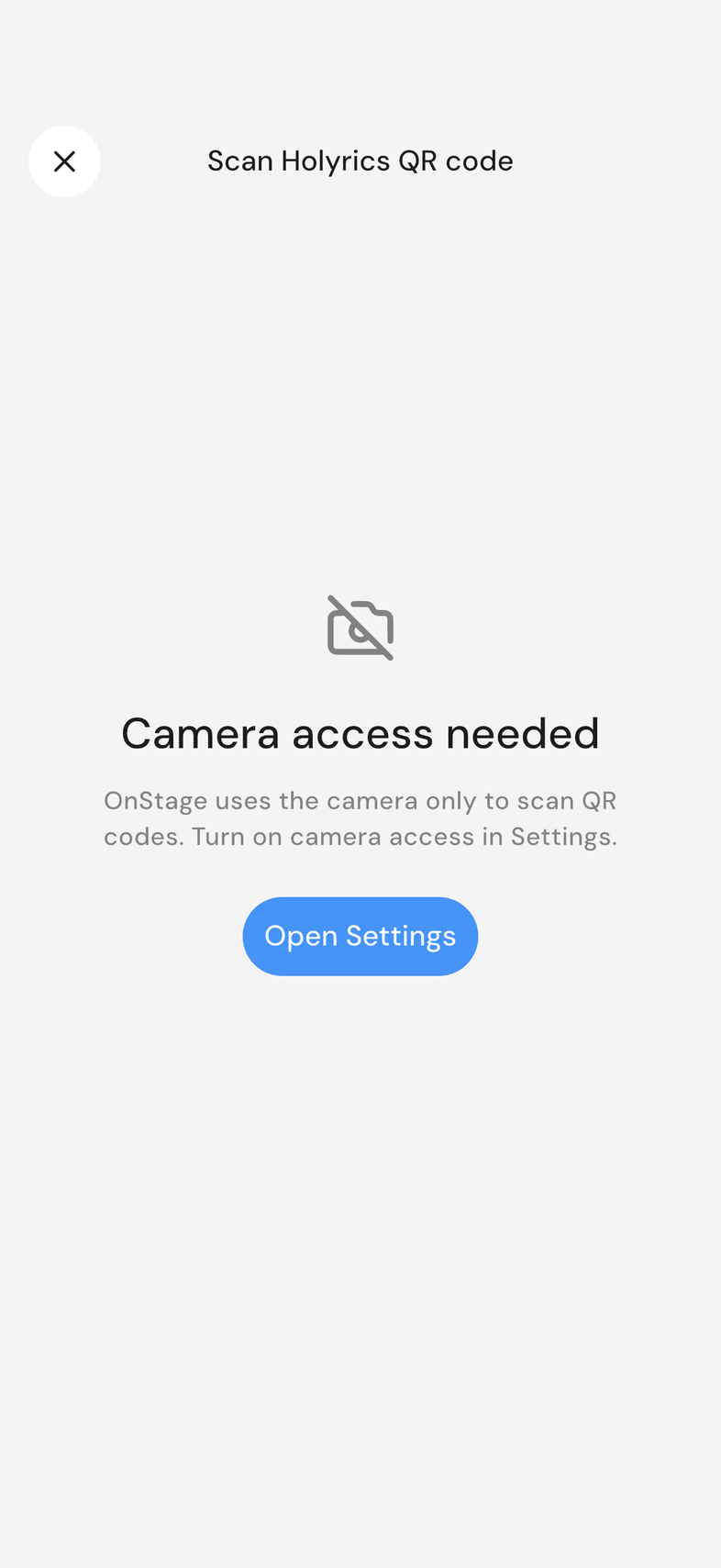
If you see Camera access needed, tap Open Settings and allow the camera. OnStage only uses it to scan QR codes.