Files, audio and PDFs on a song
Keep the reference track, the sheet music and the video with the song, where the team will look for them. Then play, read or tidy them up from the same screen.
Online only: You need internet for this. Why buttons disappear offline
Steps
Add a file or link
Adding and removing files needs Owner, Admin or Editor. What the roles mean
- Open the song and tap the paperclip at the top right. The Attachments screen opens.
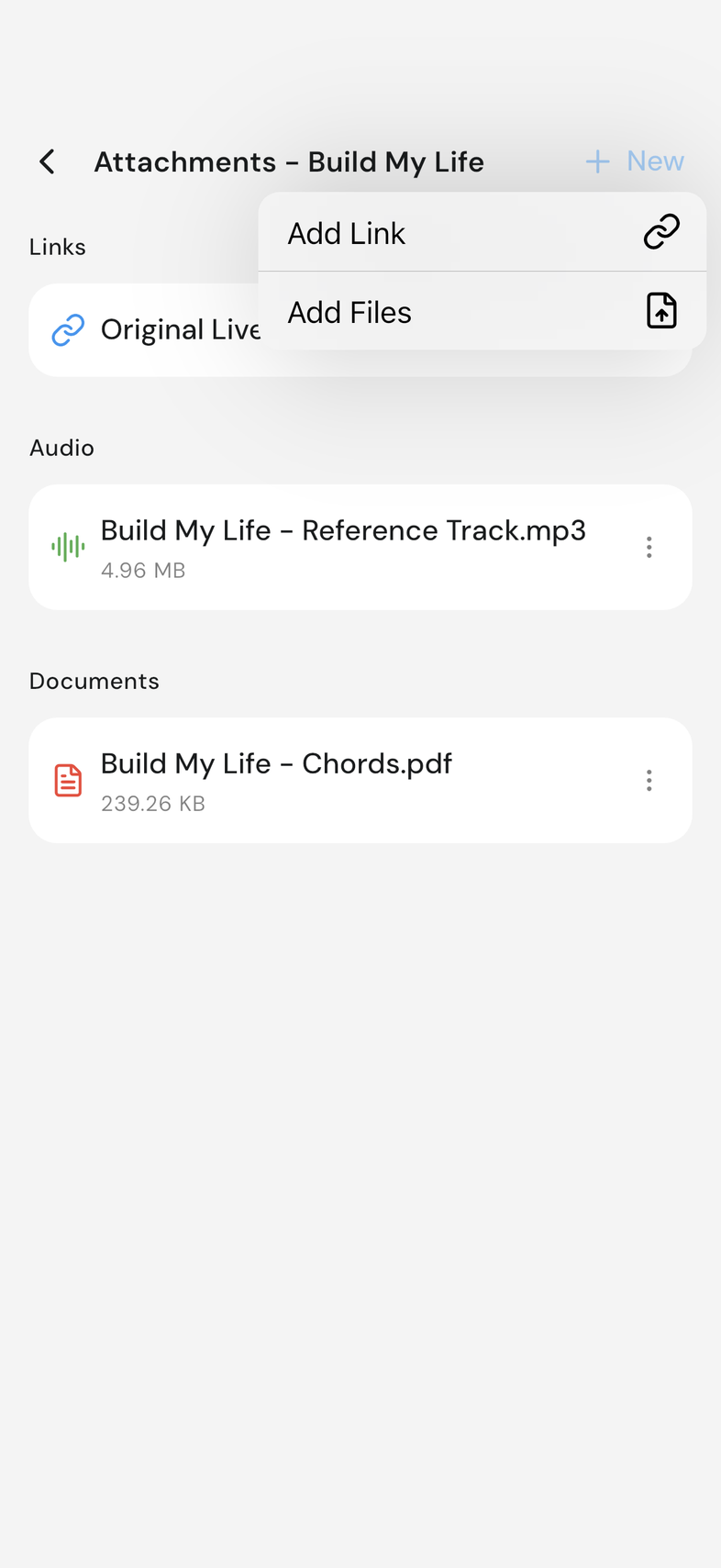
- Tap New at the top right.
- Tap Add Link to paste a link, or Add Files to upload from your device. Pick what you want and wait for the upload to finish.
Play a reference track
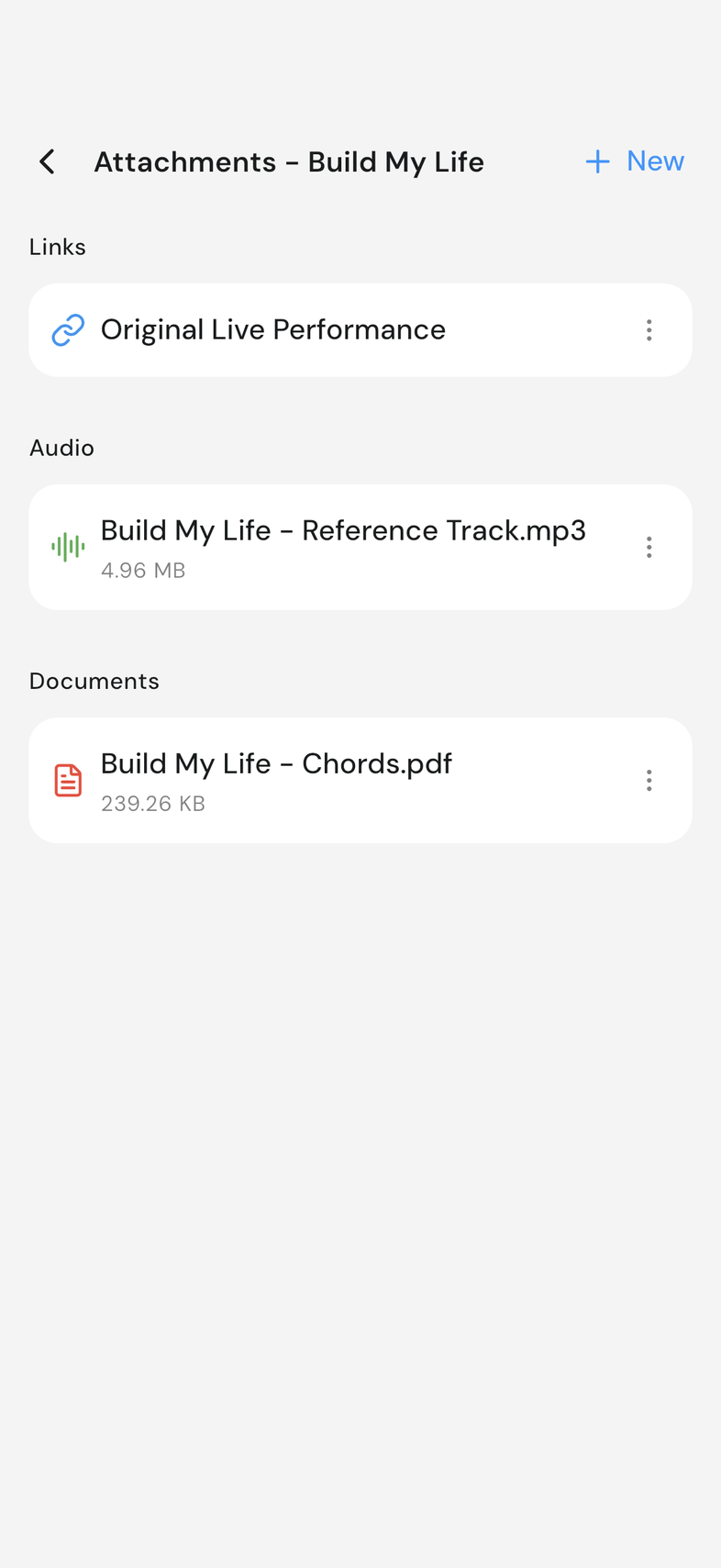
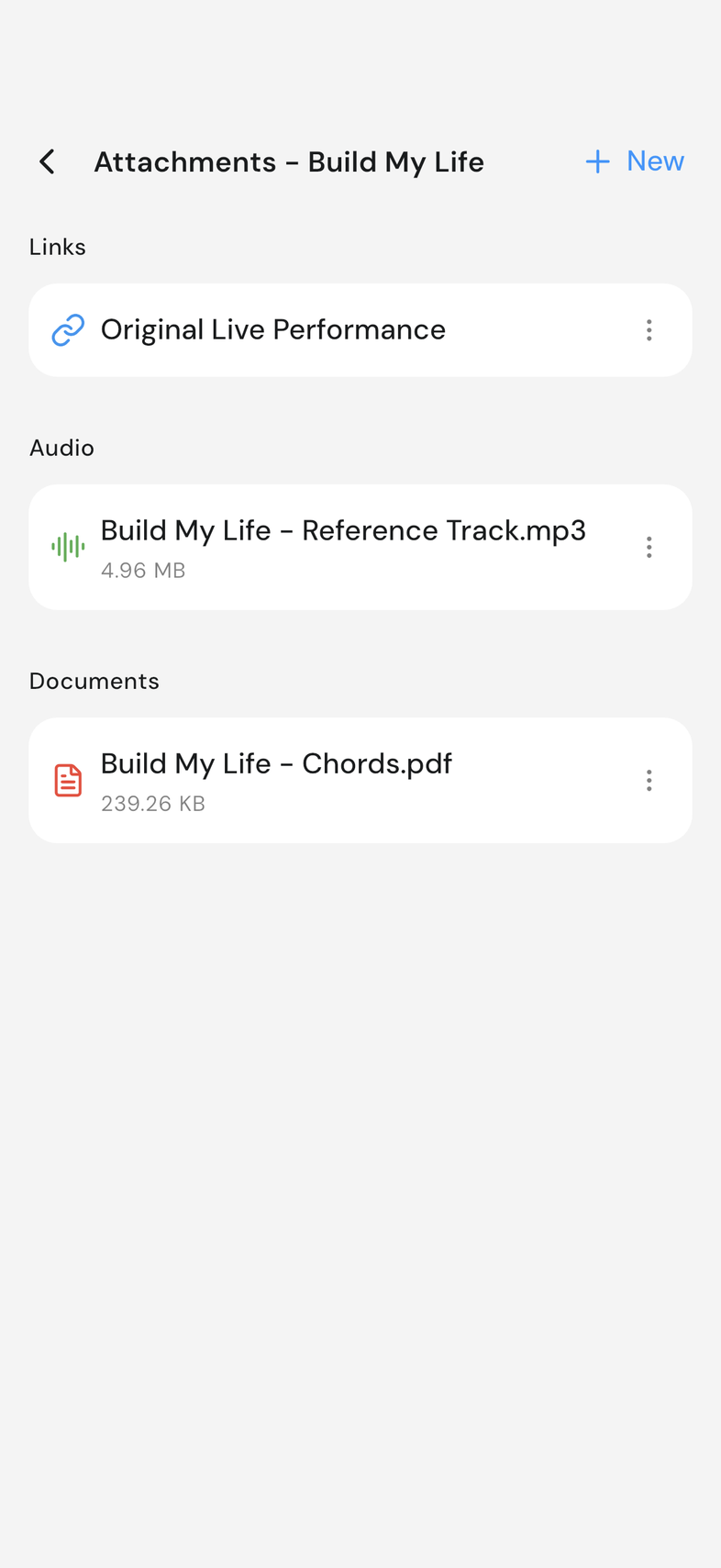
- Under Audio, tap the track. A player slides up. Use the middle button to play and pause, the arrows either side to skip back or forward 10 seconds, or drag along the bar to move to another part of the track. Tap the X at the top right of the player to close it.
Read a PDF or document
- Under Documents, tap the PDF. Scroll or swipe through the pages, then go back to return to Attachments, and back again for the song.
Rename, share or delete a file
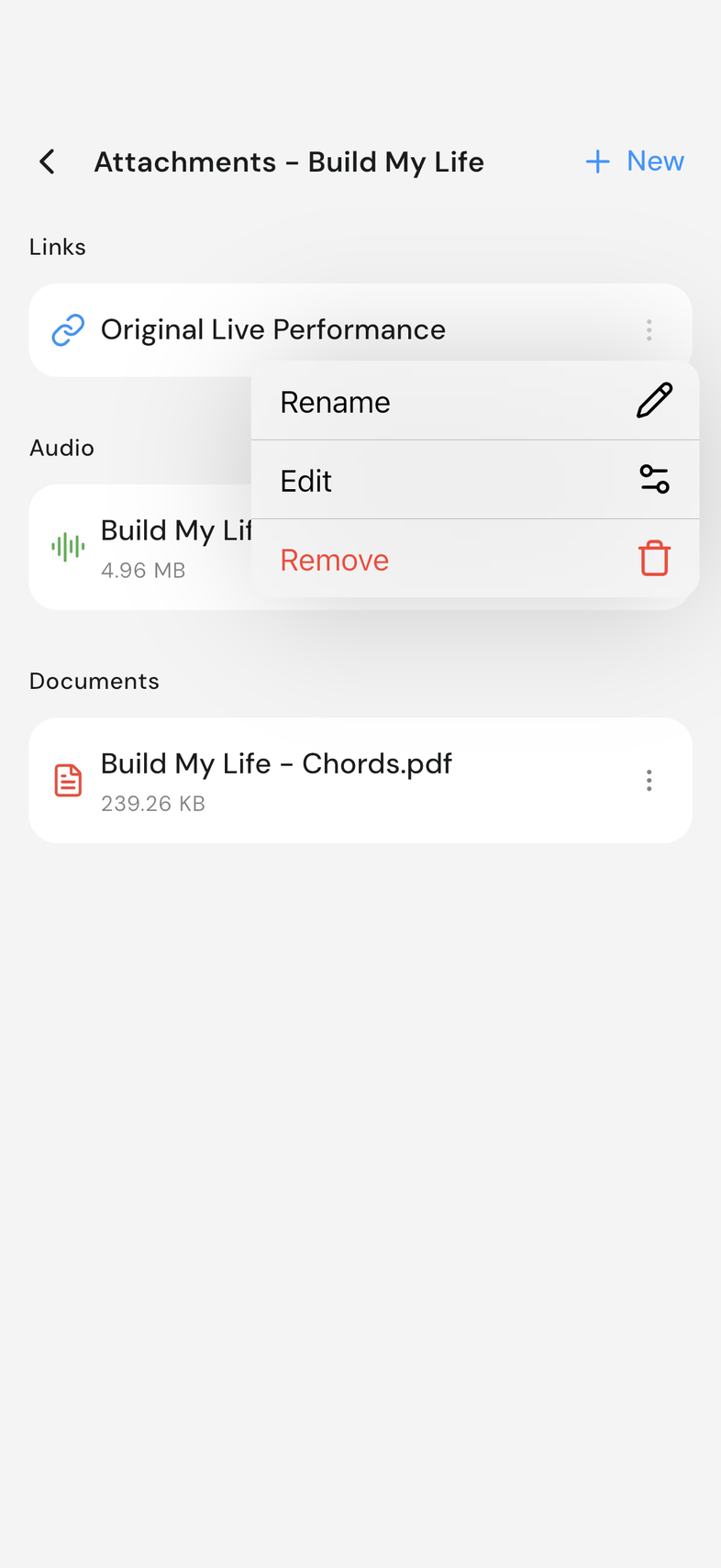
- Tap the menu at the right of a file. Choose Rename, Share (Download on web) or Remove.
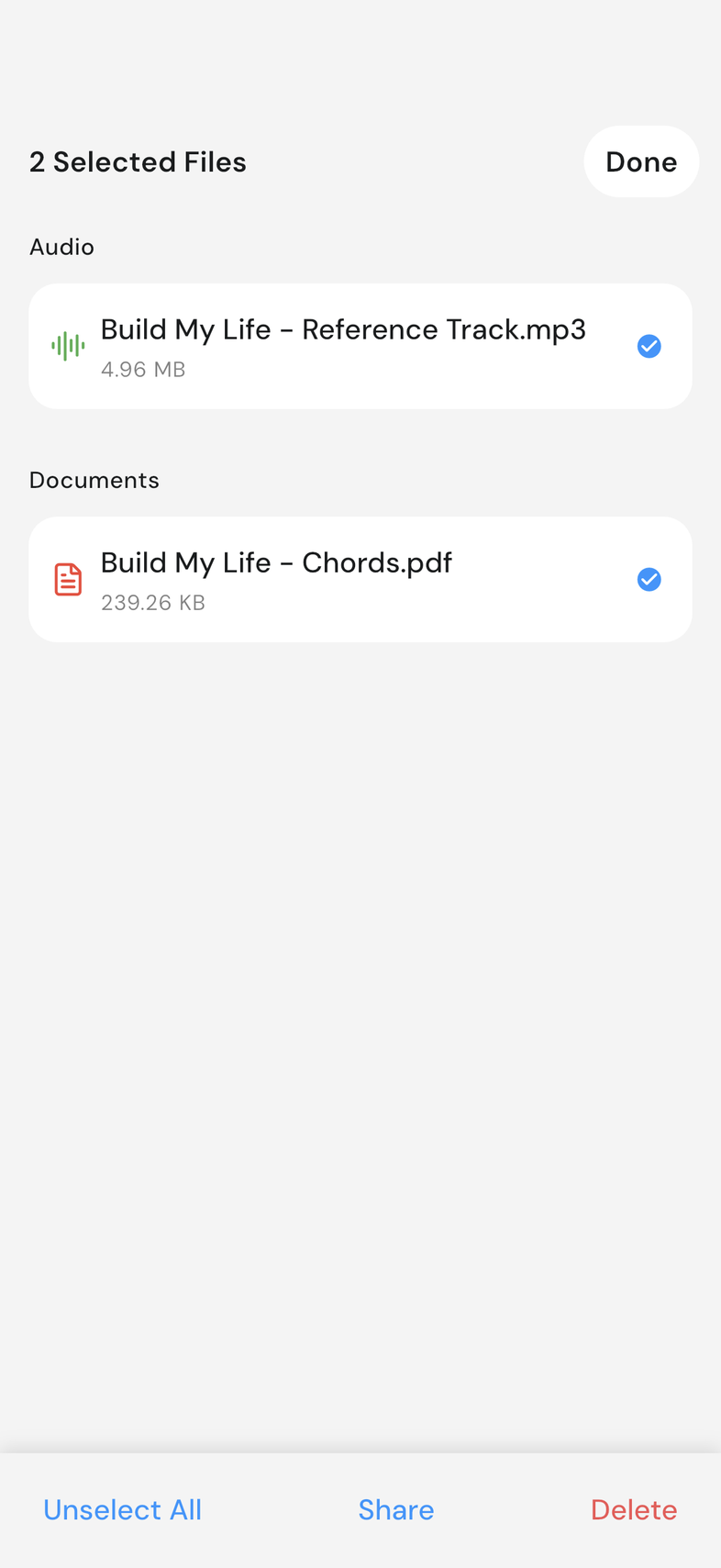
- For several files at once, press and hold one on mobile, or choose Select from its menu on web. Tick the files you want, or use Select All, then tap Share or Delete at the bottom, then Done.
Good to know
- Accepted files: audio (mp3, wav, m4a, flac), documents (pdf, doc, docx, txt, rtf, md, pages), presentations, and images. On web, drag files straight onto the screen to upload them. If an upload fails, tap Retry in the message that appears.
- Only PDFs sit under Documents. Word, Pages and plain text files sit under Other and hand off to whichever app your device uses for them. Links open in your browser, and audio opens in the player instead.
- The audio player keeps playing while you scroll the song or move to another screen, and shows the file's name so you can tell two takes apart. On a wide screen, drag it out of your way. The button beside the X puts it back where it started.
- A paperclip on a song in the list means that song already has files.
- Remove asks you to confirm with the file's name first. A removed file is gone for the whole team, and the space it used comes back. Links have an Edit option instead of Share, and can't be picked alongside other files.
- Files count toward your team's storage, and everyone on the team can open them.