Start or join a Live Mode session
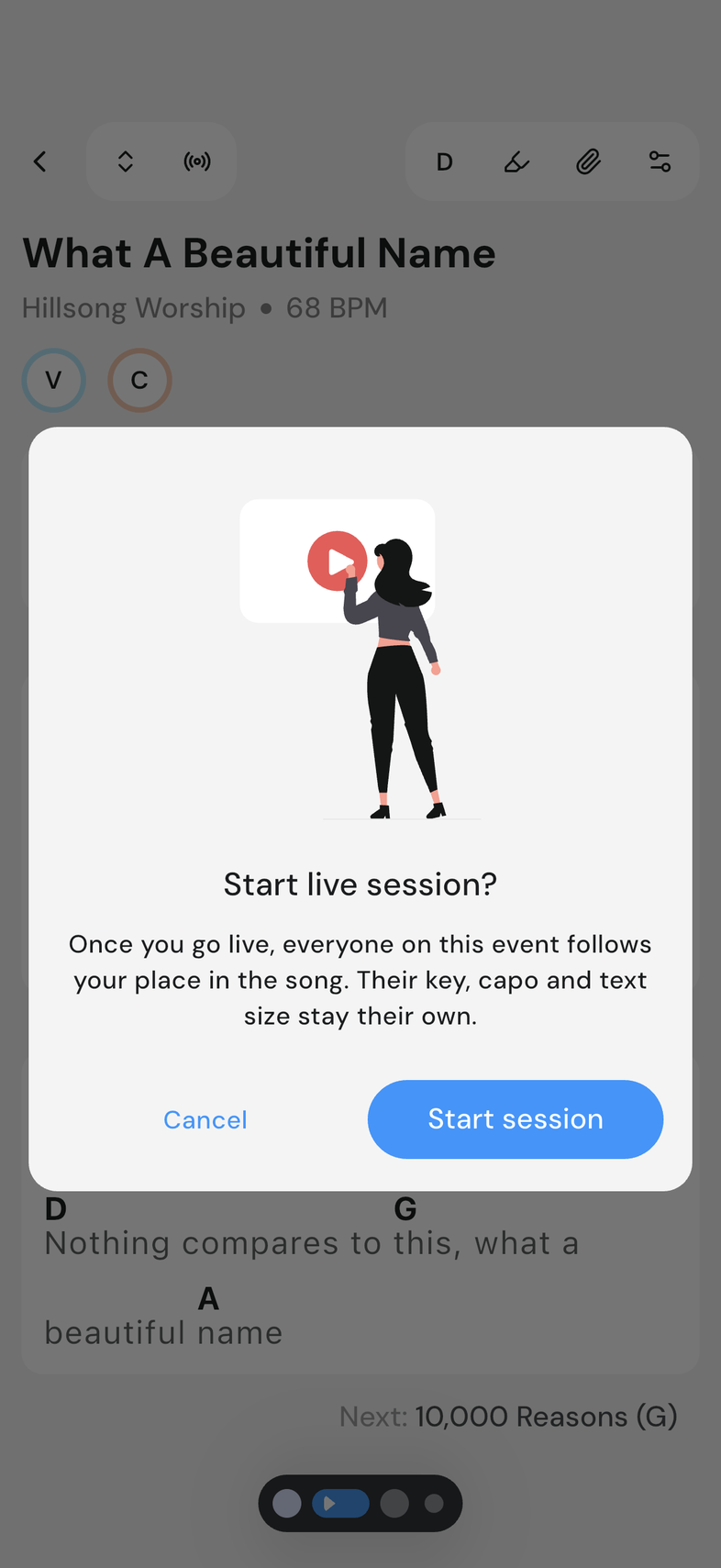
Live Mode keeps everyone on the same page in a song, literally. Whoever's leading moves through the setlist, and everyone else's screen follows along, with their own key, capo and text size staying exactly as they set them.
Online only: You need internet for this.
Steps
Start a live session
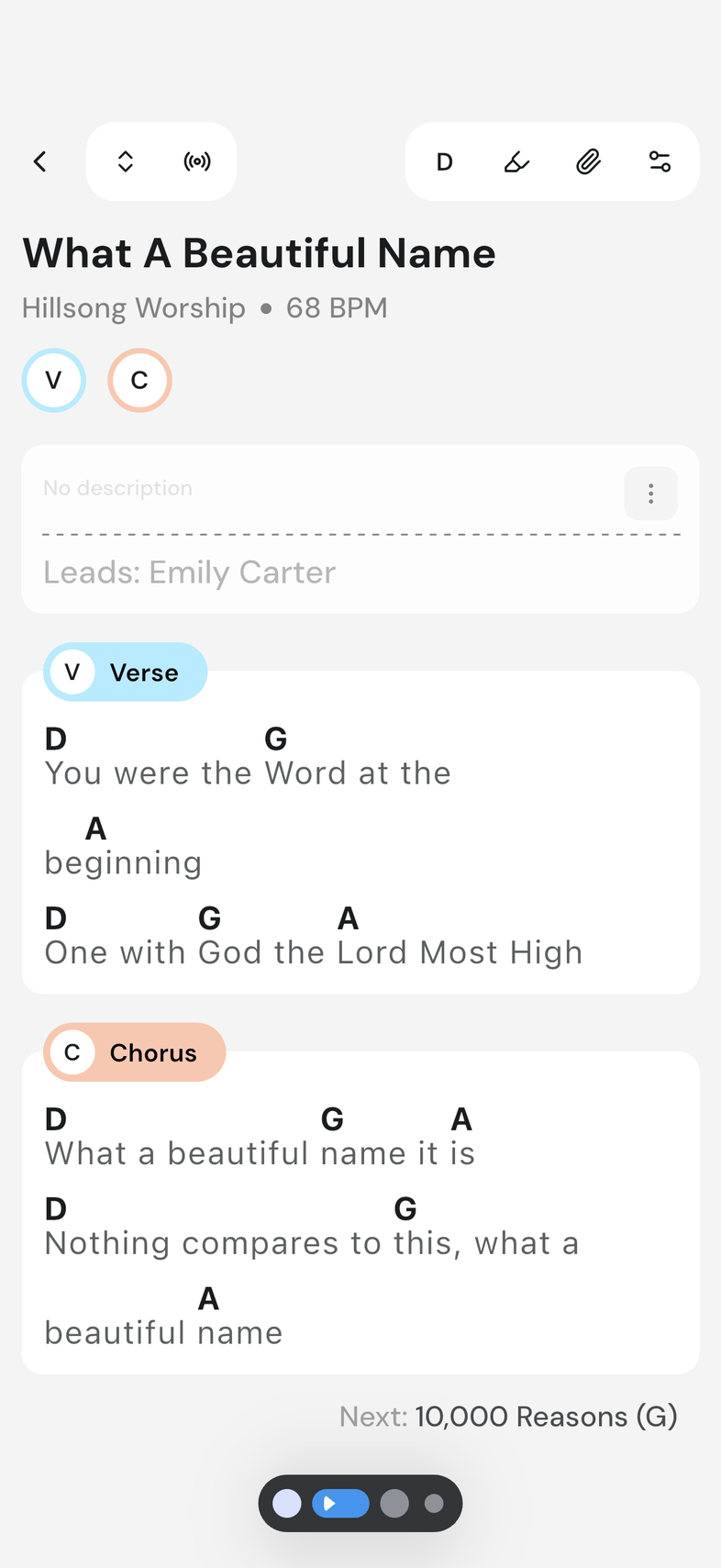
- Open a song from an event.
- Tap the Live Mode icon in the top right of the app bar.
- Tap Start session.
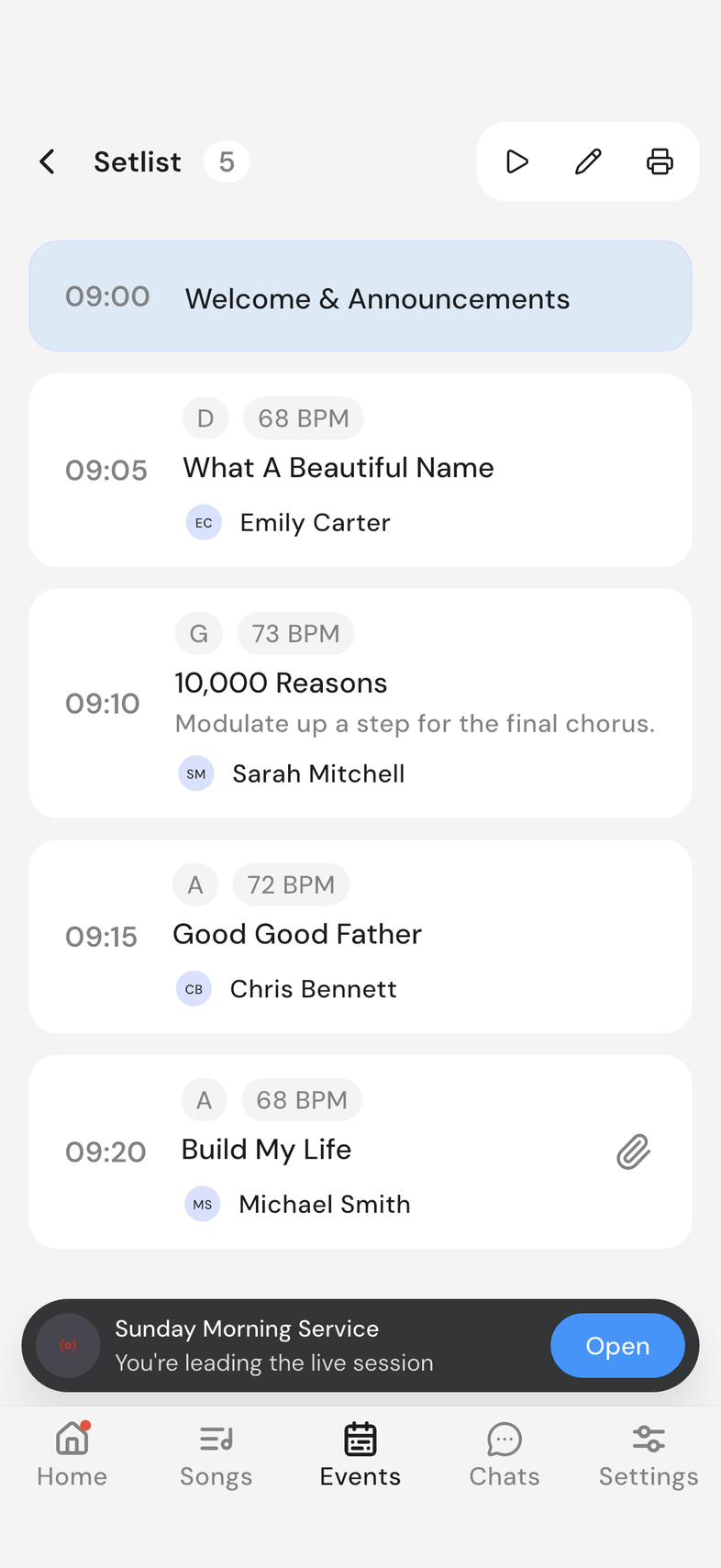
Everyone else at the event now sees a banner naming you as the leader, and a pill elsewhere in the app confirms you're leading.
Join someone else's live session
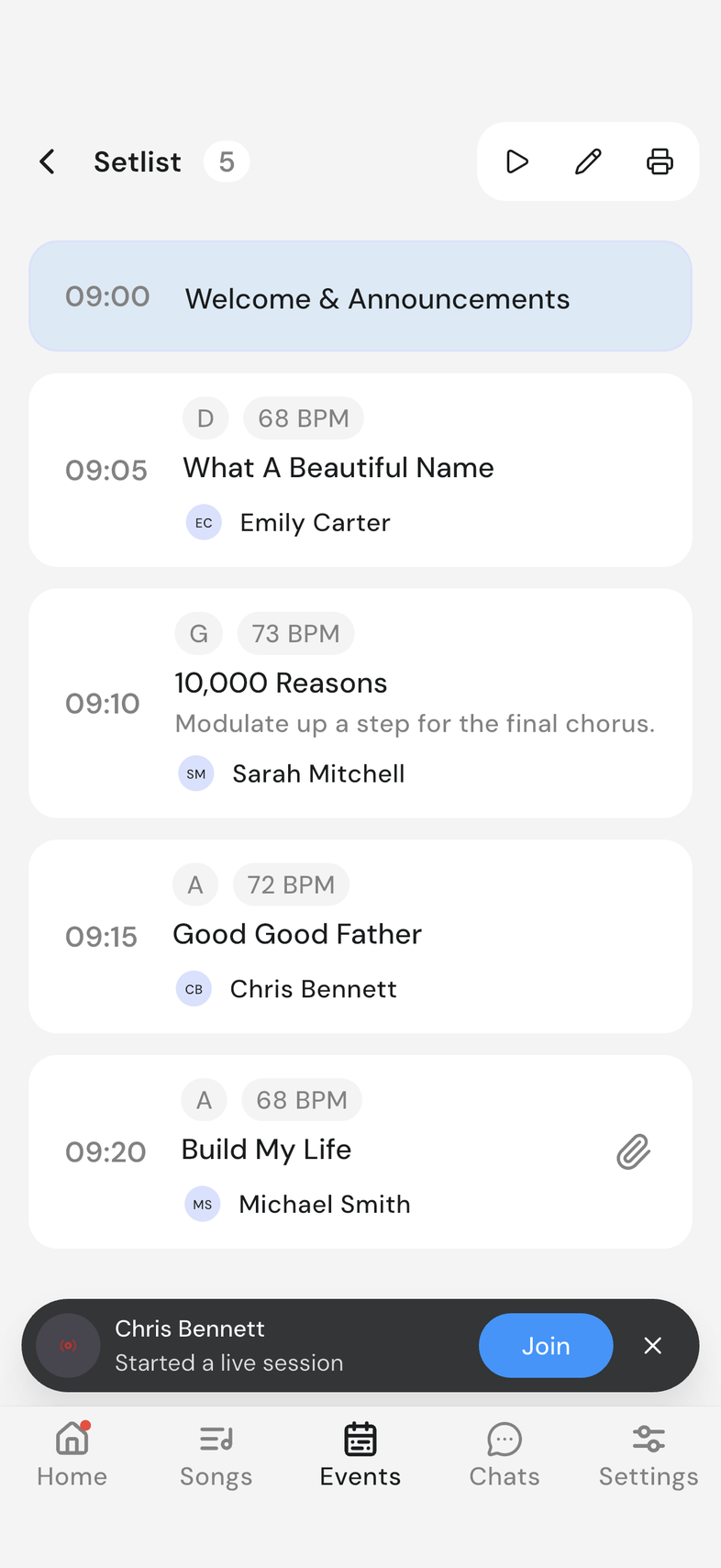
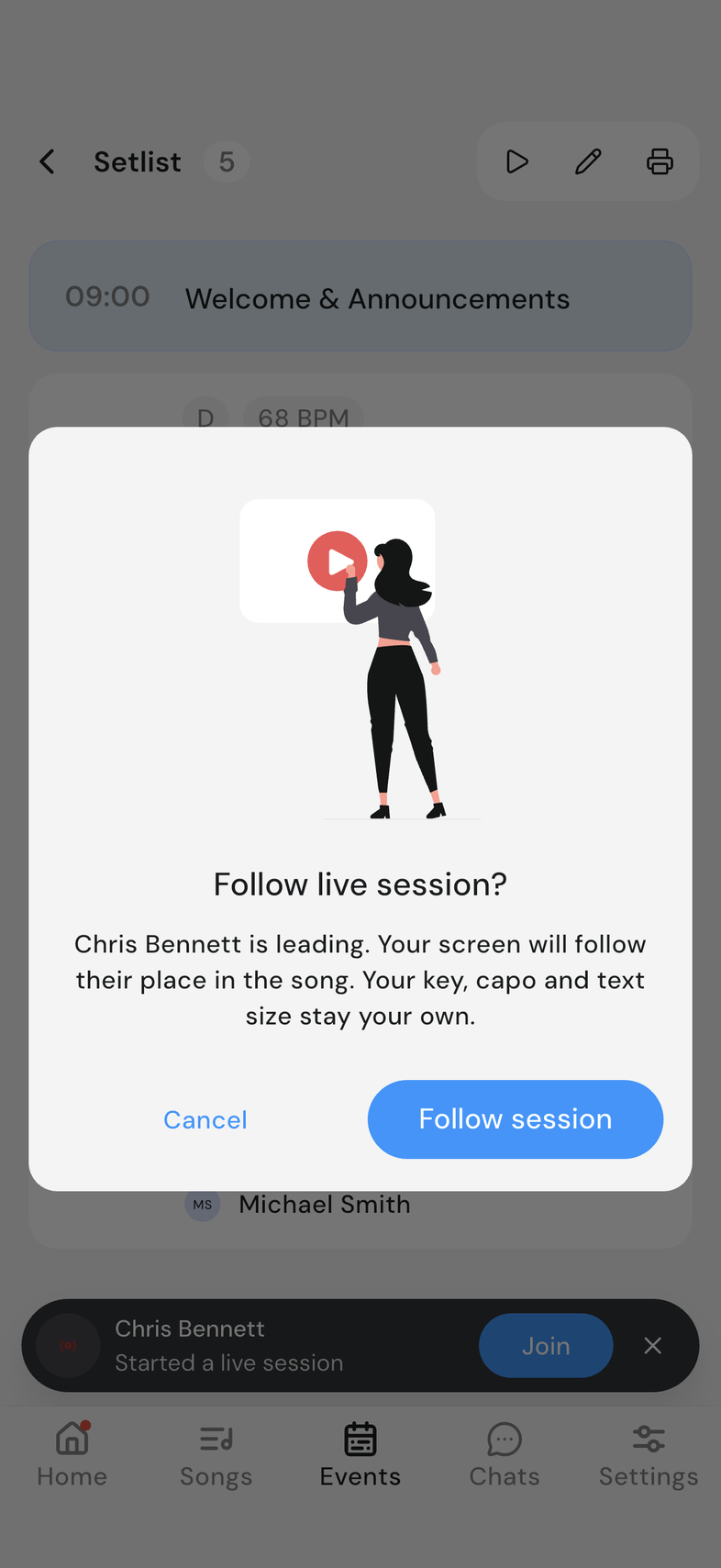
- When someone goes live, a banner appears wherever you are in the app, naming them and offering Join.
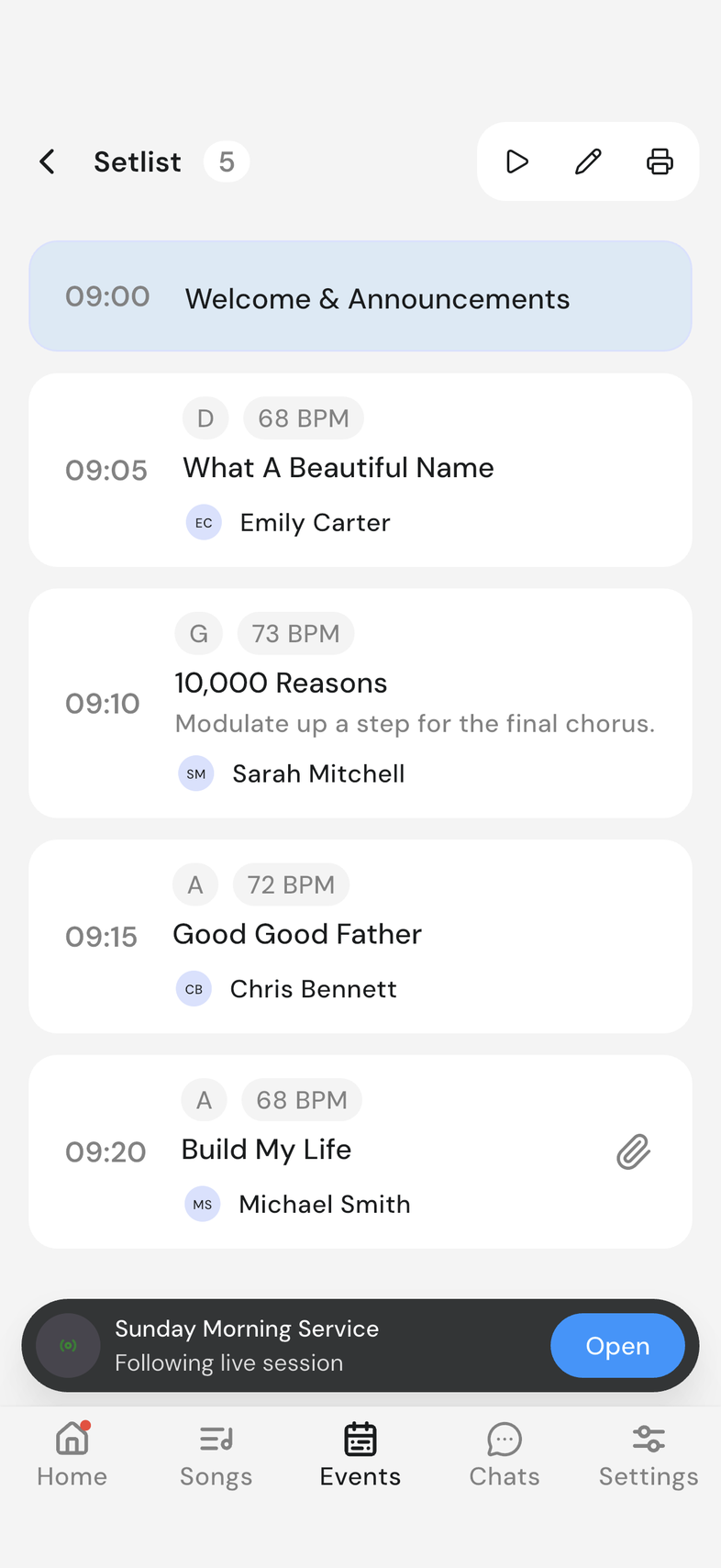
- Tap Join, then Follow session.
Your screen jumps straight to the leader's place in the song. A pill elsewhere in the app confirms you're following, in case you leave the song screen to check something else.
- Only one live session can run per event. If someone's already leading a different event, you're offered to go there instead.
Look around without losing your place
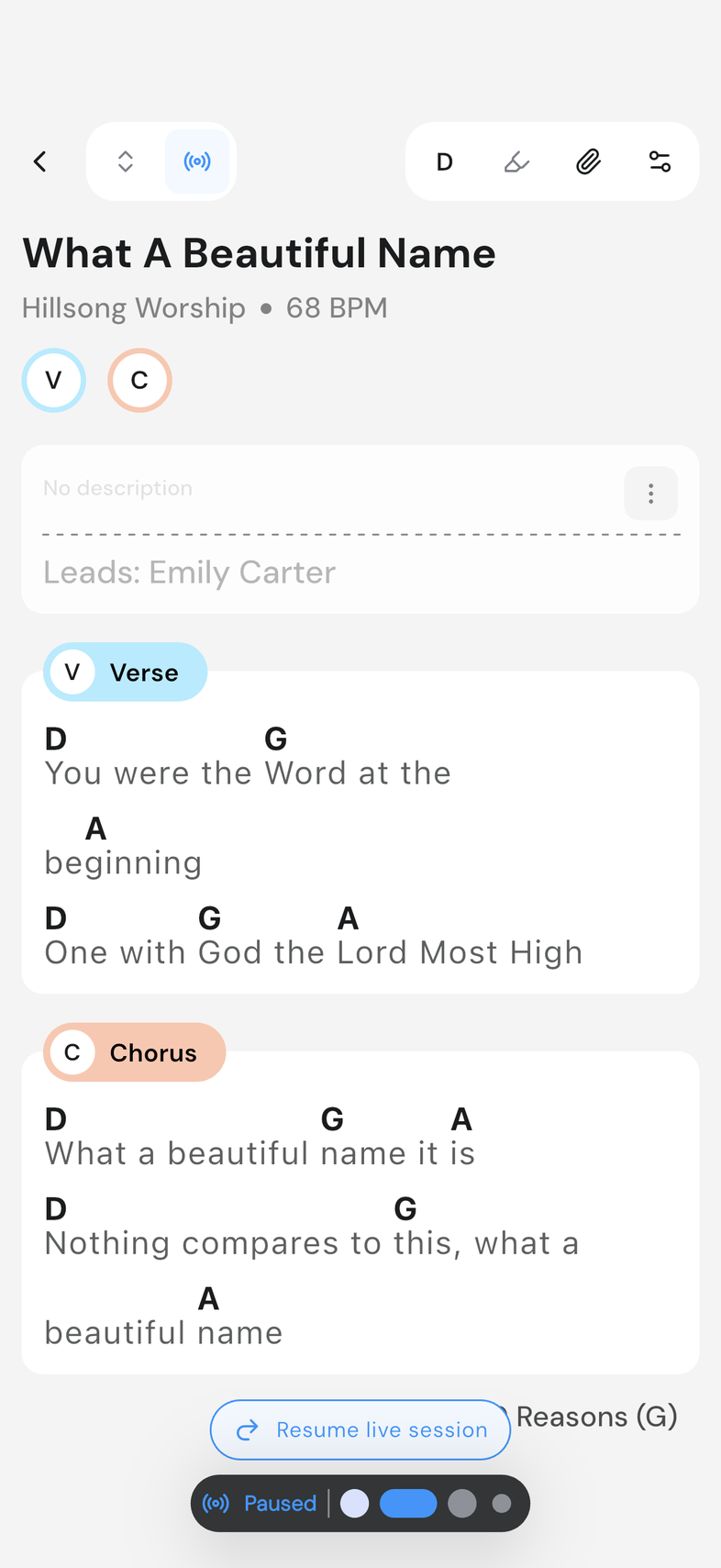
Scroll or swipe to a different part of the setlist on your own, and following pauses: the leader keeps moving without you until you catch up.
- Tap the pill, or Resume in the participants sheet, to jump back to the leader's place.
See who's connected, hand off control, or leave
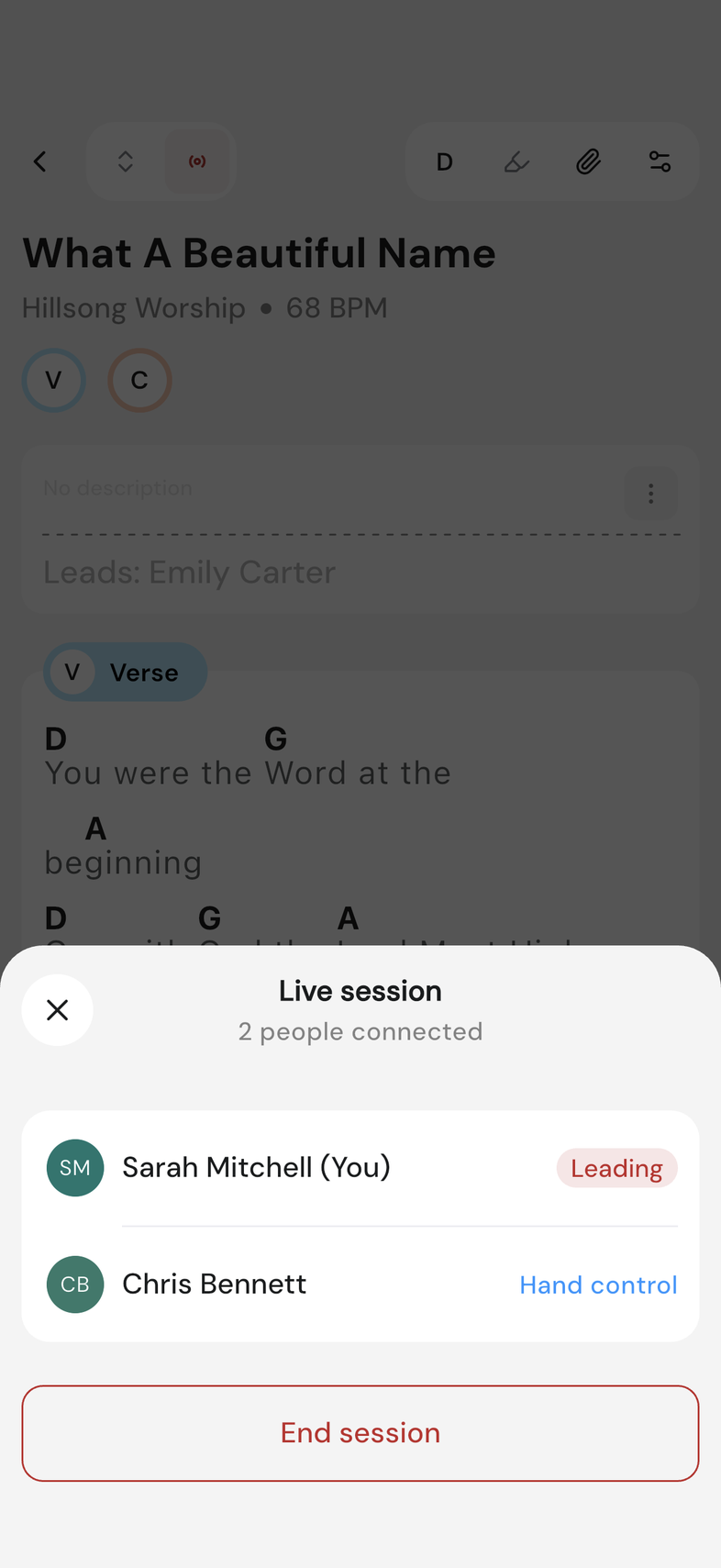
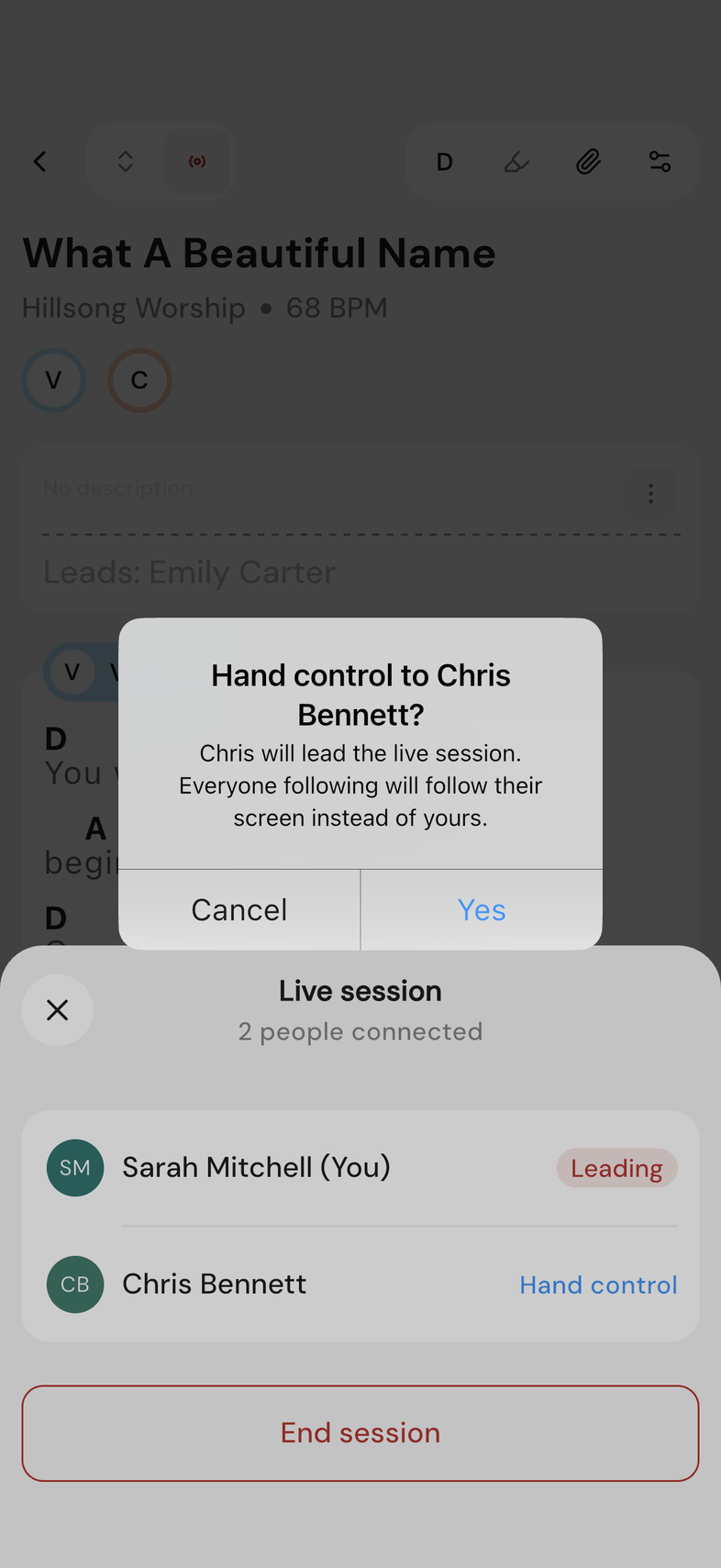
Tap the Live Mode icon again while a session is running to open the participants sheet.
- As a follower, tap Leave session to stop following at any point.
- As the leader, tap Hand control next to someone else's name to make them the leader instead, useful if you need to put your phone down, or End session to close it for everyone.
Good to know
- Annotations and autoscroll aren't available while a live session is running. Live Mode is doing the moving instead.
- Compact view turns off while you're leading, so your own screen still shows what everyone else sees.
- A live session needs a connection. If yours drops, the app tells you and reconnects on its own.