Song Description & MD Notes
A note the whole team reads: how the arrangement runs, who starts, what you're skipping this week. Either for the whole song, or above one exact section.
Who can do this: Owner, Admin, Editor. What the roles mean Online only: You need internet for this. Why buttons disappear offline
Steps
Add the Song Description
The Song Description card appears above the first section when Song Details is enabled. To enable it, tap the gear icon in the top right, then Display Options, and turn on Song Details.
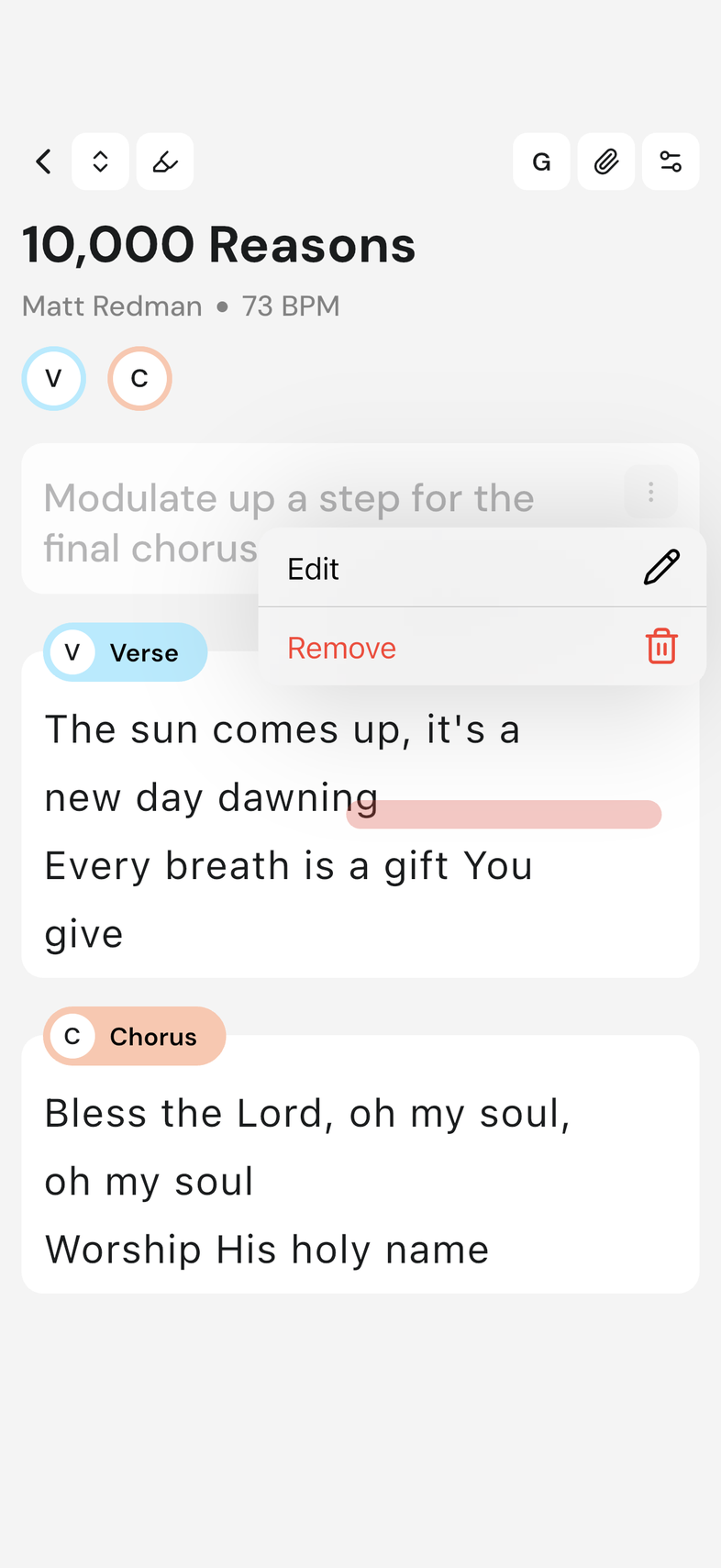
- Tap the three dots at the top right of the card.
- Tap Edit.
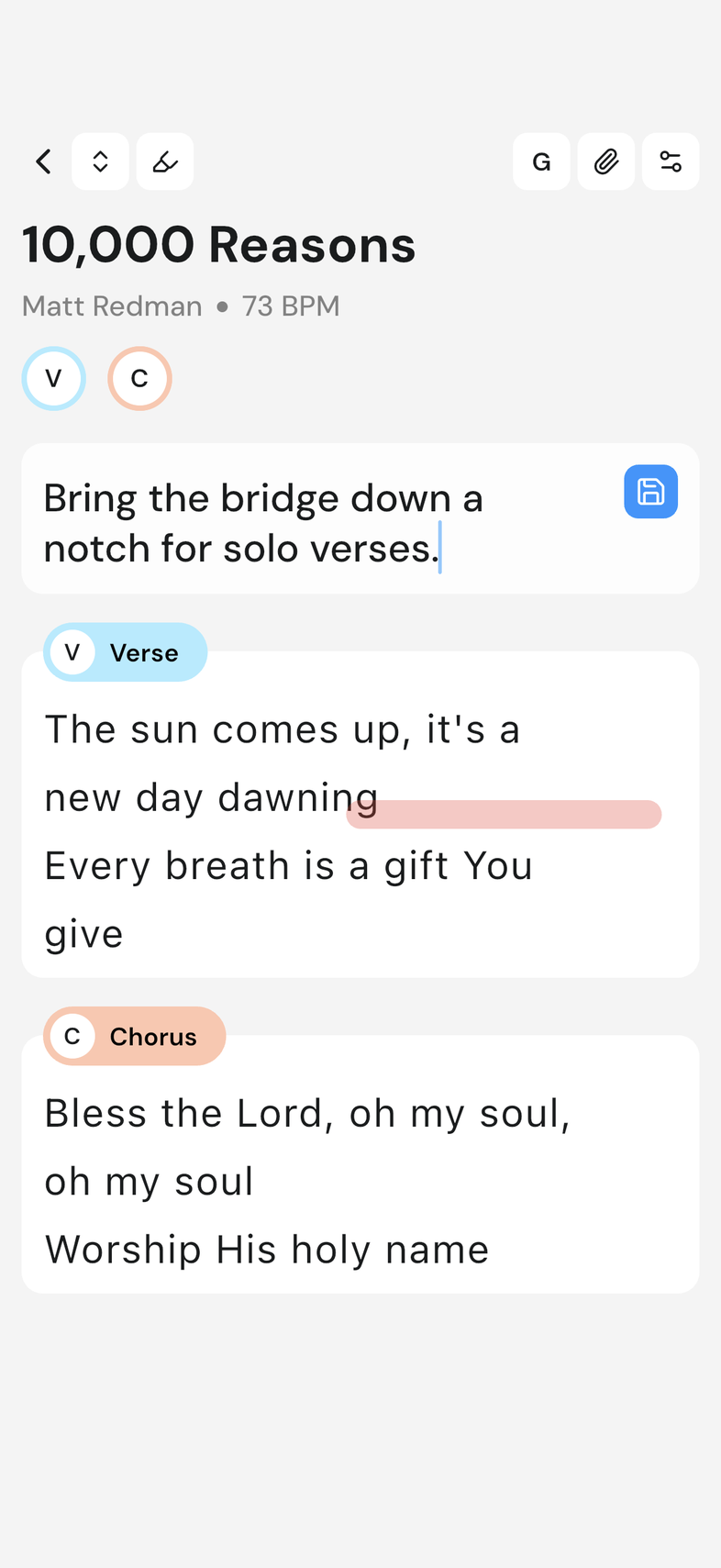
- Enter your description. It can be as long as you need.
- Tap the blue save button where the three dots were.
Add MD Notes to a Section
A note like "Acoustic only", "repeat twice" or "key change here" sits above the exact section it belongs to.
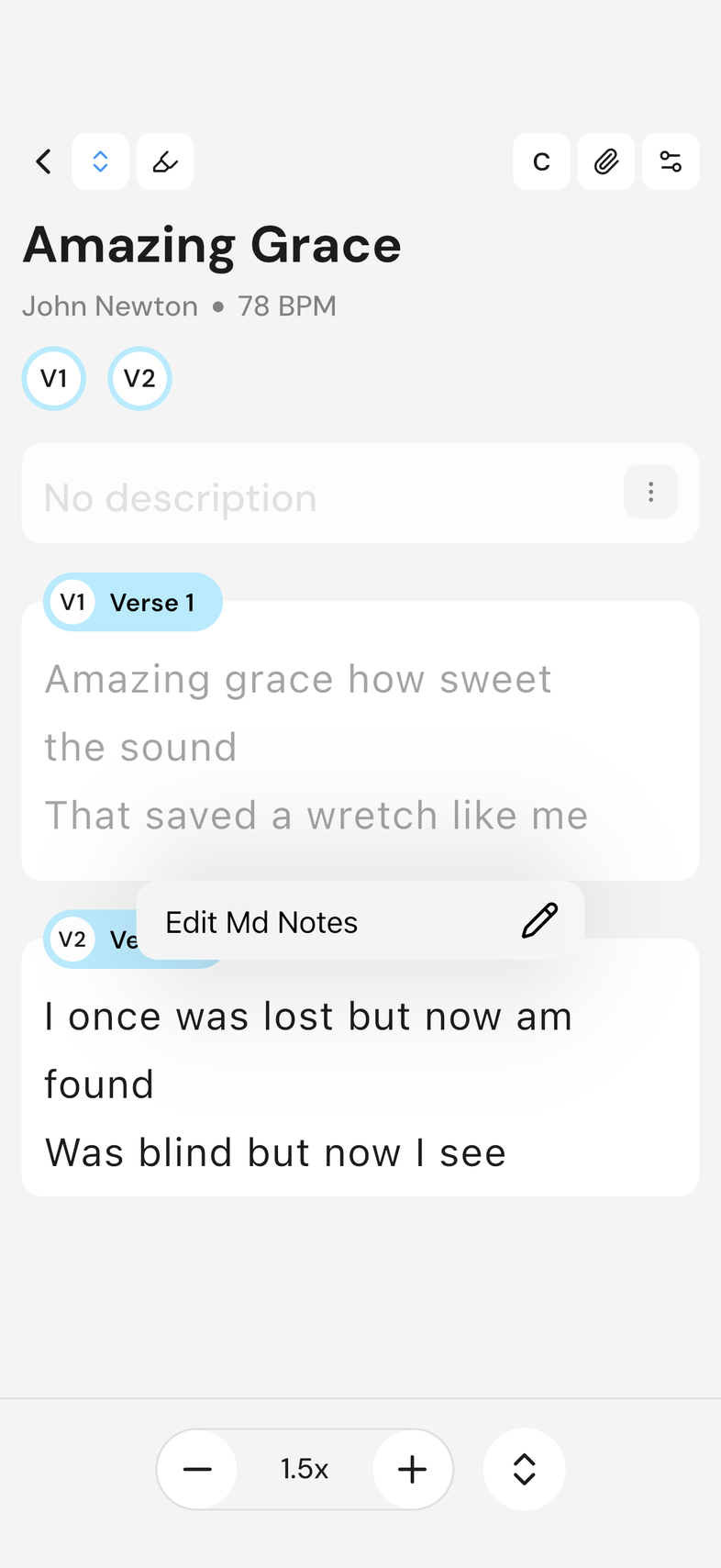
- On mobile, press and hold the section. On web, tap the menu icon at the top right of the section.
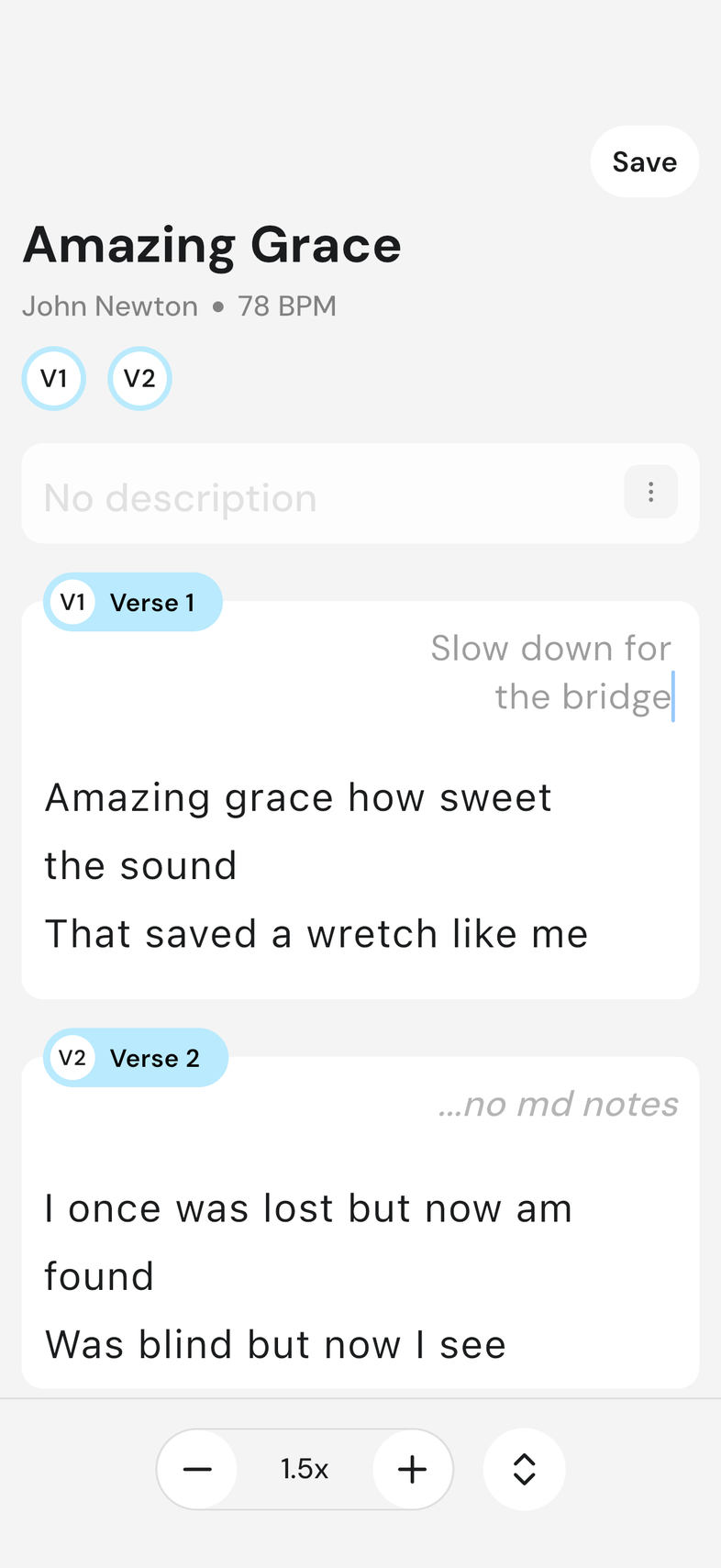
- Tap Edit Md Notes. A note box opens above every section. Type your note; you can fill in several sections in one go.
- Tap Save at the top right.
Good to know
- Everyone on the team reads both kinds of note.
- For the whole-song note: tapping away from the card or leaving the song saves what you typed. Remove in the same menu clears it, and appears once the note has something in it. An empty card reads No description until someone writes in it.
- OnStage calls the section notes Md Notes. The menu for them isn't there while Compact View is on, and they can be included when you export the song as a PDF.