Organize songs into folders
Folders group songs from your library, like Christmas or Youth Night. A song can sit in as many folders as you like and always stays in your library.
Who can do this: Owner, Admin, Editor. What the roles mean Where: iPhone, iPad and Android only. OnStage on phone, tablet and web Online only: You need internet for this. Why buttons disappear offline
Steps
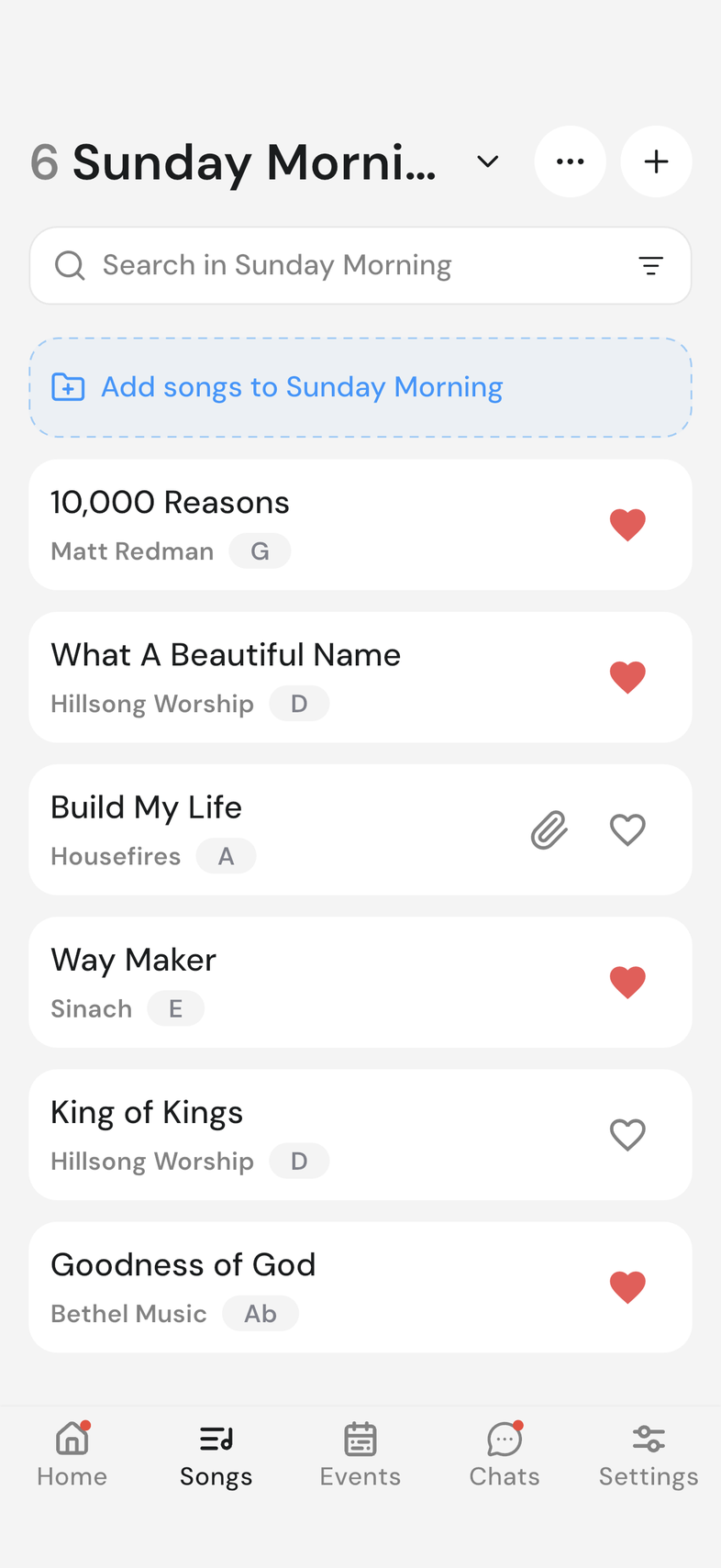
Open a folder
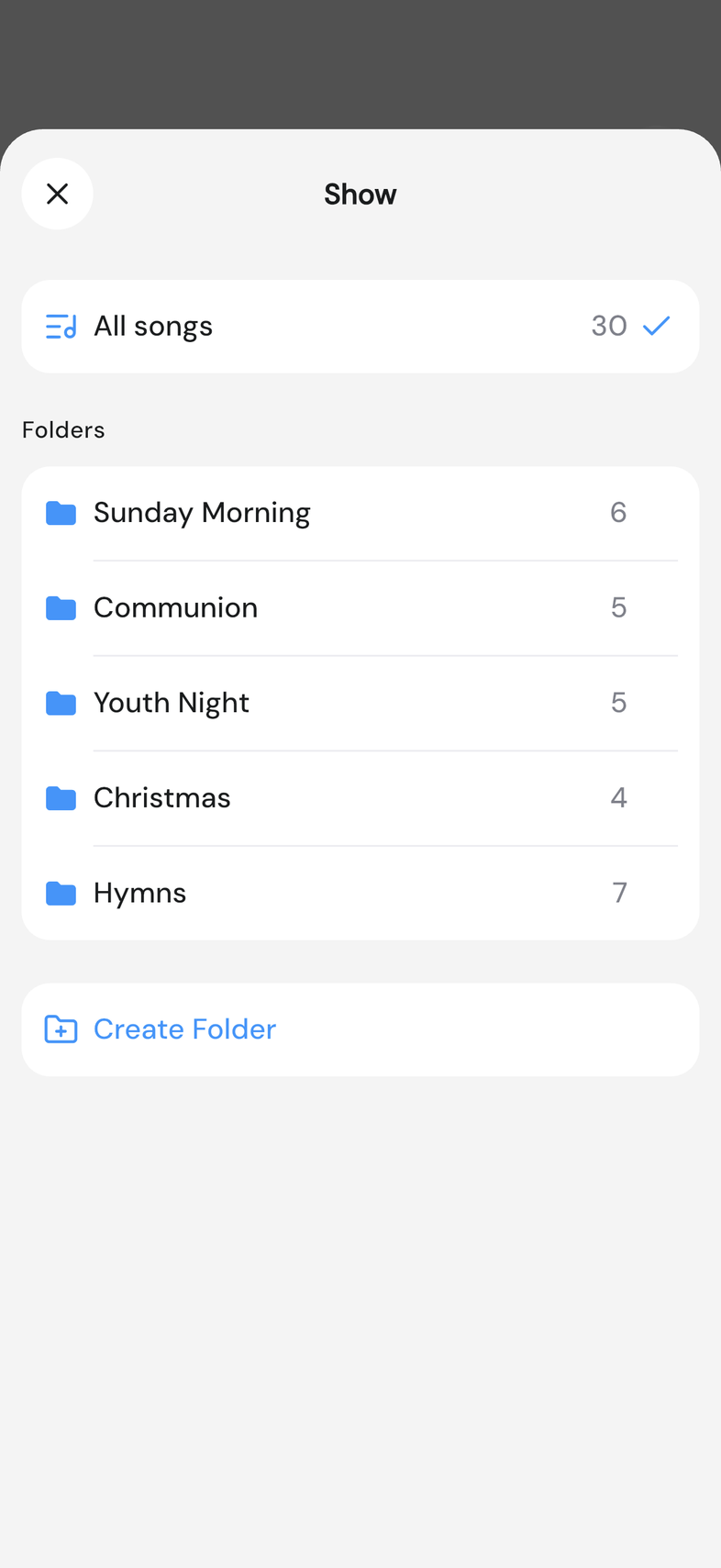
- Open the Songs tab and tap the title at the top, Songs with a small arrow next to it.
- Under Folders, tap a folder. Tap All songs to see everything again.
Create a folder
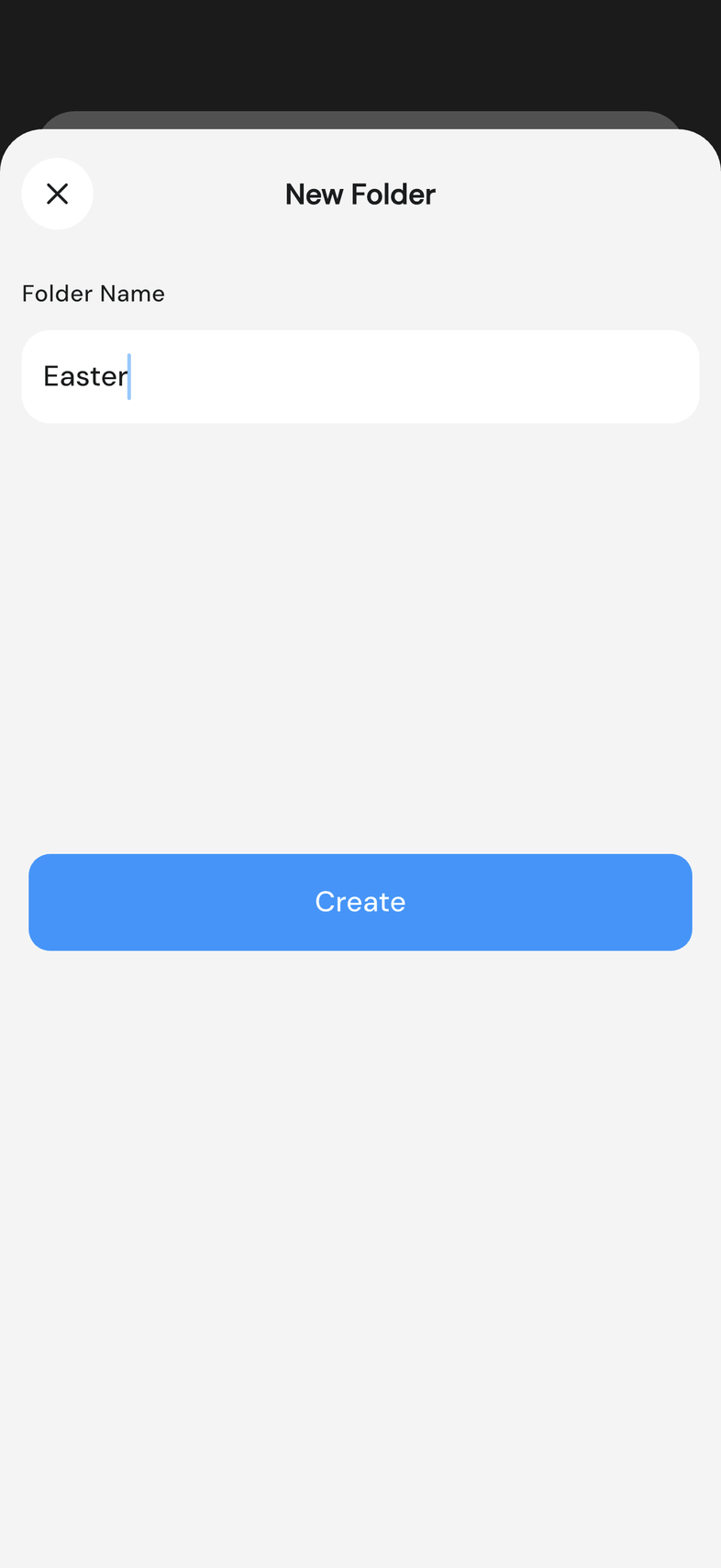
- Tap the Songs title, then Create Folder.
- Type a Folder Name and tap Create.
Add songs
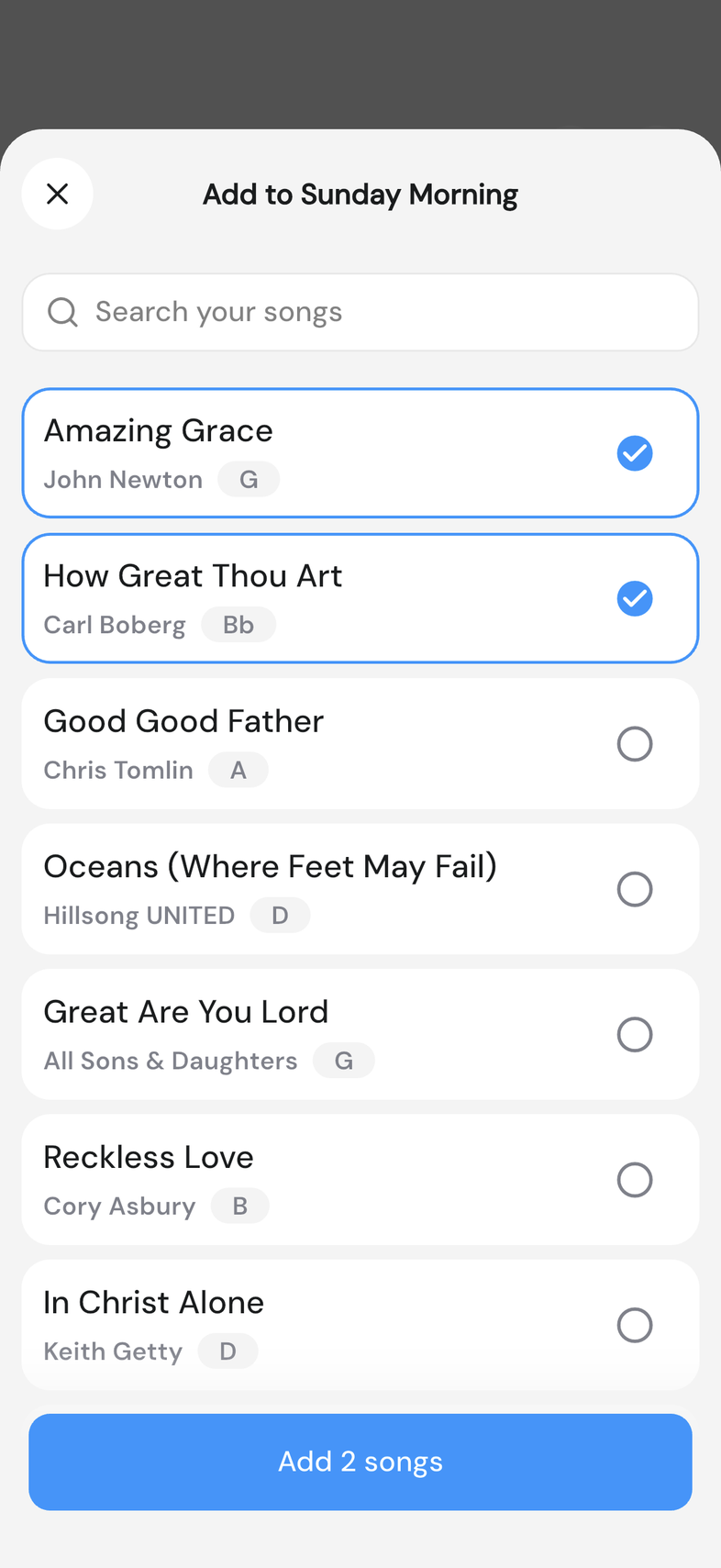
- Open the folder and tap the Add songs to row above the list.
- Tap the songs you want, then the button at the bottom, such as Add 2 songs.
To add several songs to several folders at once:
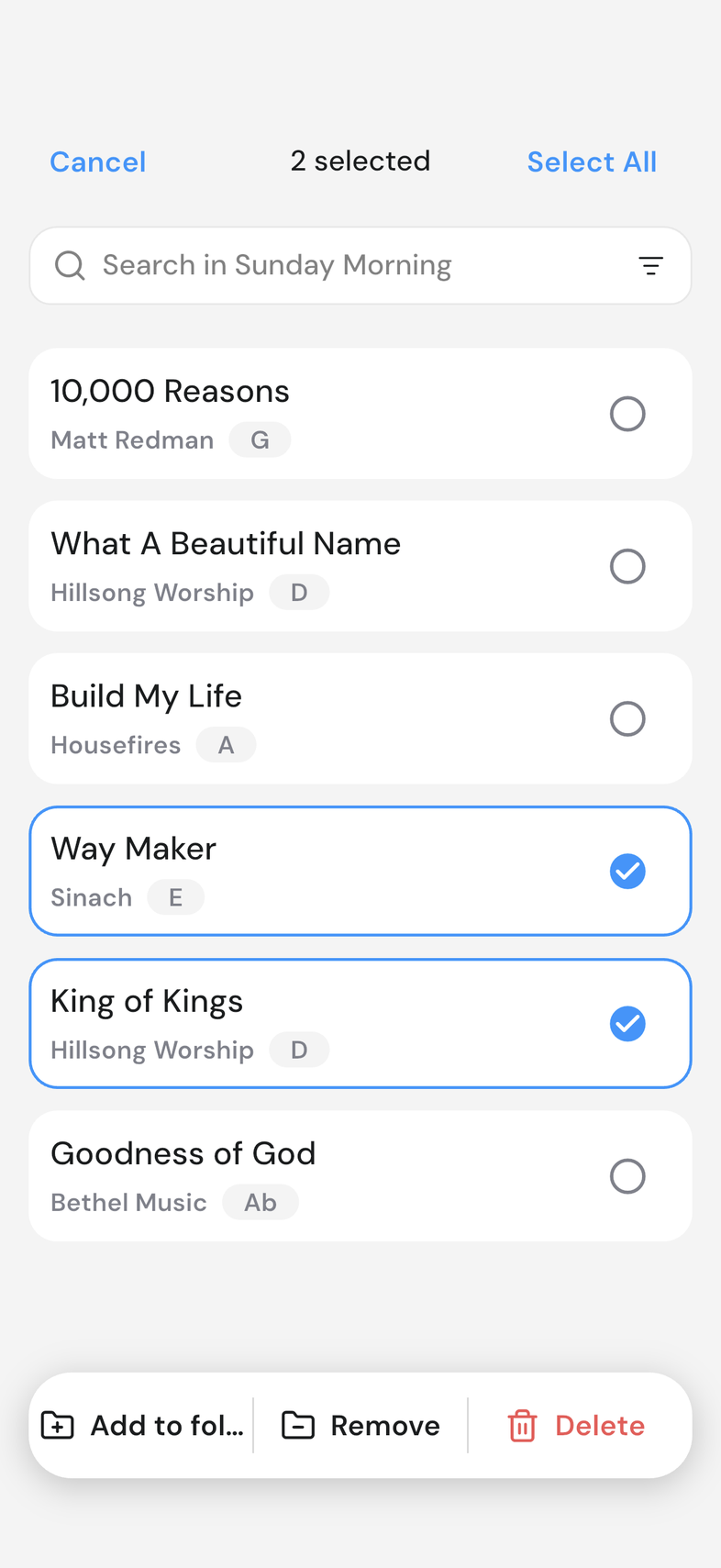
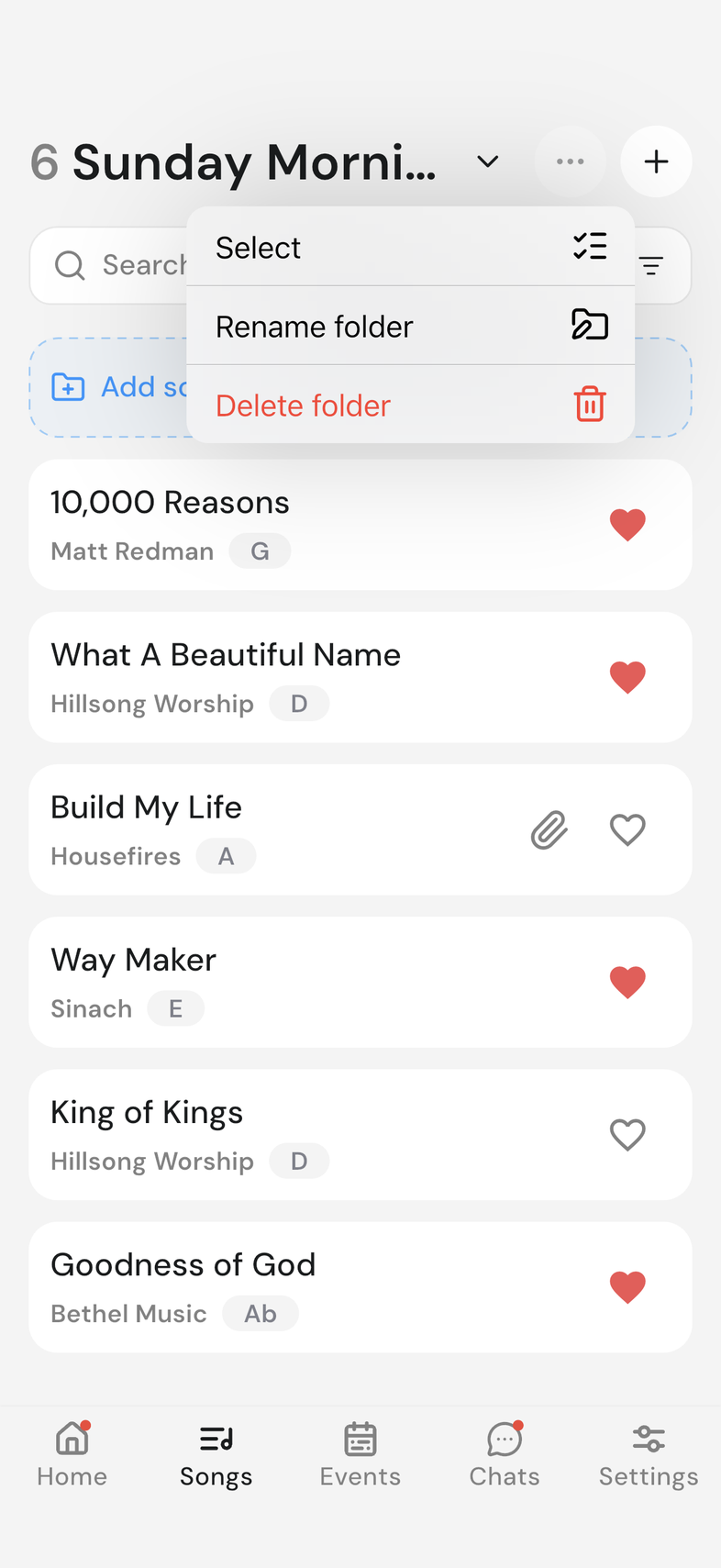
- In a folder, tap the three-dot button next to +, then Select. Tap the songs you want.
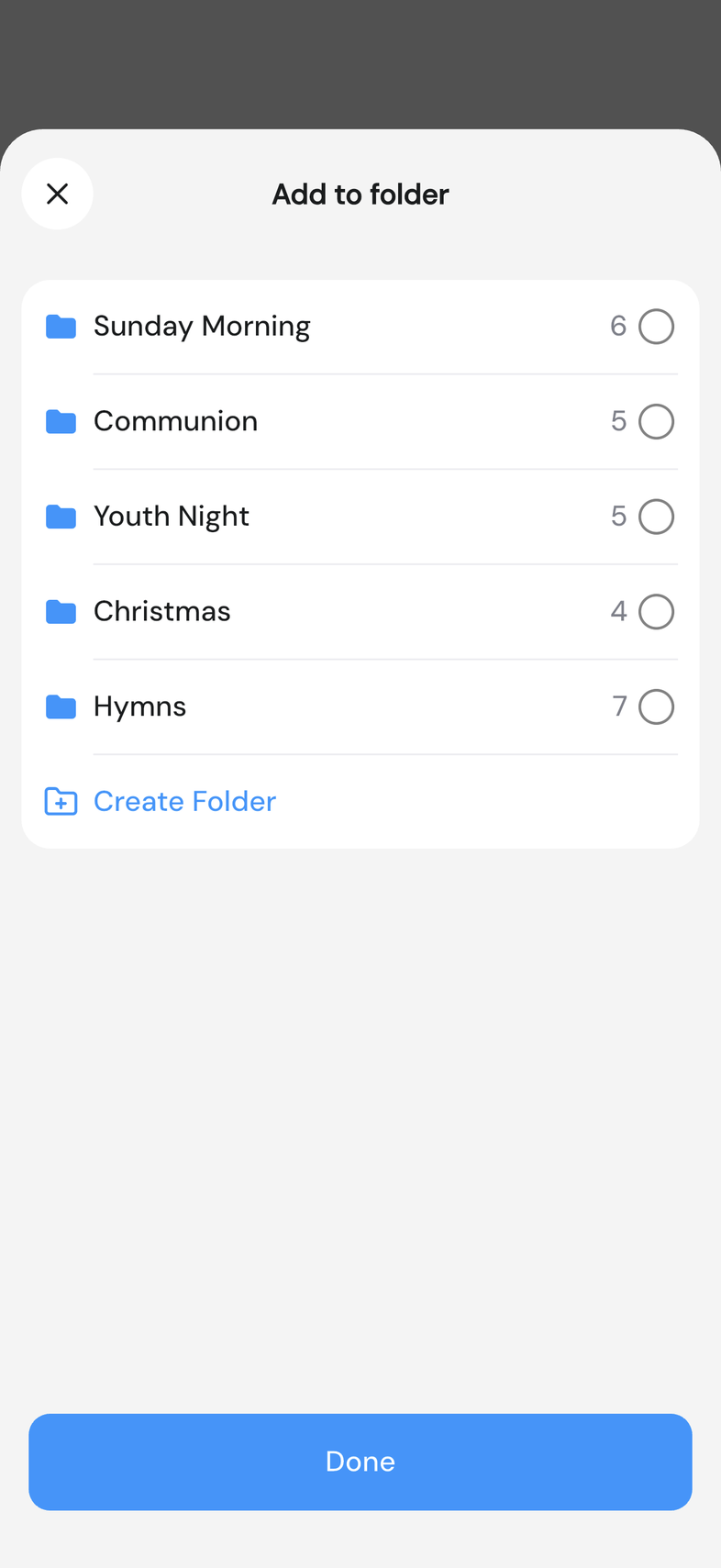
- Tap Add to folder, tick the folders, and tap Done.
Remove songs, rename or delete
- In the folder, press and hold a song, then tap Remove from and the folder's name. Tap Undo if you change your mind.
- Tap the three-dot button for Rename folder or Delete folder. Deleting a folder keeps its songs in your library.
Good to know
- Everyone on your team can open folders. On a wide tablet screen, the Songs tab lists your whole library without folders.
- To file one song, press and hold it anywhere in Songs and tap Add to folder….
- Delete inside a folder removes the song from your library and every folder. Use Remove to take it out of one folder only.
- A team can have up to 100 folders, with names up to 60 characters.