Find a song in your library
Every song your team has added lives in the Songs tab. Anyone on the team can browse it, search it by title or lyrics, or filter it down to the songs that fit the service you're planning.
Steps
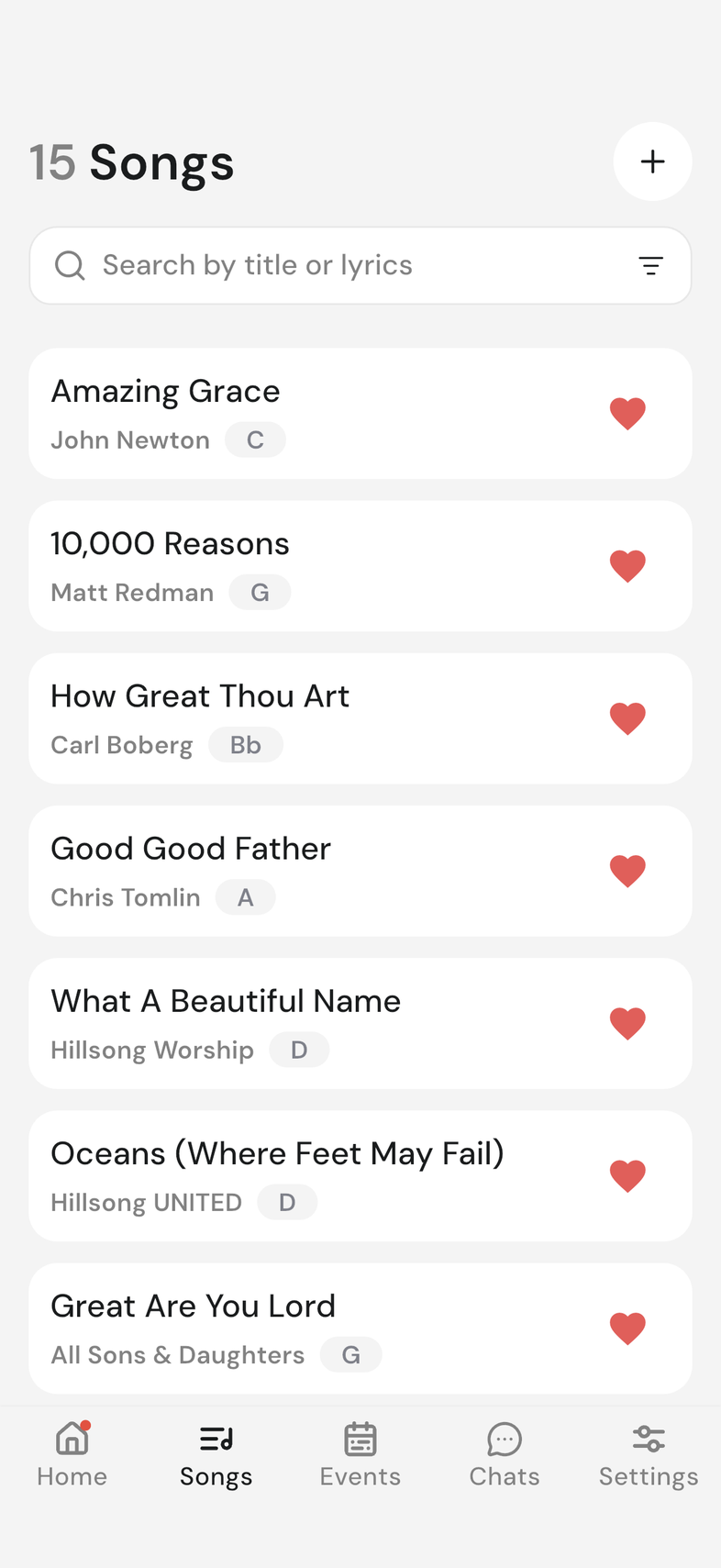
Browse
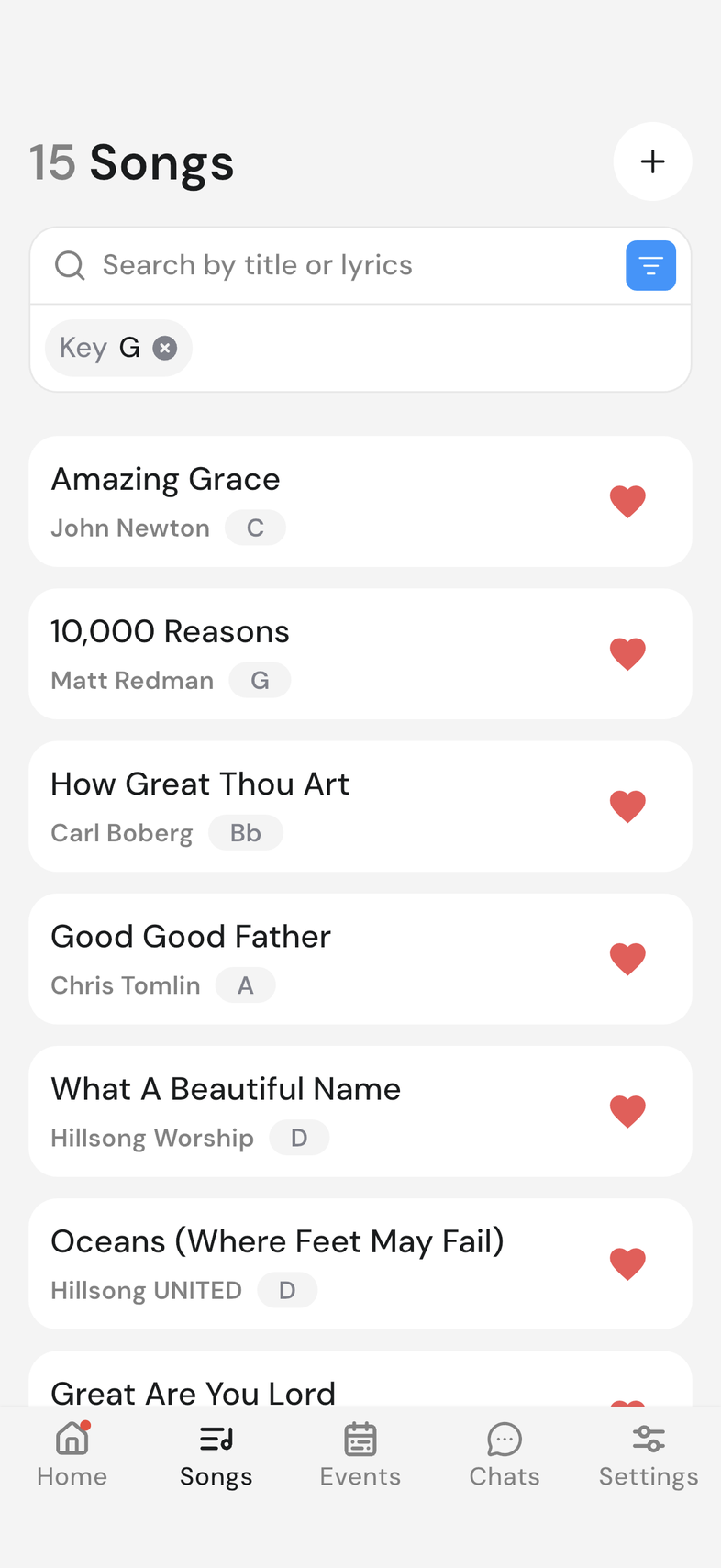
- Open the Songs tab. The number next to Songs at the top is how many songs your team has.
- Scroll down (more songs load as you reach the end of the list), and pull down on the list to refresh it.
- Tap a song to open it.
Search
- Tap the search bar at the top. It reads Search by title or lyrics.
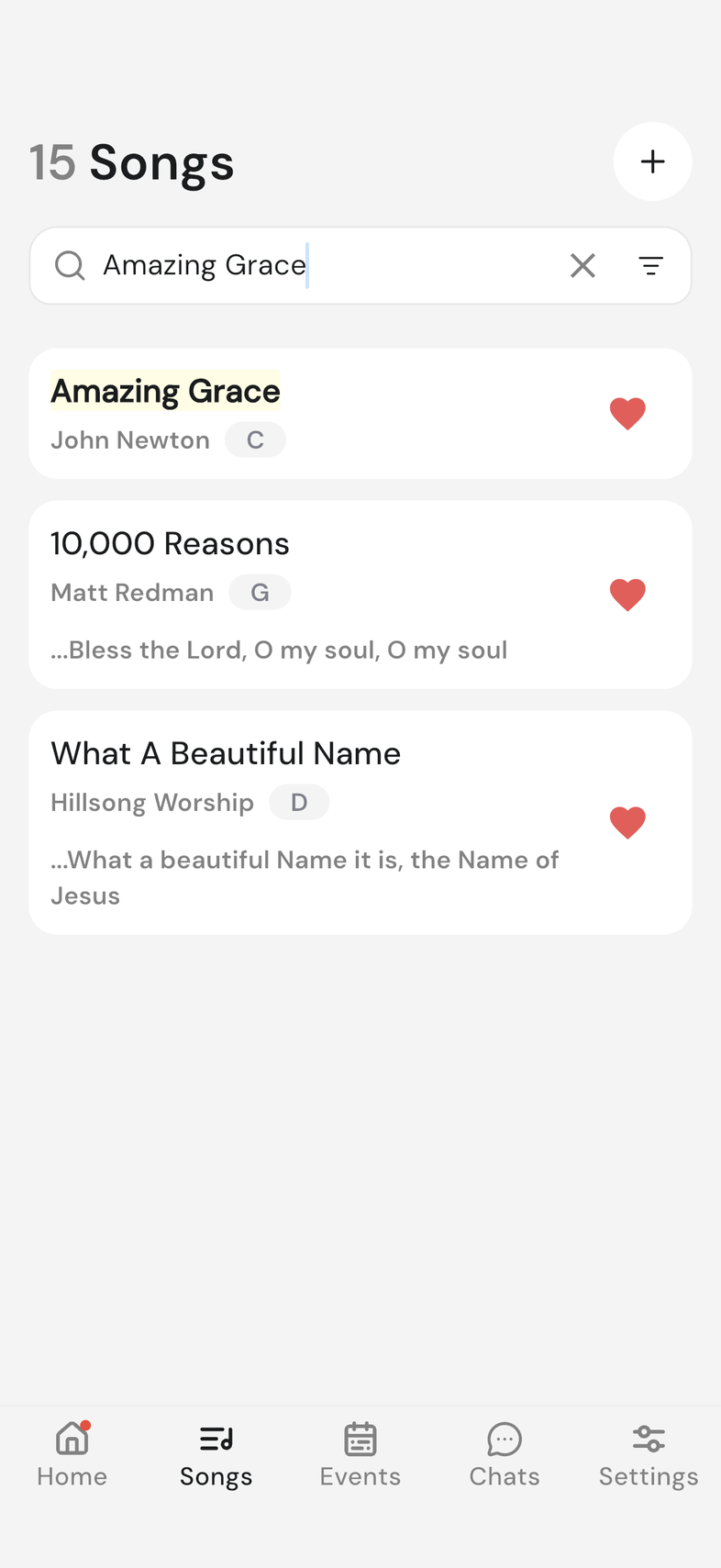
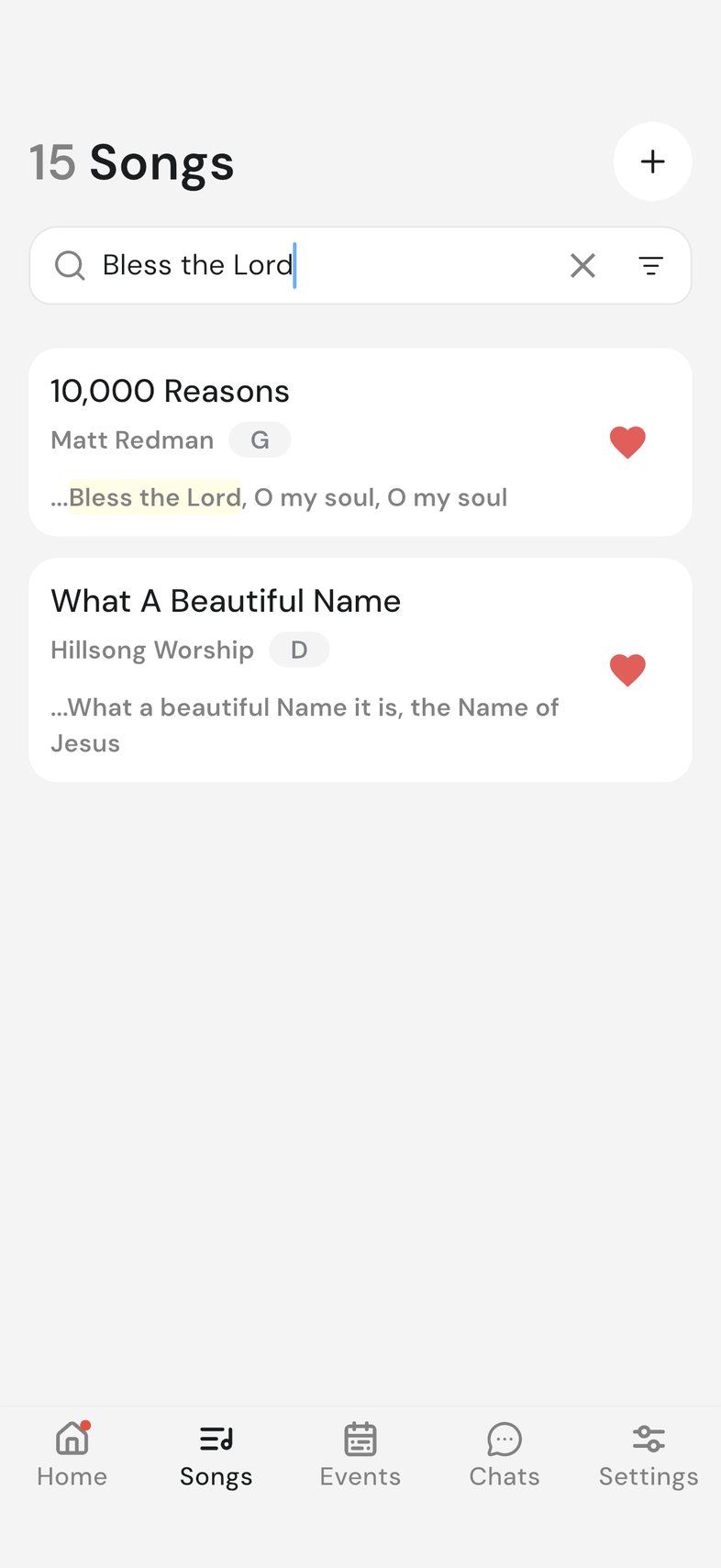
- Type part of the title, or a line you remember. When the match is in the words, the matching line appears under the song title with your words highlighted.
- Tap the song to open it, or clear the box to get your whole library back.
Filter
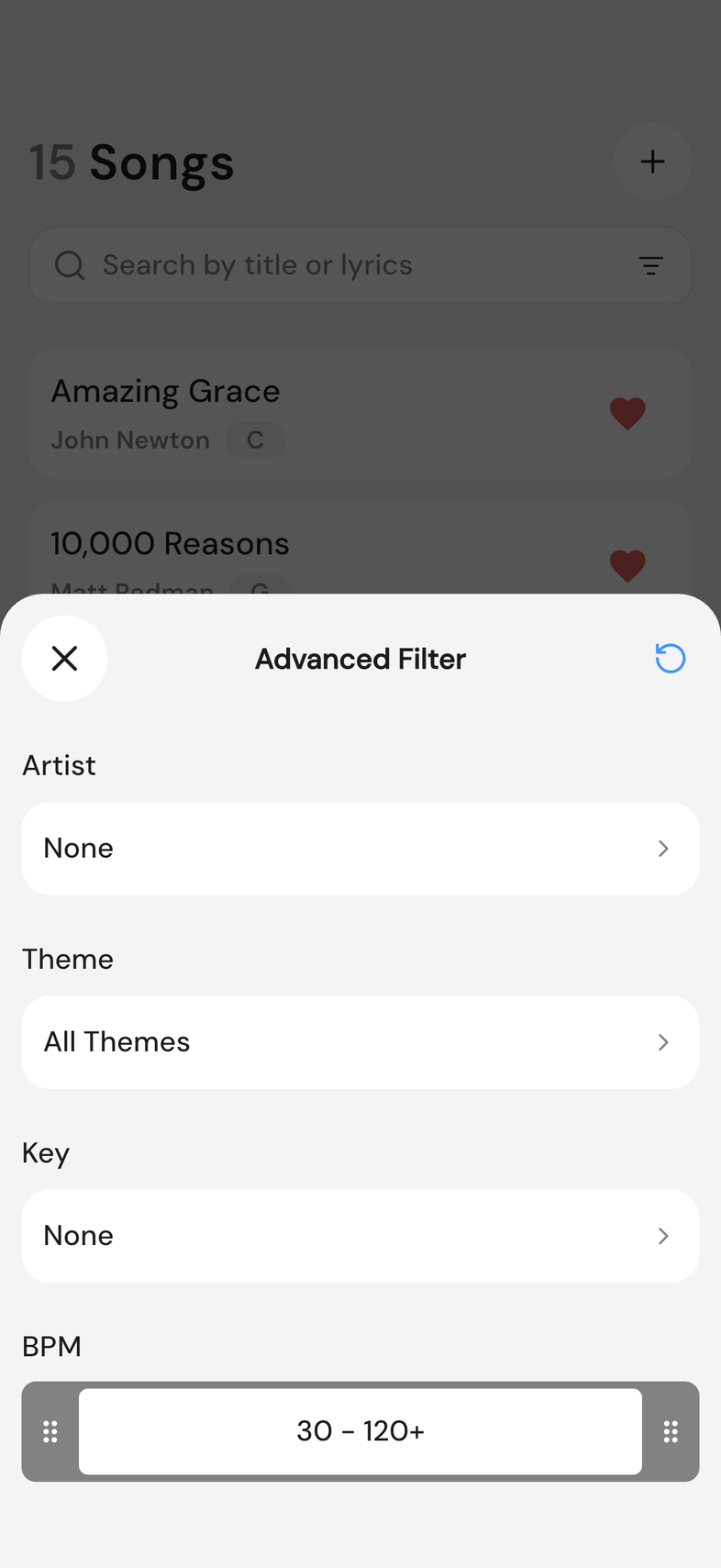
- Tap the filter icon at the right of the search bar. Advanced Filter opens.
- Choose an Artist, Theme, or Key, or drag the Tempo slider to set a range.
- Close the sheet. Your list is already filtered.
- To clear the filters, reopen the sheet and tap the reset icon at the top left.
Good to know
- A heart on the right of a song means you saved it. Tap it to save or unsave. A paperclip means the song has files attached. Tap it to open them. The library is shared, so everyone on the team sees the same songs.
- Search covers titles and lyrics. Filters stay on while you search, so a search runs inside whatever filters are already set. Results scroll and load more the same way the full list does.
- Each filter you set shows as a chip under the search bar. Tap the x on a chip to drop that one filter. The filter icon fills with color while any filter is on. The Tempo slider runs from 30 to 120+ bpm; an end left at 30 or at 120+ means no limit on that side. Reset clears the filters, but anything typed in the search bar stays.