Keys and capo
The key sits at the top of the song. Both key and capo live in the same sheet: the difference is who else sees the change.
Before you start
- Changing the key moves the song for everyone on the team. Check with whoever is leading the service first. It needs Owner, Admin or Editor, and you'll need internet for it. What the roles mean
- Setting your own capo changes only what you see. Anyone can do it, offline included.
Steps
Change the key for the whole team
-
Open the song.
-
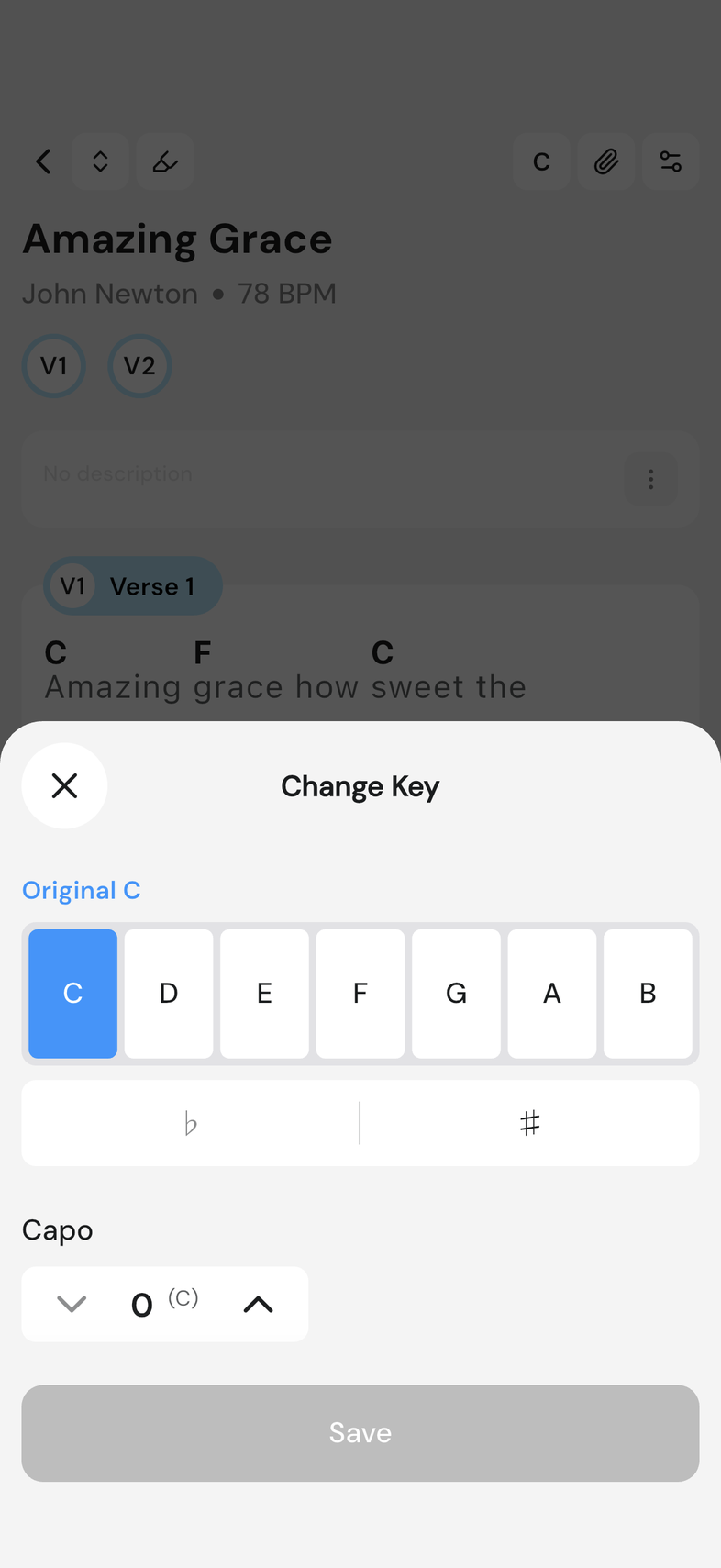
Tap the key at the top of the screen. Change Key opens.
-
Tap the letter you want. The song's original key is shown above the row. For a sharp or a flat, tap ♯ or ♭.
-
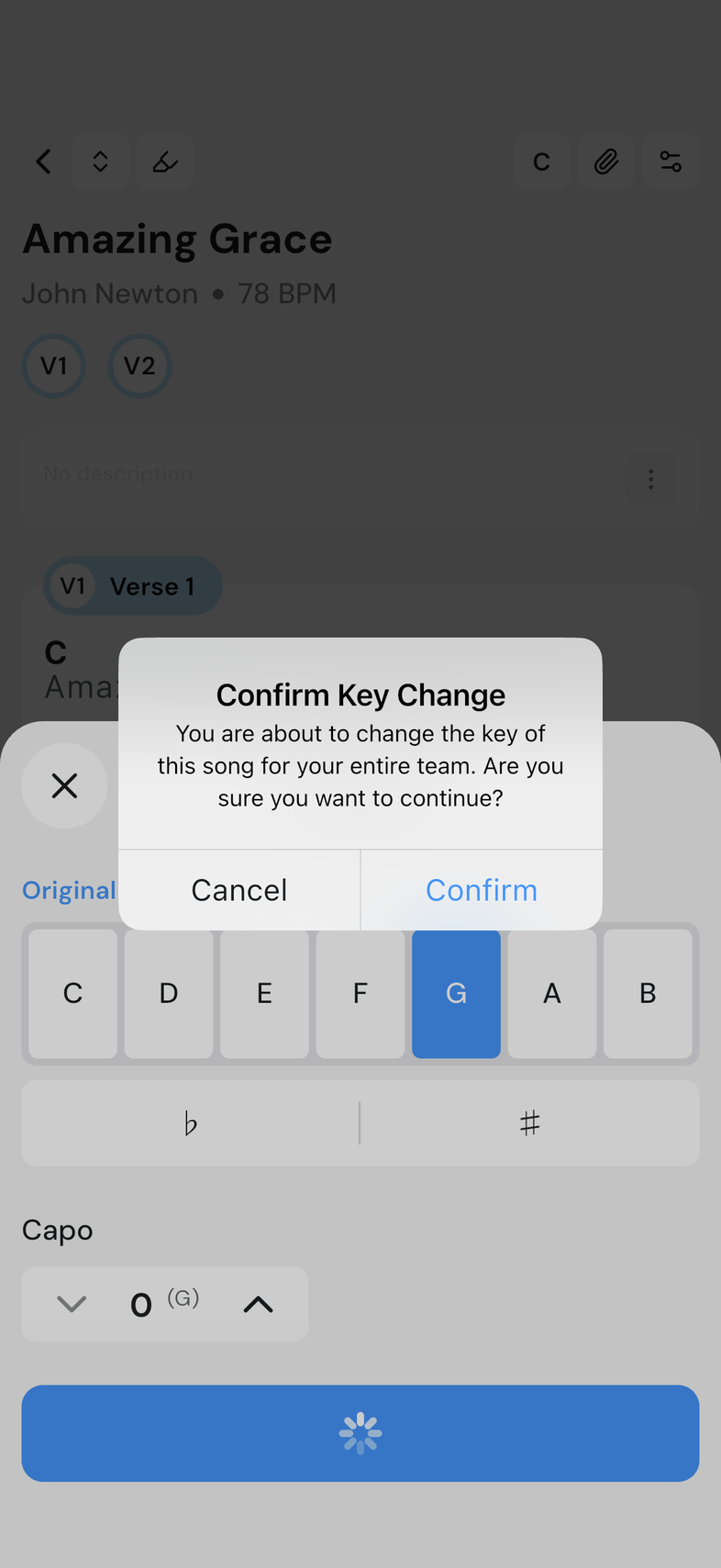
Tap Save.
-
Tap Confirm on Confirm Key Change.
Set your own capo
-
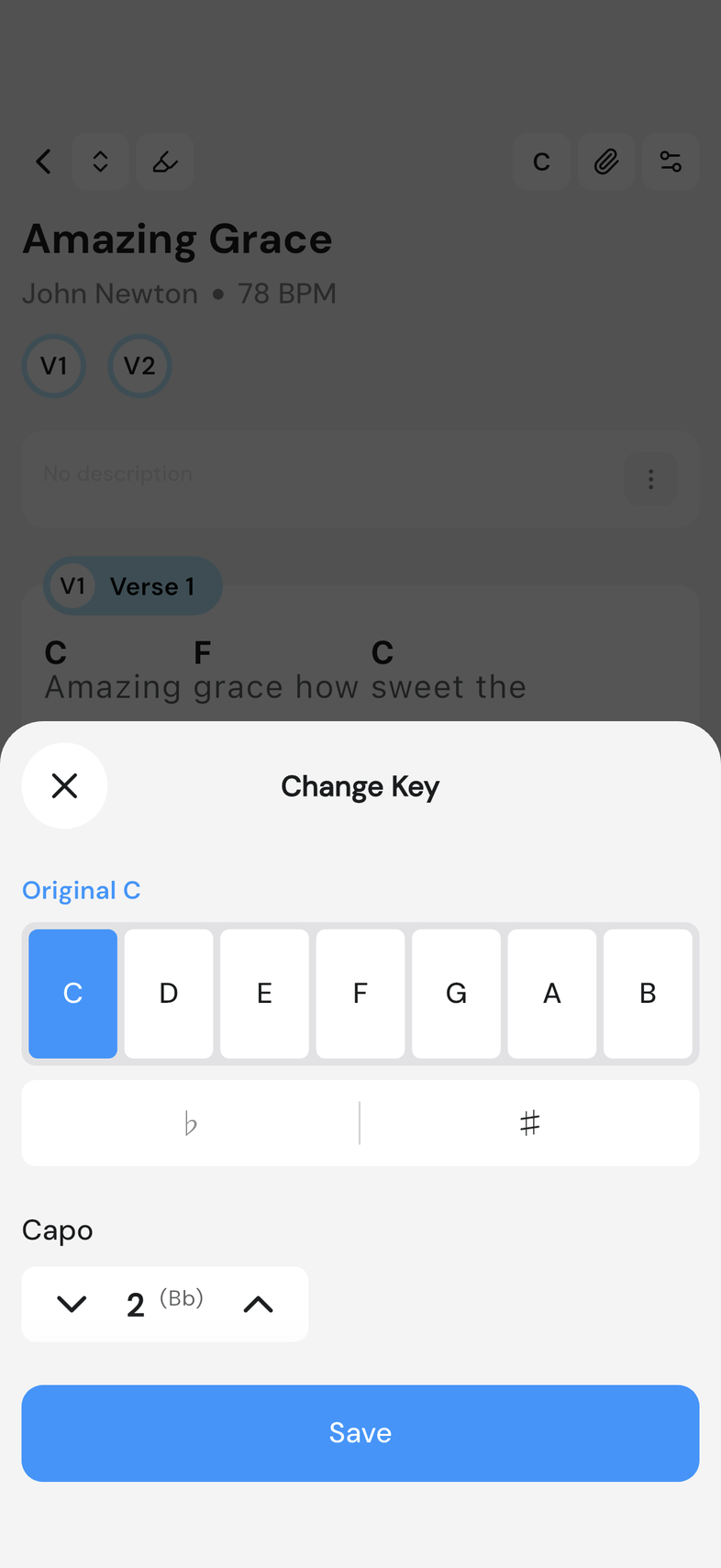
In the same Change Key sheet, under Capo, tap the up arrow to raise the number or the down arrow to lower it. It runs from 0 to 11.
-
Check the shape in brackets next to the number. That's what you'll play.
-
Tap Save.
Key or capo: which should I change?
Change the key when the song itself has to move: the singer can't reach it, or the band agreed on something different. The song moves for everyone on the team.
Change your capo when the song is right as it is and you want easier shapes on your own instrument. Nothing changes for anyone else.
Good to know
- Everyone sees the new key straight away, and the chords move with it. ♯ isn't offered for E or B, and ♭ isn't offered for F or C. Save stays greyed out until you change something.
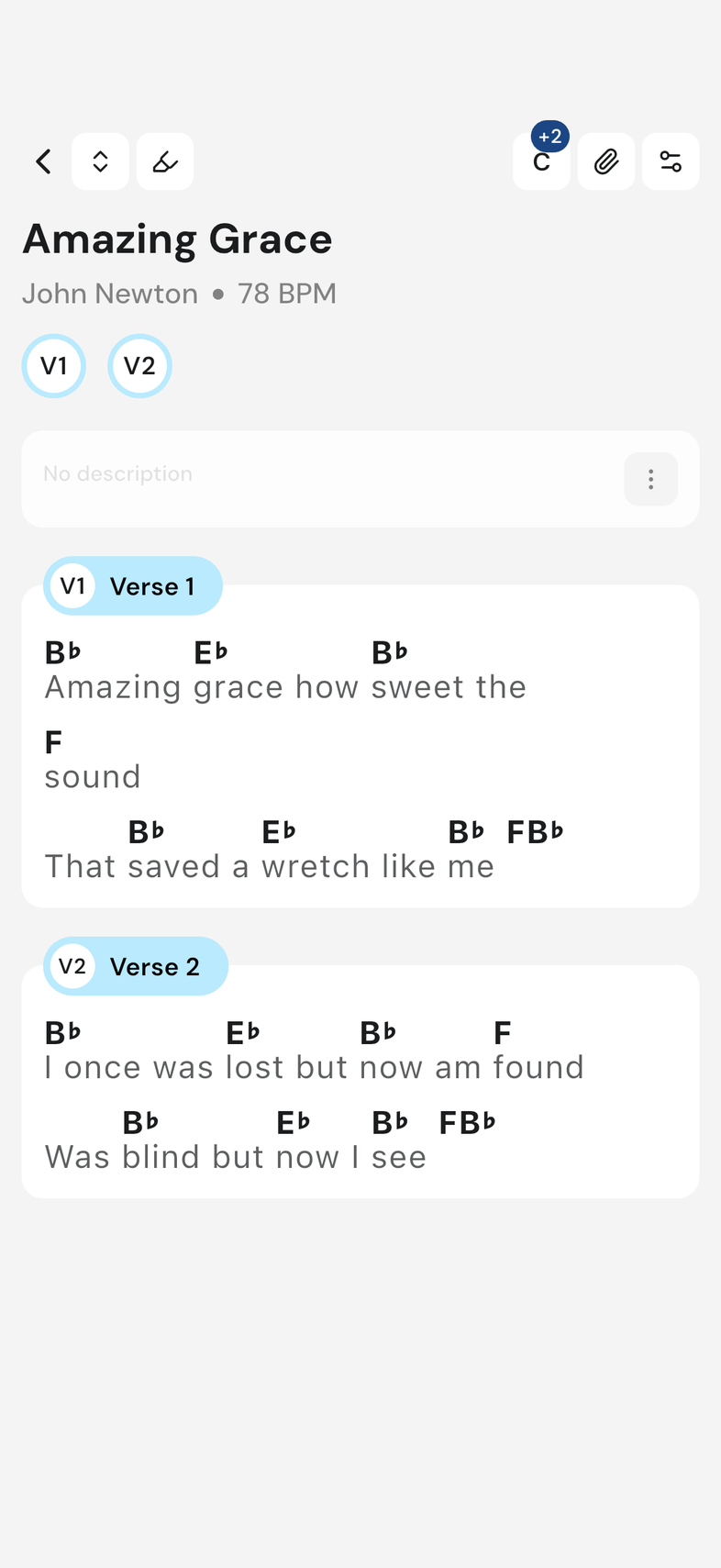
- The key at the top of the song shows a +2 badge while your capo is at 2. Set the capo back to 0 to turn it off; the badge goes away. Your capo is saved for that song, so it's still set the next time you open it.
- If the sheet is titled Preview Key, the key row is covered but the capo stepper still works.
- One key for the whole team, one capo per person: changing either one never touches the other. If you changed the key for everyone by mistake, change it back the same way.