Write chords and lyrics
The Content tab gives you one box per section. Type the lyrics, and put each chord in square brackets where it lands, or tap it in from the chord toolbar instead of typing it.
Who can do this: Owner, Admin, Editor. What the roles mean Online only: You need internet for this. Why buttons disappear offline
Steps
Type lyrics and chords
- Open the song, tap the gear icon at the top right, then tap Edit Song.
- Go to the Content tab.
- Tap into a section's box and type its lyrics.
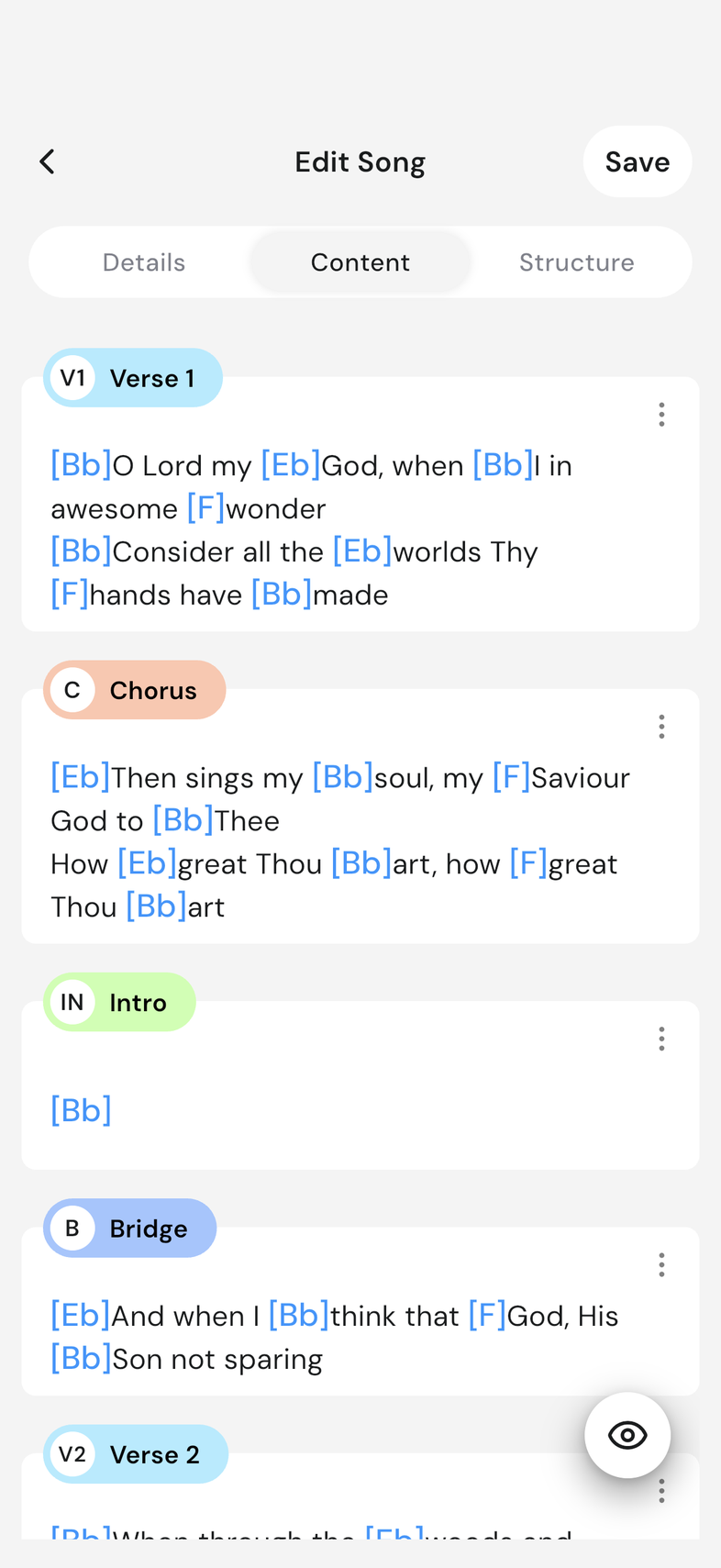
- Put each chord in square brackets, right before the word it falls on. For
example,
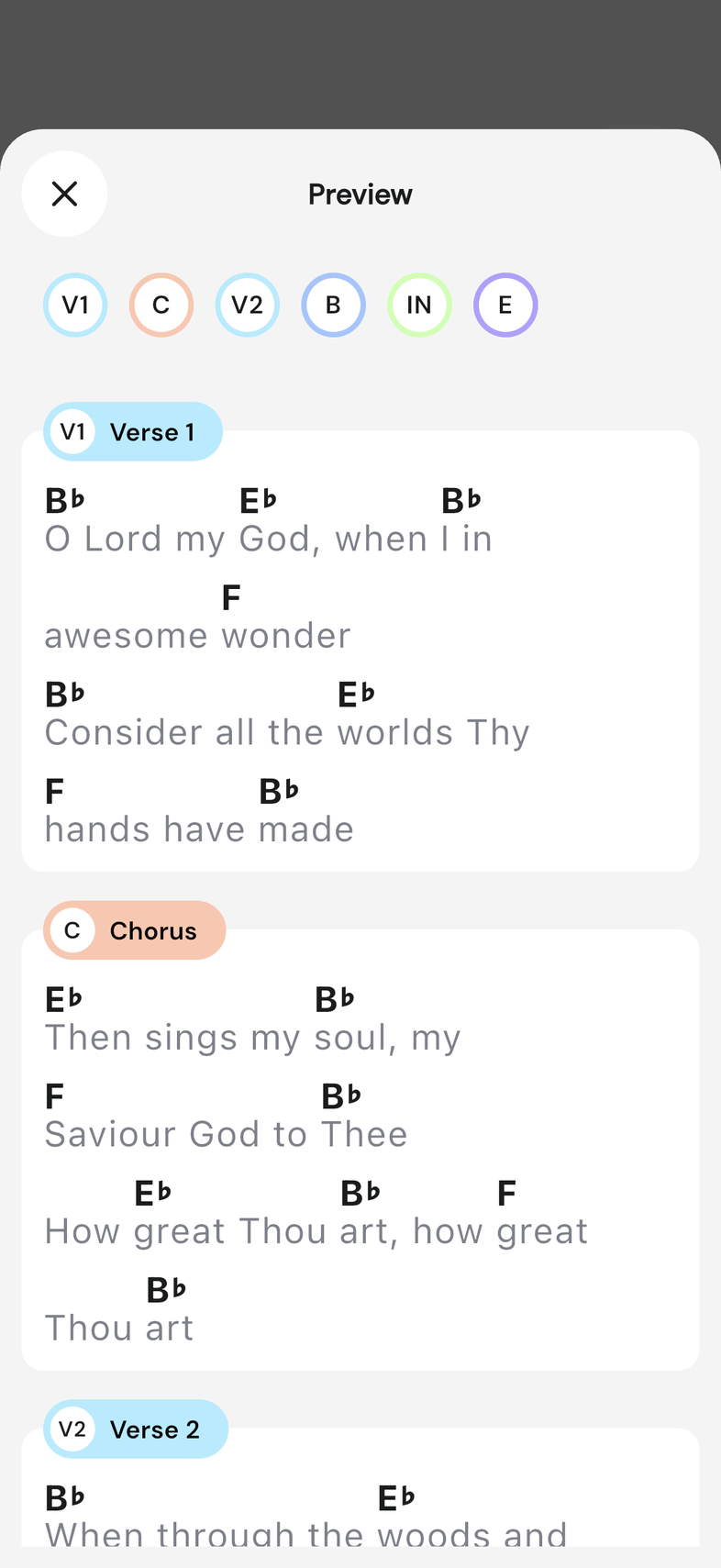
[Dm]Burn the ships, cut the [Bb]ties. - Tap the eye button at the bottom right to see the song the way your team will read it.
- Tap Save.
Use the chord toolbar
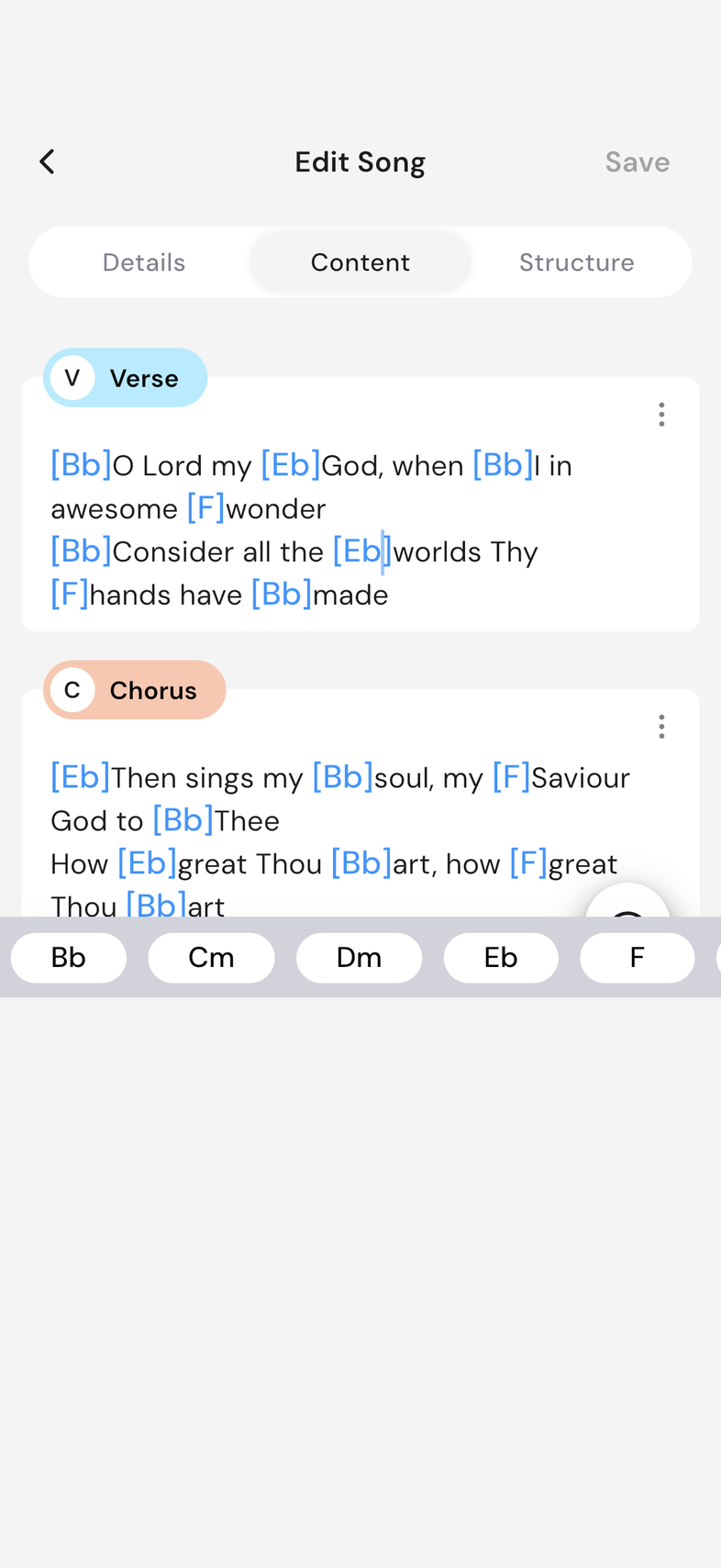
While you're typing a section, a row of chords sits above the keyboard: the chords that belong to the song's key. Tap one and it lands where your cursor is, wrapped in square brackets automatically.
- Put the cursor before the word the chord falls on.
- Tap a chord, or drag the row sideways for more shapes: sevenths, sus and slash chords.
- Tap Save.
Good to know
- Anything outside the brackets is treated as lyrics, whether you typed it or tapped it in from the toolbar.
- If the song has no sections yet, tap Add New Sections and pick the ones you need. A section's three-dot menu holds Change Section and Remove.
- The toolbar's plain chords come first, then the variations on each of them, and it follows the key on the Details tab: change the key there and the chords change with it. On a large screen the row floats near the bottom of the editor instead of above the keyboard.
- Chords and lyrics are shared with the team, and each person chooses whether they see chords, lyrics or both.