Change songs and sections with a pedal or remote
A foot pedal or page-turner remote moves you to the next section or the next song while you play, so your hands stay on your instrument.
Where: iPhone, iPad and Android only. OnStage on phone, tablet and web
Steps
Use a keyboard pedal or remote
Most page-turner pedals and presentation remotes work like a keyboard.
- Pair the pedal in your phone's Bluetooth settings.
- Open a song and press the pedal.
| Pedal key | What it does |
|---|---|
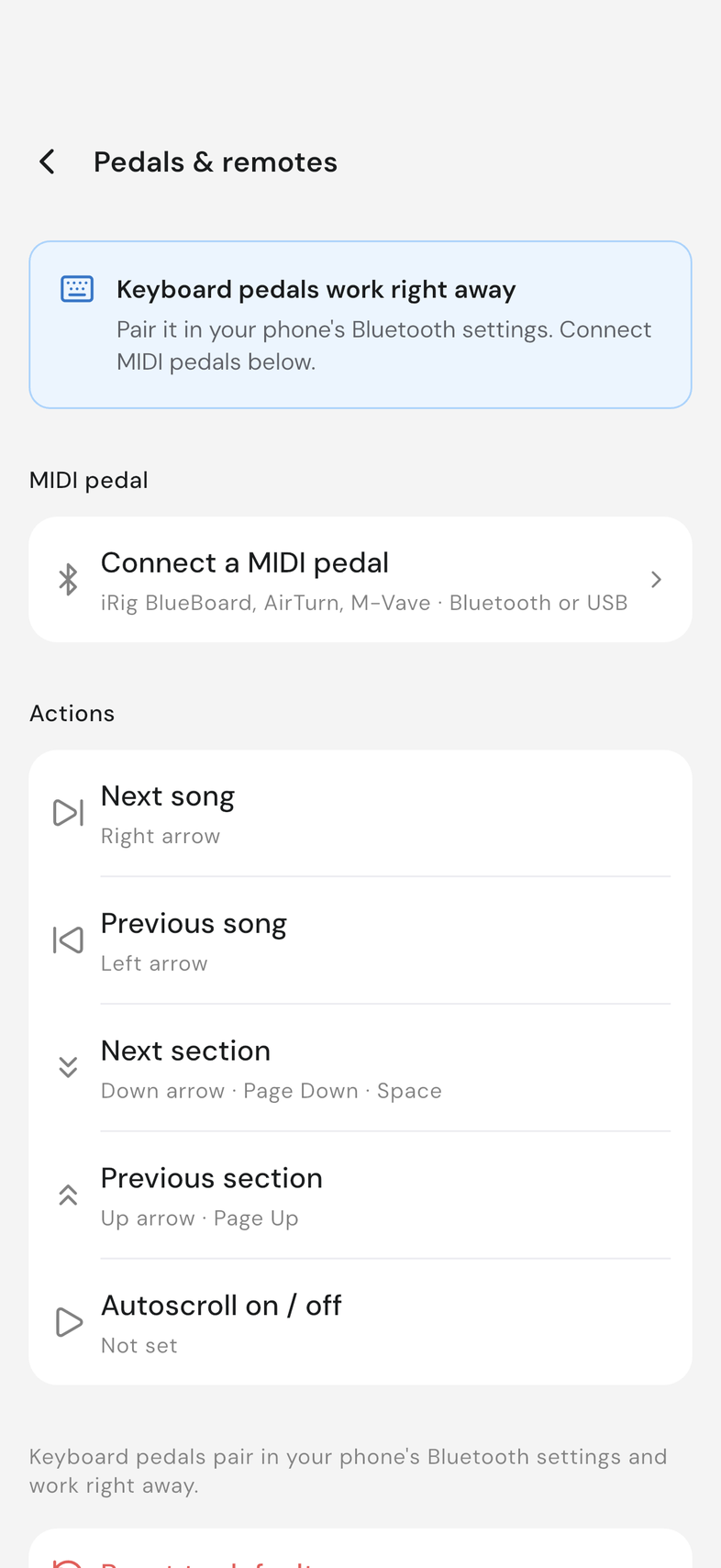
| Right arrow | Next song |
| Left arrow | Previous song |
| Down arrow, Page Down, Space | Next section |
| Up arrow, Page Up | Previous section |
Change what a pedal does
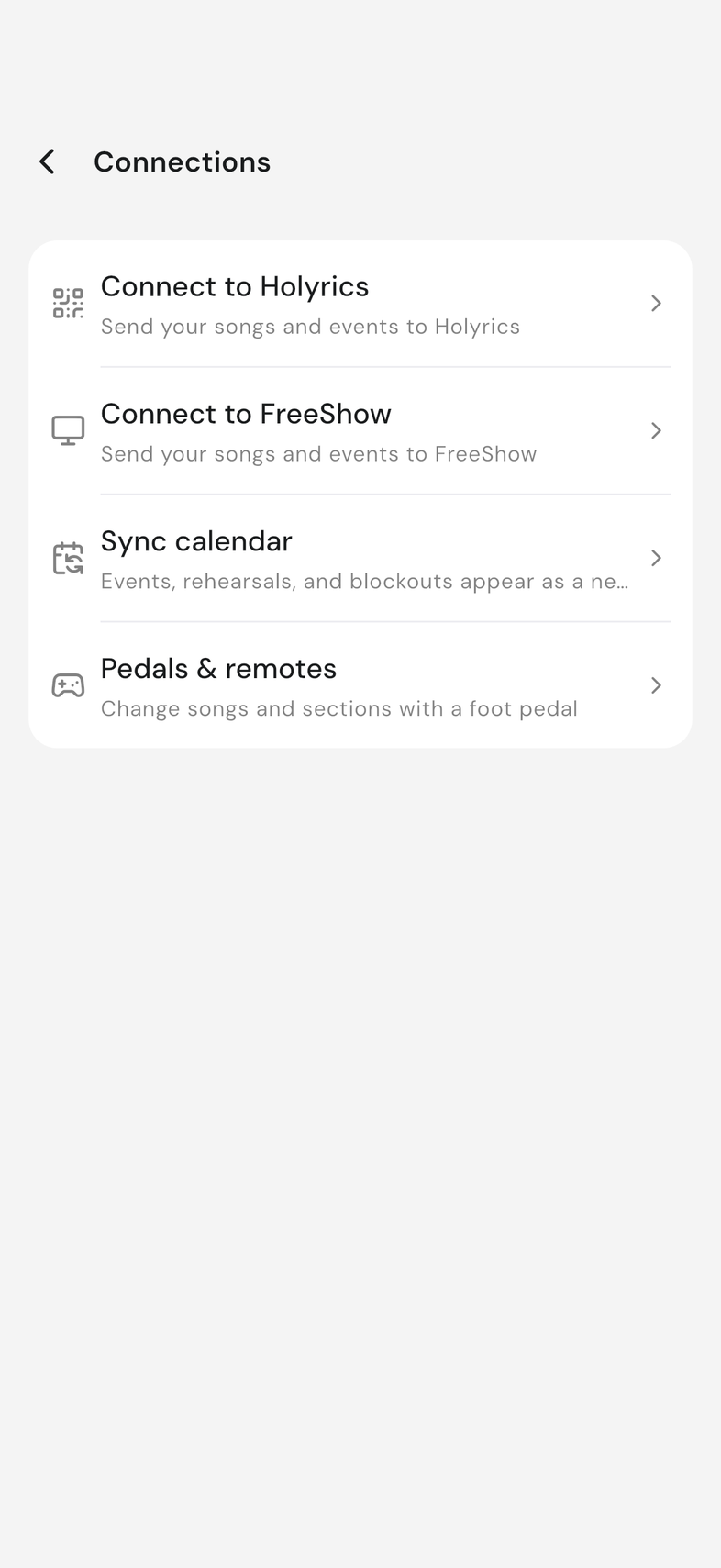
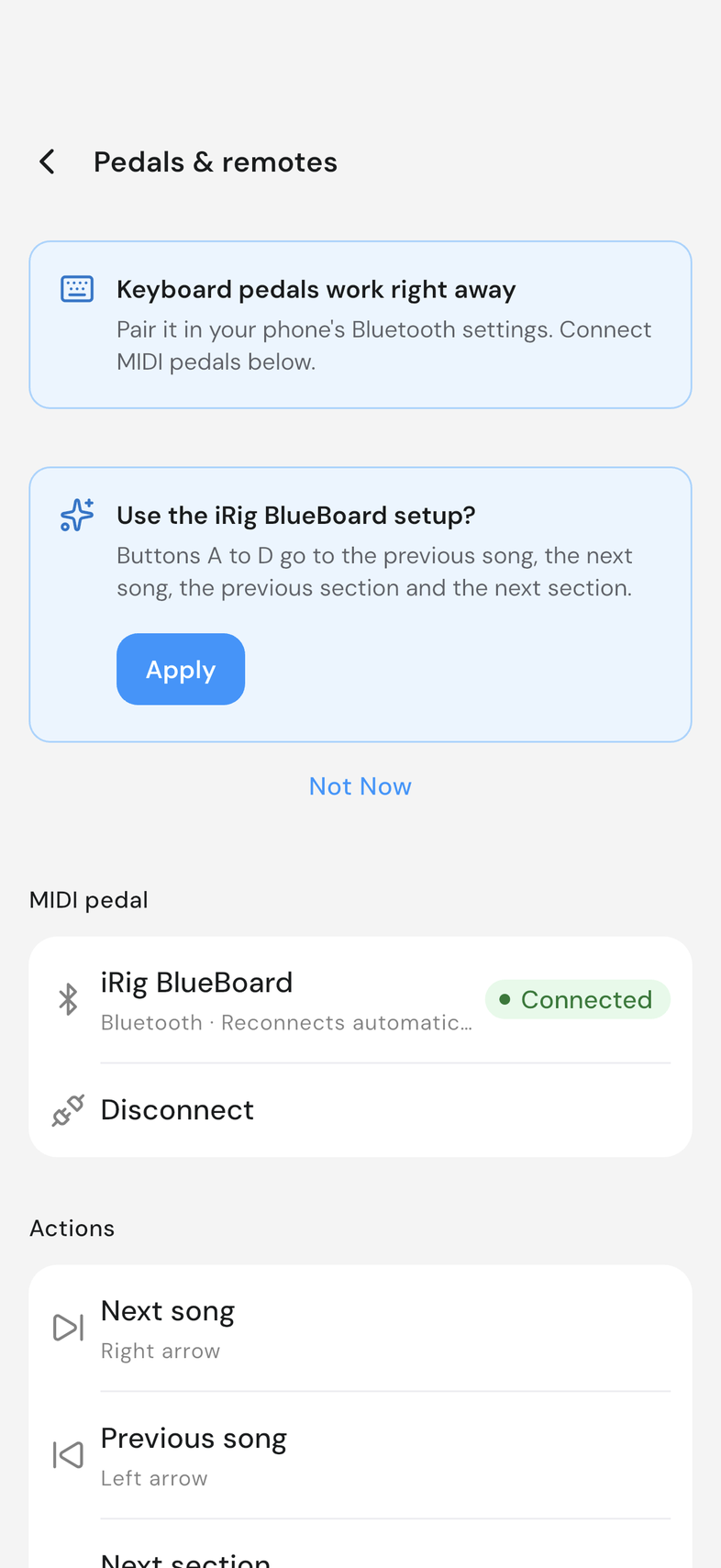
- Open Settings, tap Connections, then Pedals & remotes.
- Under Actions, tap an action, such as Next section or Autoscroll on / off.
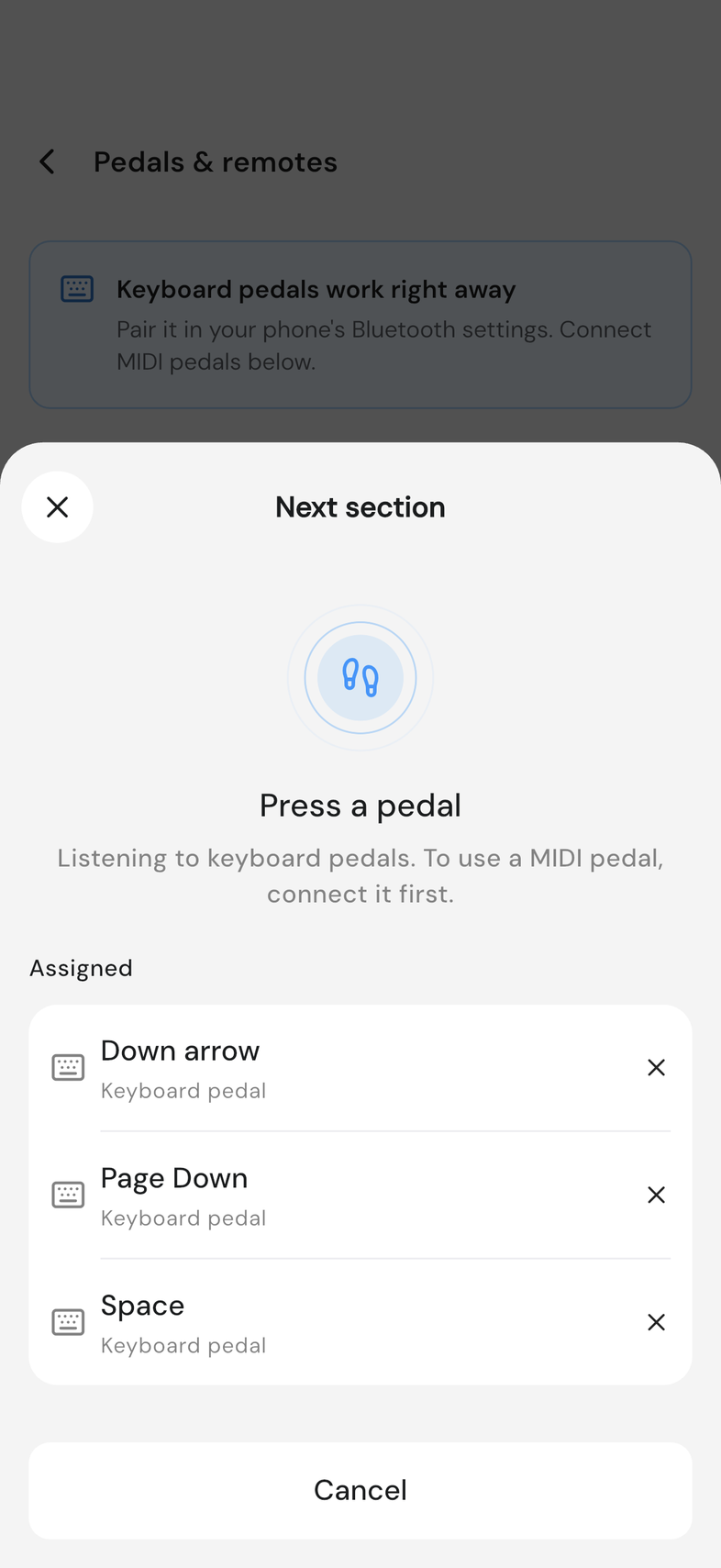
- Press the pedal you want for it. The sheet closes by itself.
An action can have several pedals. To drop one, tap the action, then the x next to it.
Connect a MIDI pedal
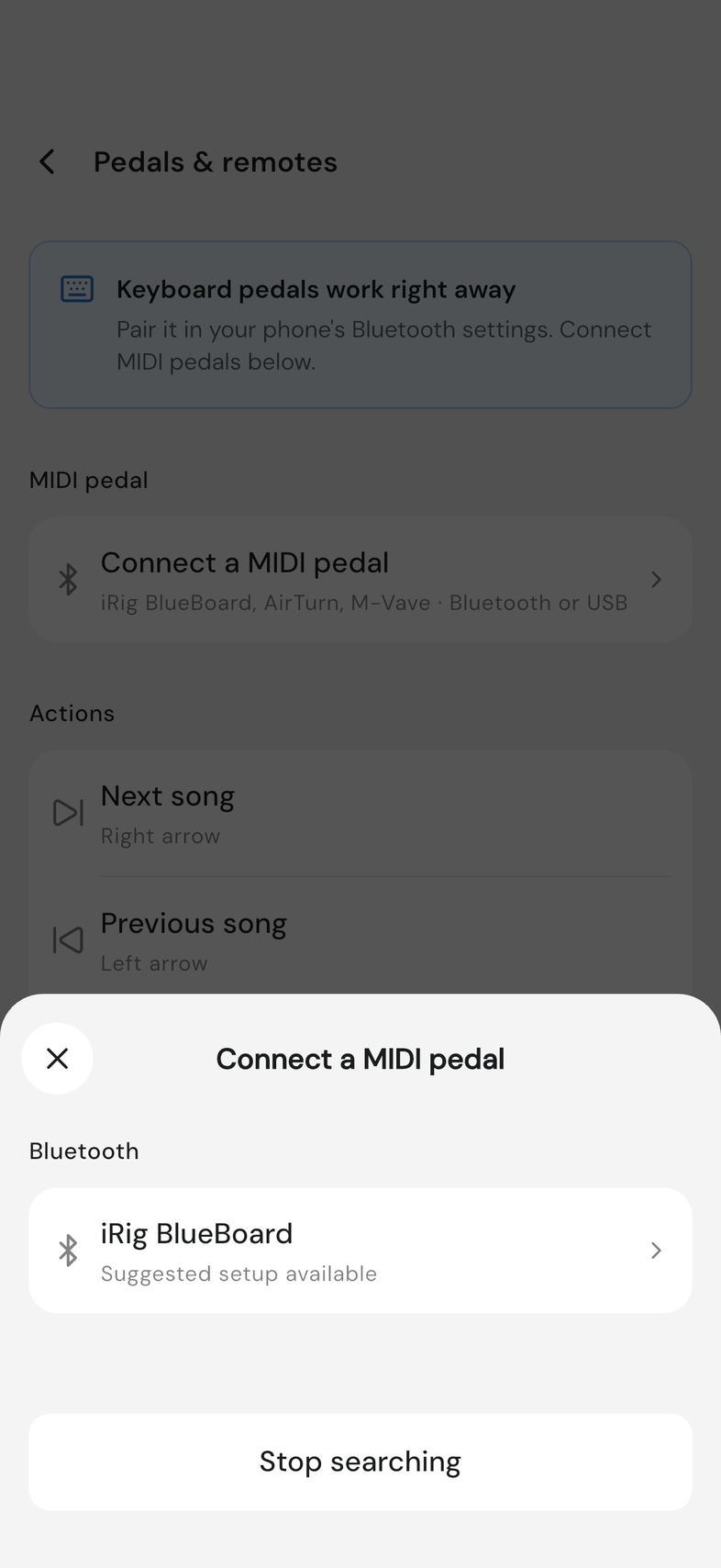
- On Pedals & remotes, tap Connect a MIDI pedal. Allow Bluetooth if your phone asks.
- Turn the pedal on and tap it in the list.
- If OnStage knows your pedal, tap Apply to use its suggested setup.
Good to know
- Next section jumps to the start of the next section, pages through a section taller than the screen, and moves to the next song at the end.
- Pedals do nothing while you type, draw annotations, or have a sheet open. In a Live Mode session, a follower's pedal pauses following, like a swipe.
- On an iRig BlueBoard, buttons A to D are previous song, next song, previous section and next section.
- OnStage reconnects your MIDI pedal by itself. Disconnect forgets it.
- Your setup is saved on this device only. Reset to defaults puts the default keys back.