Draw your own notes on a song
Mark up a song by hand: circle a chord, highlight your entry, cross out a verse you're skipping. Keep several named sets for the same song, one for Sunday morning, another for the youth service.
Online only: You need internet for this. Why buttons disappear offline
Steps
Draw on a song
- Open the song.
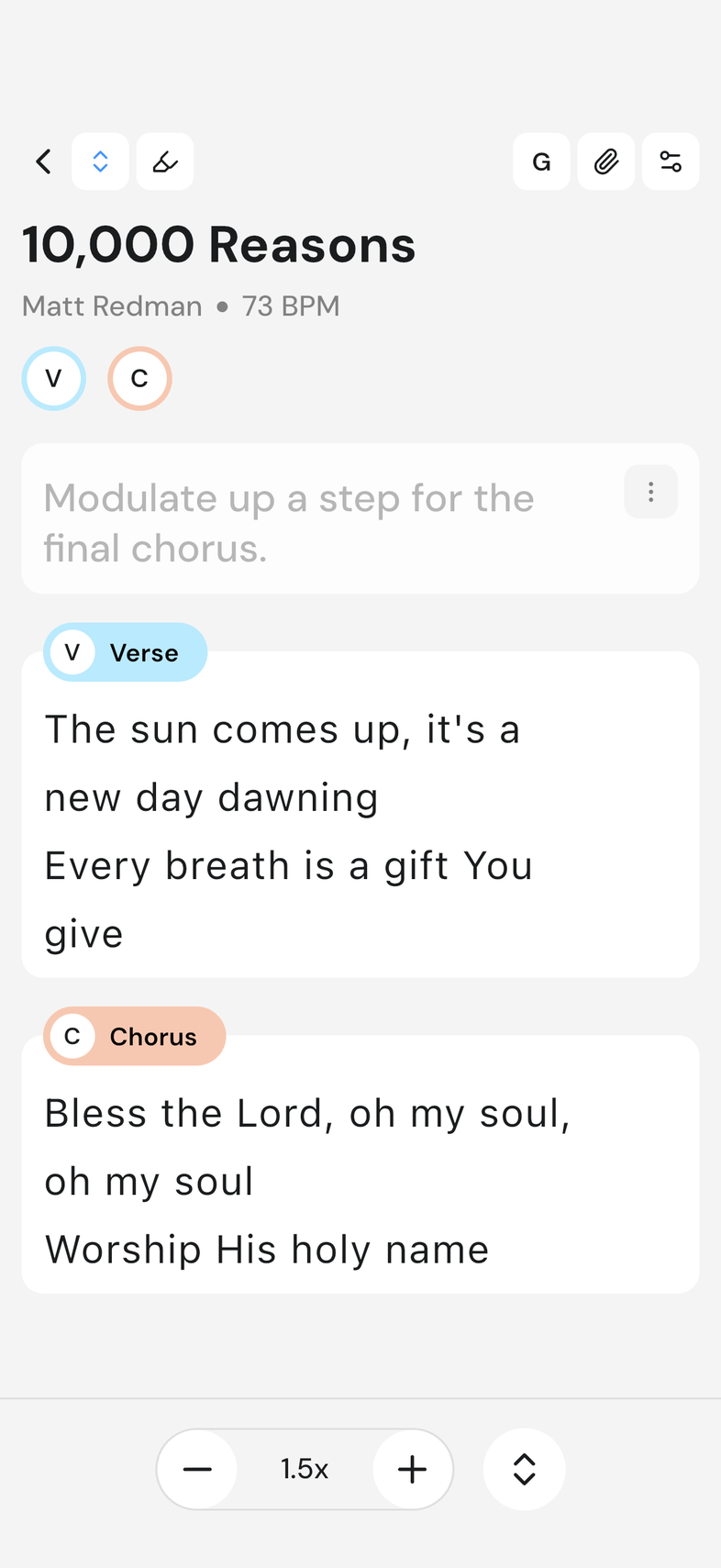
- Tap the highlighter icon at the top left. A drawing toolbar appears at the bottom.
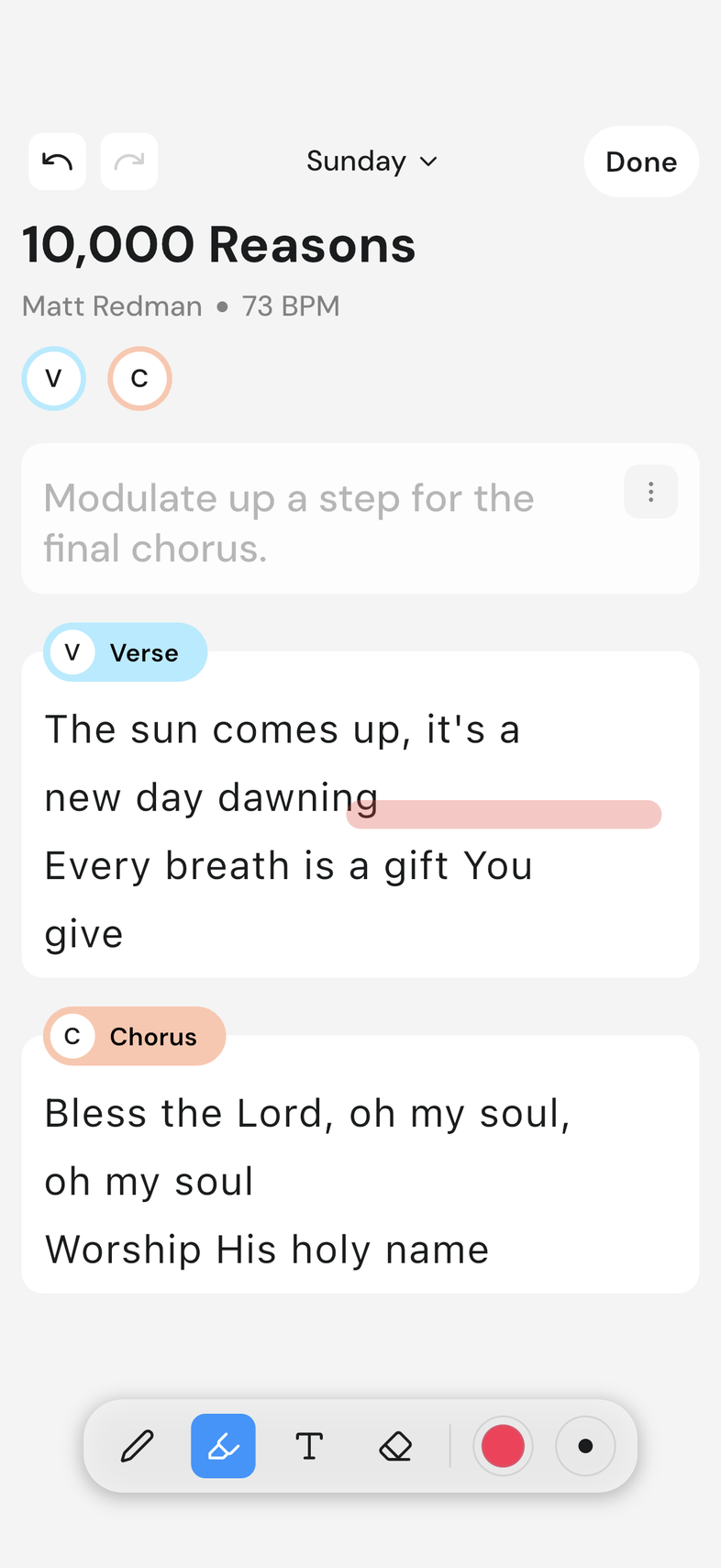
- Draw on the song with your finger or a stylus. Use undo and redo at the top to take back a stroke.
- Tap Done. Your drawing is saved.
Keep several sets
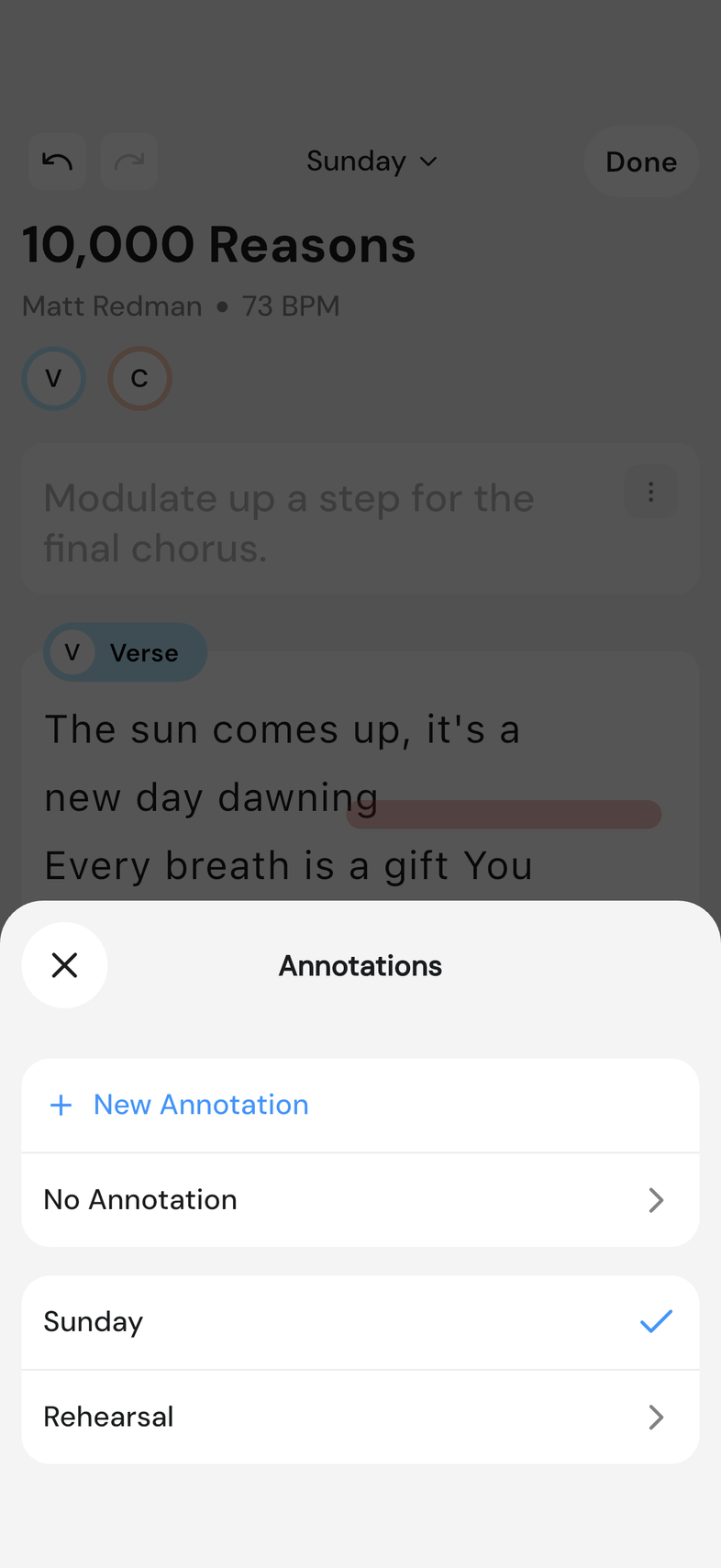
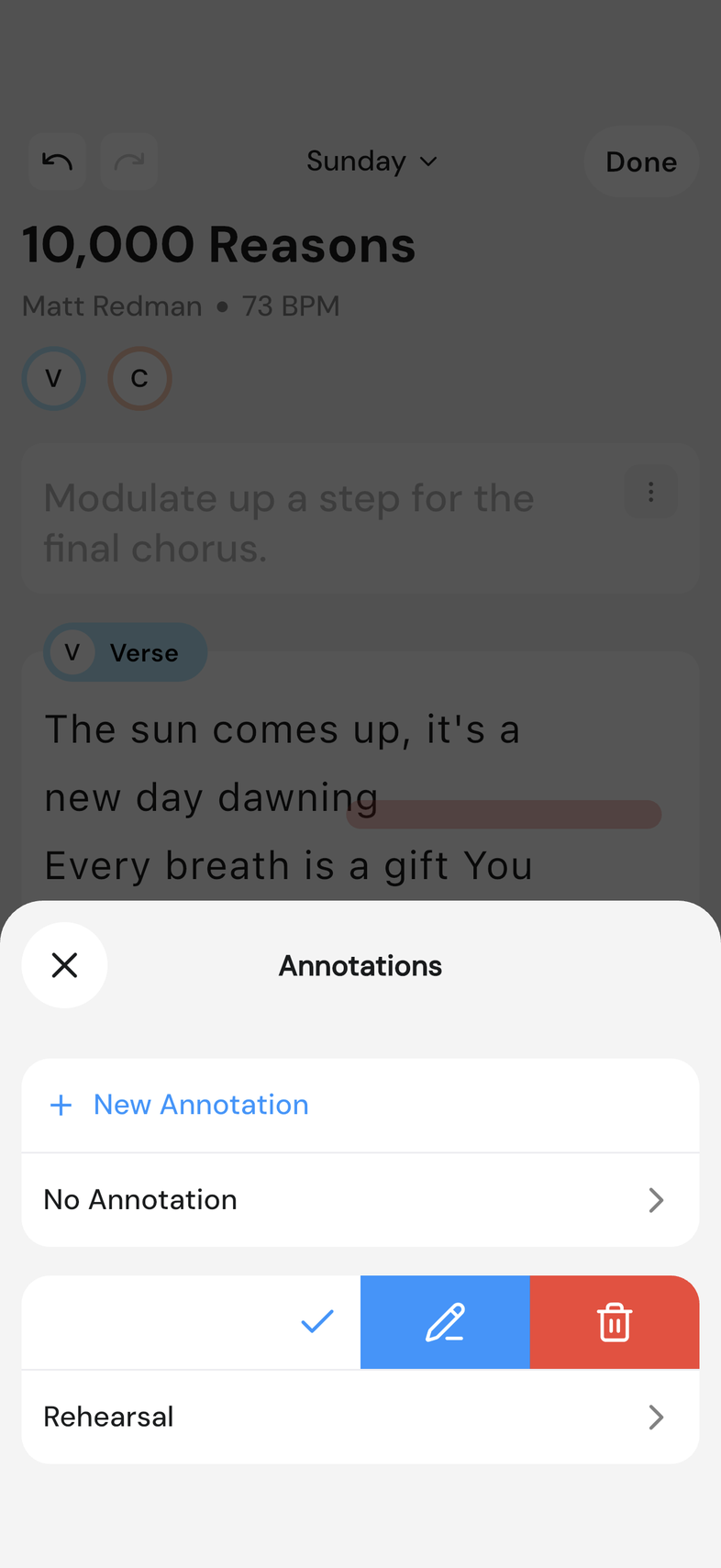
- Tap the name in the middle of the top bar. Annotations opens.
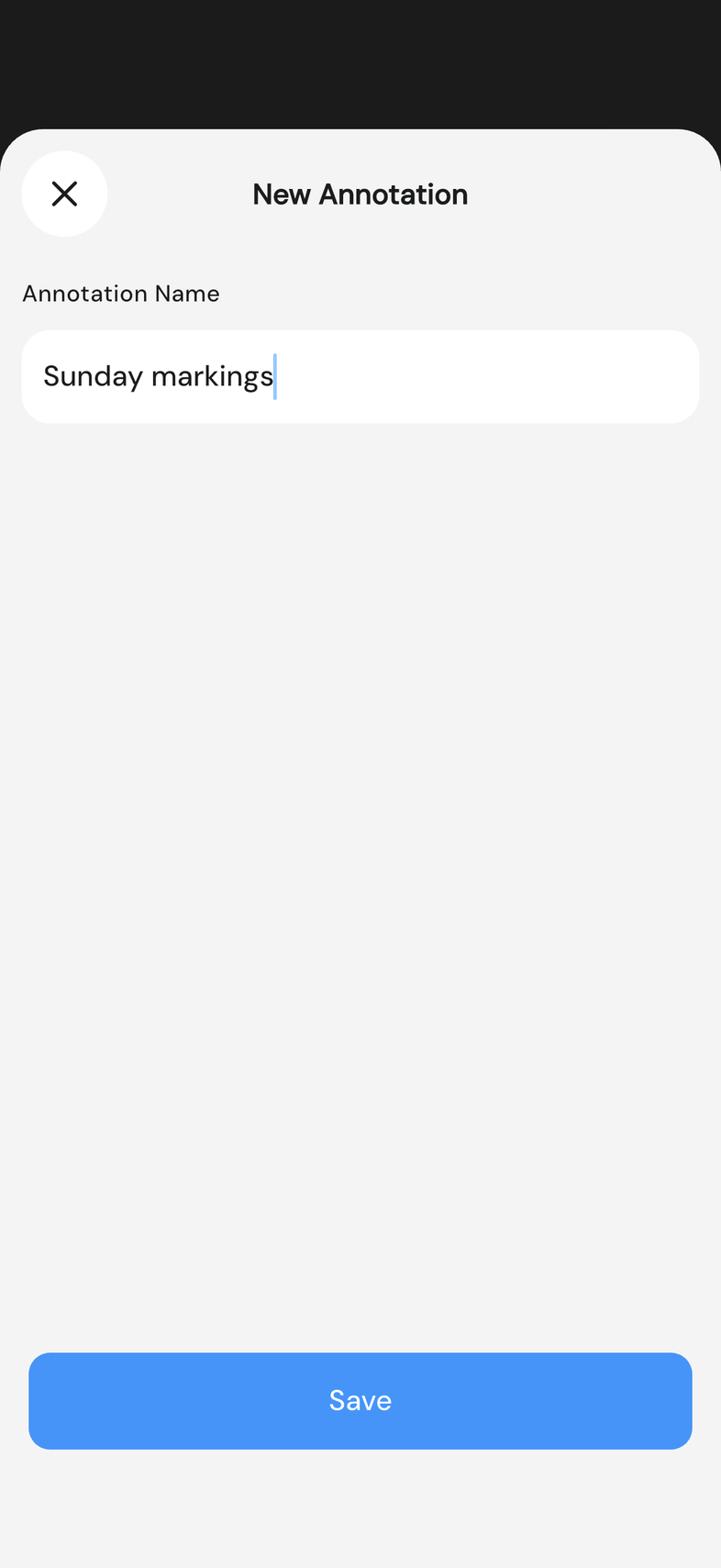
- Tap New Annotation, type a name under Annotation Name, then tap Save.
- Tap any set in the list to switch to it and go back to the song. Swipe a set to the left: the pencil renames it, the bin deletes it.
- Tap No Annotation to read the song with nothing drawn on it.
Good to know
- Leave the song without tapping Done and everything you drew is lost.
- Annotations are yours alone. Nobody else on the team sees them.
- The set you're drawing on is named in the middle of the top bar. Save a set without typing a name and it's listed as Untitled Annotation.
- Deleting a set asks to confirm first, and only removes that one set.
- No Annotation also closes drawing mode. Your sets are still there next time you tap the highlighter.