Your chats: find one, see who's in it, delete an old one
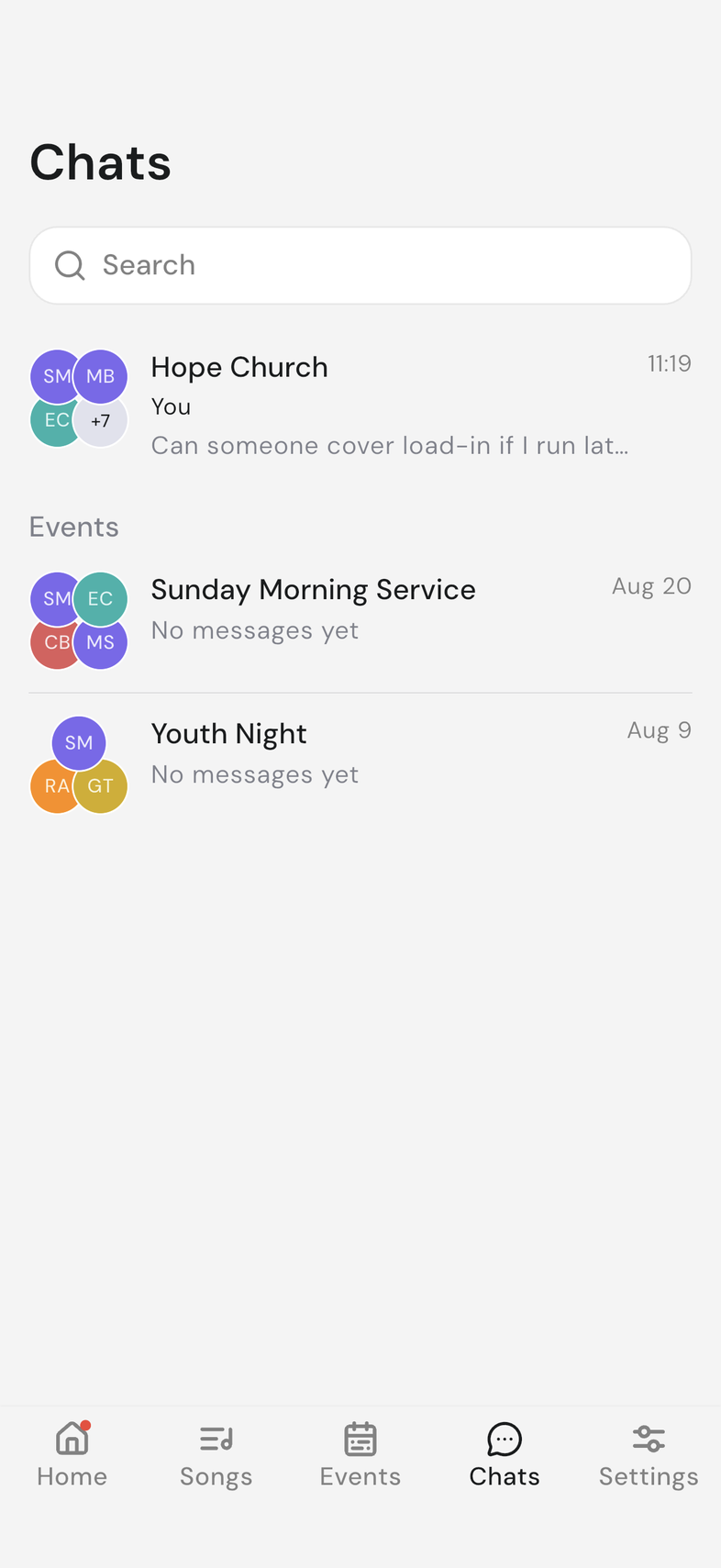
Your team has one chat that everyone is in, and each event has its own. Both sit in the Chats tab.
Steps
Find a chat
- Open the Chats tab.
- Tap your team chat at the top of the list to open it.
- For an event, scroll down to Events and tap that event's chat.
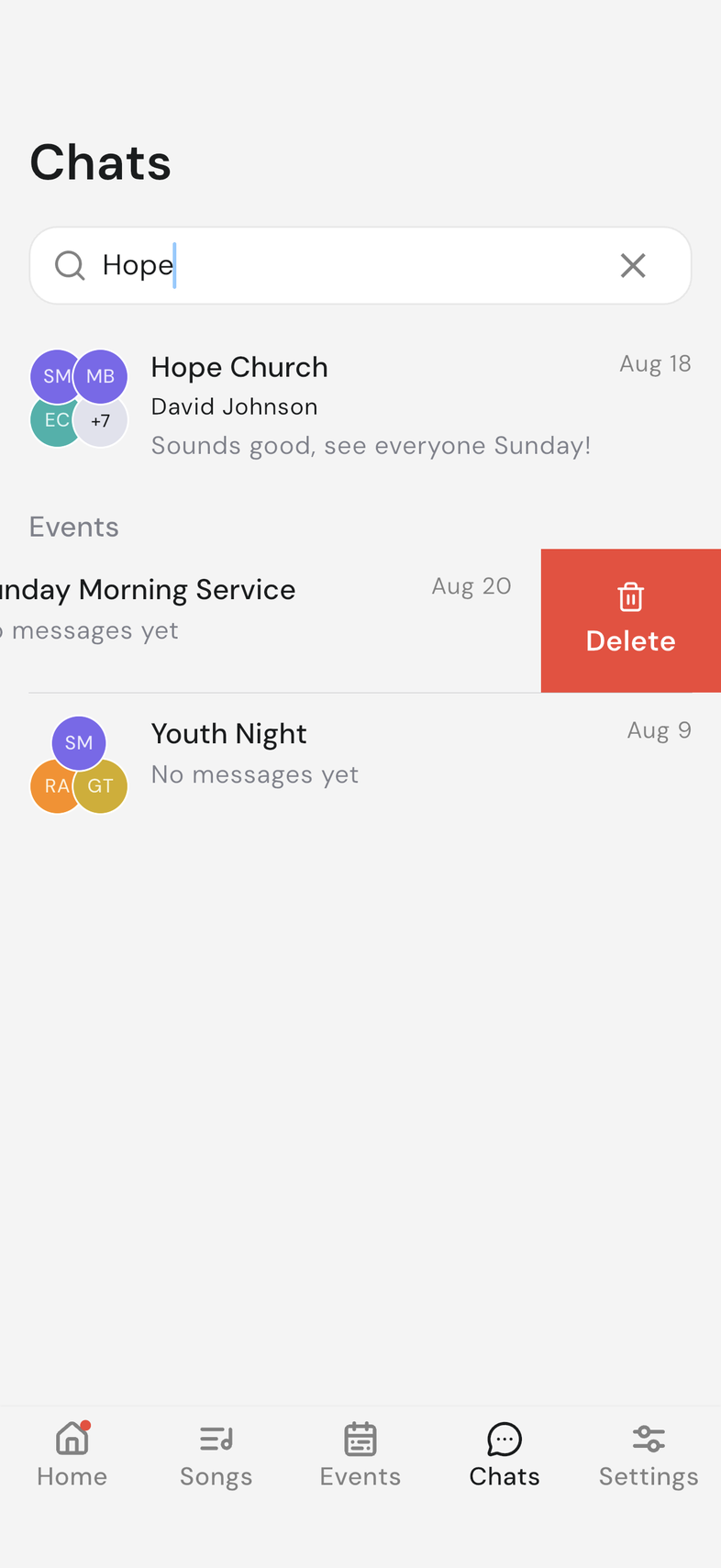
- To find an older chat, type a name into Search at the top.
- Tap Load More at the bottom of the list to show more chats.
- Event chats are created with the event, so there is nothing to set up.
- Event chats are ordered by their most recent message, so the busy ones stay near the top.
- Everyone on your team is in the team chat. An event chat holds the people on that event.
See who's in a chat
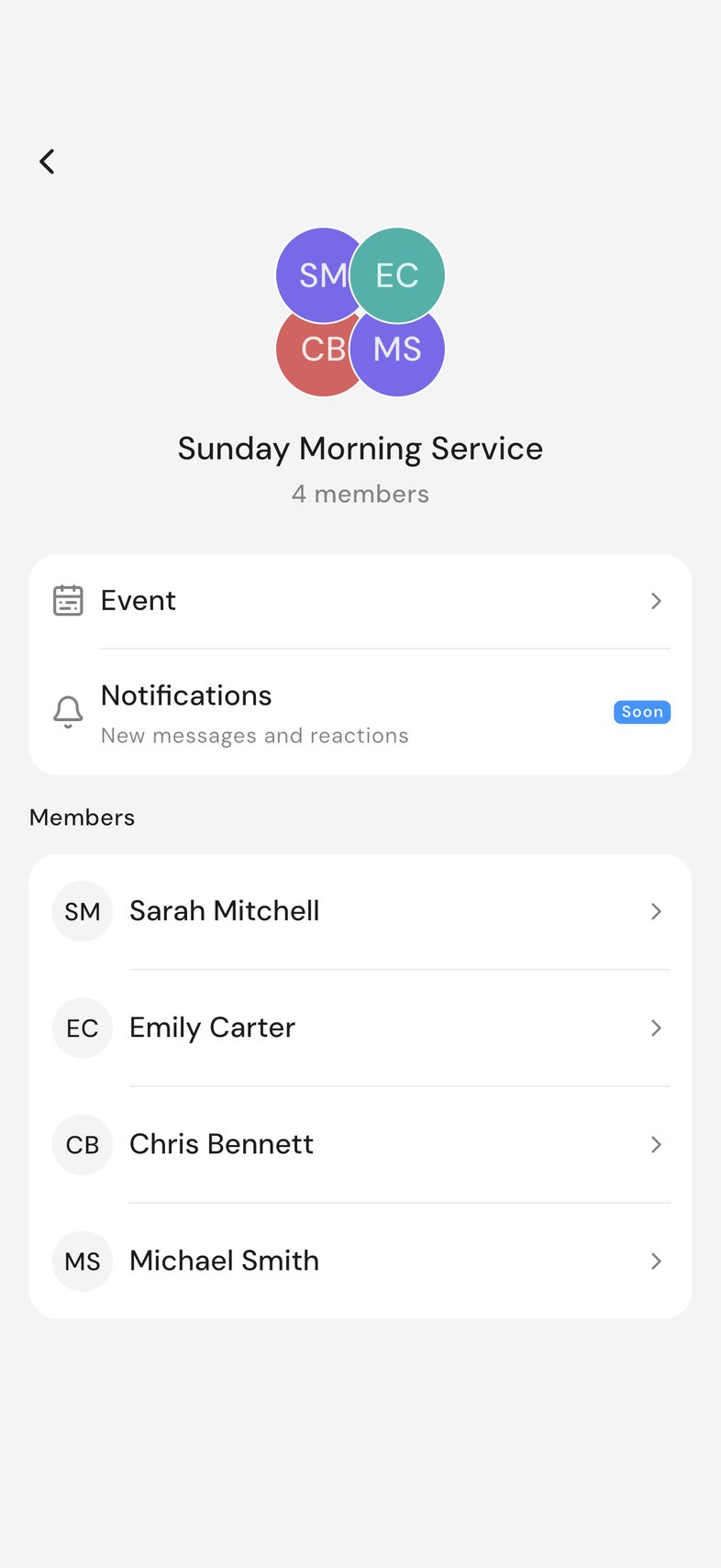
Every chat has a details screen that lists the people in it, and for an event chat, takes you to the event.
- Open the Chats tab and tap a chat.
- Tap the chat's name or picture at the top of the conversation. The details screen opens with the chat name and its member count.
- Scroll to Members to see everyone who is in the chat.
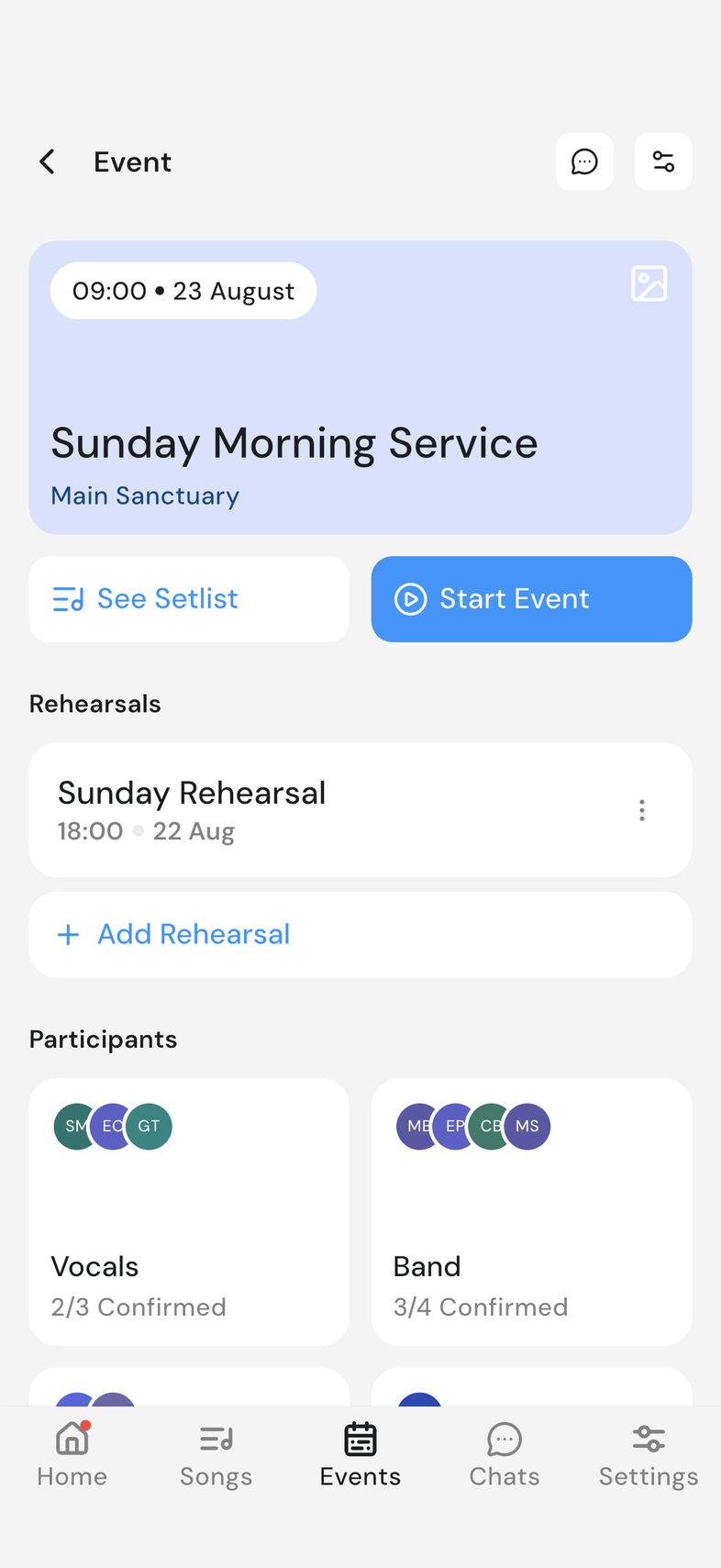
- In an event chat, tap Event to open that event.
- Tap the arrow at the top left to go back to the conversation.
- Event only shows in an event chat: the team chat has no event to open.
- Members are listed by name, with their photo.
- Nobody is added or removed here. An event chat follows the people on the event.
Delete an event chat
Who can do this: Owner, Admin. What the roles mean Online only: You need internet for this. Why buttons disappear offline
Clear an event's conversation out of your Chats list once the event has passed.
- Open the Chats tab.
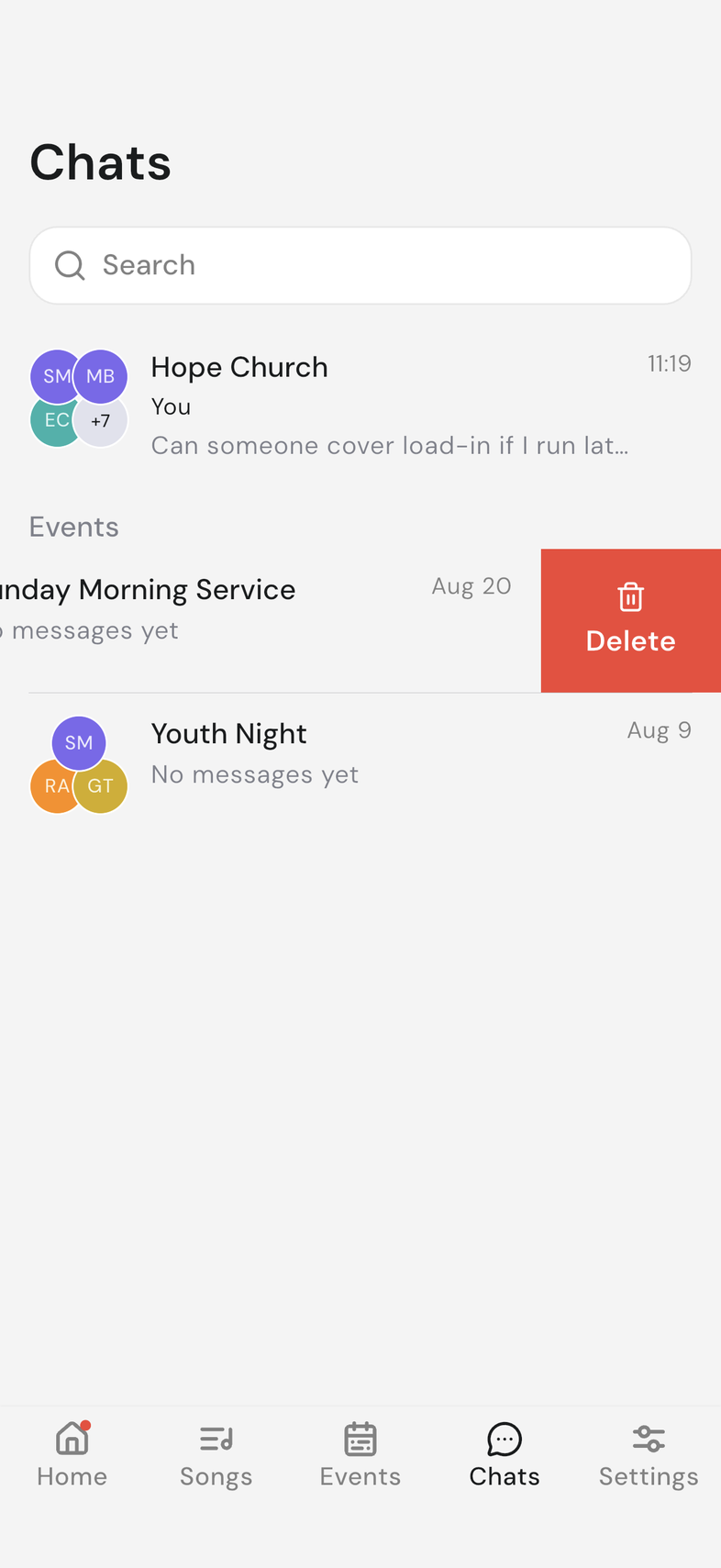
- Find the chat under Events.
- Swipe the chat to the left. A red Delete appears at its edge.
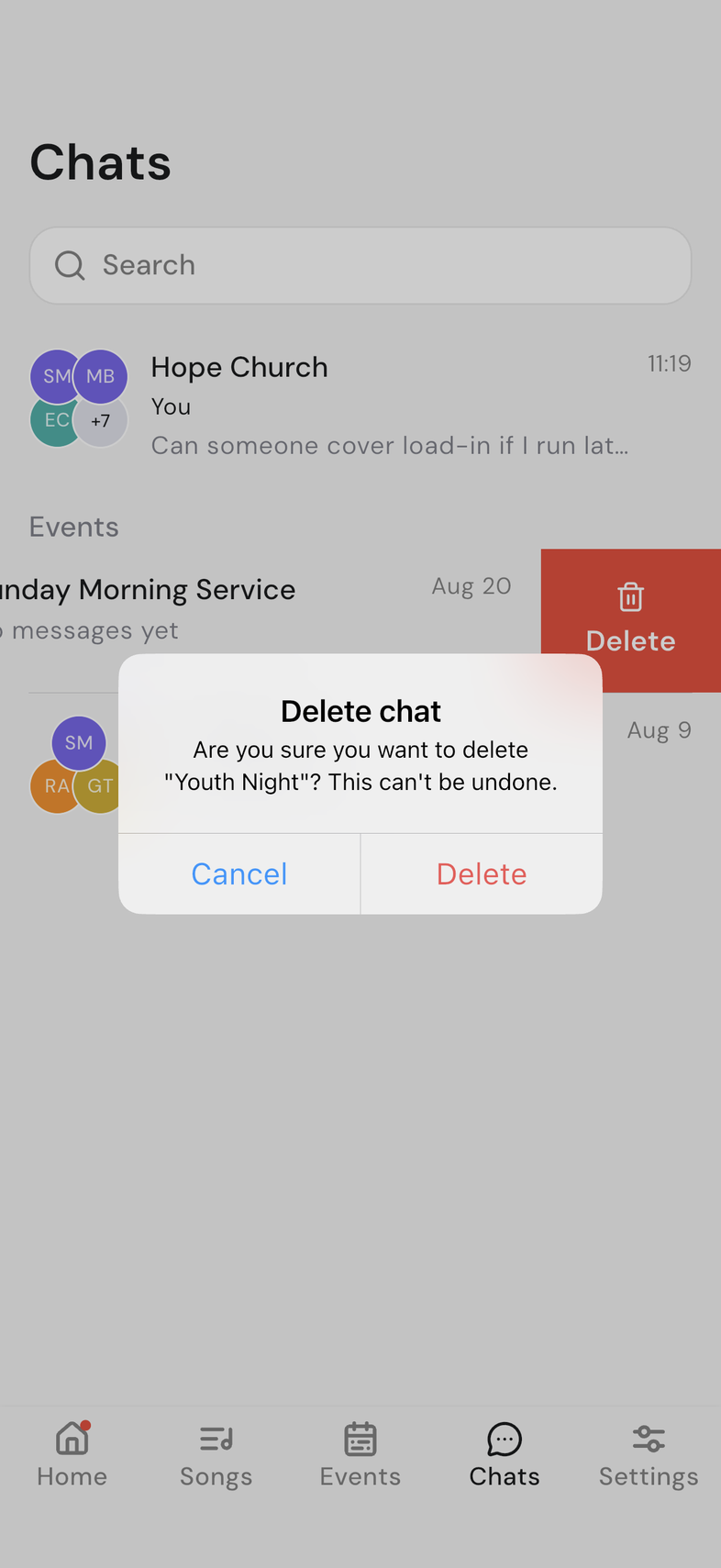
- Tap Delete.
- Read the confirmation, then tap Delete again.
- A chat for an event that hasn't happened yet can't be removed. You get a note reading You can't delete a chat for an upcoming event. You'll be able to delete it once the event has passed.
- Deleting a chat removes the whole conversation, for everyone, and can't be undone.
- Your team chat has no Delete. It stays as long as your team does.
- Deleting the chat leaves the event itself untouched.
Good to know
- Tapping a chat notification opens that chat, and switches teams for you if the message came from another team.
- Nothing in the Chats tab needs a paid plan.