Find an event
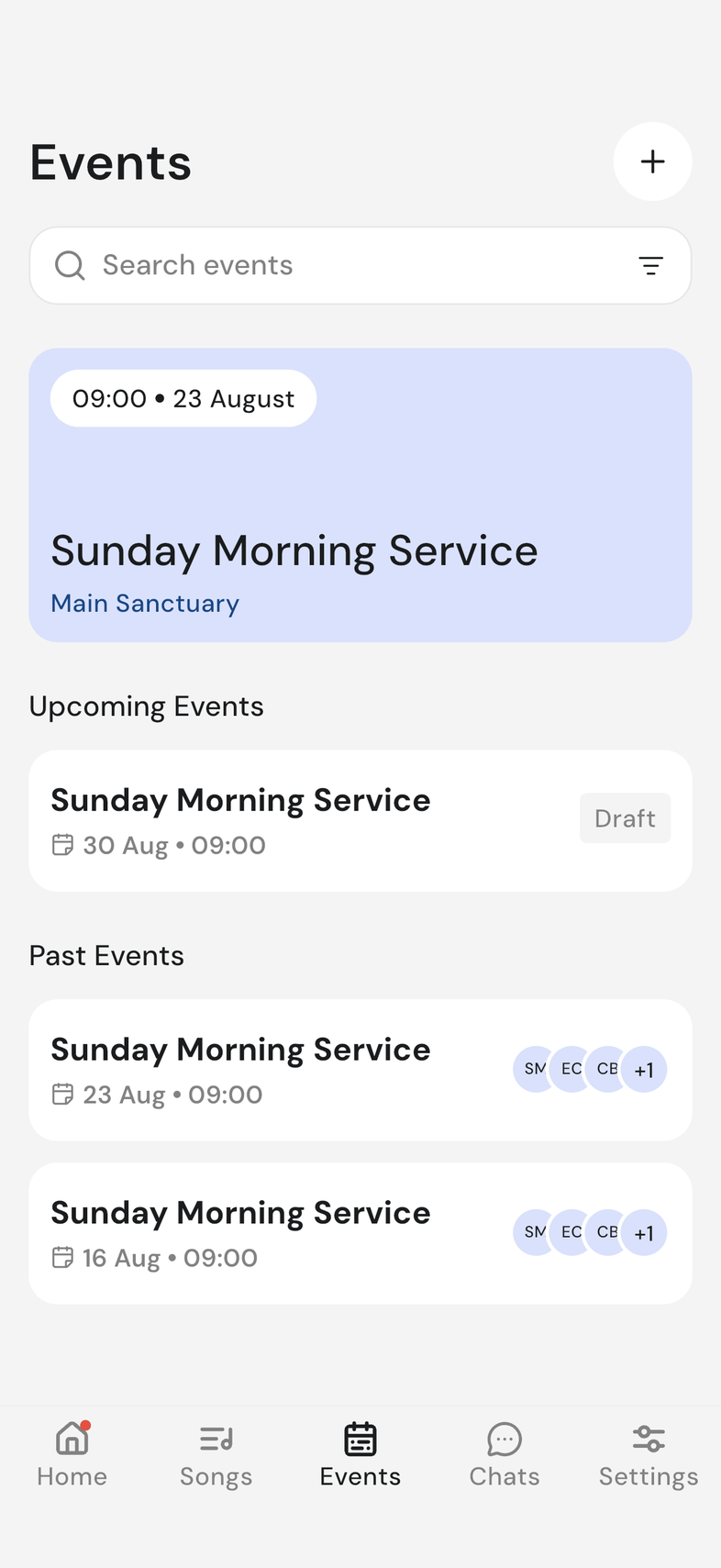
Your next event is always the first thing on the Events tab, with everything else below it.
Steps
Find an upcoming event
- Open the Events tab.
- The large tile at the top is your next event. Tap it to open its setlist.
- Scroll down for Upcoming Events, then Past Events below it.
- Scroll to the bottom of Past Events to load older ones.
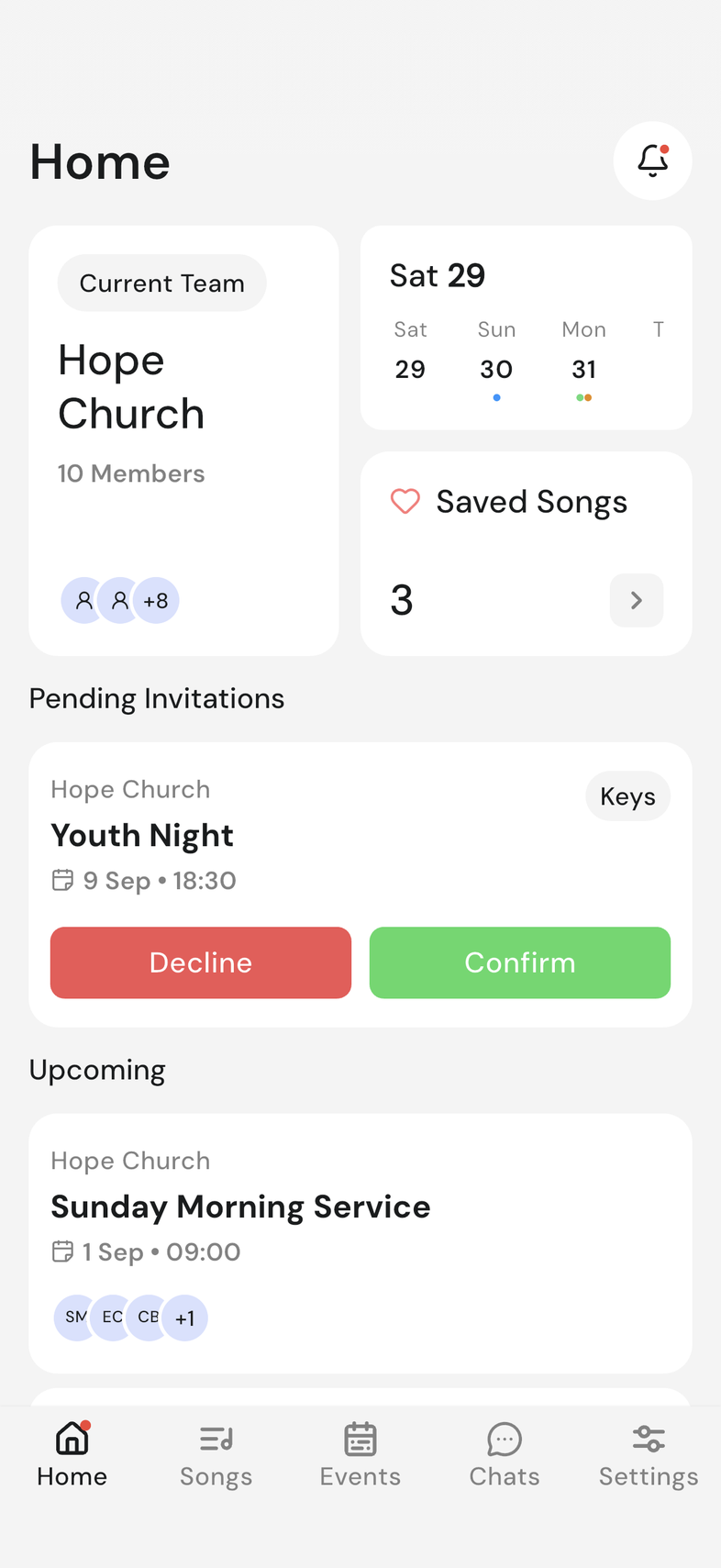
- For a quick view, open Home. It has an Upcoming list and any invitations waiting for your answer.
If the top tile reads No upcoming event, nothing has been published for you yet. Publish an event so your team can see it
Search and filter
Find an event by typing its name, or narrow the whole list down to one template.
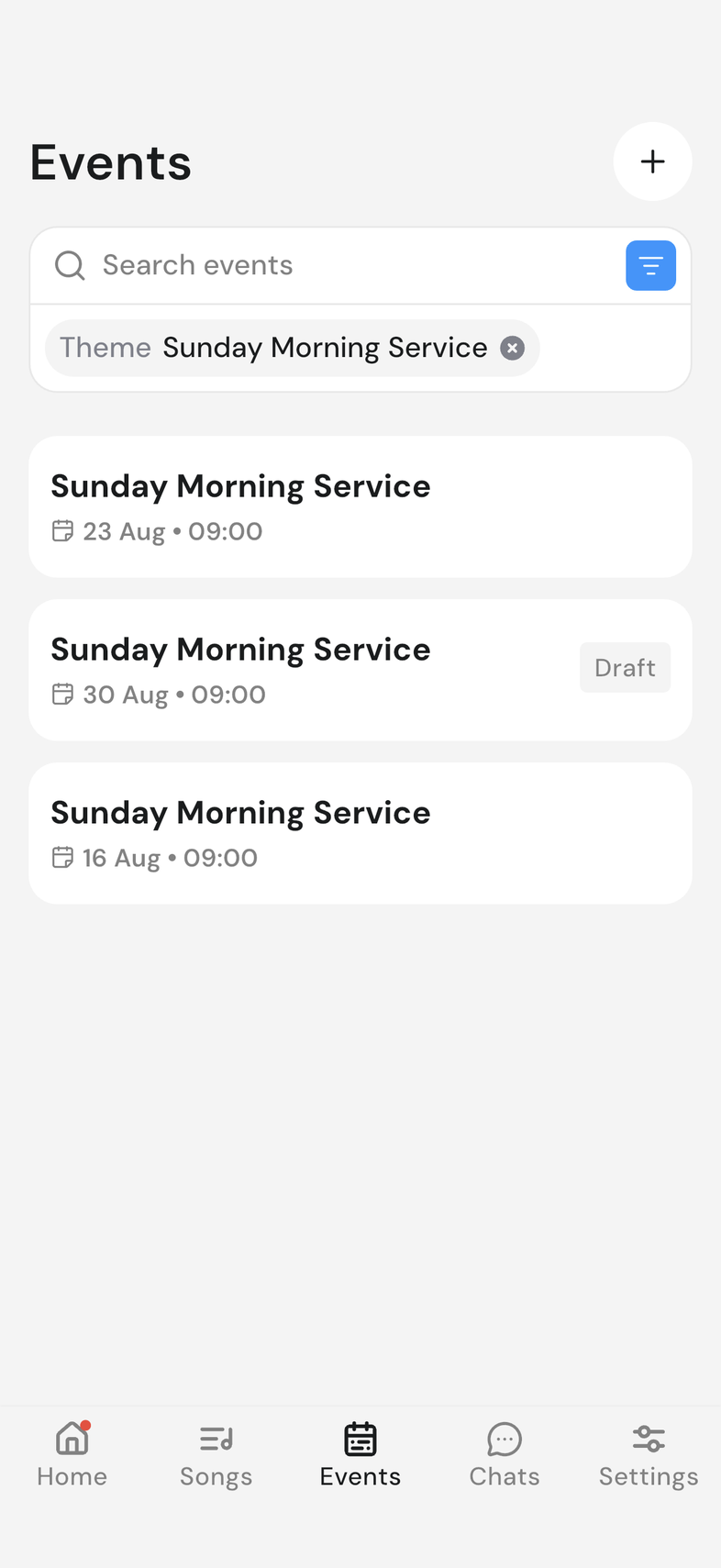
- Type into Search events. The list narrows as you type.
- Tap the clear icon on the right of the box to clear what you typed.
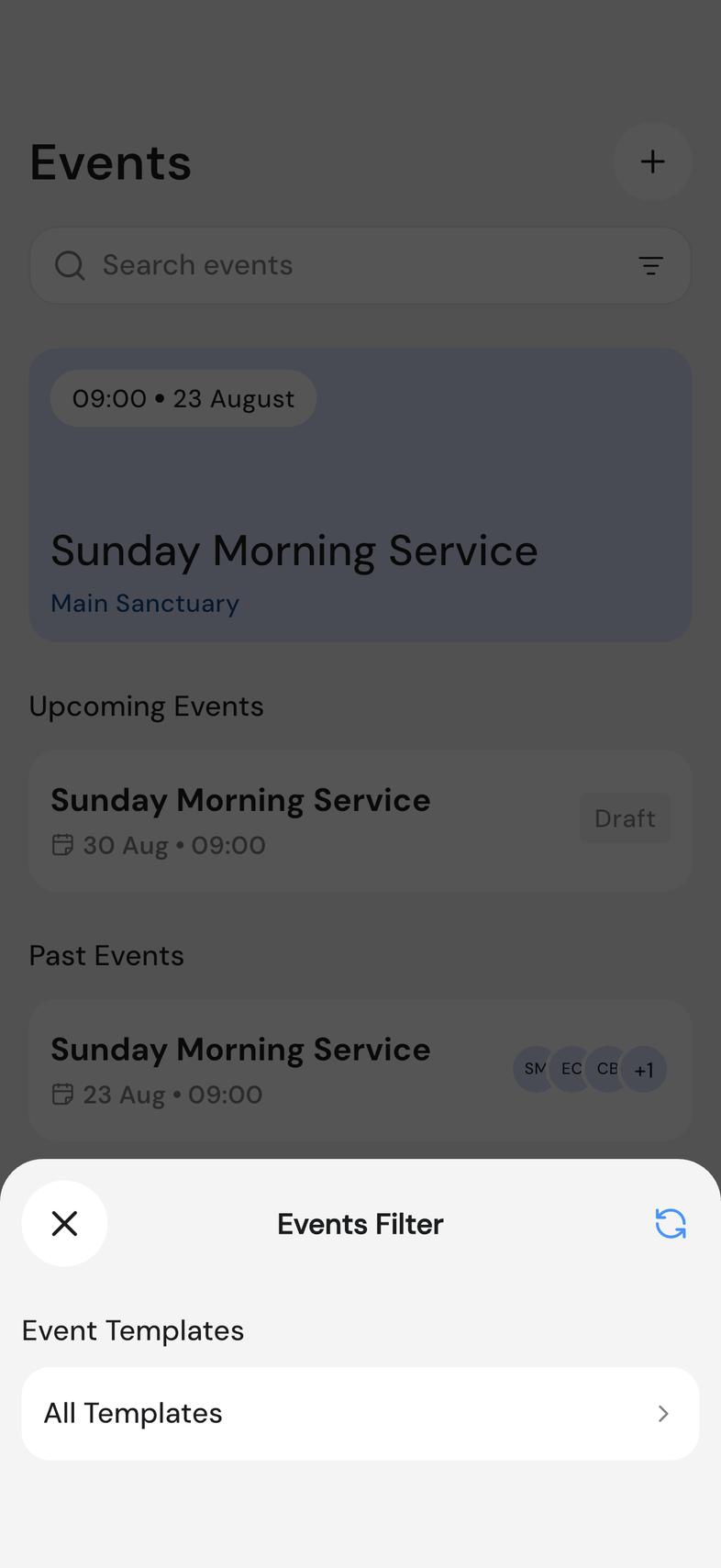
- Tap the filter icon to the right of the search box.
- Under Event Templates, tap the row and pick a template.
- To clear it, tap the X on the chip under the search box, or tap the reset icon at the top left of Events Filter.
Why an event still shows as upcoming after it started
Your 10:00 service is still sitting under Upcoming Events at 11:00. That's deliberate: an event stays under Upcoming Events for 4 hours after its start time, then moves to Past Events. The 4 hours run from the event's start time, not from when it actually finished.
Nothing is lost. Once the 4 hours pass, the event is under Past Events, and it still opens normally, with its setlist and its people on it.
Good to know
- What you can see on an event depends on your role. Roles in OnStage
- Tapping an event that belongs to another team switches you to that team.
- Template is the only filter there is. While a filter is on, the filter icon is highlighted and the template's name shows in a chip under the search box. With no filter chosen, the row reads All Templates.