Event templates
A template holds the name, location, cover photo, setlist, people and reminders your team uses every week. New events start from it, and you add only the date.
Who can do this: Owner, Admin, Editor. What the roles mean Online only: You need internet for this. Why buttons disappear offline
Steps
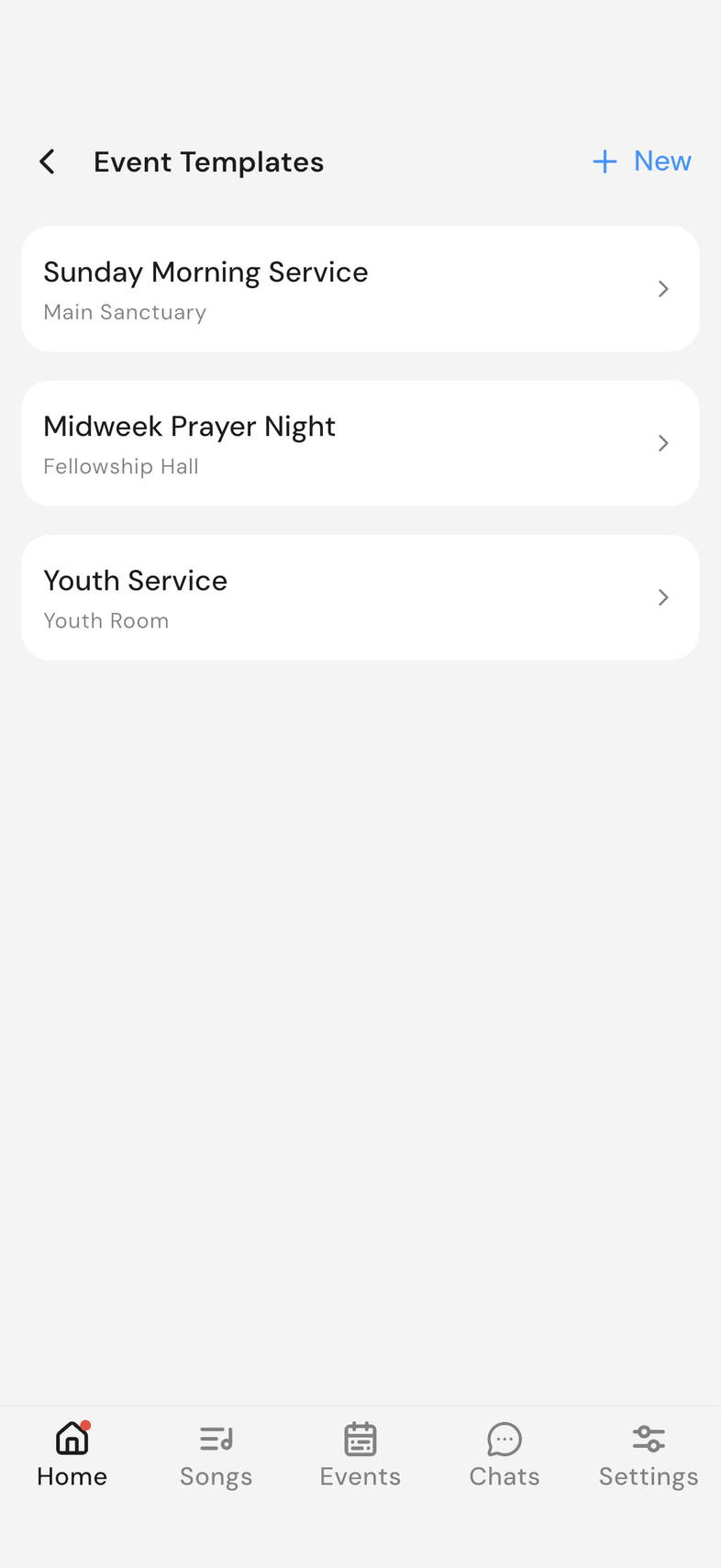
Open Team details by tapping your team's card on Home, then tap Event Templates under Manage. Every action below starts from that list.
Create a template
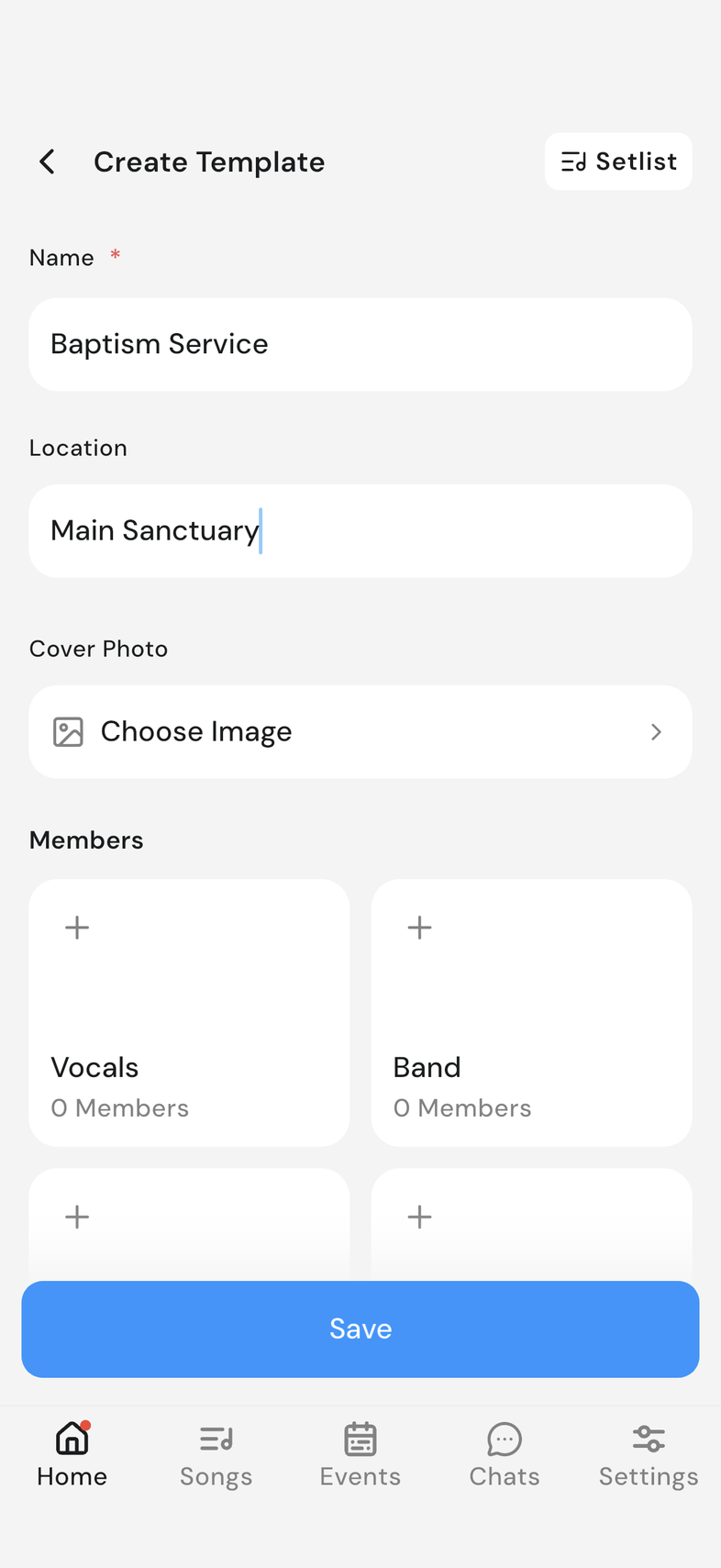
- Tap New at the top right. Create Template opens.
- Type a Name, such as Sunday Morning.
- Fill in Location, and tap the cover to pick a photo.
- Tap Save at the bottom.
Name the template before you leave the screen. Leaving without a name shows Discard Changes, and the template is thrown away. Save appears only once you've changed something.
Edit or delete a template
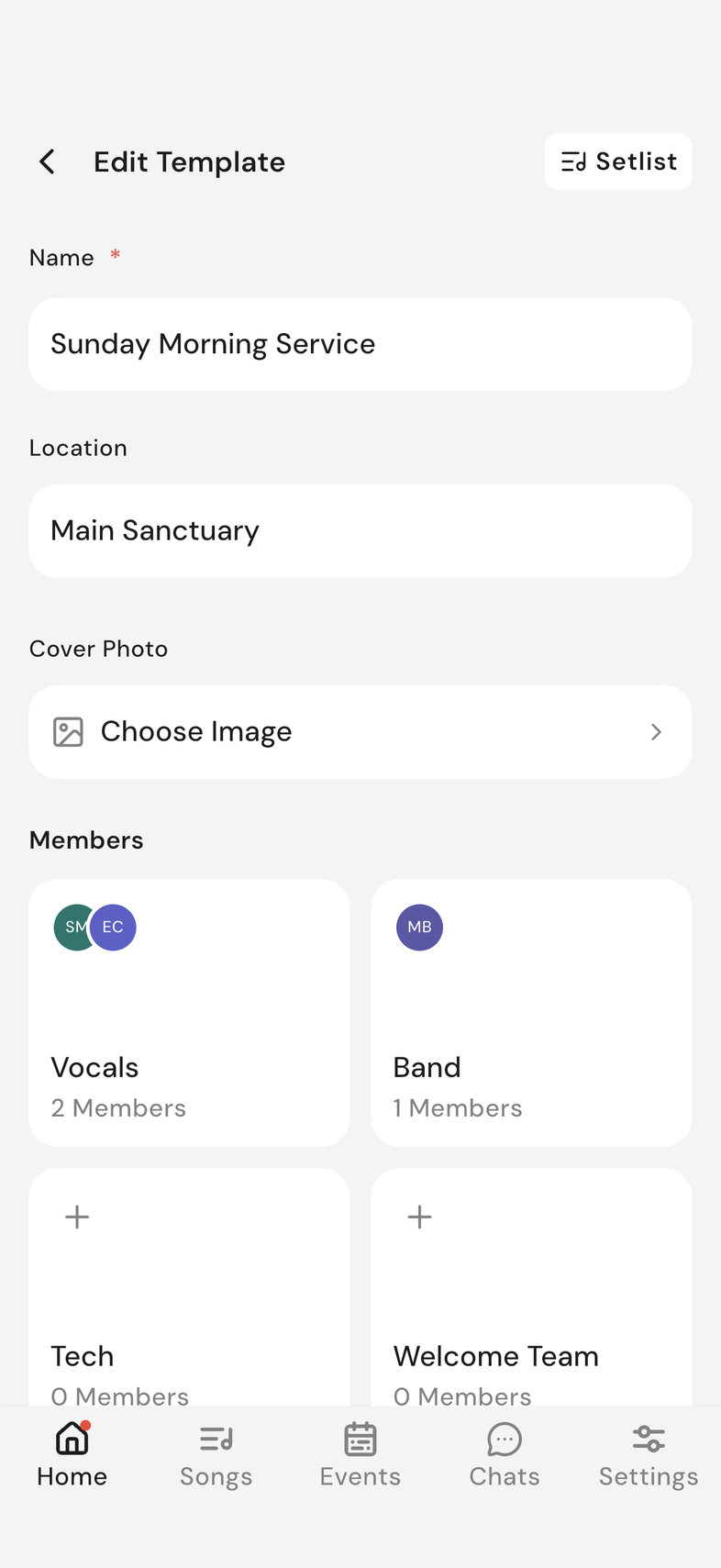
- Tap the template. Edit Template opens.
- Change Name or Location, or tap the cover to swap the photo, then tap Save.
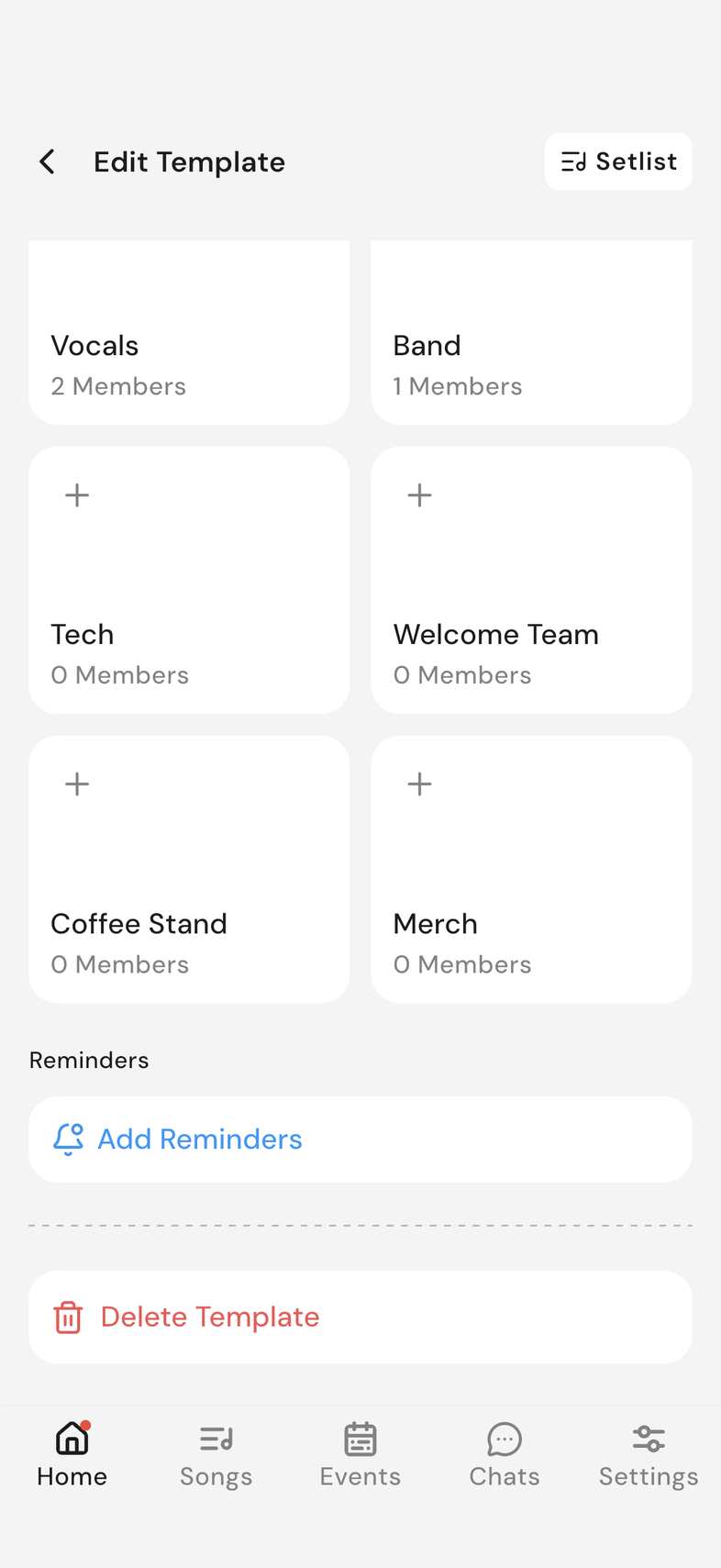
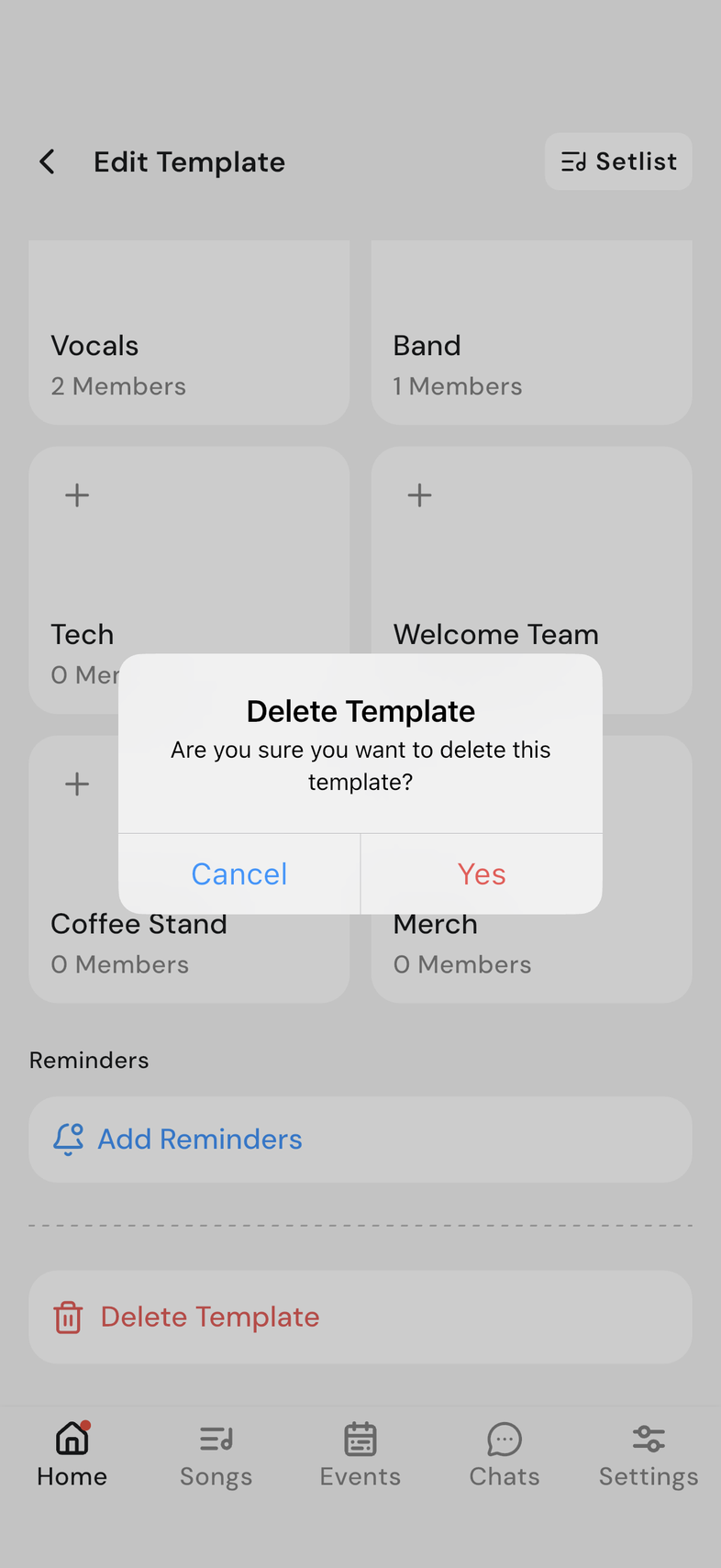
- To remove it instead, scroll to the bottom and tap Delete Template.
- Are you sure you want to delete this template? appears. Tap Yes.
On a tablet or on web, delete from the list instead: tap the three dots on the template's row and choose Delete. The name is required: clearing it means Save won't accept the template.
Pre-fill the setlist
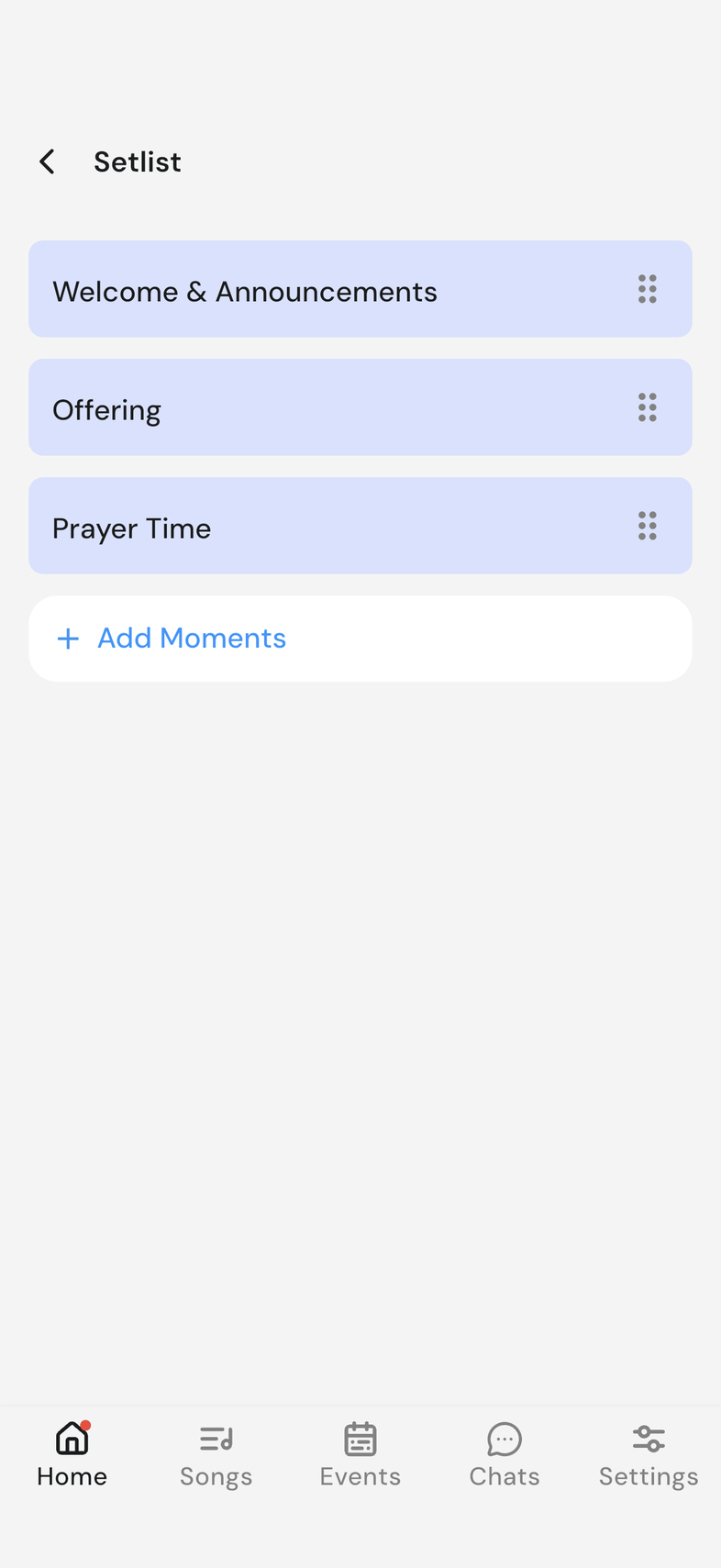
Most services have the same shape every week: Welcome, Offering, Sermon. Put those moments in the template and every event made from it starts with them.
- Tap Setlist at the top right of the template.
- Tap Add Moments below the list.
- Fill in Title, add a description if it helps, then tap Save.
- Repeat for every moment the service always has.
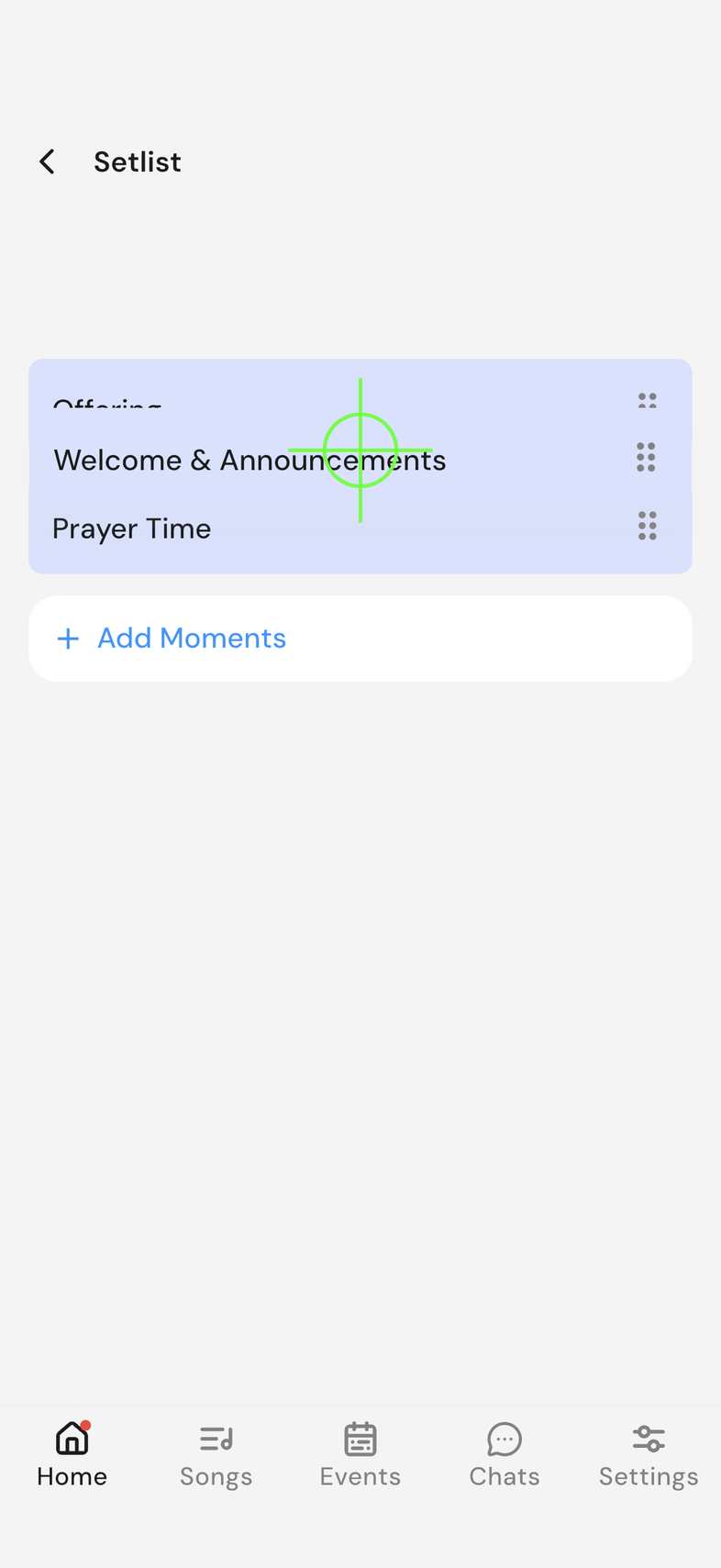
- To change the order, press and hold a row, drag it into place, then tap Save Order.
A template's setlist holds moments only. Songs go on the event itself. Build the setlist Tap a moment to change its title or description, or swipe it sideways to remove it. Add Moments disappears while an order is unsaved.
Pre-assign people
If the same people cover the same positions most weeks, put them in the template. Every event made from it arrives with them already in place. The template needs groups and positions first. Create groups and positions
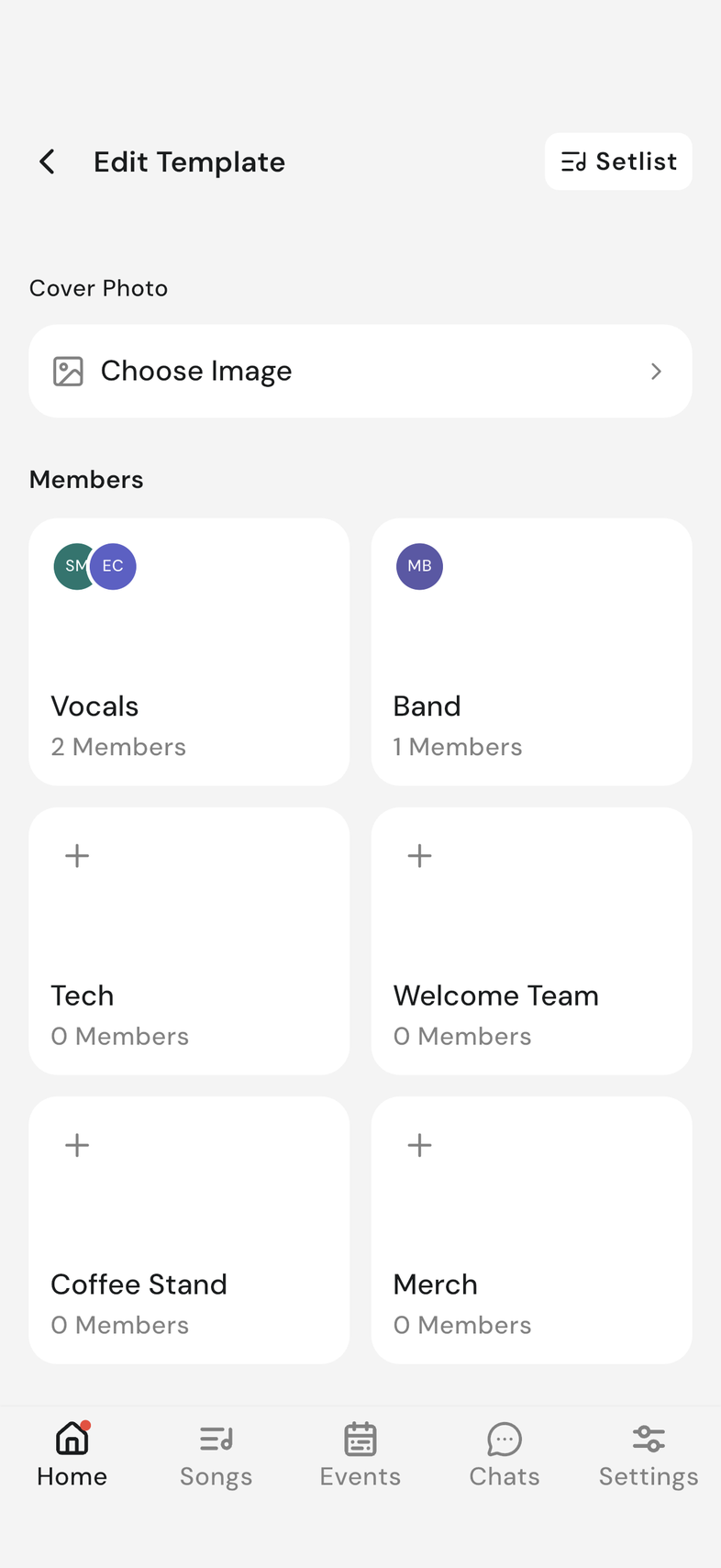
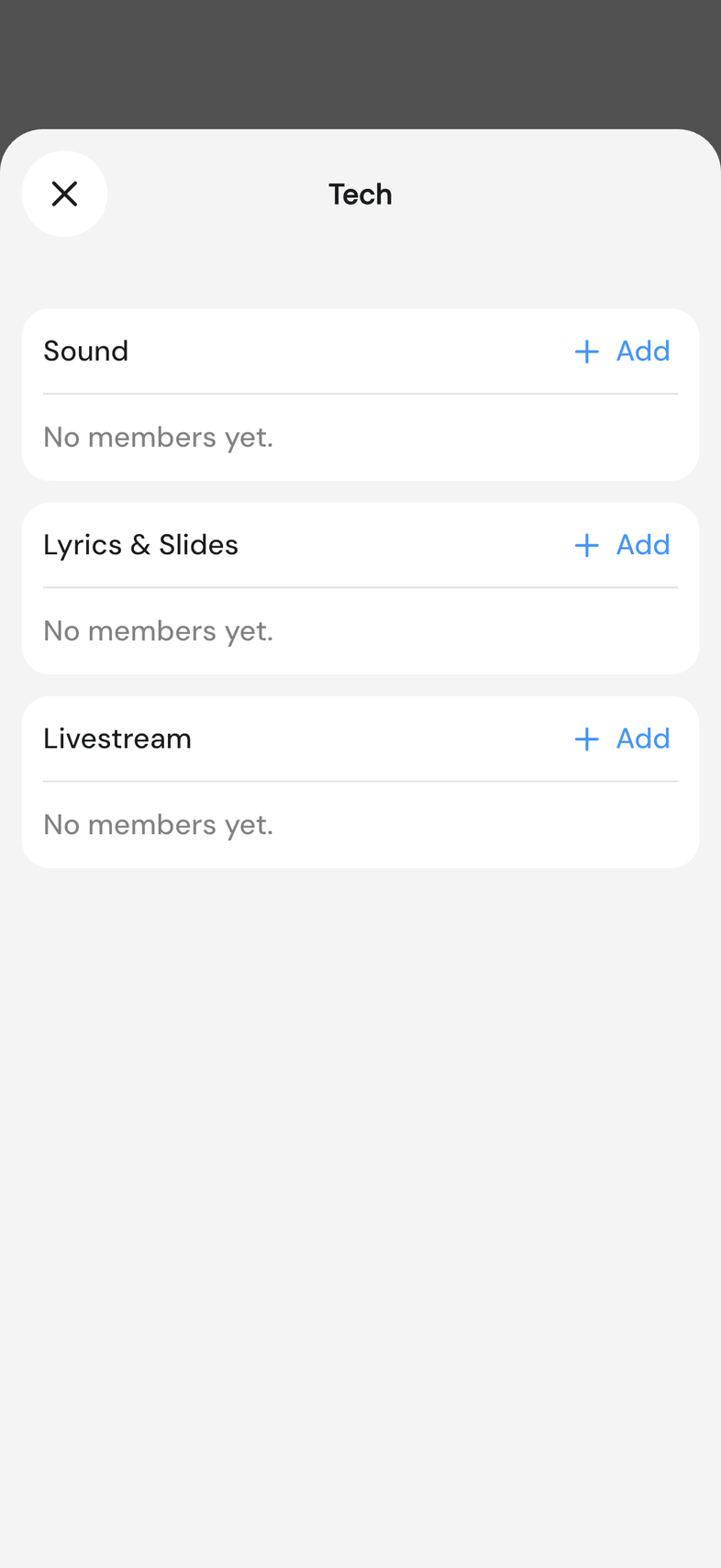
- Scroll to Members.
- Tap the group card that holds the position you're filling.
- Tap Add beside the position's name.
- Tap the people you want, then tap Add People to Template.
A template lists every position, filled or not. An empty one reads No members yet, which makes the gaps easy to spot. To take someone out, tap Edit at the top of the list, tap the remove button on their row, then tap Done. Nobody hears anything from a template: invitations only go out when you publish the event. Publish an event so your team can see it
Good to know
- The setlist, the people and the reminders are all edited from the same template screen. Nothing here needs a separate area.
- Rehearsals aren't part of a template. Add those on the event itself.