Duplicate an event
Copy an event you've already run, give the copy a new date, and change what needs changing.
Who can do this: Owner, Admin, Editor, Scheduler. What the roles mean Online only: You need internet for this. Why buttons disappear offline
Steps
-
Open the event you want to copy.
-
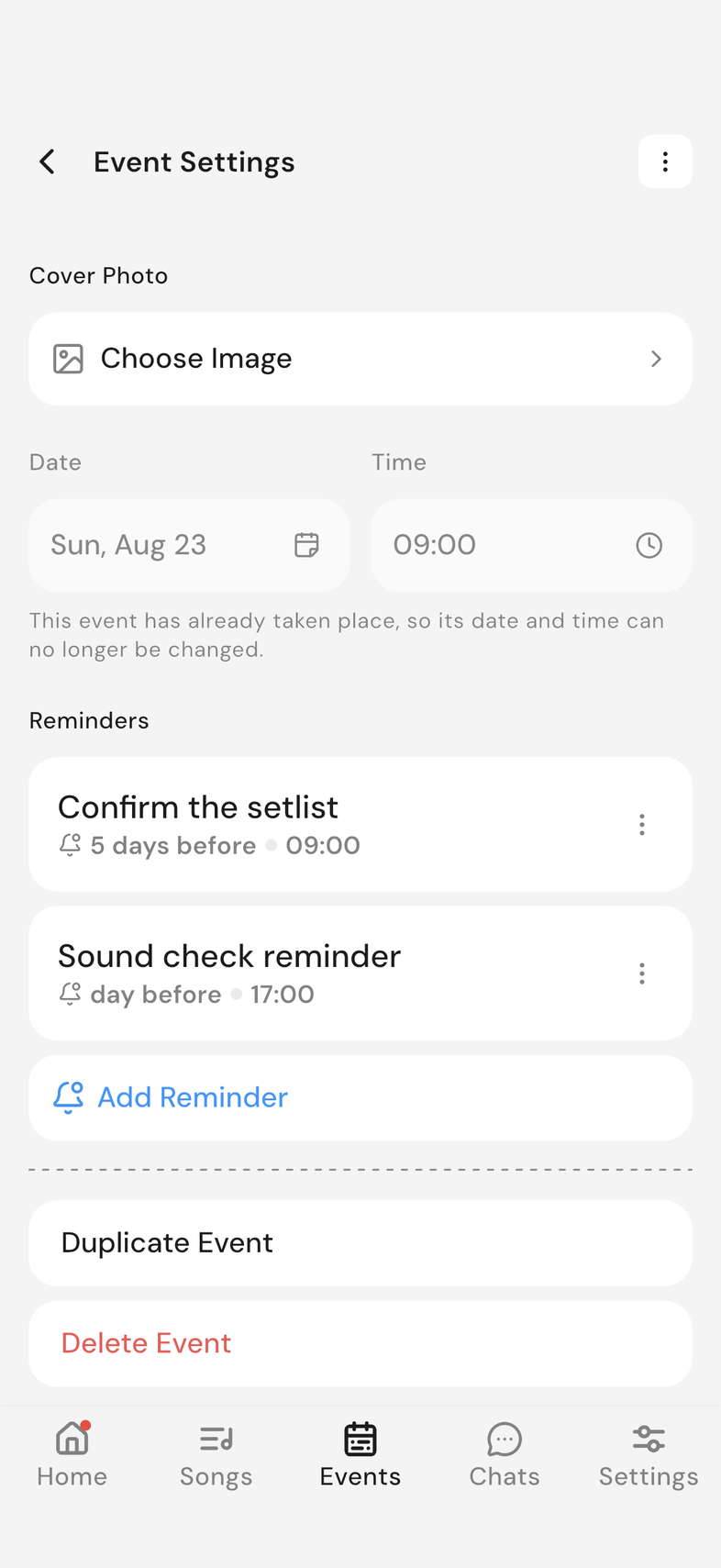
Tap the settings icon at the top right. Event Settings opens.
-
Scroll down and tap Duplicate Event.
-
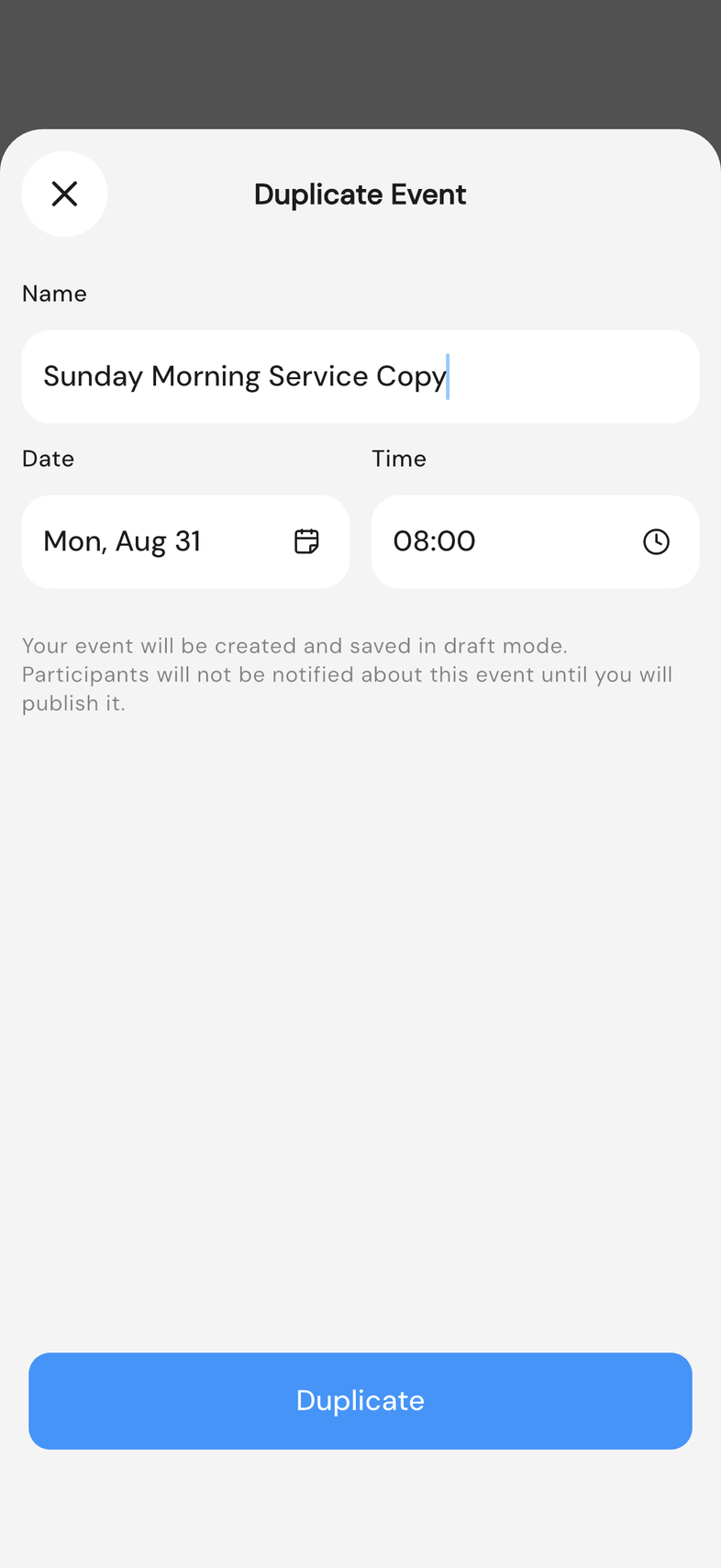
Type a Name for the copy.
-
Choose its date and time.
-
Tap Duplicate.
Good to know
- Both a name and a date are needed before Duplicate does anything.
- The copy is saved as a draft, and nobody on it is notified until you publish it. Publish an event so your team can see it
- People scheduled in positions on the original event are carried over to the same positions on the copy, and they're invited again once you publish it. Invite someone to a position
- Duplicating is the way to reuse an event whose date has locked. Edit an event, or delete it
- The original event is untouched.