Blockouts: tell your team when you're away
A blockout marks time you're not available. Anyone on the team can add, edit, or remove their own. It's a heads-up to whoever schedules, not a wall: they can still invite you, but OnStage warns them first.
Steps
Add a blockout
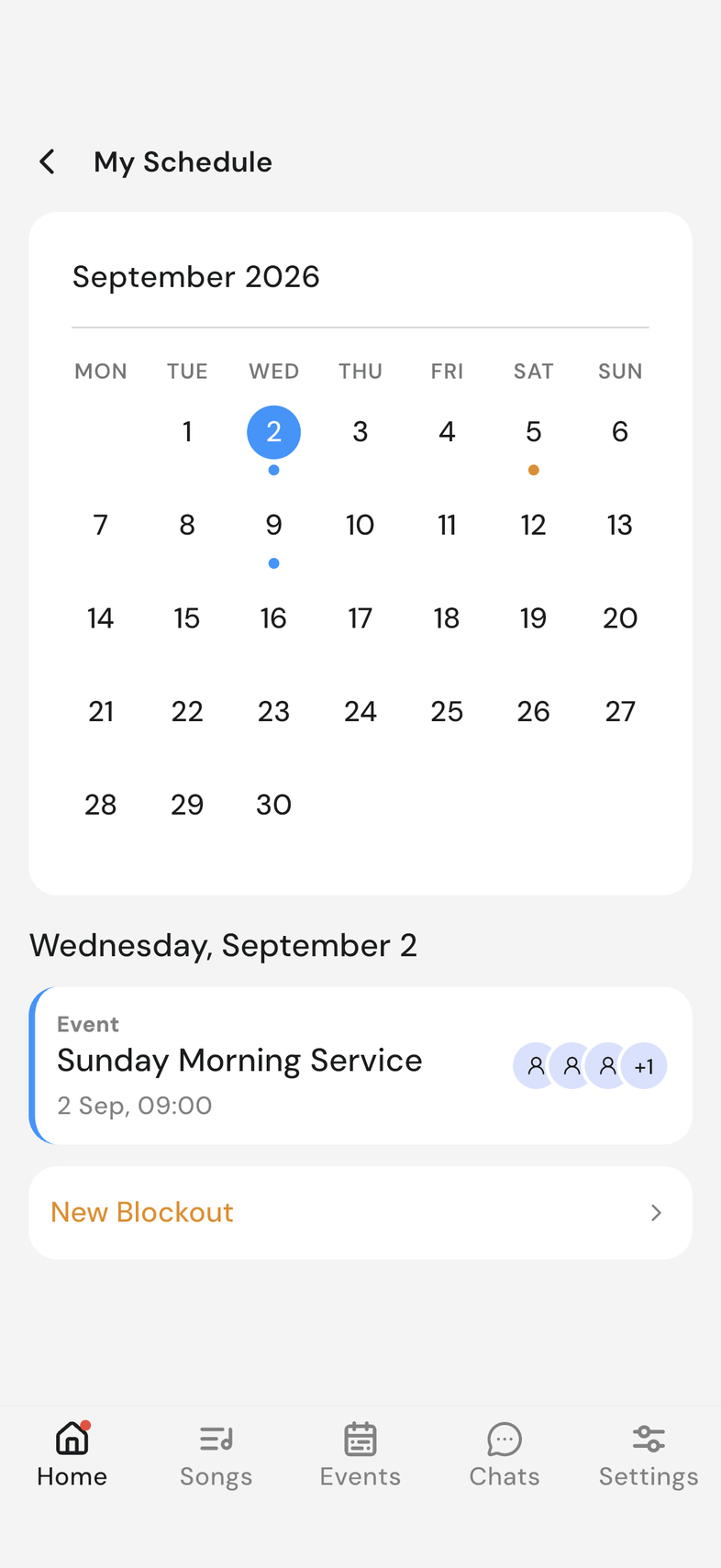
- Open My Schedule from the calendar card on the Home screen.
- Tap the first day you're away.
- Tap New Blockout under the day's list.
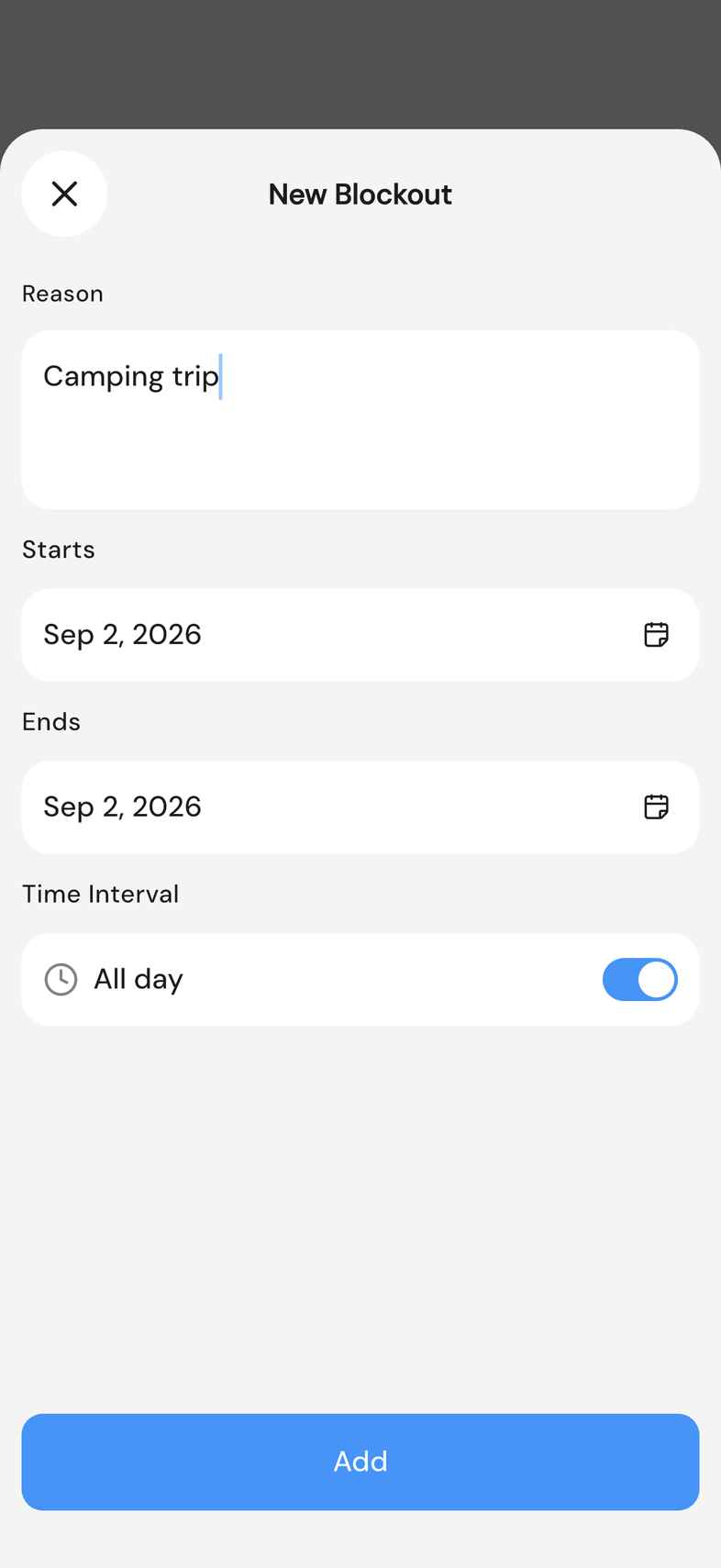
- Type a Reason, such as "away for work". Your team sees this.
- Set Starts and Ends. Both are filled in with the day you tapped.
- Leave All day on, or turn it off to pick a start and end time.
- Tap Add.
Edit or delete a blockout
You can change or remove any blockout you added yourself.
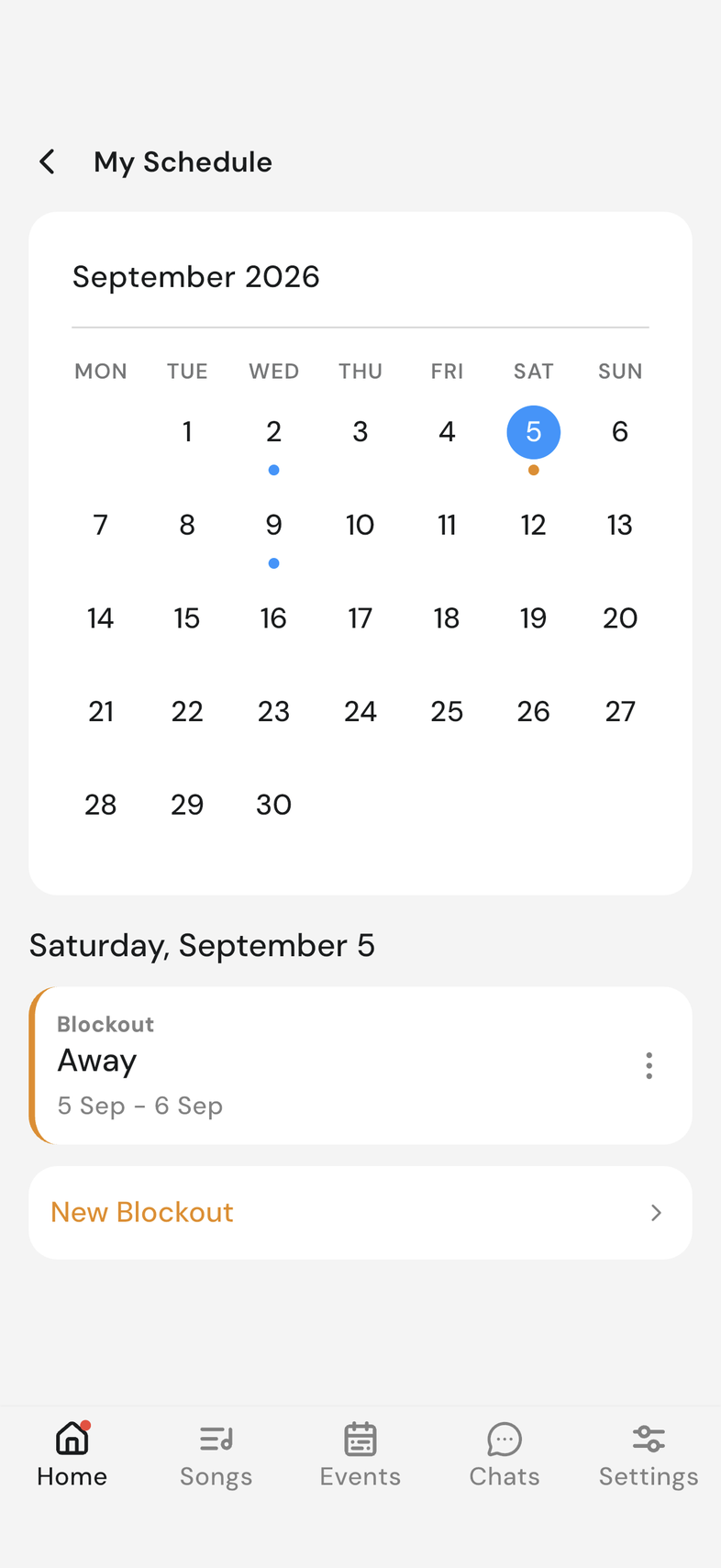
- Open My Schedule from the calendar card on the Home screen.
- Tap the day your blockout is on.
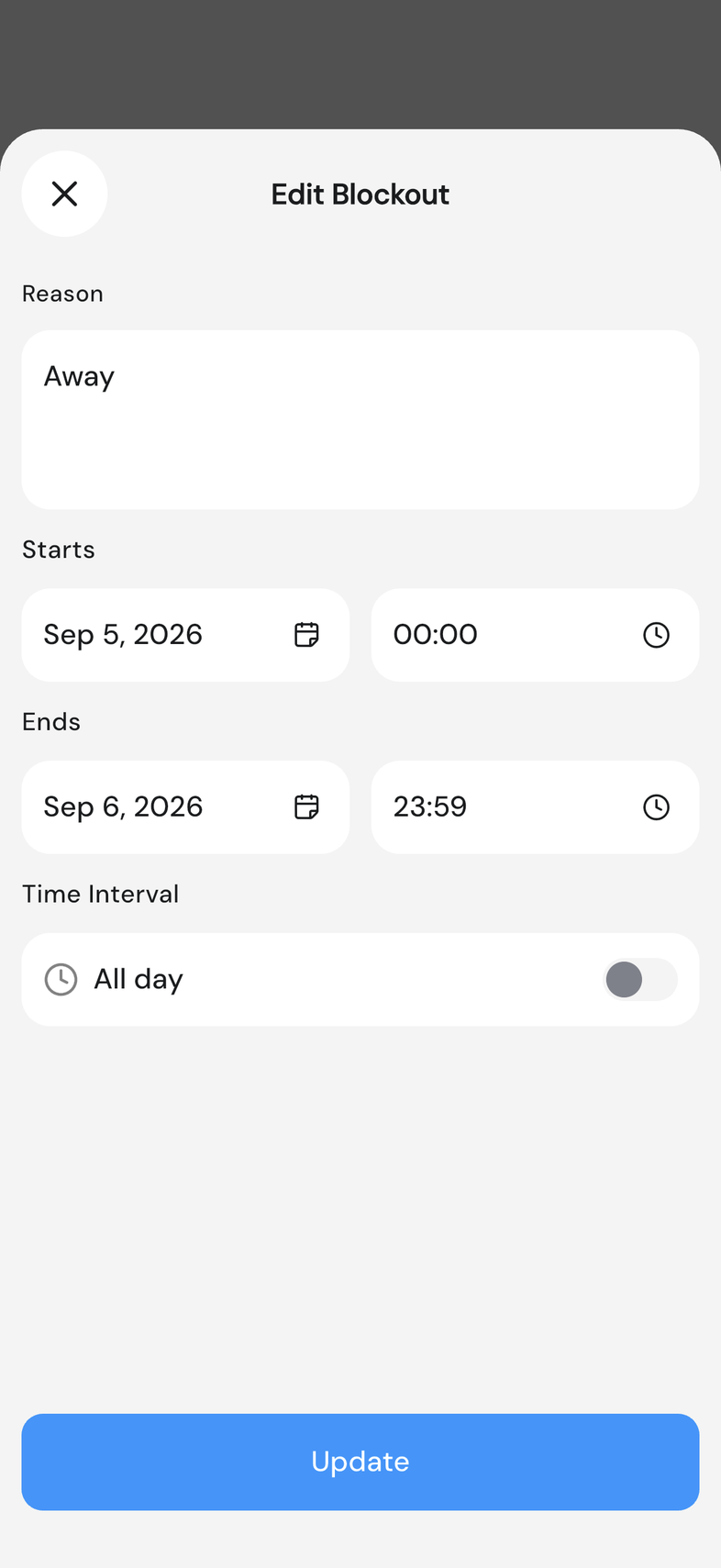
- Tap the blockout in the day's list. Edit Blockout opens.
- Change the Reason, the dates, or the All day switch, then tap Update.
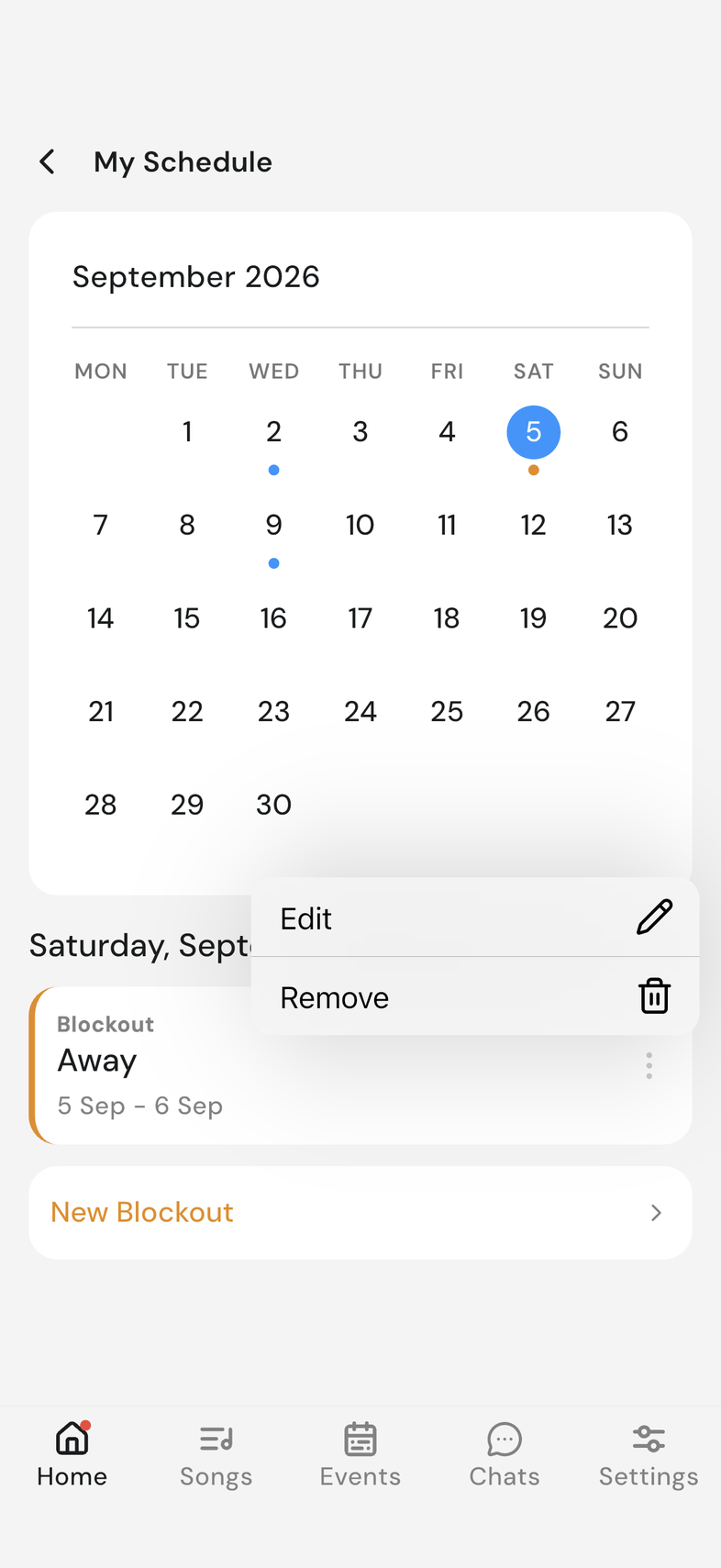
- To remove it instead, tap the three dots on the blockout row, then tap Remove.
What your team sees
When someone is adding people to an event, your name shows your blockout reason underneath it for that date. If they pick you anyway, OnStage stops them with Band member busy and names who's unavailable. They can tap Continue Anyway and invite you regardless. You then accept or decline as normal.
Good to know
- All day is on when the form opens. With it off, you also choose times.
- A blockout can cover several days: set Ends to the last day you're away.
- Add and Update stay greyed out until there's a reason and the dates make sense.
- Your blockout appears on your calendar as an orange dot.
- The three-dot menu only appears on your own blockouts.
- Removing a blockout doesn't change events you've already been invited to.
- Keep your reason something you're happy sharing: anyone who can open your profile can see it.
- Being invited on a blocked-out day isn't a mistake: say yes or no in OnStage.
Frequently asked questions
How far ahead can I block out?
The date picker stops 365 days from today.
How long can the reason be?
Up to 150 characters, and it's required. Keep it to a few words: "on holiday", "work trip".
Do I need one blockout for every day I'm away?
No. One blockout can span several days, so a whole trip needs only one.
Is a blockout private?
No. Anyone who can open your profile can see your blockouts and the reason you typed.
Does a blockout remove me from an event I'm already in?
No, never. It only warns whoever is adding people to a new one.