Build the setlist
Pick songs from your library, add the parts of the service that aren't songs, put everything in order, and take out what changed.
Who can do this: Owner, Admin, Editor, Scheduler. What the roles mean Online only: You need internet for this. Why buttons disappear offline
Steps
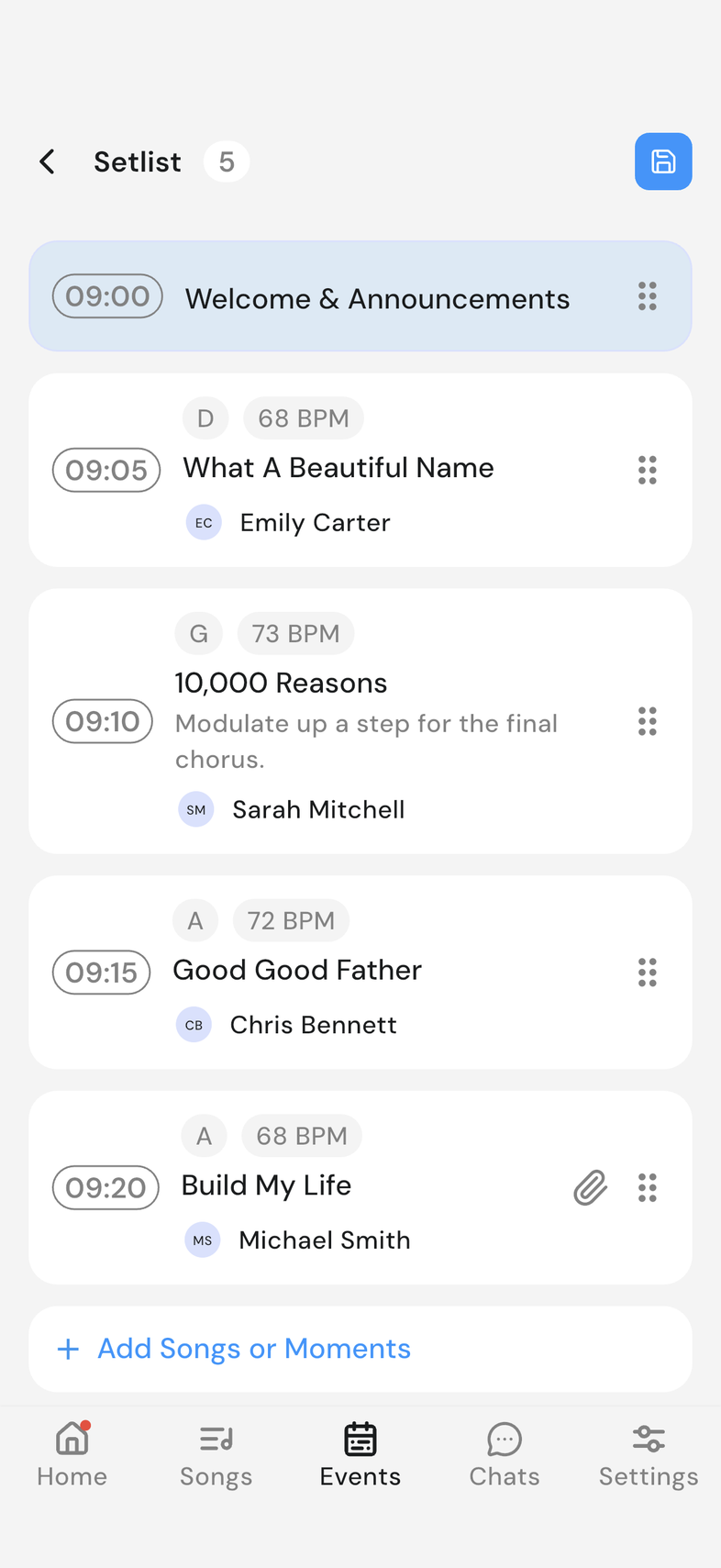
Open the event and tap See Setlist, then tap the pencil icon at the top right. Edit mode turns on: drag handles and swipe-to-remove both become available, and a footer button appears for adding.
Add a song
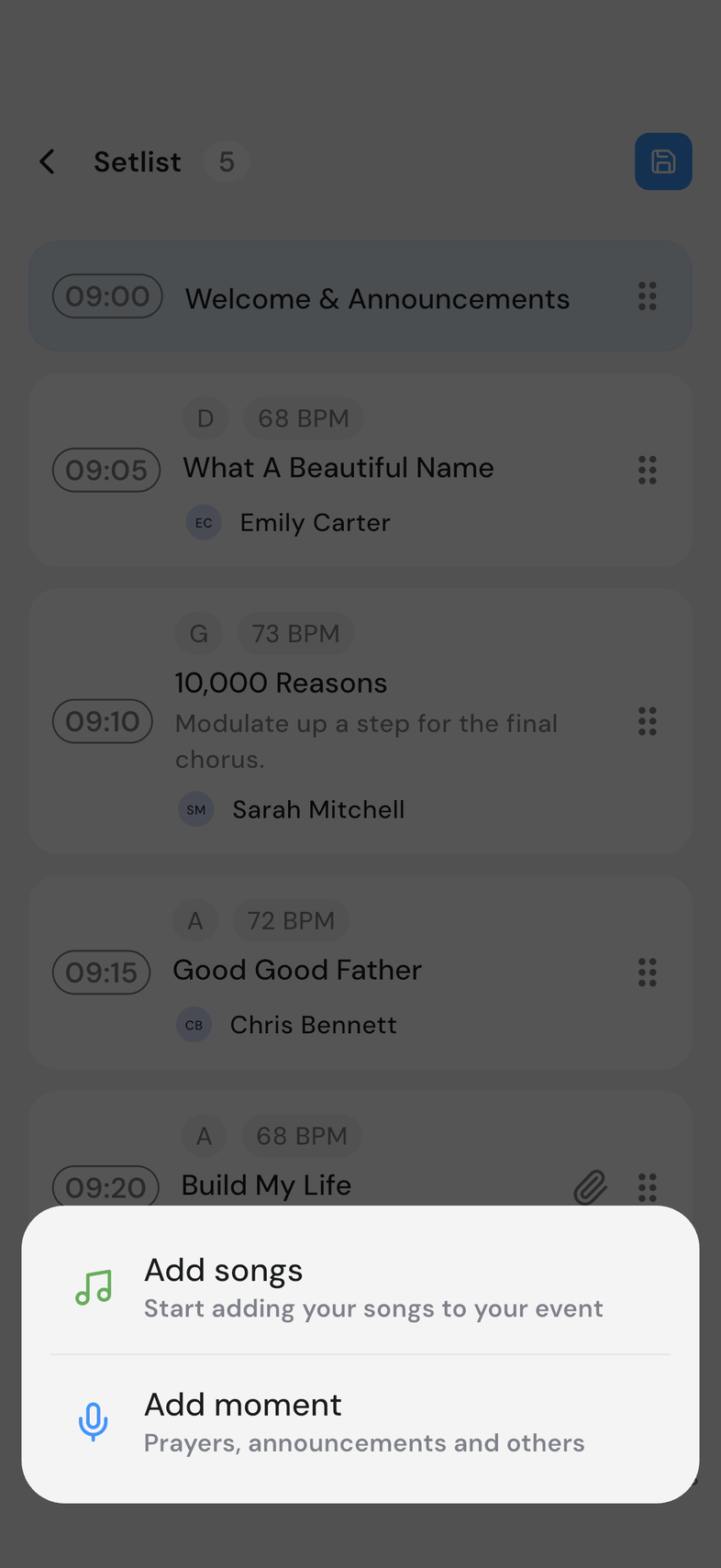
- Tap Add Songs or Moments at the bottom of the list, then Add songs.
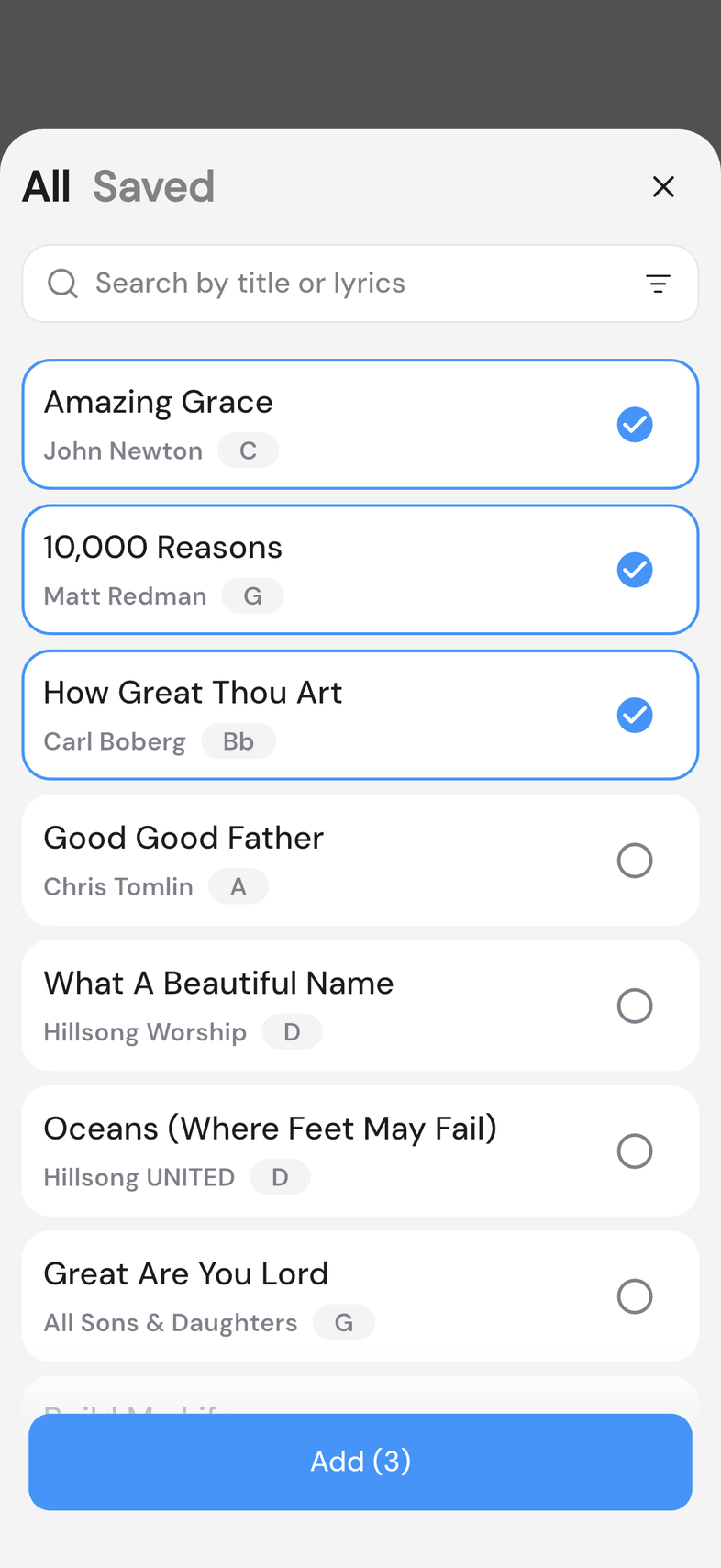
- Stay on All to browse the library, or tap Saved for your saved songs.
- Search by title or lyrics to find one faster.
- Tap each song you want. The button counts them, for example Add (3).
- Tap Add.
Add a moment
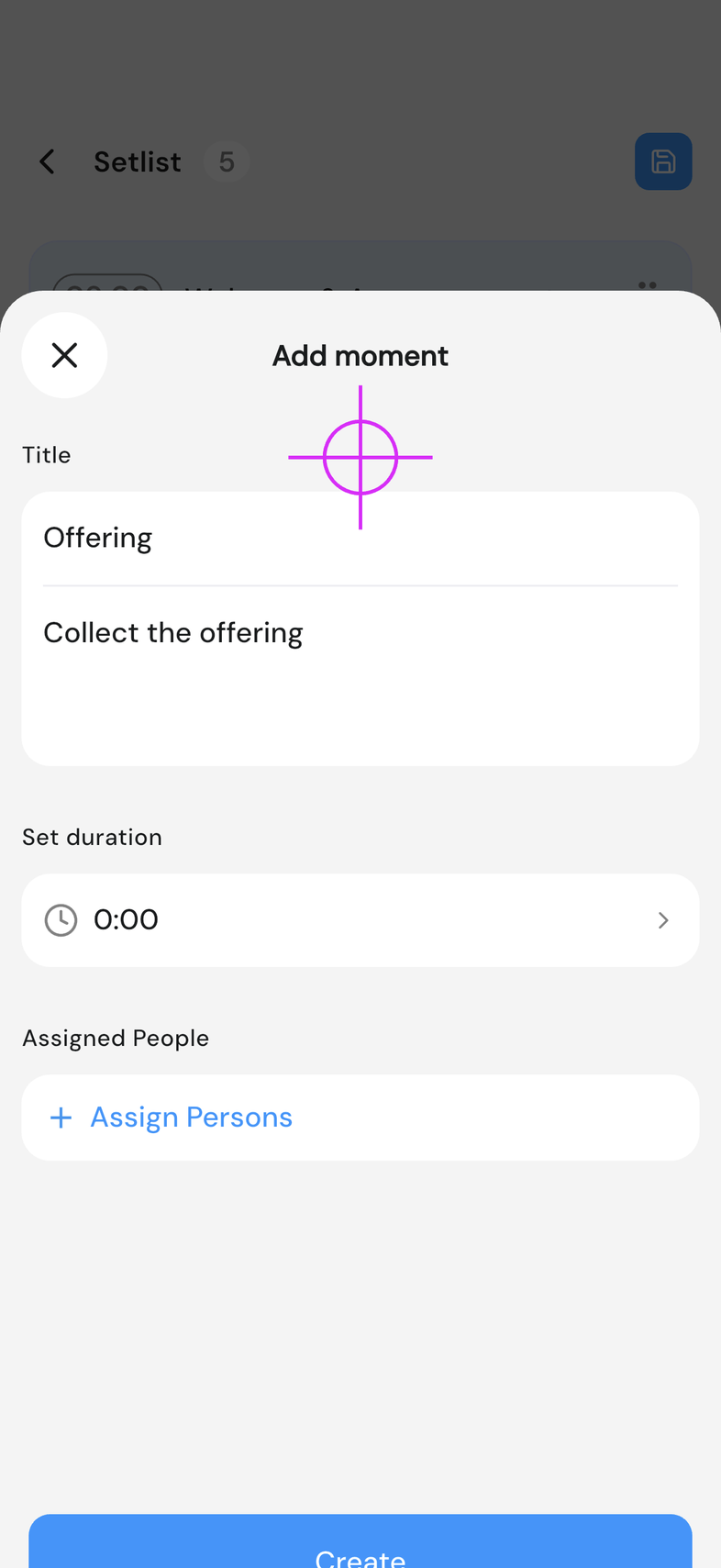
A moment is a part of the service that isn't a song: a welcome, a prayer, an announcement, an offering. It sits in the setlist alongside the songs.
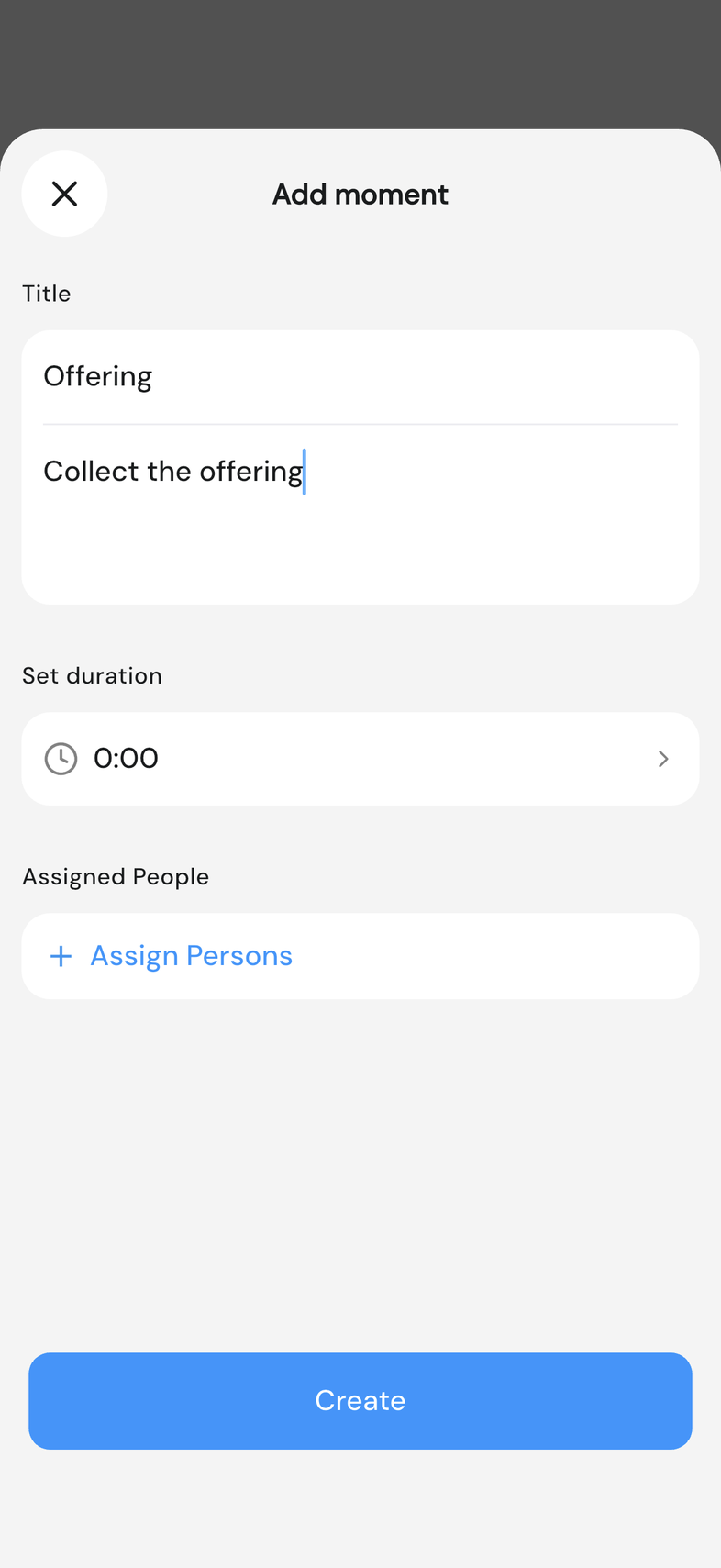
- Tap Add Songs or Moments, then Add moment.
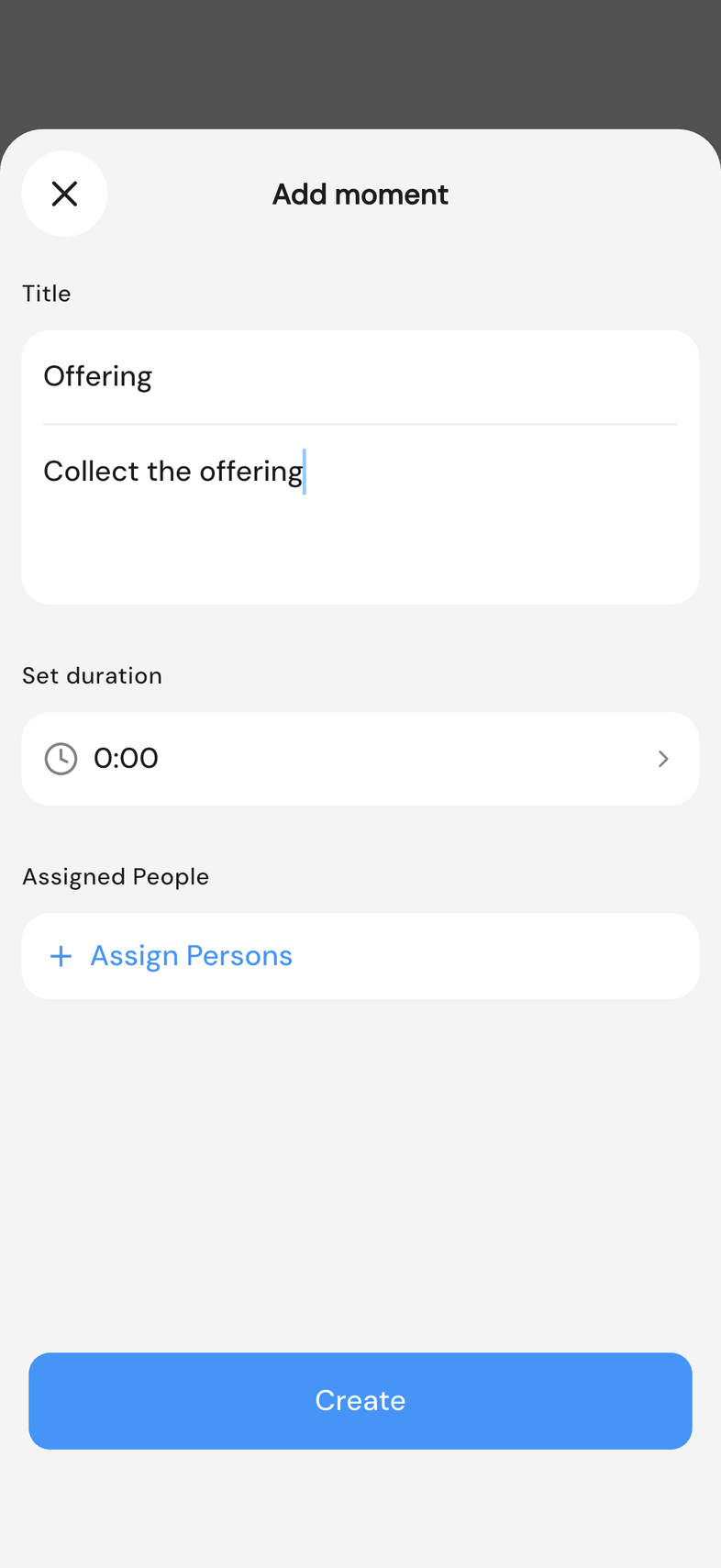
- Fill in the title, then the description underneath it.
- Set how long it should take under Set duration.
- Tap Create.
A moment needs both a title and a description before it will save. To change one later, tap it, edit it, and tap Save.
Reorder the setlist
- Press and hold a row's drag handle.
- Drag it up or down to where you want it, then let go.
- Move anything else that needs moving.
- Tap Save Order.
Nothing is saved until you tap Save Order. Going back first asks you to discard, and the old order stays. Dragging isn't available on web. OnStage on phone, tablet and web
Remove a song or moment
- Swipe the row you want to remove from right to left.
- Tap the red Delete button that appears behind it.
On web there's no swipe. Tap the three dots on the row and choose Delete. The item goes as soon as you tap Delete. Save Order is only for reordering.
Good to know
- Your team sees every change to the setlist straight away.
- Adding a song to an event doesn't change it in your library, and taking one out doesn't touch it either. It's still there for other events.
- Moments show when you present, in their place in the setlist. Swipe between songs in an event
- On a large screen, the add/reorder/remove controls sit in the top bar instead of the footer.
- Saving an order also turns edit mode off.