Polls: create, vote, and see who voted
Ask the team a question and give them options to pick from: the quickest way to settle a rehearsal time. Anyone in the chat can vote, and creating the poll is the part that needs a paid plan.
Steps
Create a poll
Paid plan: This needs a paid plan. What's included
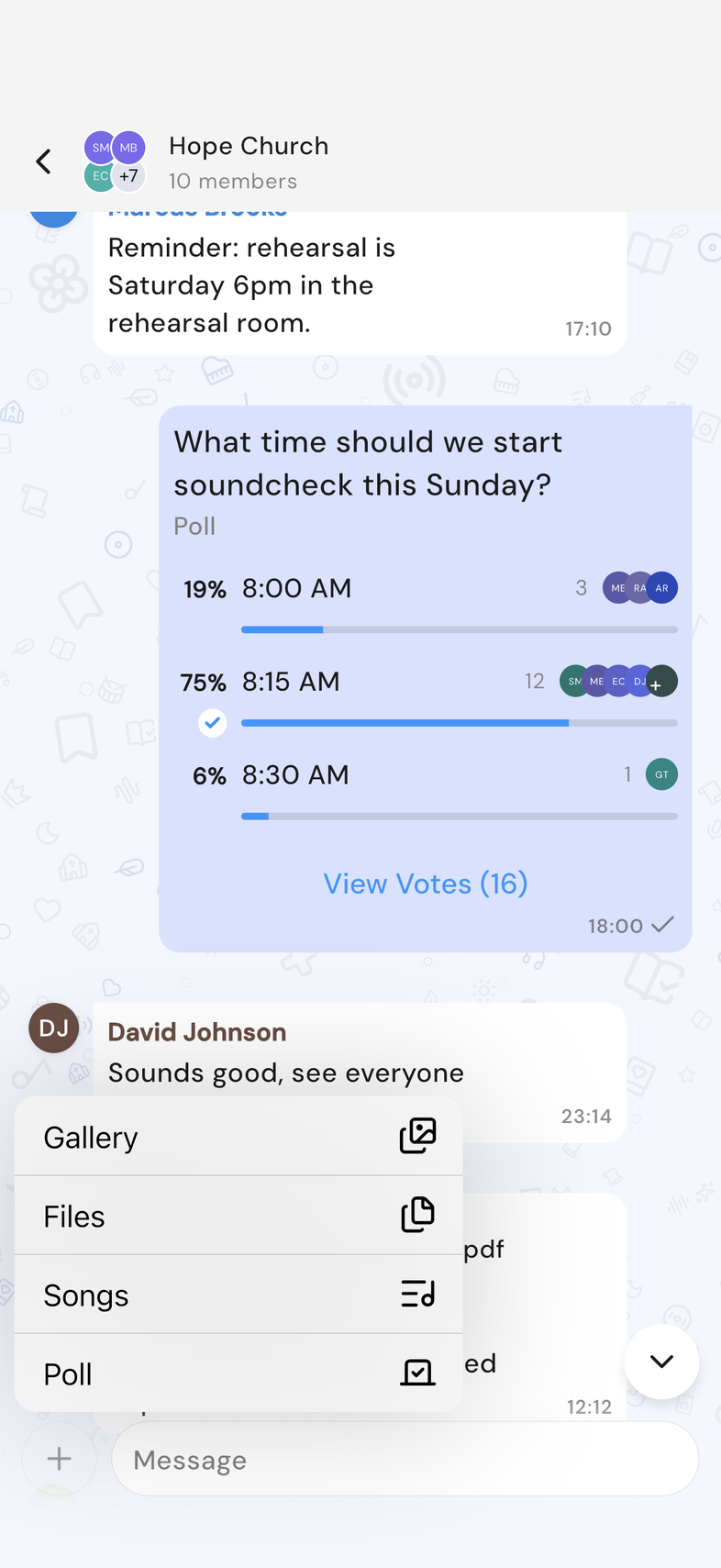
- Open a chat and tap + to the left of the message box.
- Tap Poll. The New Poll screen opens.
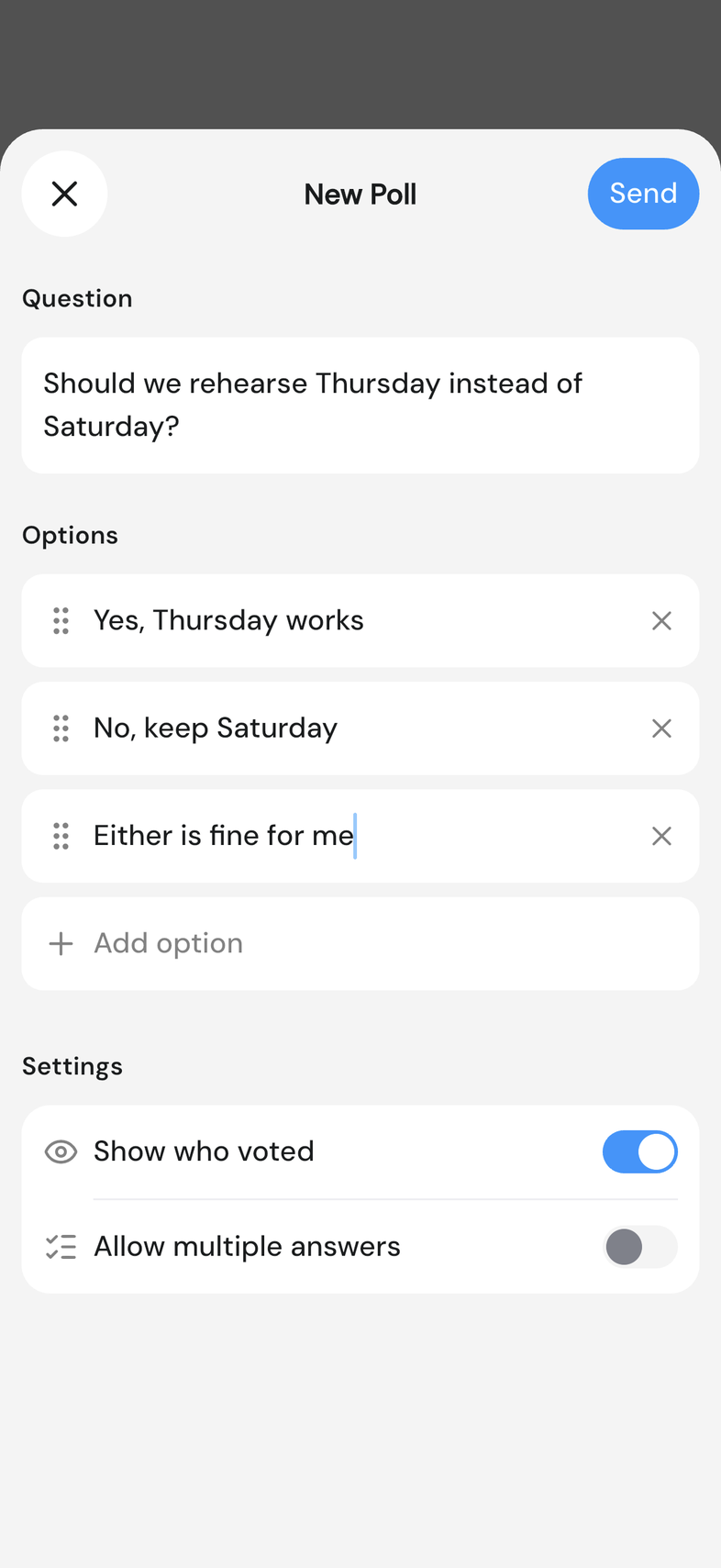
- Type your question under Question.
- Fill in the choices under Options. A fresh empty option appears each time you fill the last one.
- Under Settings, turn off Show who voted to keep votes private, or turn on Allow multiple answers so people can pick more than one.
- Tap Send. The poll appears in the chat as a message.
- Send stays greyed out until you have a question and at least two options.
- Show who voted starts on. Allow multiple answers starts off.
- Drag an option by its handle to change the order before you send.
Vote in a poll
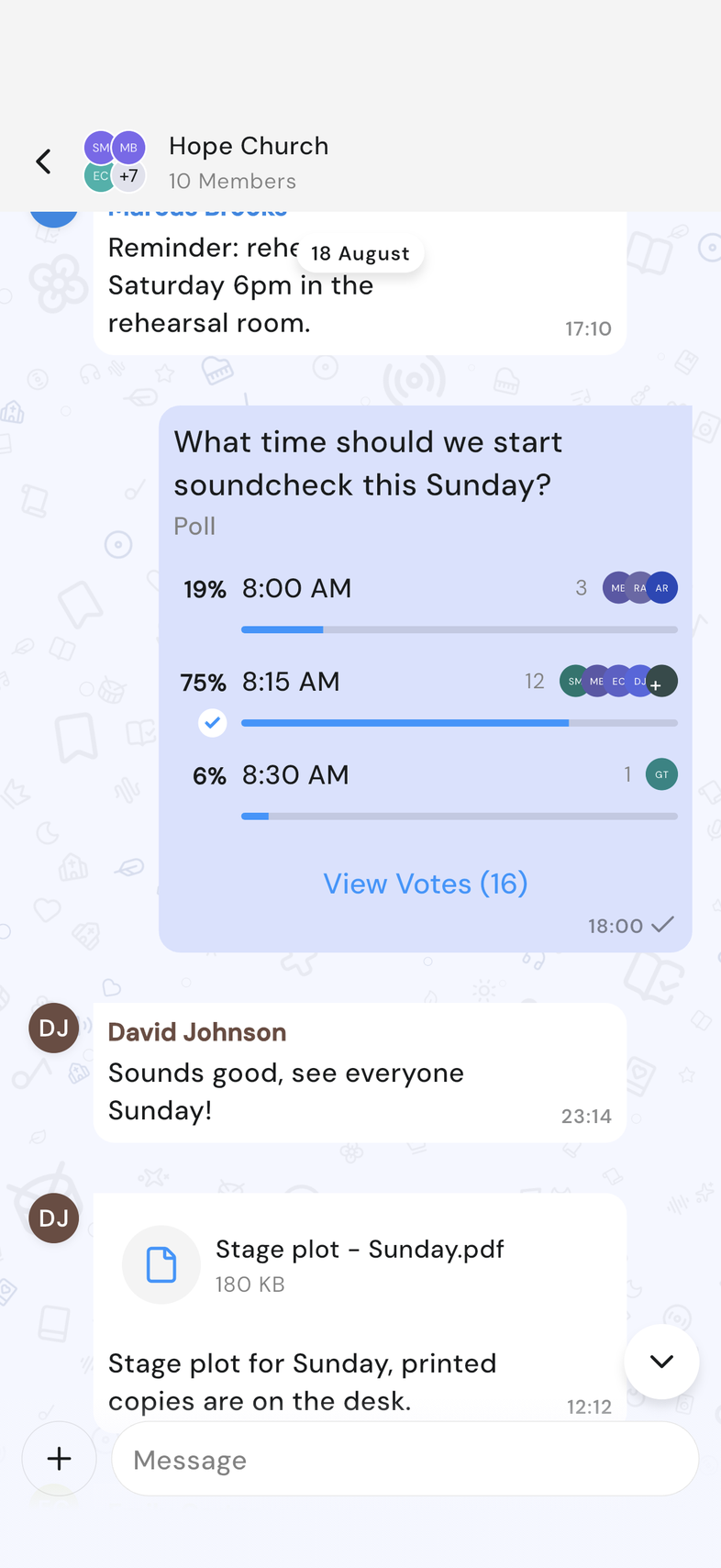
A poll sits in the conversation like any other message.
- Open the chat holding the poll.
- Tap the option you want. Your vote lands straight away.
- If the poll allows more than one answer, tap every option you want, then tap Vote.
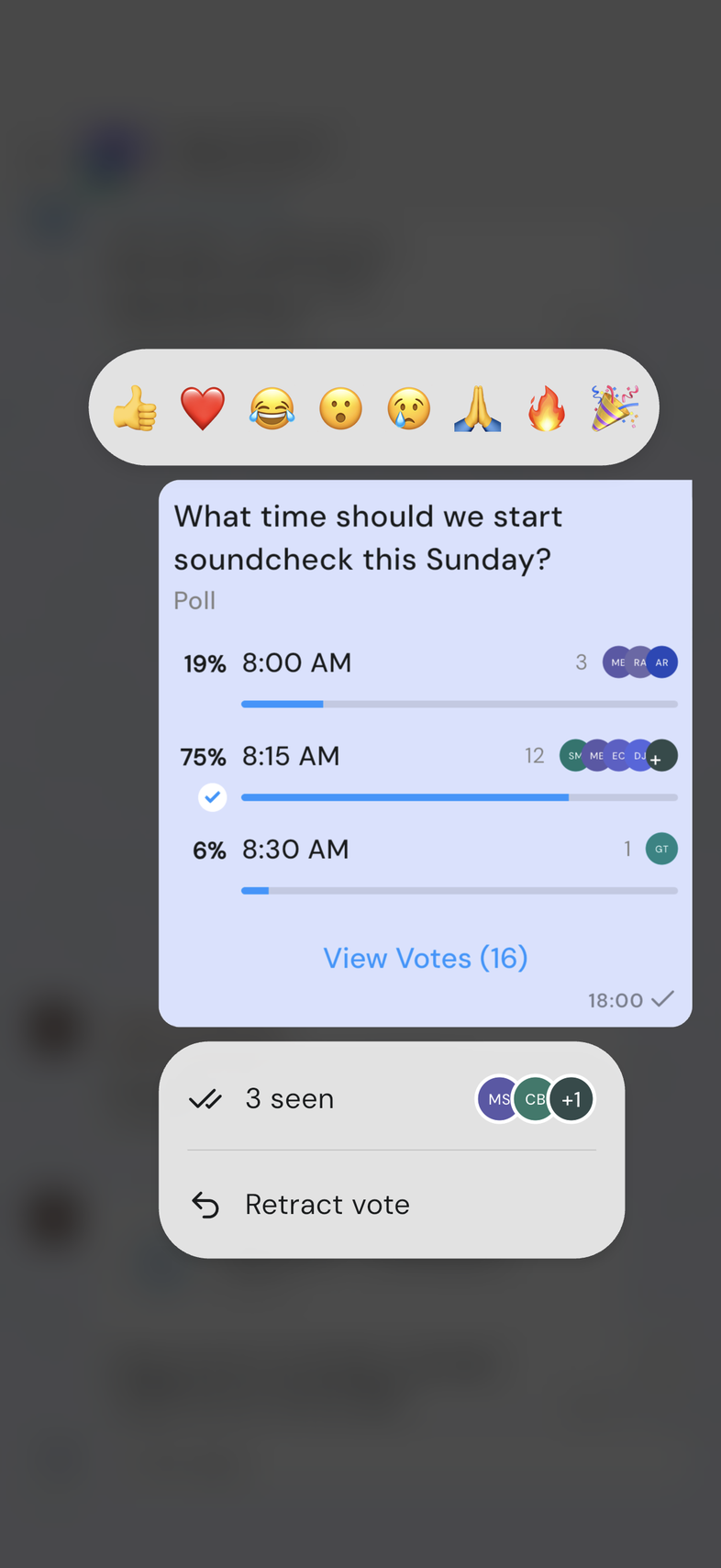
- To change your mind, long-press the poll and tap Retract vote. Vote again.
- Once you've voted, each option shows the share of the votes it holds.
- On web, hover over the poll instead of long-pressing.
See who voted
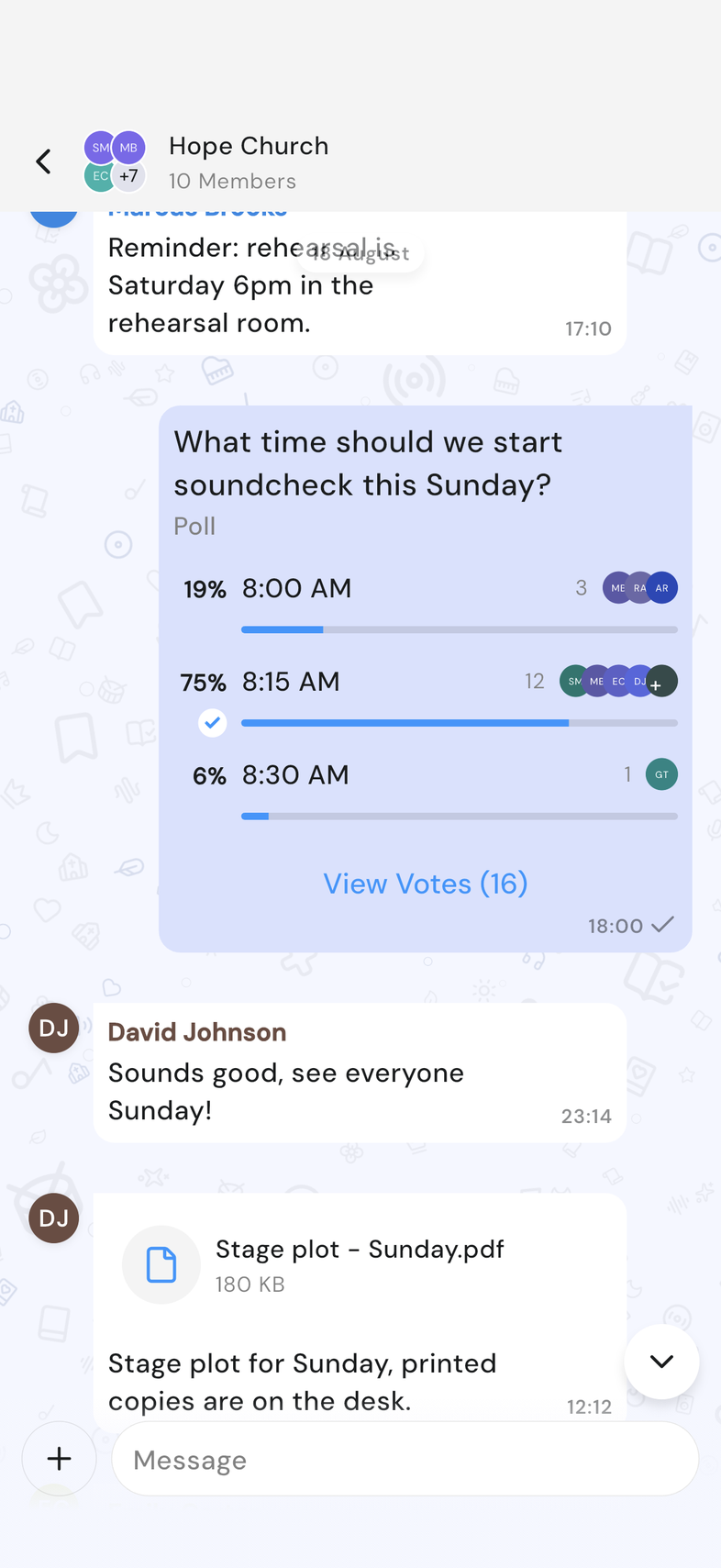
A poll shows the share each option holds. Open its results to see the names behind those shares.
- Open the chat holding the poll.
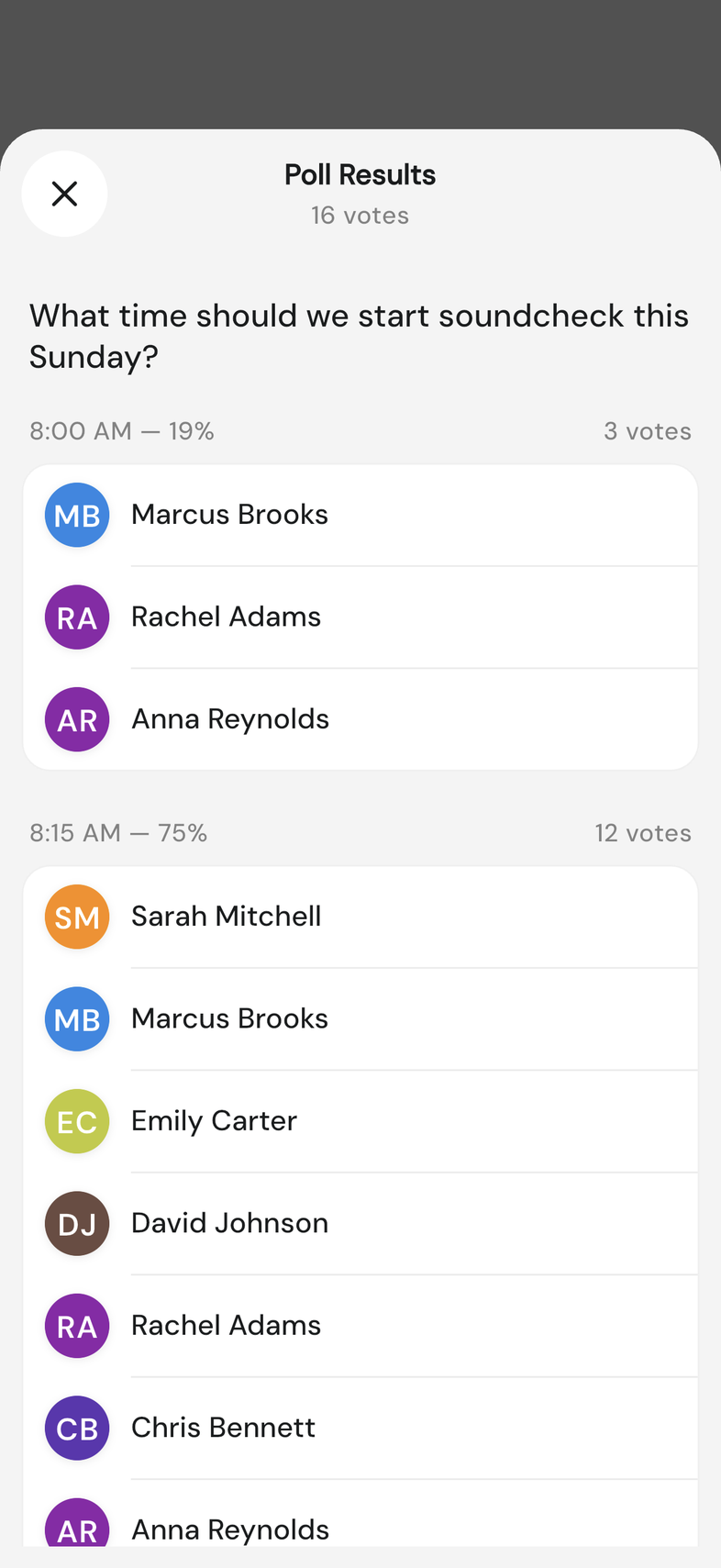
- Tap View Votes underneath it. The count in brackets is the total.
- Read down Poll Results. Each option shows its votes and the people who picked it.
- Tap Show More where a long list of names is cut short.
- Options that nobody picked are left out of the results.
- If the poll's creator turned off Show who voted, the footer reads as a vote count and won't open. Numbers stay visible, names don't.
- Results update as people vote, so it's worth reopening later.
Good to know
- Anyone in the chat can vote and see results on the free plan. Only creating a poll needs a paid plan.
- A poll works the same in a team chat or an event chat.