React, reply, copy and check a message
Long-press any message to react to it, reply to it, or copy its text. On your own messages, you can also see who's read it.
Steps
React to a message
Answer a message with an emoji when it doesn't need words: a rehearsal time everyone agrees with, for instance.
- Open the chat and find the message.
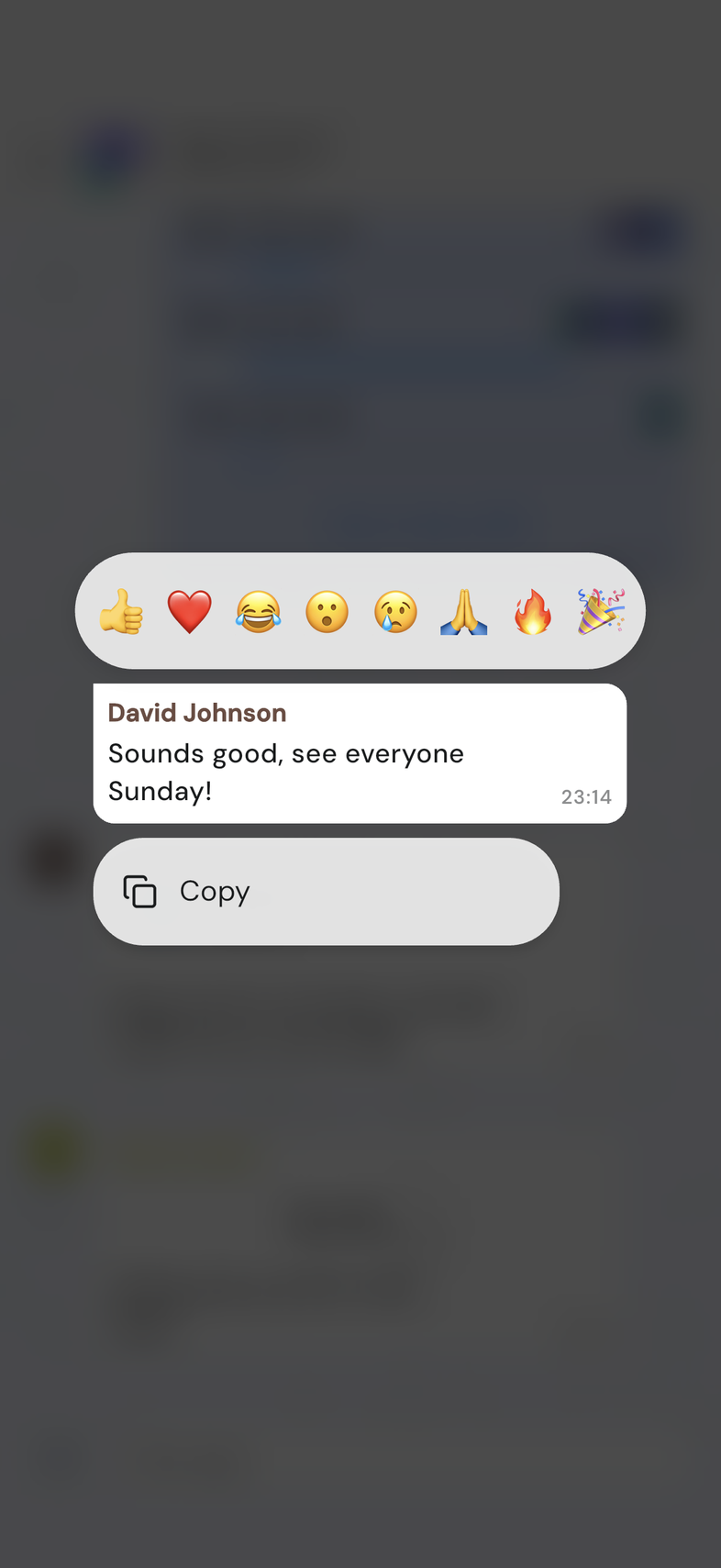
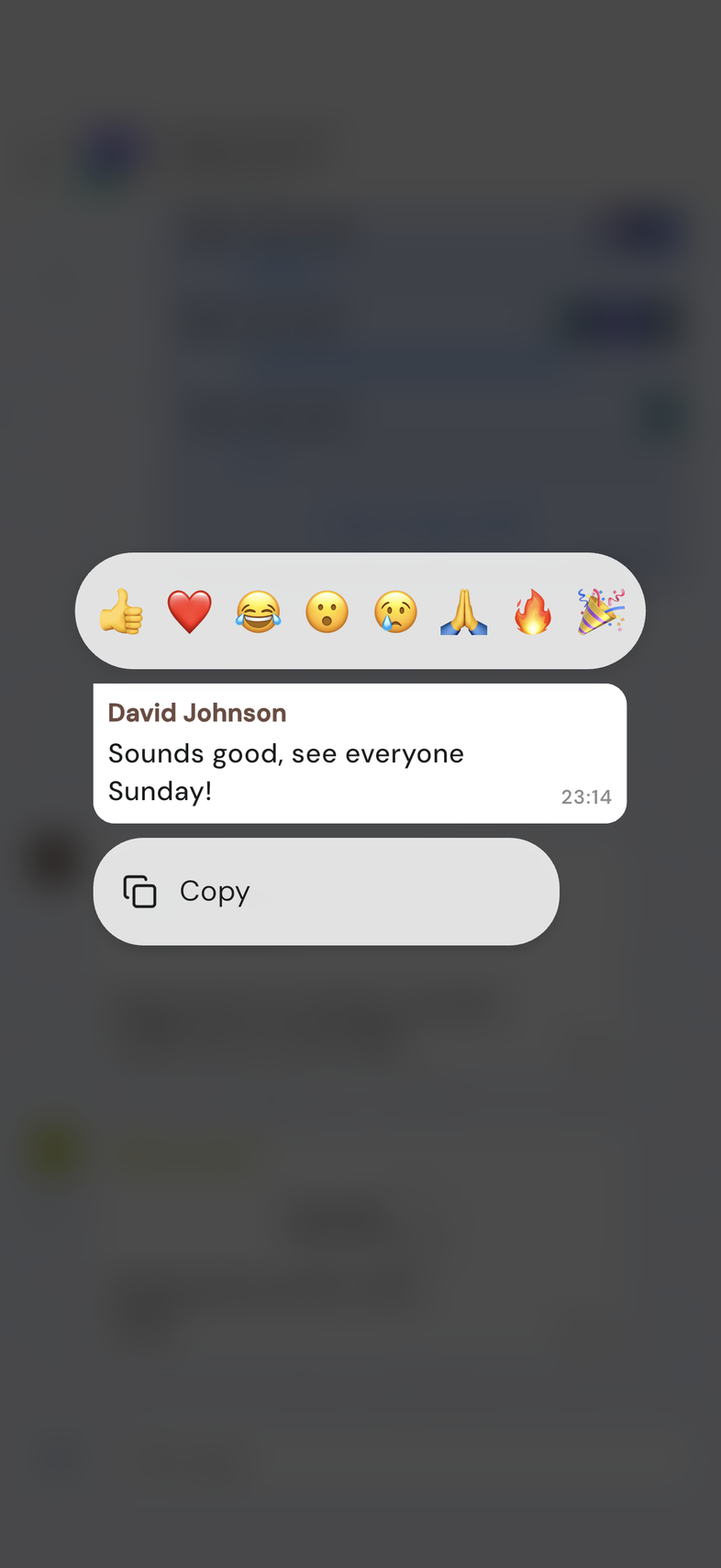
- Long-press it. A row of emoji appears above it, with the message menu below.
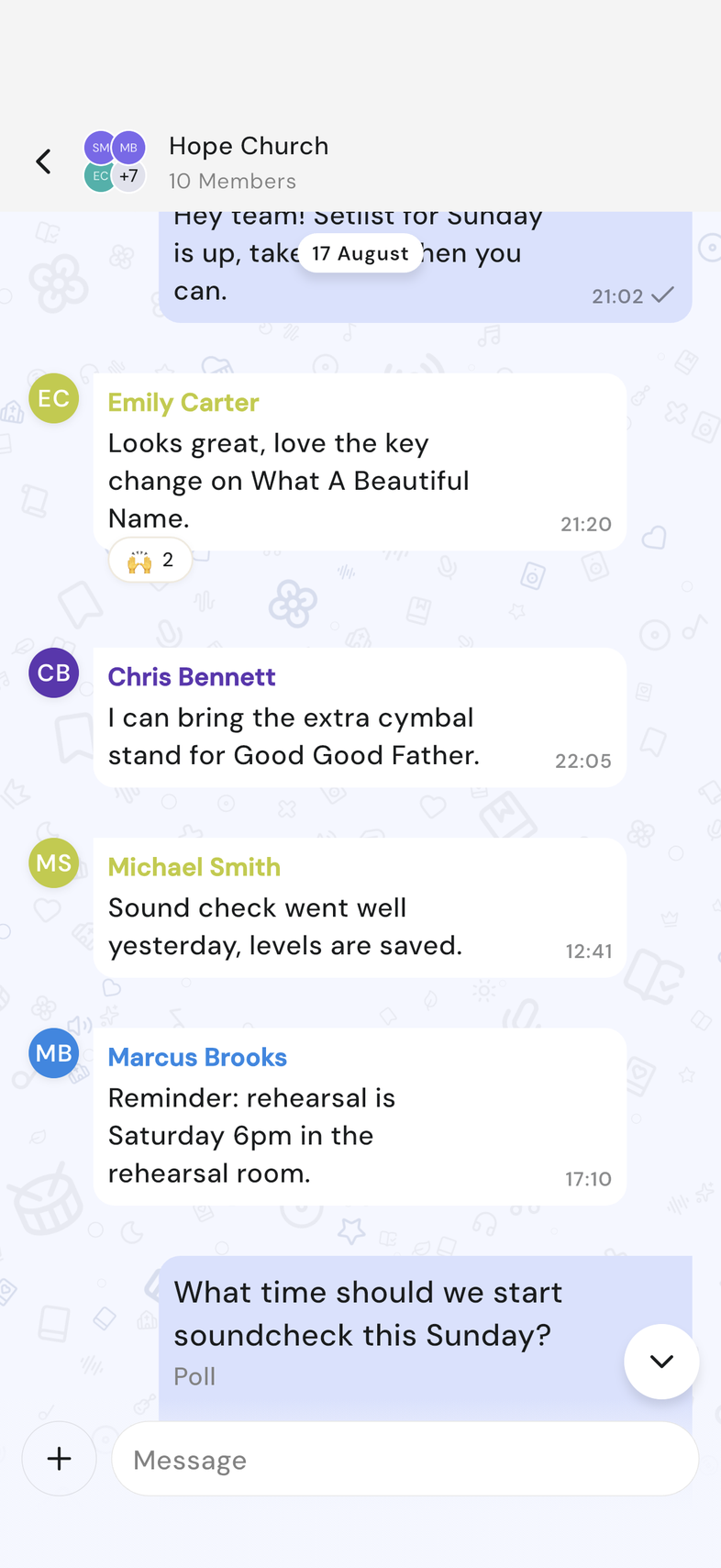
- Tap the emoji you want. It attaches to the bottom edge of the message.
- To take it back, long-press the message again and tap the same emoji. To swap it, tap a different emoji instead.
- The emoji offered are 👍 ❤️ 😂 😮 😢 🙏 🔥 🎉
- You hold one reaction per message. Picking another replaces the one you had.
Reply to a message
Answer one message in particular, so nobody has to guess which one you mean.
- Open the chat and find the message.
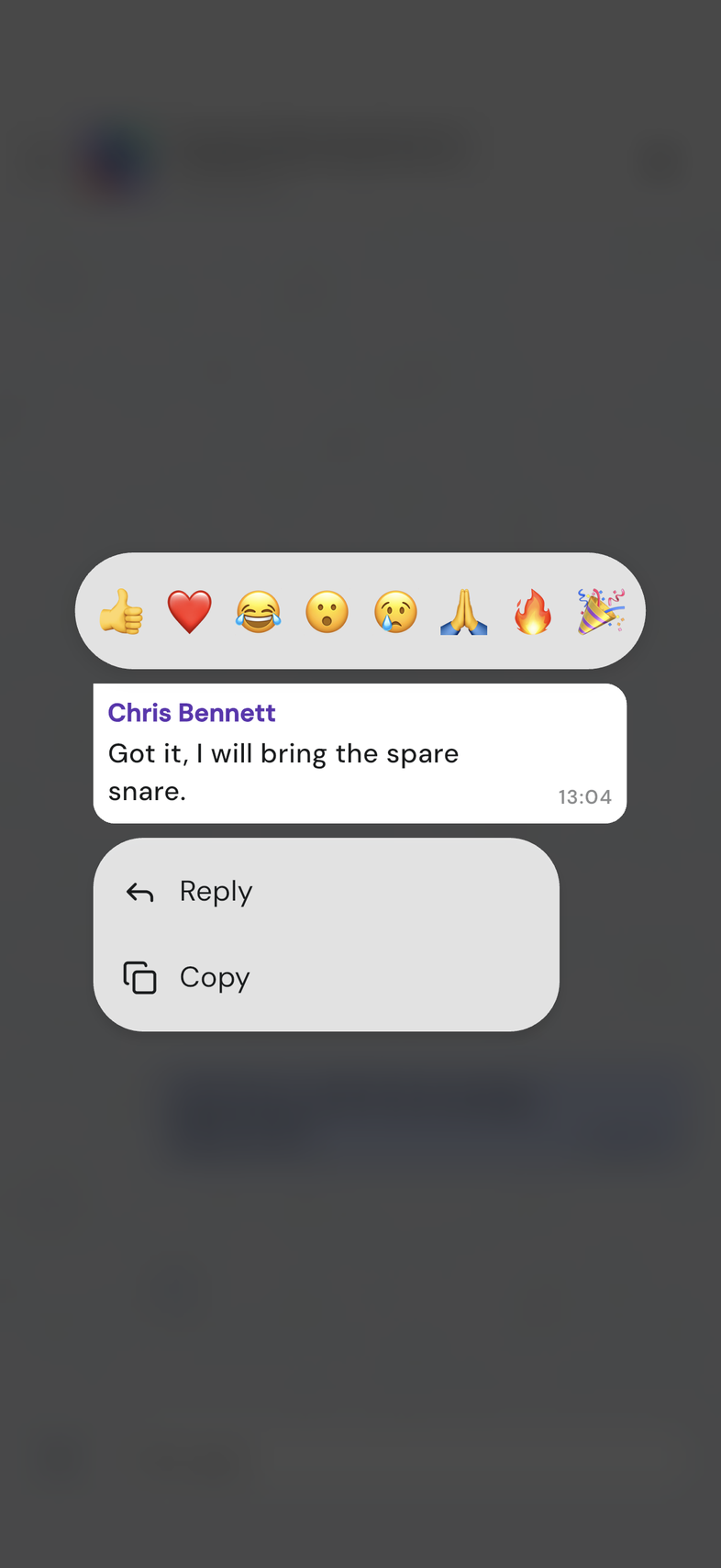
- Long-press it. The message menu opens.
- Tap Reply.
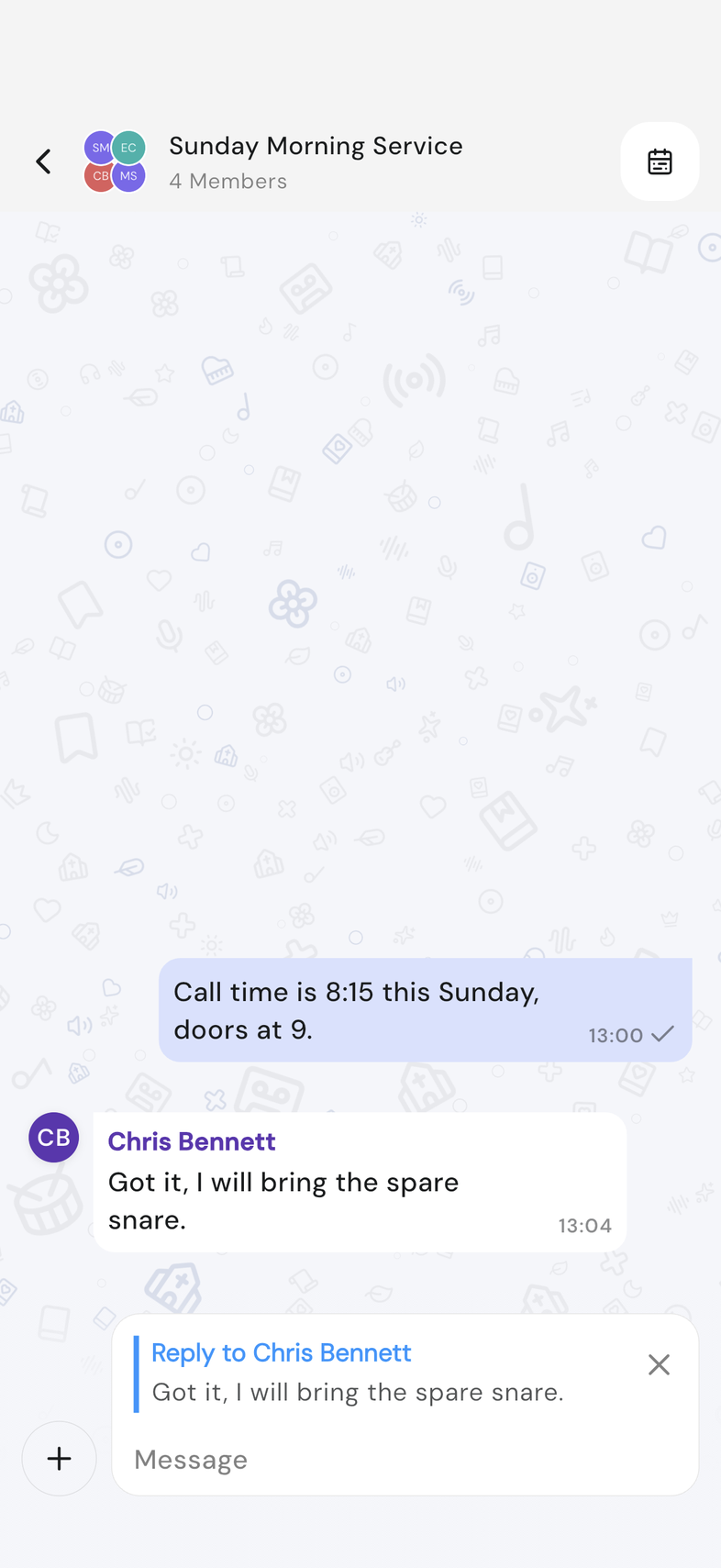
- Type your answer and tap the send button.
- Double-tap a message to react to it with a heart.
Copy a message
Take the words out of a message (an address, a set of directions, a link) and put them somewhere else.
- Open the chat and find the message.
- Long-press it. The message menu opens.
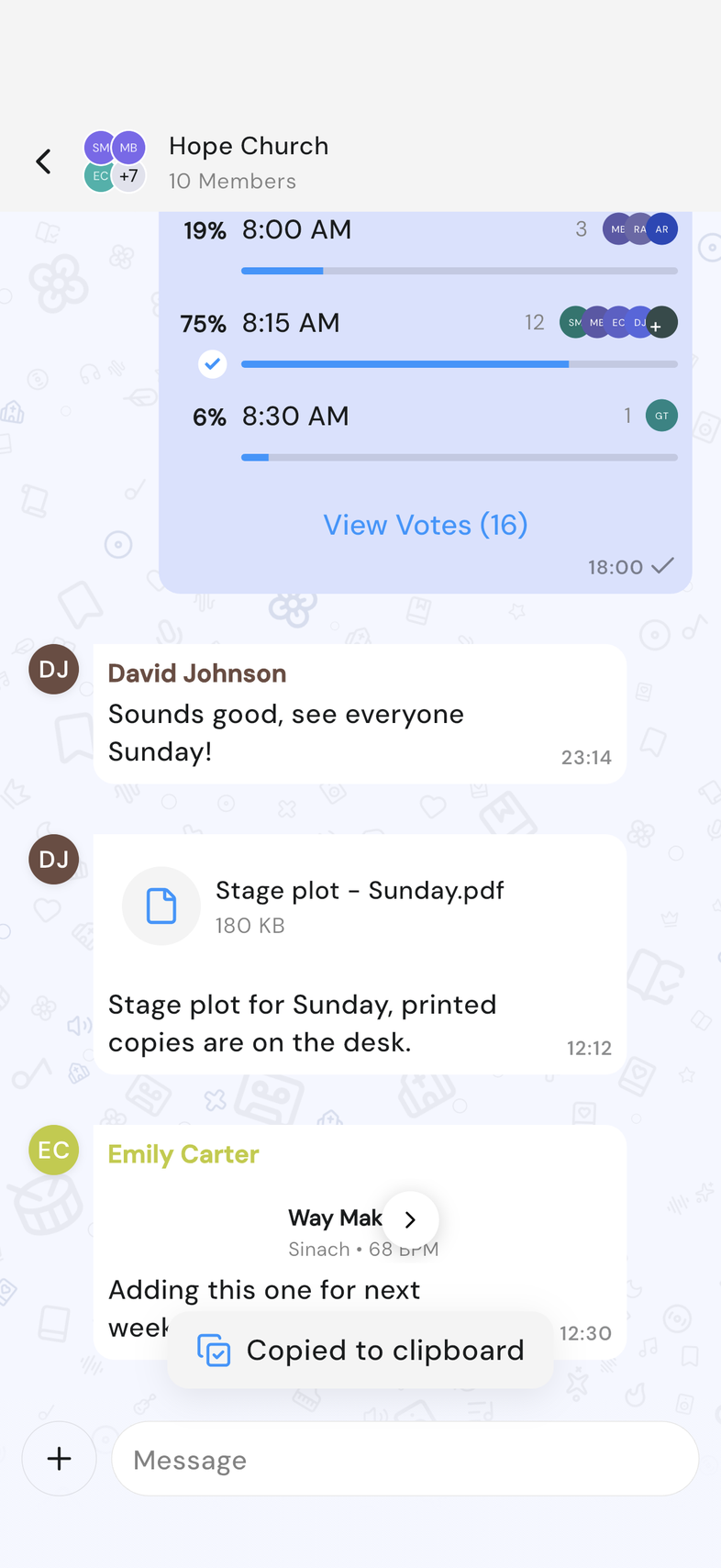
- Tap Copy. Copied to clipboard appears to confirm.
- Go where you want the text, then paste it.
- Copy only shows on messages that have text. A photo, file or poll on its own has nothing to copy.
- A message you sent that failed has Copy text in its own menu, so you keep what you wrote.
See who has read a message
Find out whether your message reached people before the service, useful when you've asked for an answer.
- Open the chat and long-press one of your own messages.
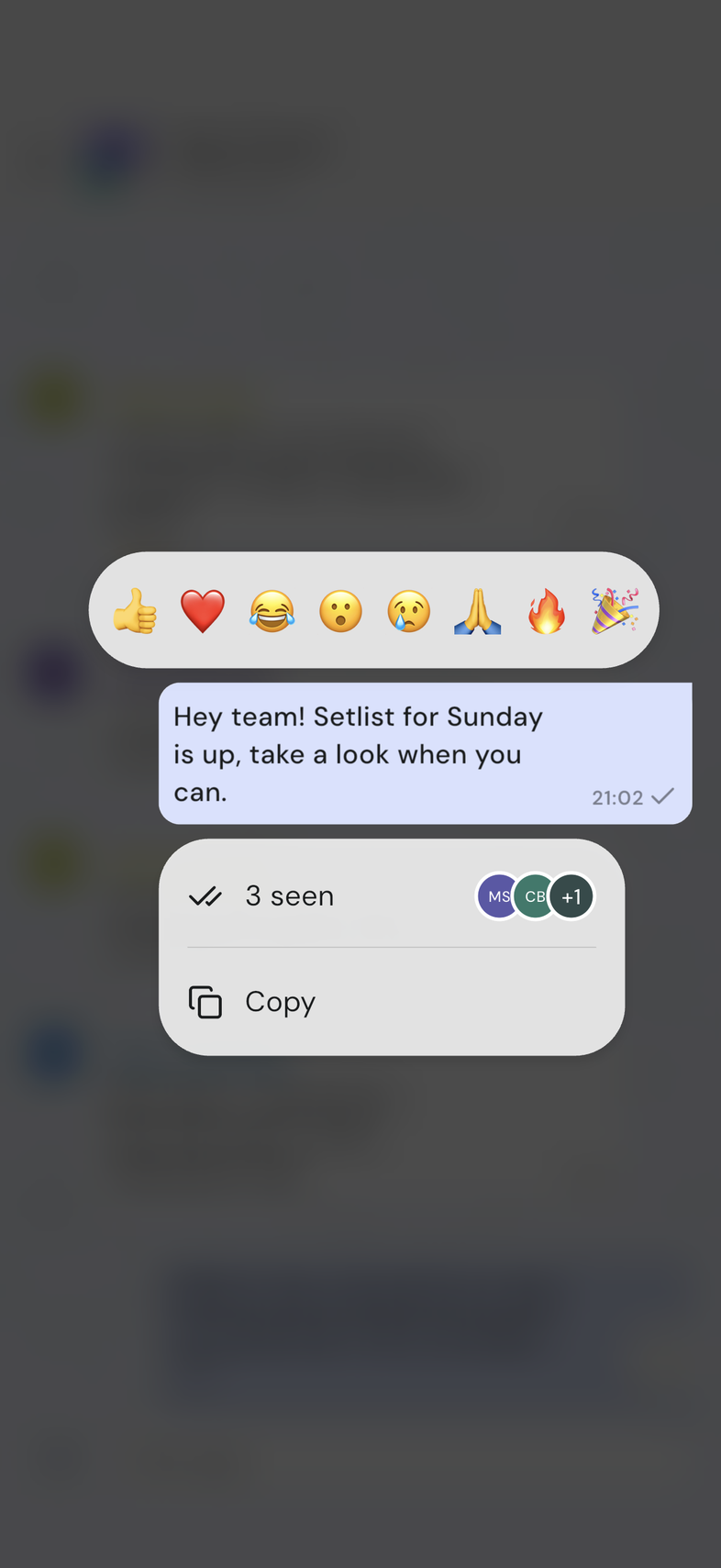
- Look at the top row of the menu. It reads Not seen yet, or the number of people who have read it.
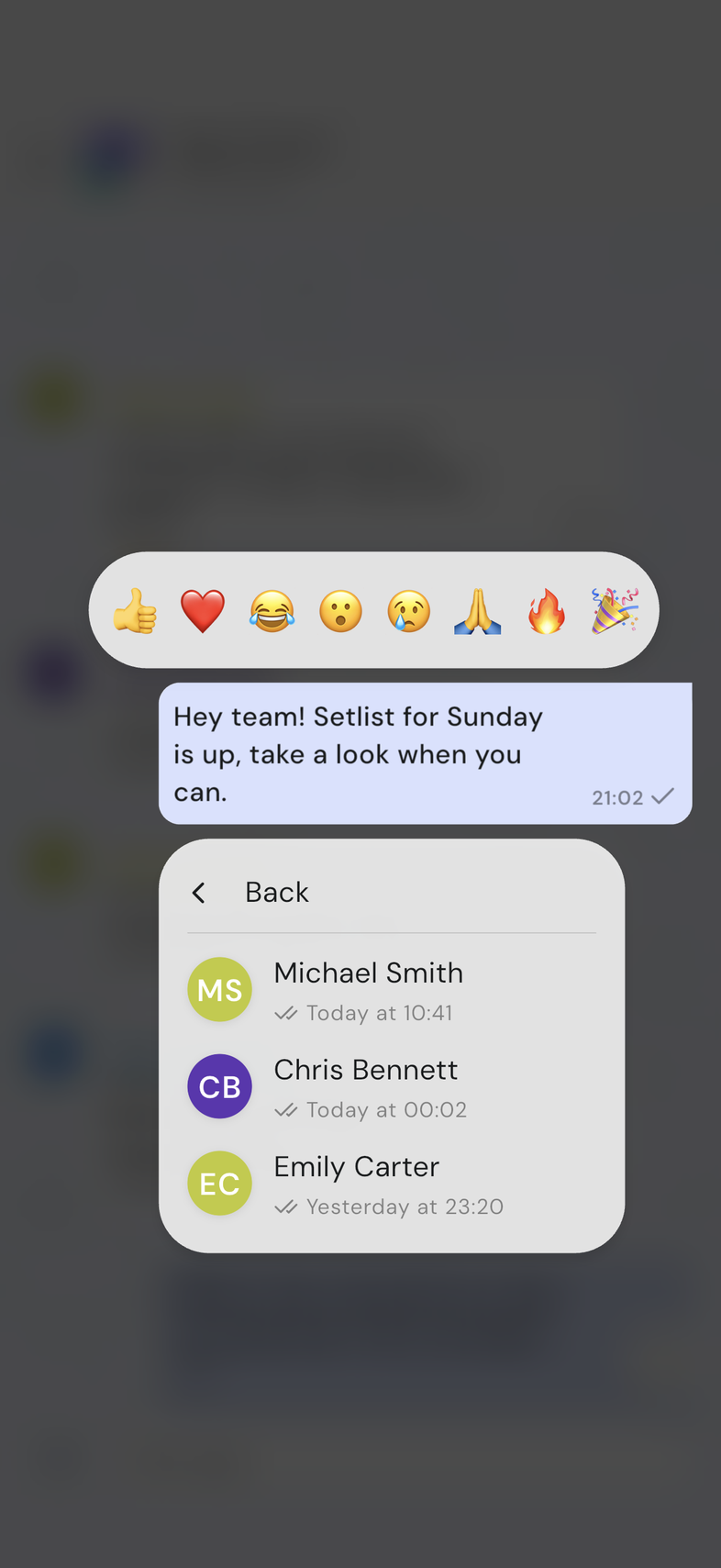
- Tap that row to open Seen by.
- Read the list of names, each with the time they read it.
- Tap Back to return to the menu.
- The row only shows on messages you sent. You can't see who has read someone else's message.
- If a person also reacted, their emoji shows beside their name.
Good to know
- On web, hover over a message instead of long-pressing. That opens the same menu for all four of these.
- A message that failed to send opens a different menu: Retry, Delete and Copy text.