Send a message, and what you can attach
Write to your whole team in the team chat, or to the people on one event in that event's chat. Attach a photo, file, song, or mention someone, all from the same message box.
Steps
Send a message
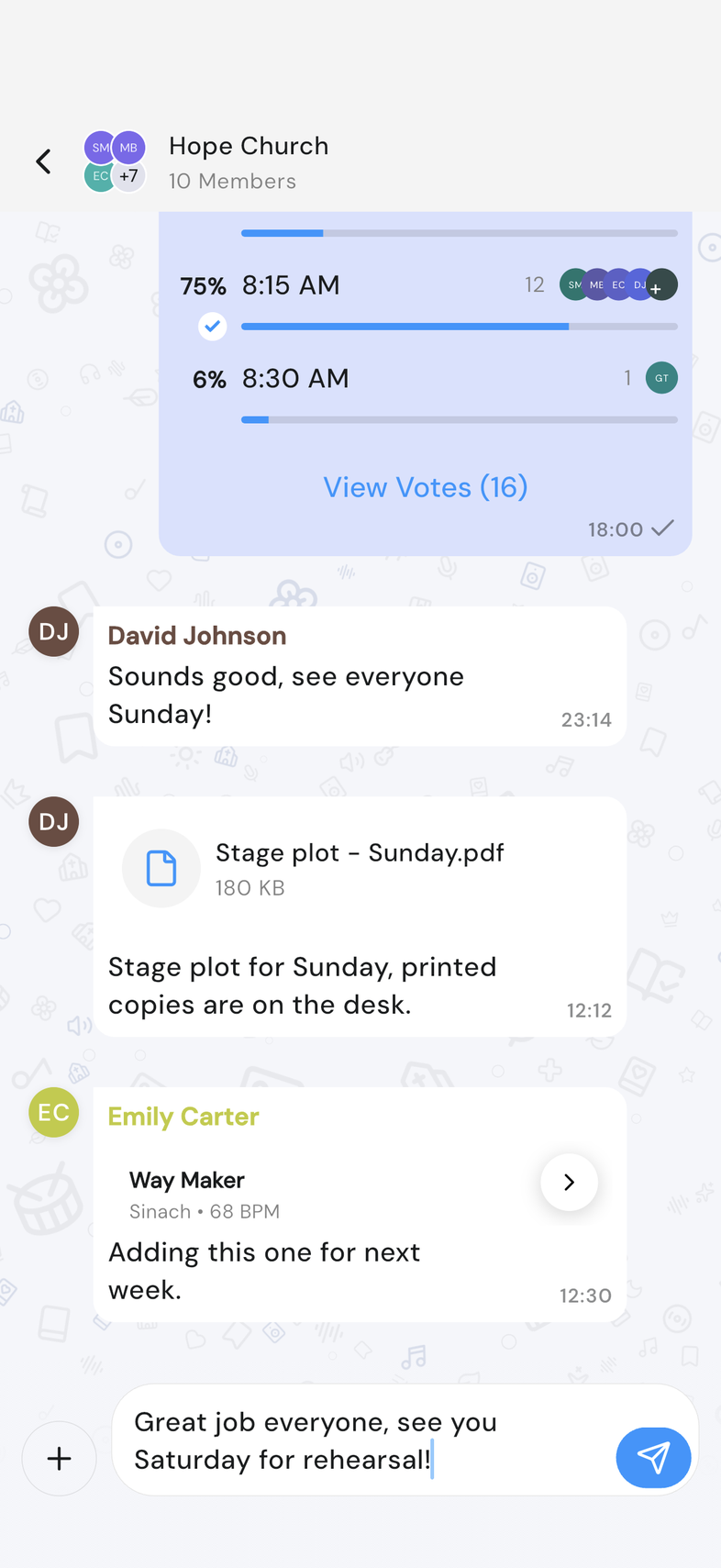
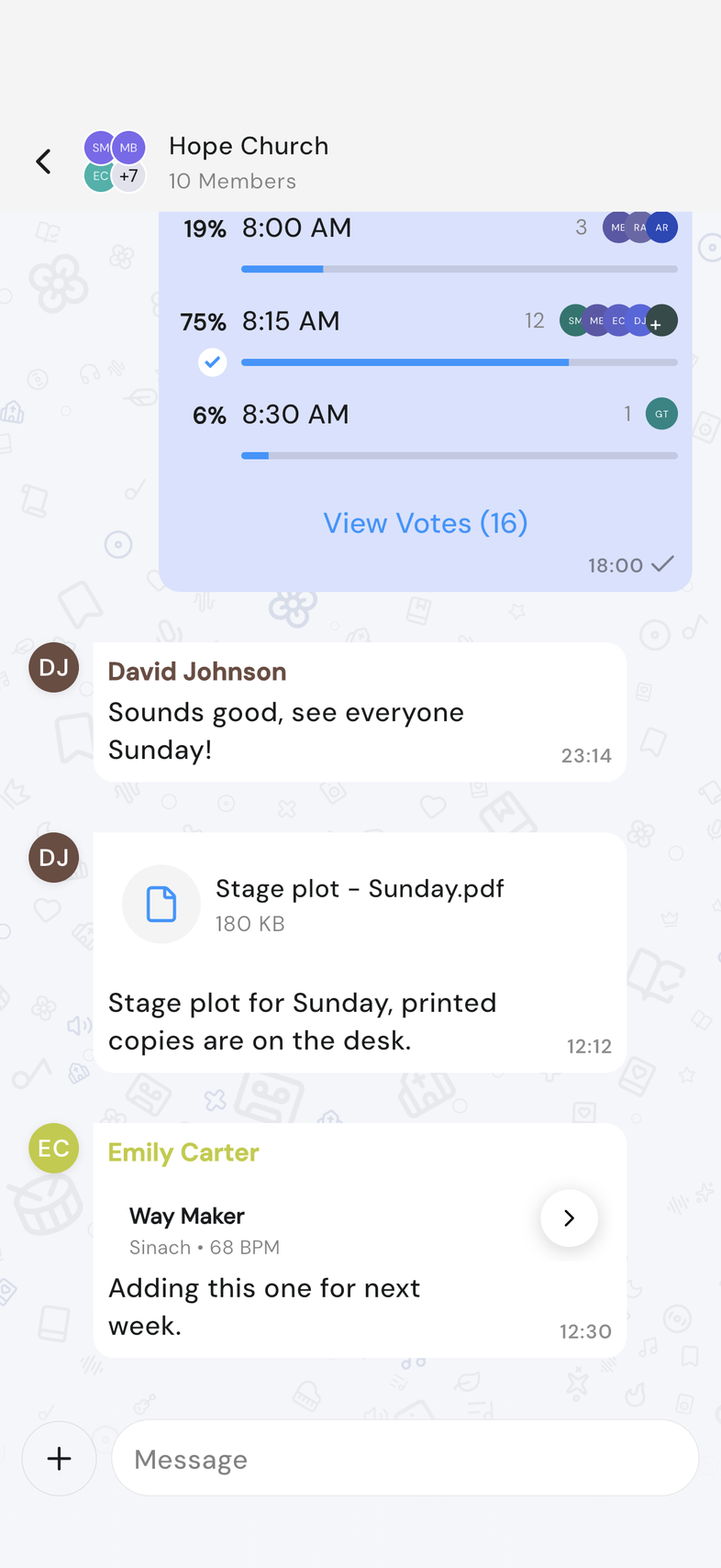
- Open the Chats tab and tap a chat.
- Tap the Message box at the bottom of the screen.
- Type what you want to say.
- Tap the send button to the right of the box.
- Paste a link and your message carries a preview card, so people can see where it goes before they tap it.
- The send button stays greyed out until you type something.
Mention someone with @
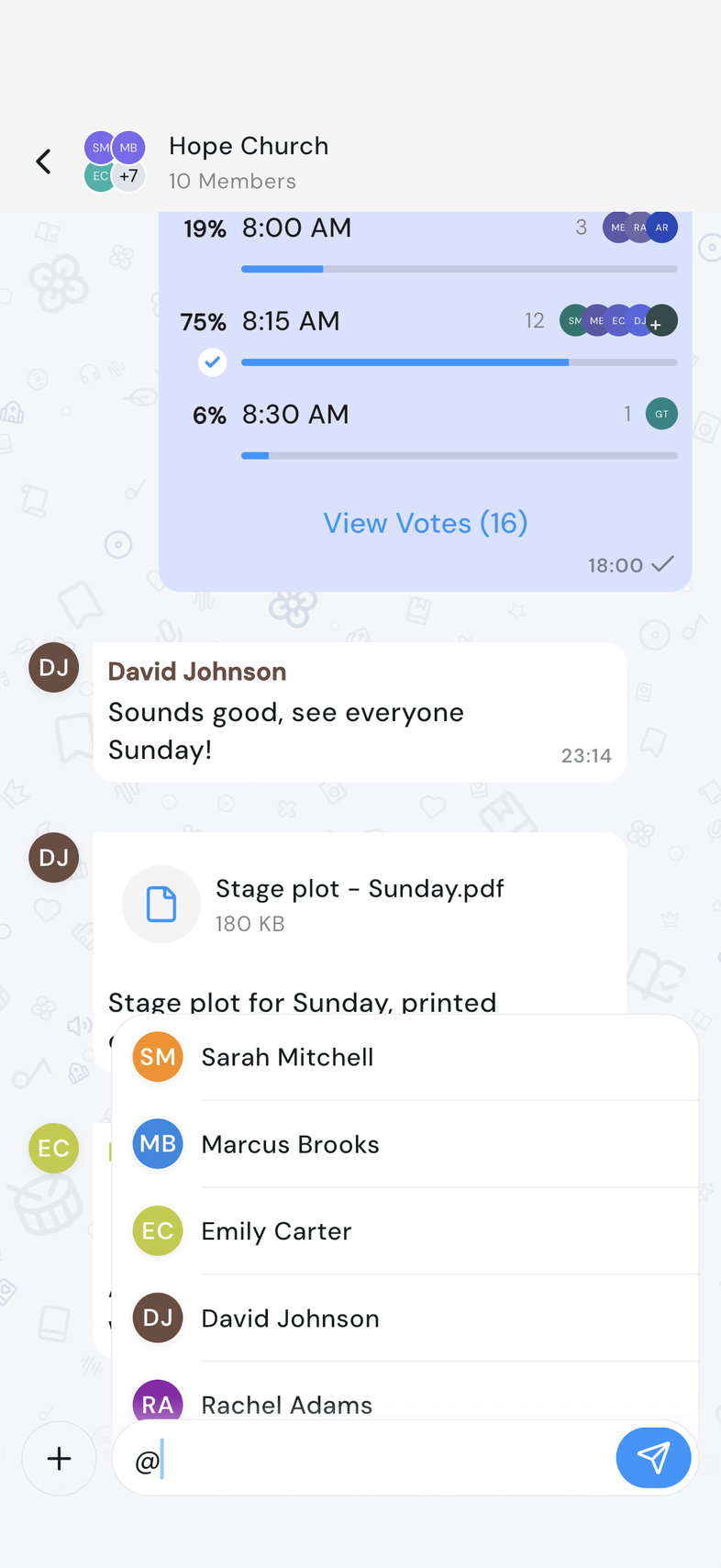
Point a message at one person without starting a separate conversation.
- Tap the Message box, then type @. A list of the people in that chat appears above the box.
- Keep typing part of a name to narrow the list down.
- Tap the name you want. It drops into your message.
- Finish your message and tap the send button.
- The list only offers people who are in that chat. In an event chat, that's the people on the event.
- Tap a mention in a message to open that person's profile.
- You can mention more than one person in the same message.
Attach a photo
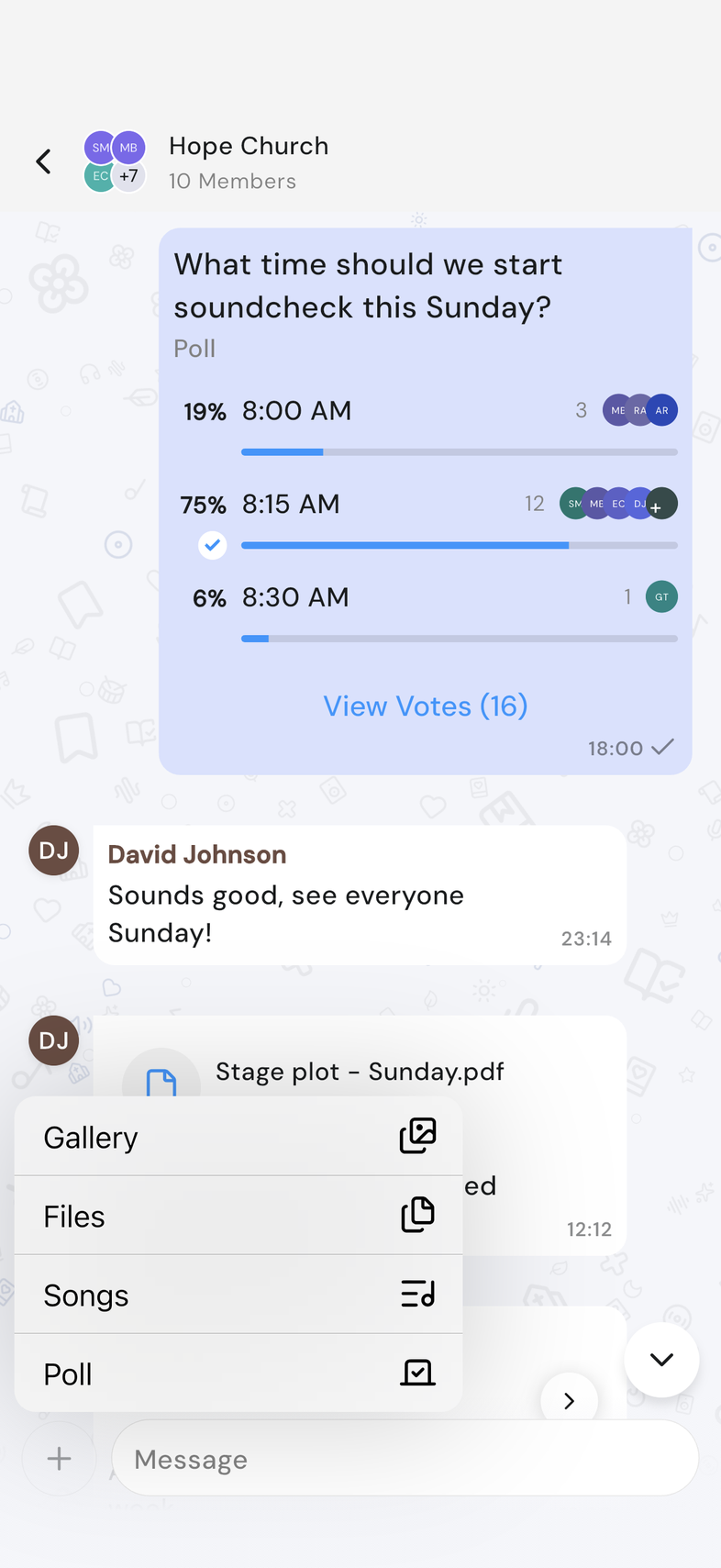
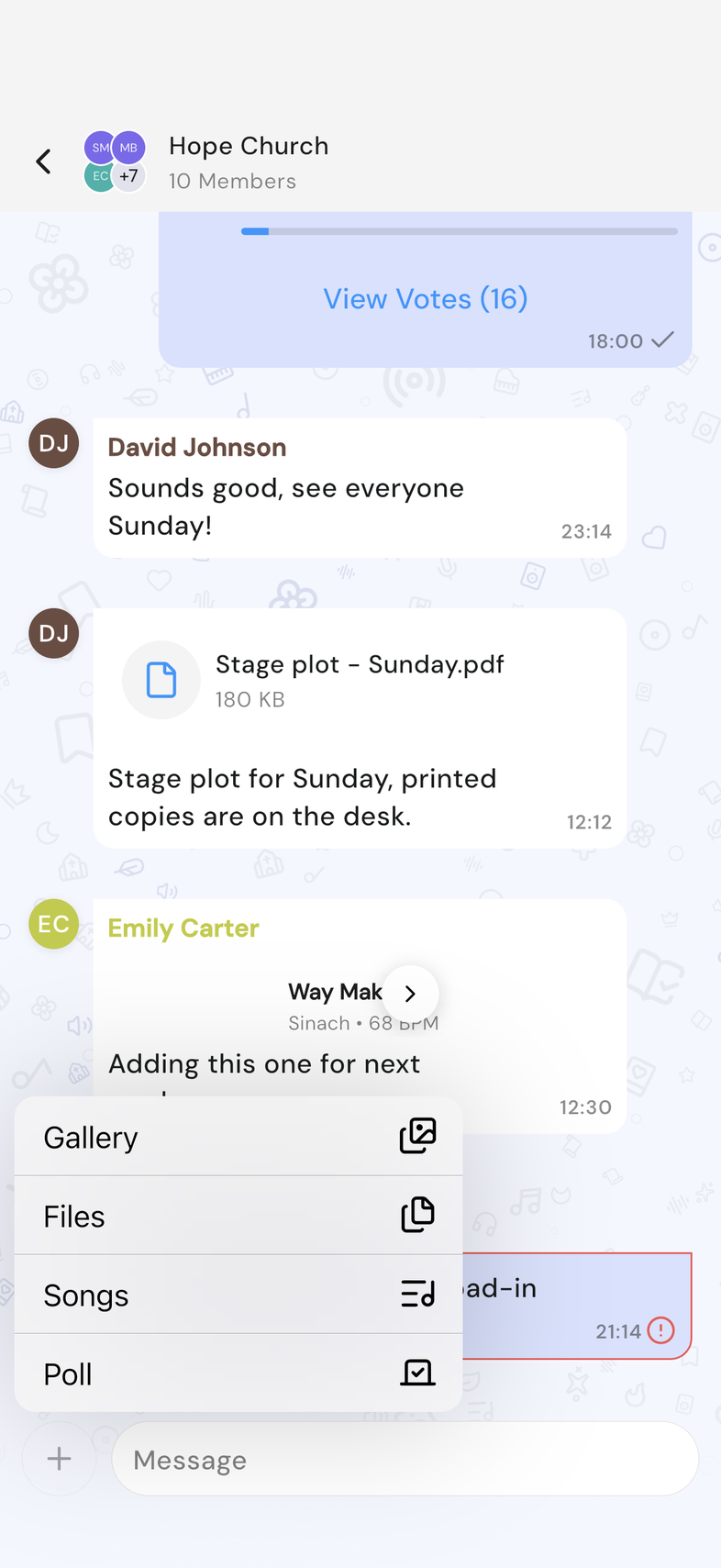
- Tap + to the left of the message box, then tap Gallery. The Photos picker opens.
- Tap each photo you want. A number marks the order you picked them in.
- Type a message with them if you want one, then tap the send button.
- To look at a photo later, tap it in the chat. It opens full screen, and you can swipe between photos or tap one from the thumbnail strip along the bottom.
- You can send up to 20 photos at a time. Past that, the picker tells you the limit.
- If OnStage has no access to your photos, the picker says so: tap Open Settings to allow it. With limited access, a banner reads Limited photo access. Manage selection.
Attach a file
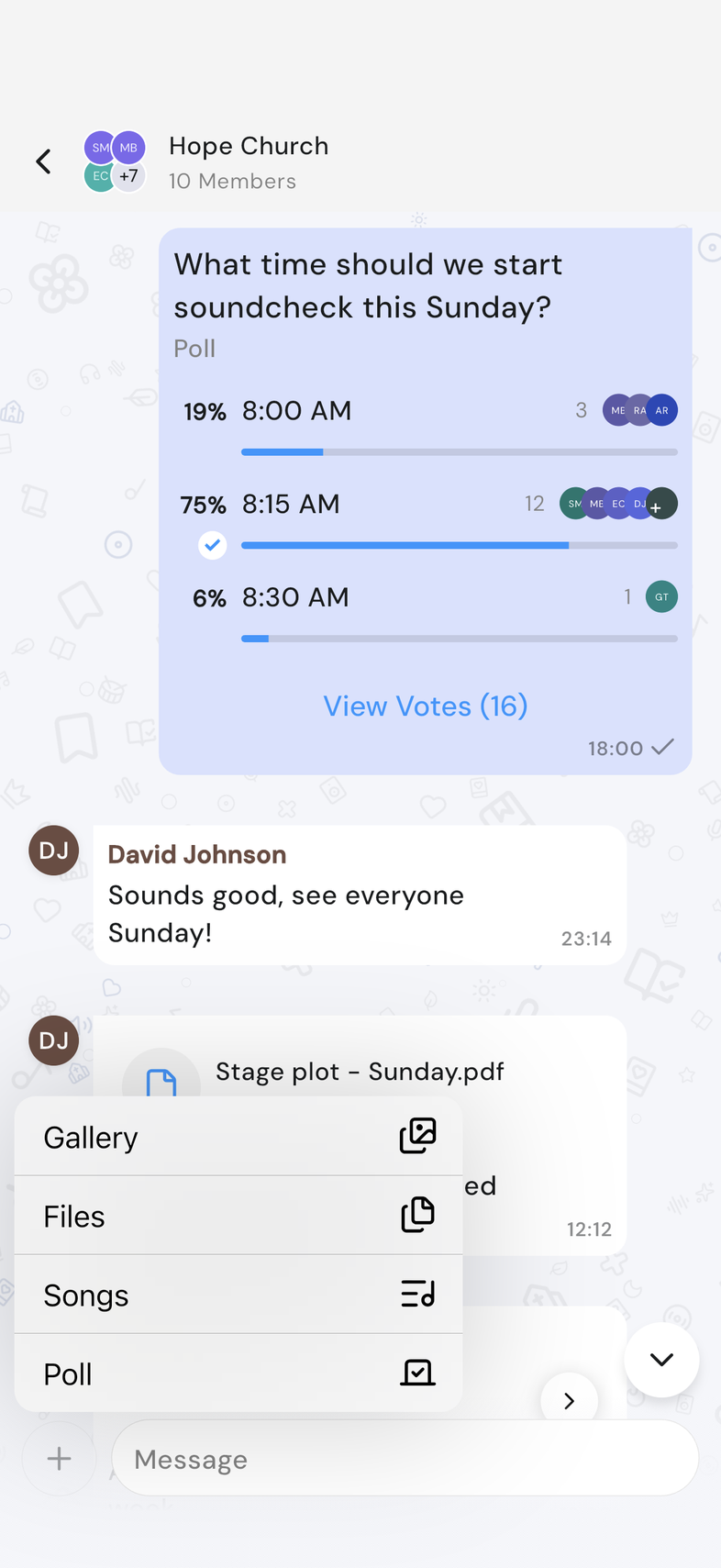
- Tap + to the left of the message box, then tap Files.
- Choose one or more files from your device. They appear in the chat as they upload.
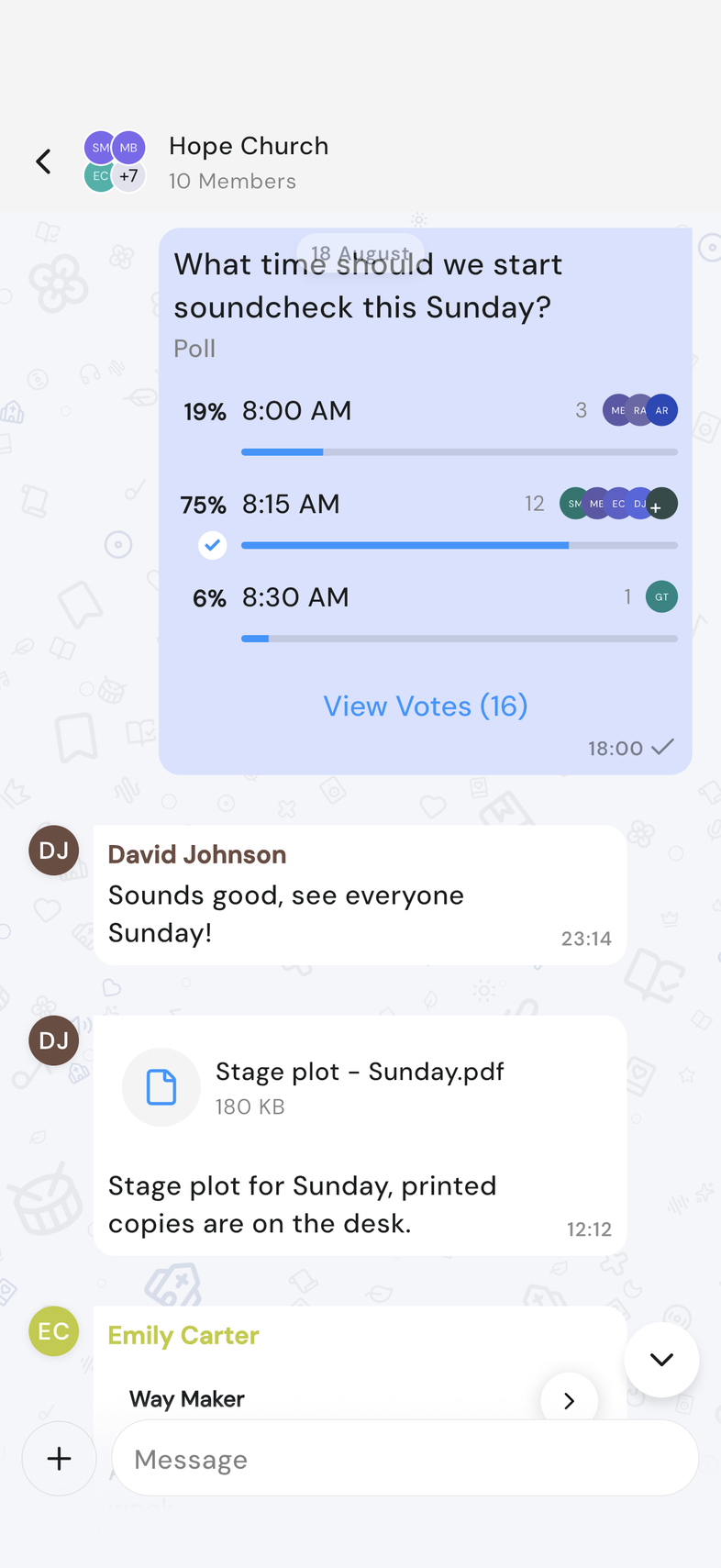
- To read a file someone sent, tap it in the chat. It opens in your device's usual app for that kind of file. On web, files open in a new browser tab instead.
- Files sent in a chat count towards your team's storage, under Chat files. See how much storage your team is using
- Files over 25 MB are skipped, and a note tells you which ones. The rest still send.
Share a song
Paid plan: Sharing a song needs a paid plan. What's included
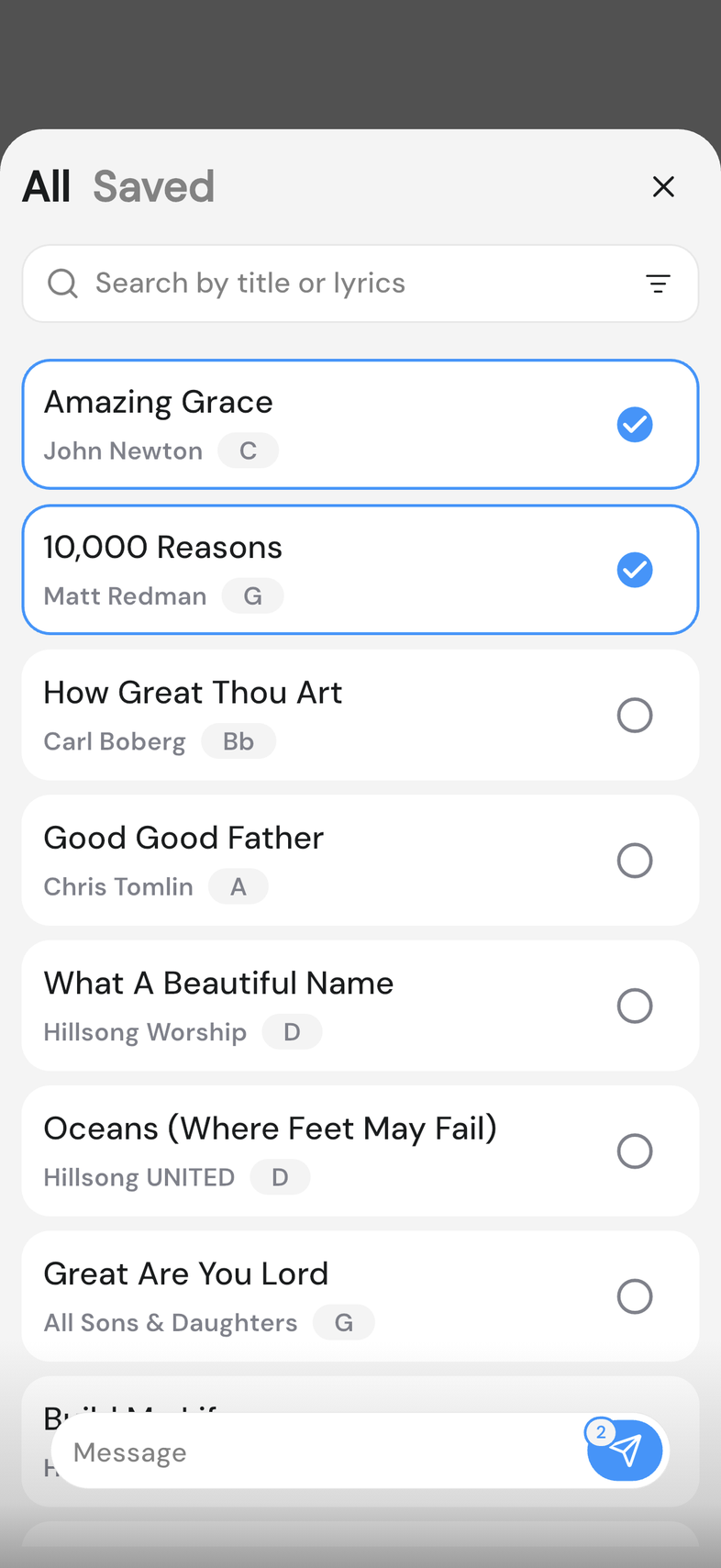
- Tap + to the left of the message box, then tap Songs.
- Tap the songs you want. Search at the top if the list is long.
- Type a message to go with them if you want one, then tap the send button. It carries the number of songs you picked.
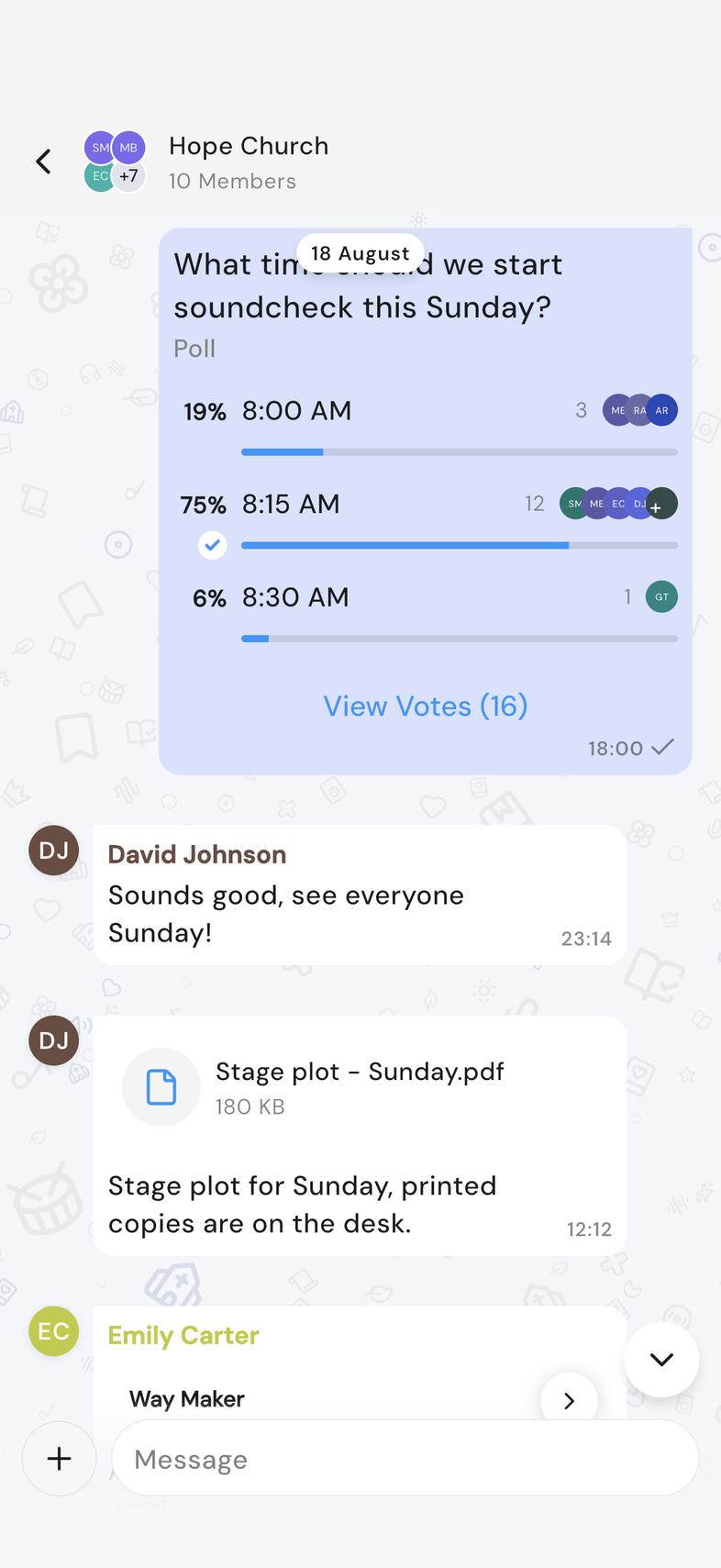
- Each song arrives as a card showing its title, artist, key and tempo, with a taste of the first section.
- Anyone in the chat can tap the arrow on the card to open the song.
Good to know
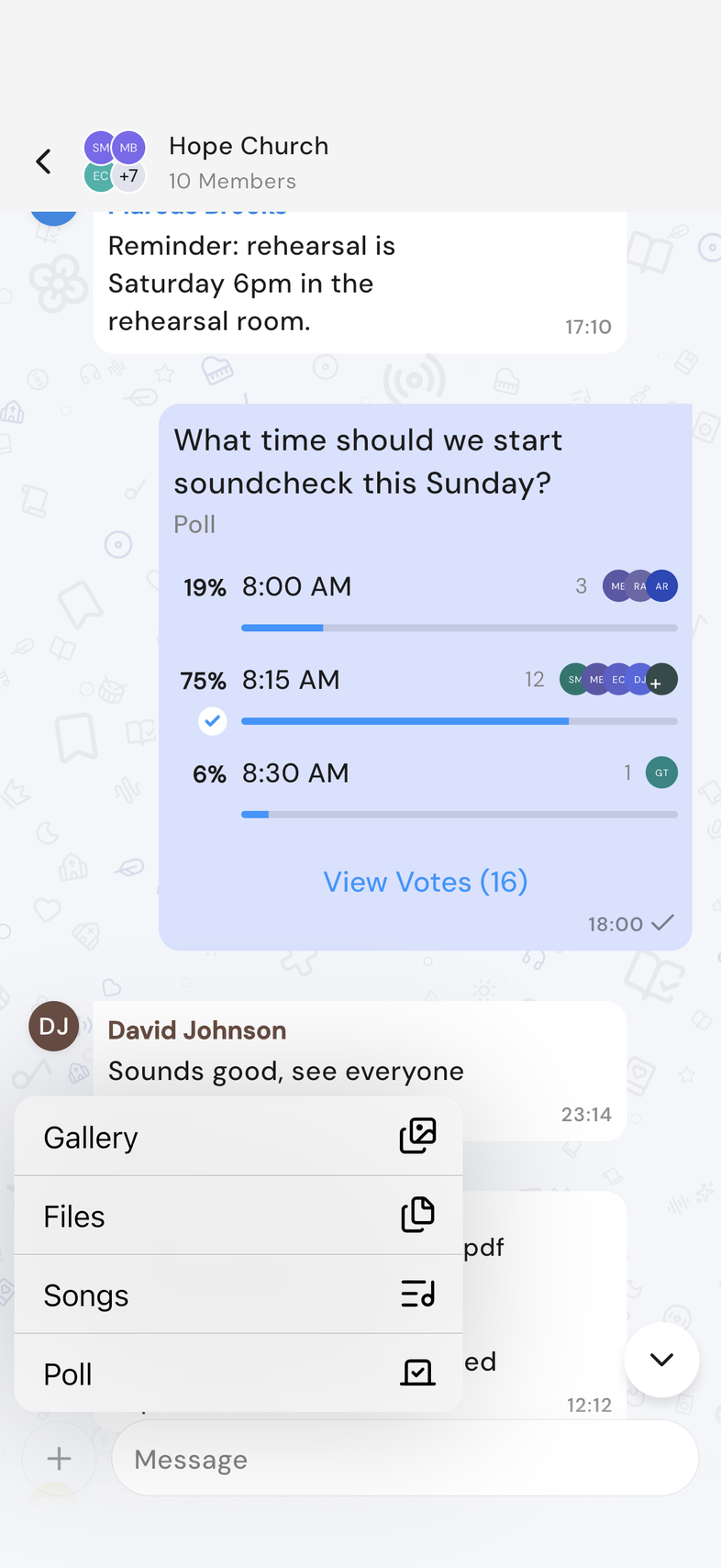
- If sending fails, the message stays in the conversation marked as failed. Nothing is lost.
- You can also share an image into OnStage from another app's share sheet. Share something into OnStage from another app