Organize songs into folders
Folders group songs for a season or a kind of service. Everyone on the team can open them.
Who can do this: Owner, Admin, Editor. What the roles mean
Steps
Create a folder
- On the Songs page, click New folder in the side panel.
- Type a name and click Create folder. The folder opens.
Add, move and remove songs
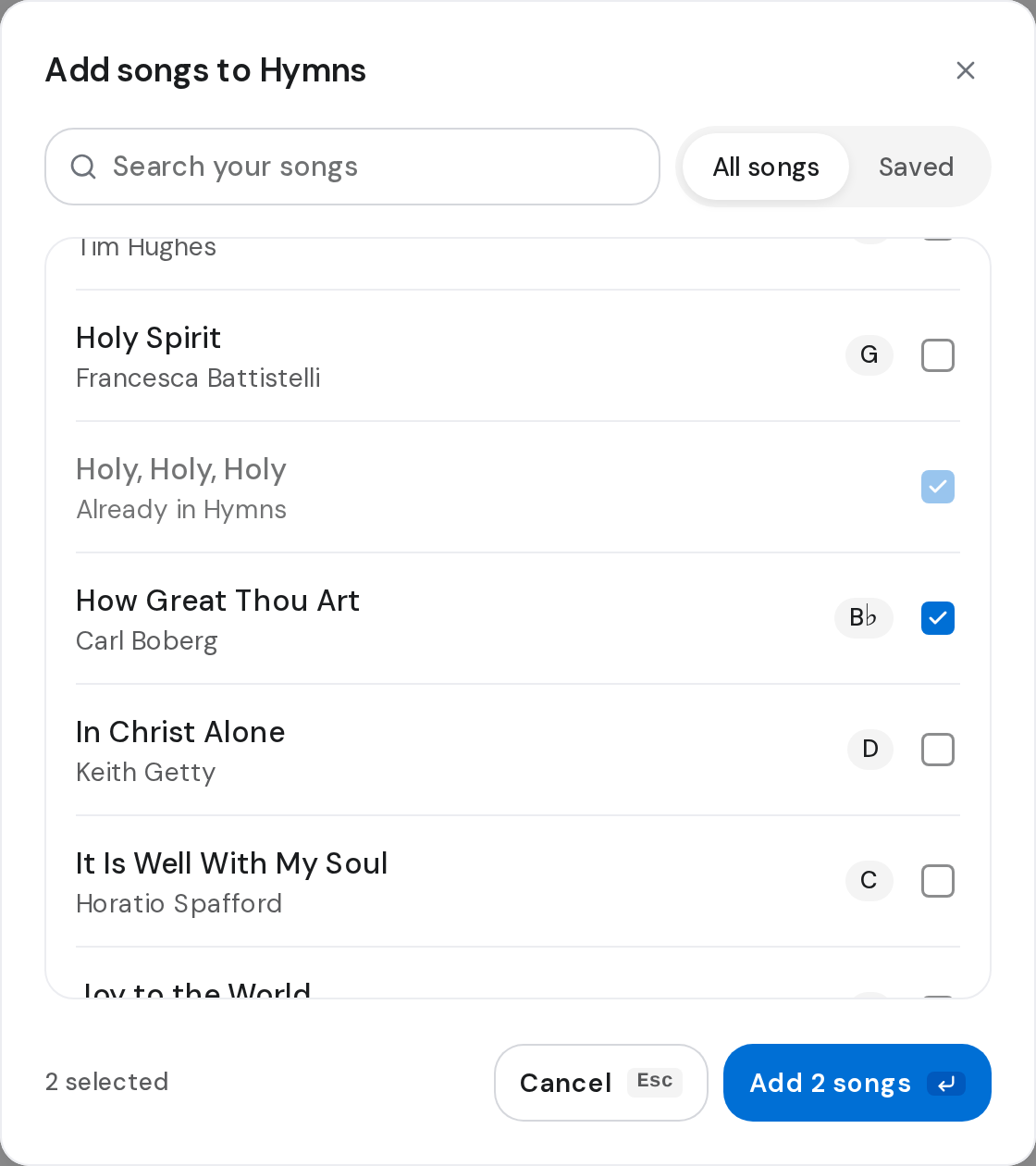
- Click Add songs, tick the songs, then click the button at the bottom, for example Add 2 songs.
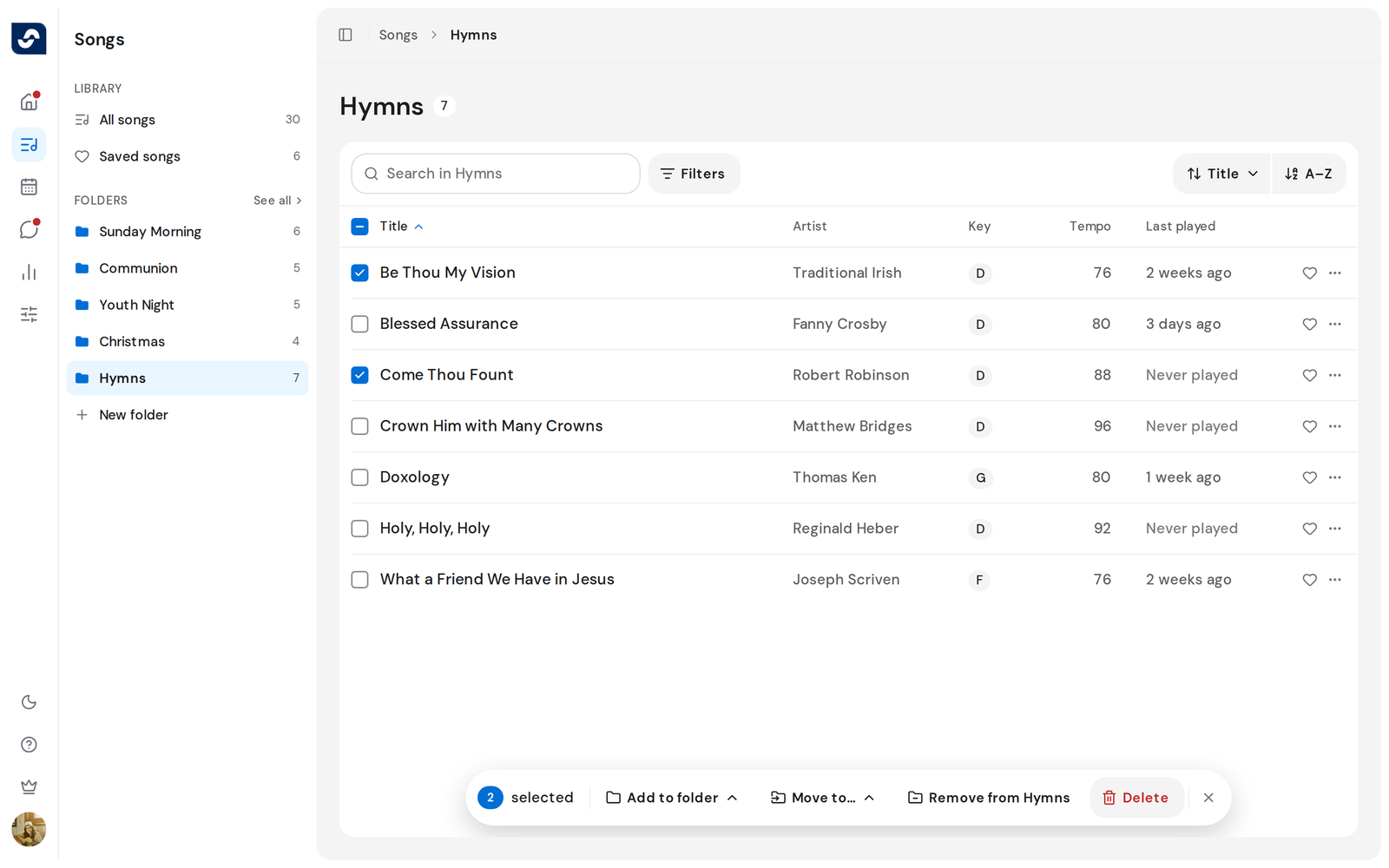
- Or tick songs in the list. The bottom bar offers Add to folder, Move to… and Remove from the open folder.
Rename or delete a folder
- Click ⋯ next to the folder, then Rename or Delete folder.
See every folder
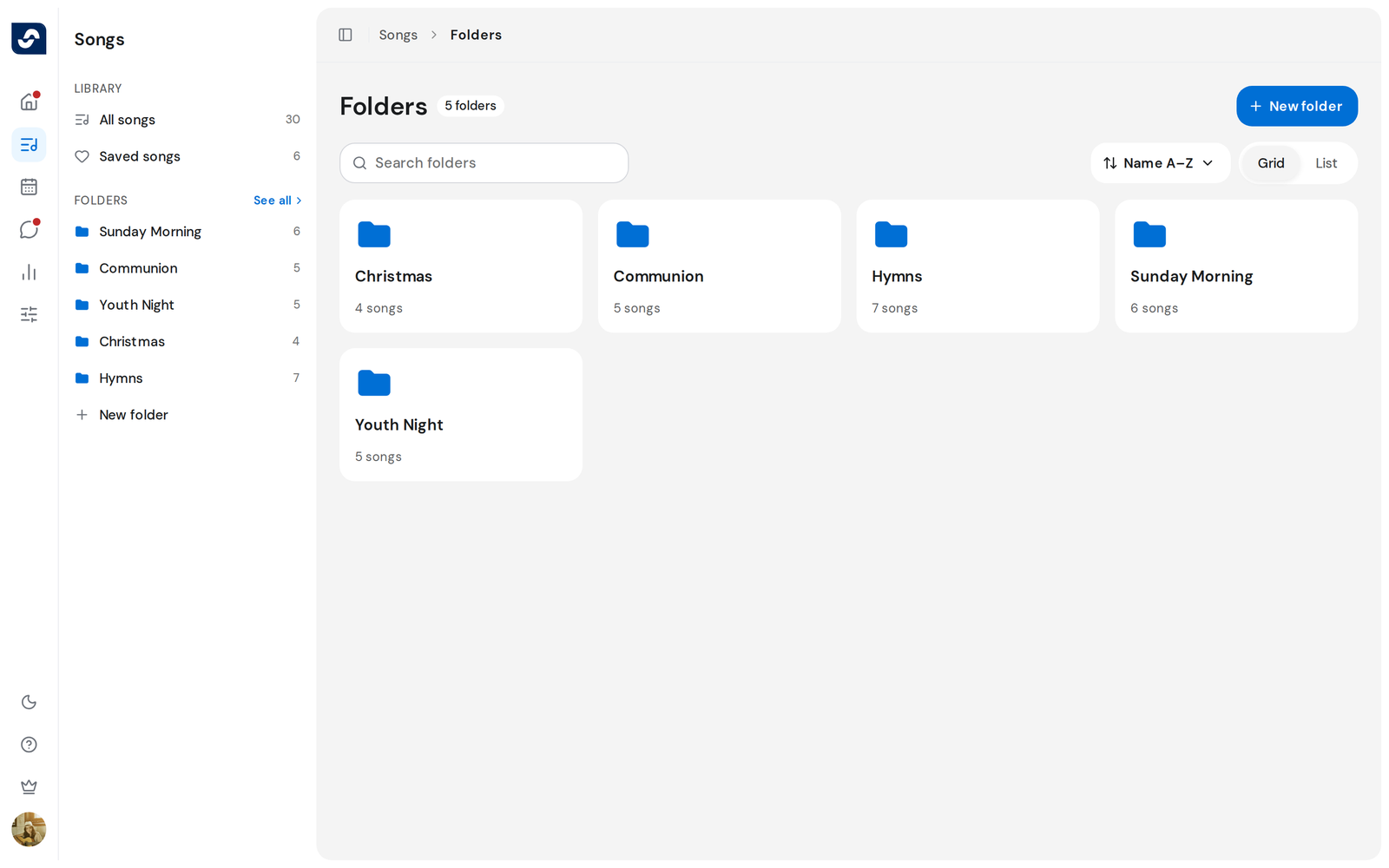
- Click See all next to Folders to search, sort, or switch between Grid and List.
Good to know
- Deleting a folder keeps its songs in your library.
- Removing a song from a folder shows Undo for a moment.
- A song can sit in several folders, up to 100 folders per team.
- A song's ⋯ in the list also offers Add to folders….