Remove someone from an event
Take a person out of a position when plans change, or swap in someone else. They stay on your team.
Who can do this: Owner, Admin, Editor, Scheduler. What the roles mean
Steps
Remove someone
- Open the event and find Participants.
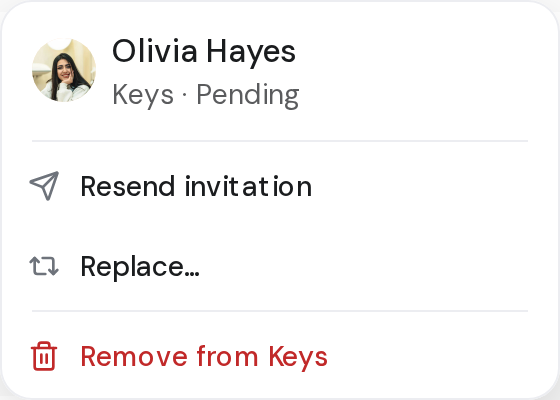
- On the group's card, click the person's name. A menu opens.
- Click the remove option, which names the position, such as Remove from Keys.
- They're taken off straight away. Click Undo in the message if you change your mind.
Replace someone
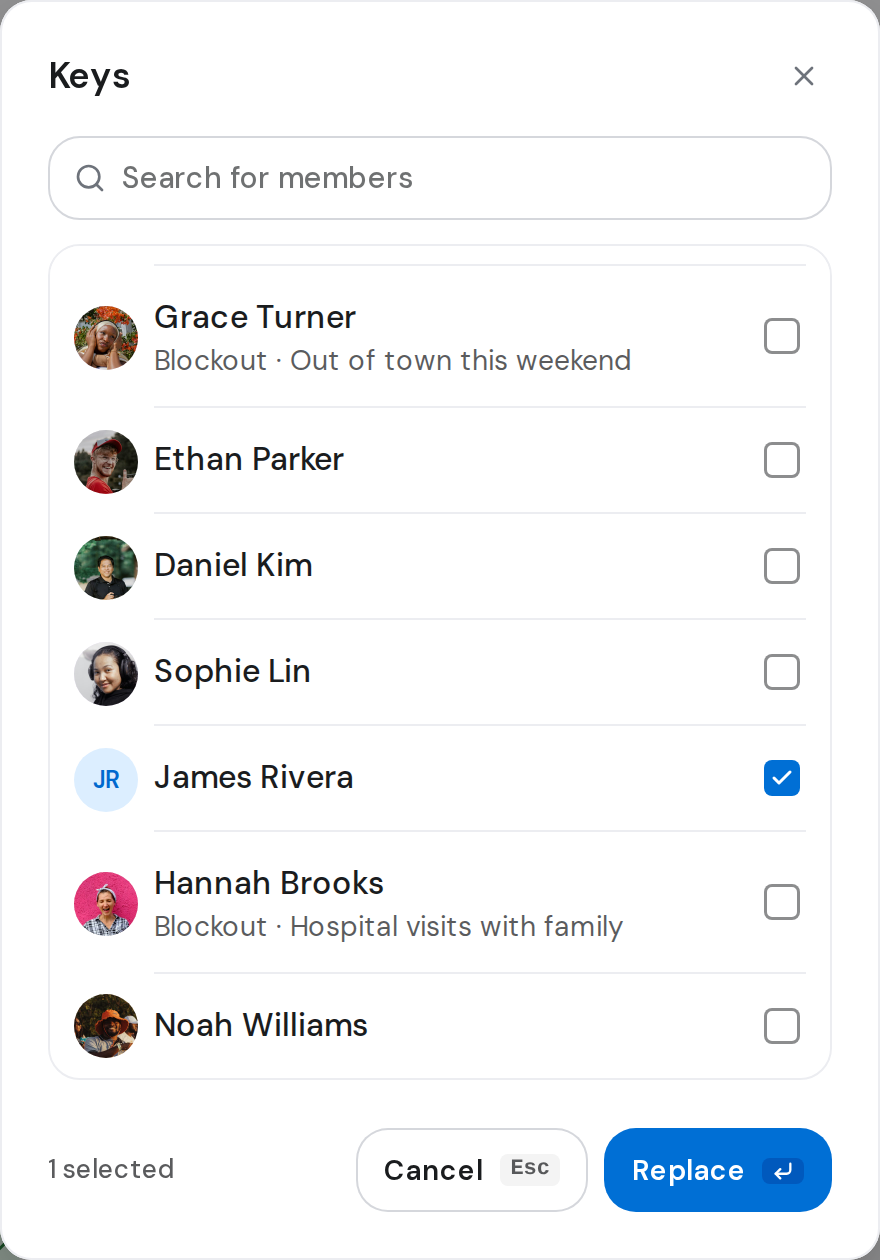
- Click the person's name, then Replace….
- Tick who takes over, then click Replace.
Good to know
- If the person has confirmed on a published event, OnStage asks first and says They'll be notified. There's no Undo afterwards.
- When you remove the last person, the position shows Assign someone again.
- Clicking a group's card opens all its positions, each person with a remove button. That one asks before removing.
- To take someone off your team altogether, see Remove someone from the team