See when you're scheduled
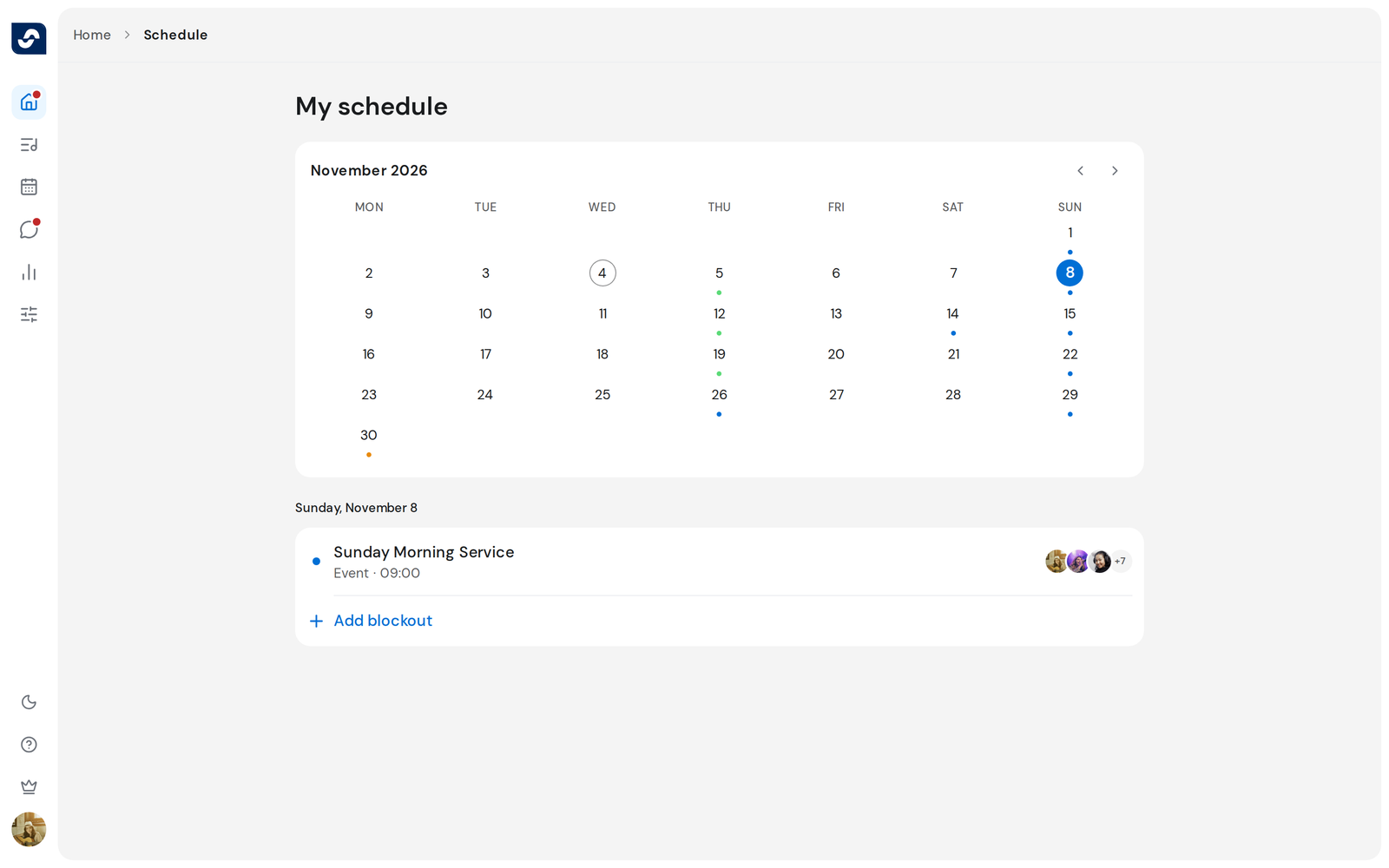
My schedule shows the events, rehearsals and blockouts you're part of, one month at a time.
Steps
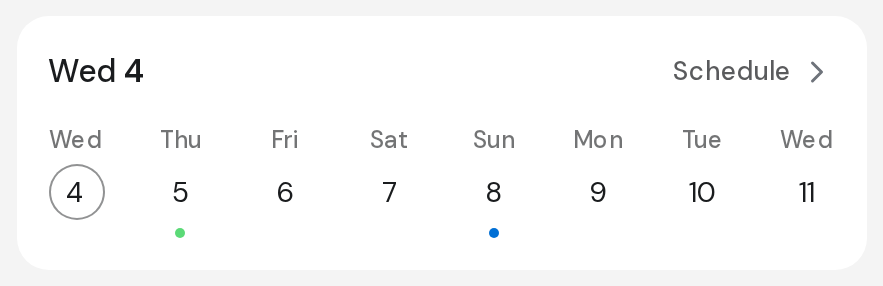
- Click Home in the left rail and find the week card, headed with today's date.
- Click Schedule at its top right. My schedule opens on today.
- Use the arrows beside the month's name to move to the previous or next month.
- Click a day. Its items are listed under the calendar, in time order.
- Click an event in the list to open it.
Good to know
- Dots under a day show what's on it: blue for events, green for rehearsals, orange for blockouts.
- Each row says what it is and when, such as "Blockout · All day".
- A day with nothing on it reads Nothing planned this day, with New blockout so you can mark it away.
- In the calendar, the arrow keys move between days and Enter picks one.