Publish an event
A draft is only visible to people who plan events. Publishing shows it to the team and sends the invitations.
Who can do this: Owner, Admin, Editor, Scheduler. What the roles mean
Steps
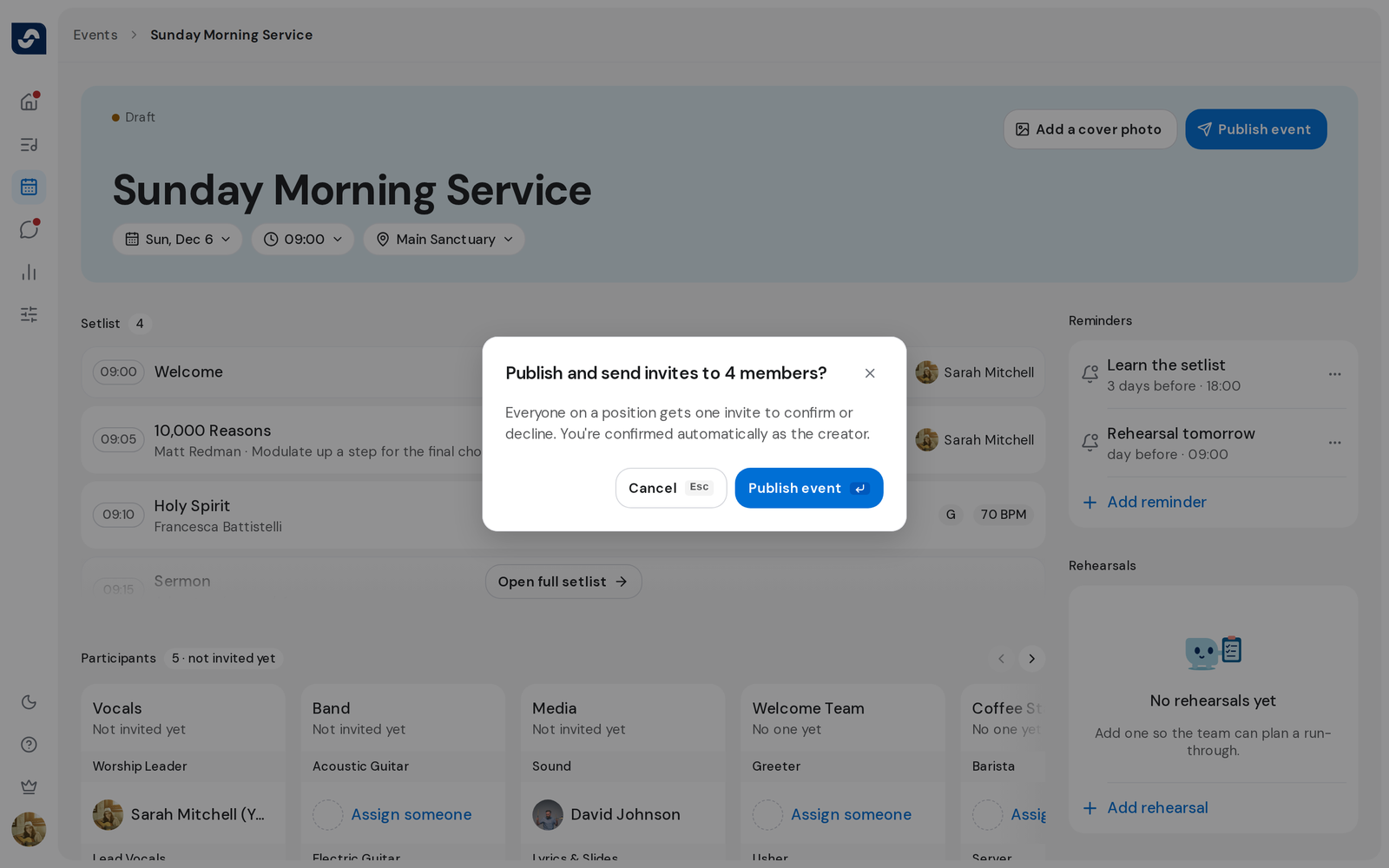
- Click Events, then Drafts, and open the event.
- Check the date, time and the people on each position.
- Click Publish event at the top.
- Read who gets an invite, then click Publish event again.
Good to know
- Publish event stays greyed out until the event has a date.
- Everyone on a position gets one invite to confirm or decline. As the creator, you're confirmed automatically.
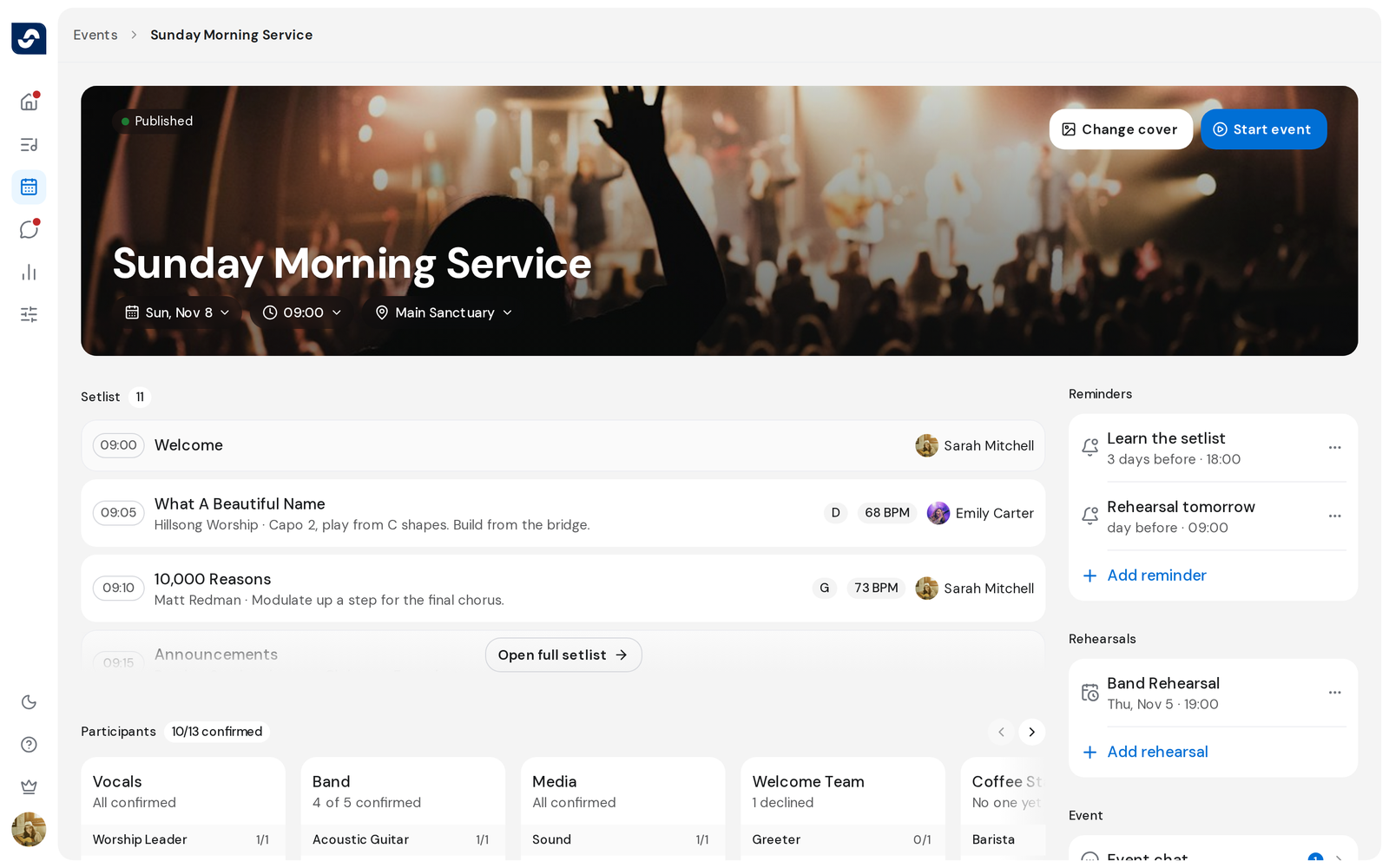
- If you change the date of a published event, OnStage asks whether to notify the team. Click Update and notify team to tell them.
- Once published, the button becomes Start event, which opens Live. Lead or follow a live session