Add a blockout when you're away
A blockout marks time you're not available. Whoever schedules sees your reason when adding people, and OnStage warns them before they pick you.
Steps
Add a blockout
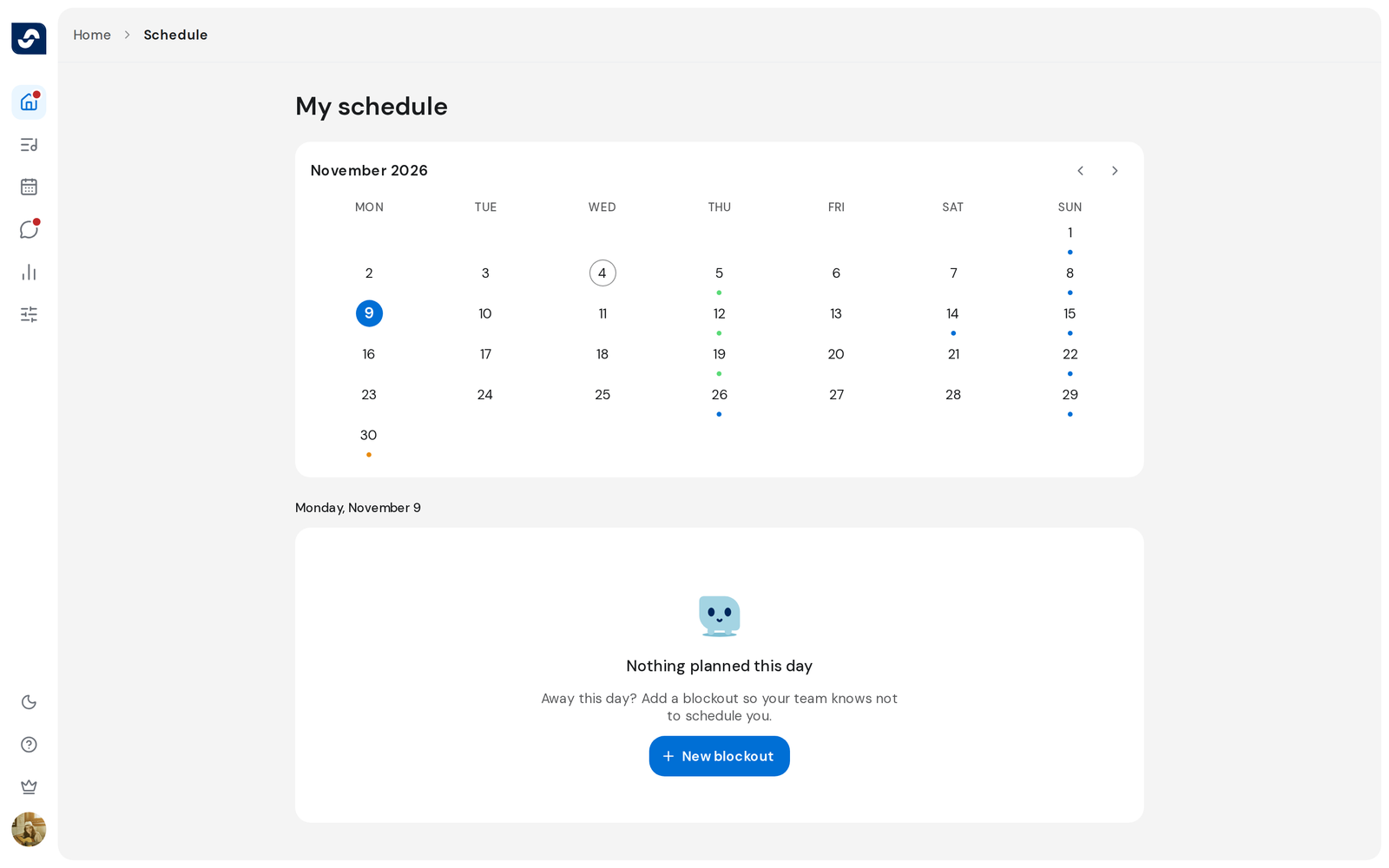
- On Home, click Schedule at the top right of the week card.
- Click the first day you're away.
- Click New blockout, or Add blockout under the day's items.
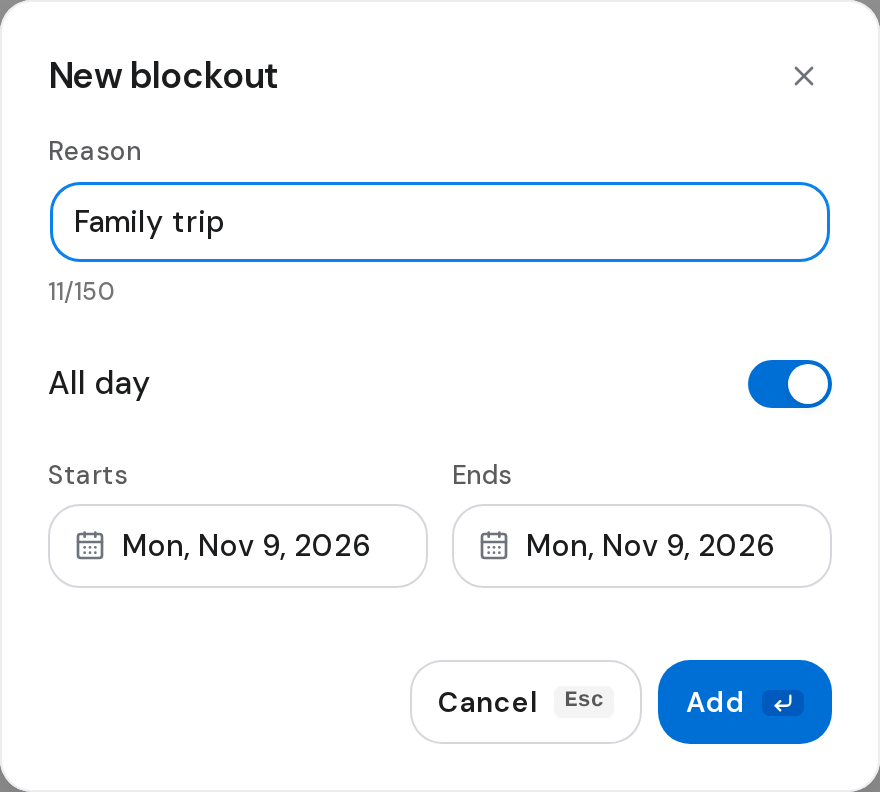
- Type a Reason, such as "family trip". Your team sees it.
- Set Starts and Ends. All day is on; turn it off to pick times.
- Click Add.
Edit or remove a blockout
- Click your blockout in the day's list. Edit blockout opens: change it, then click Update. To remove it, click its three-dot button, then Remove, and confirm.

Good to know
- A reason can be up to 150 characters. Add stays greyed out until there's a reason and the dates make sense.
- An end before the start shows End date must be after start date.
- Two of your blockouts can't overlap: There is already a blockout created in the specified time interval.
- You can pick dates from today to 365 days ahead. A day that has passed has no New blockout.