Create groups and positions
A group is a part of your team, such as Band, Vocals or Tech. It holds the positions you schedule people into: Drums, Bass, Lead Vocal, Sound.
Who can do this: Owner, Admin, Editor. What the roles mean
Steps
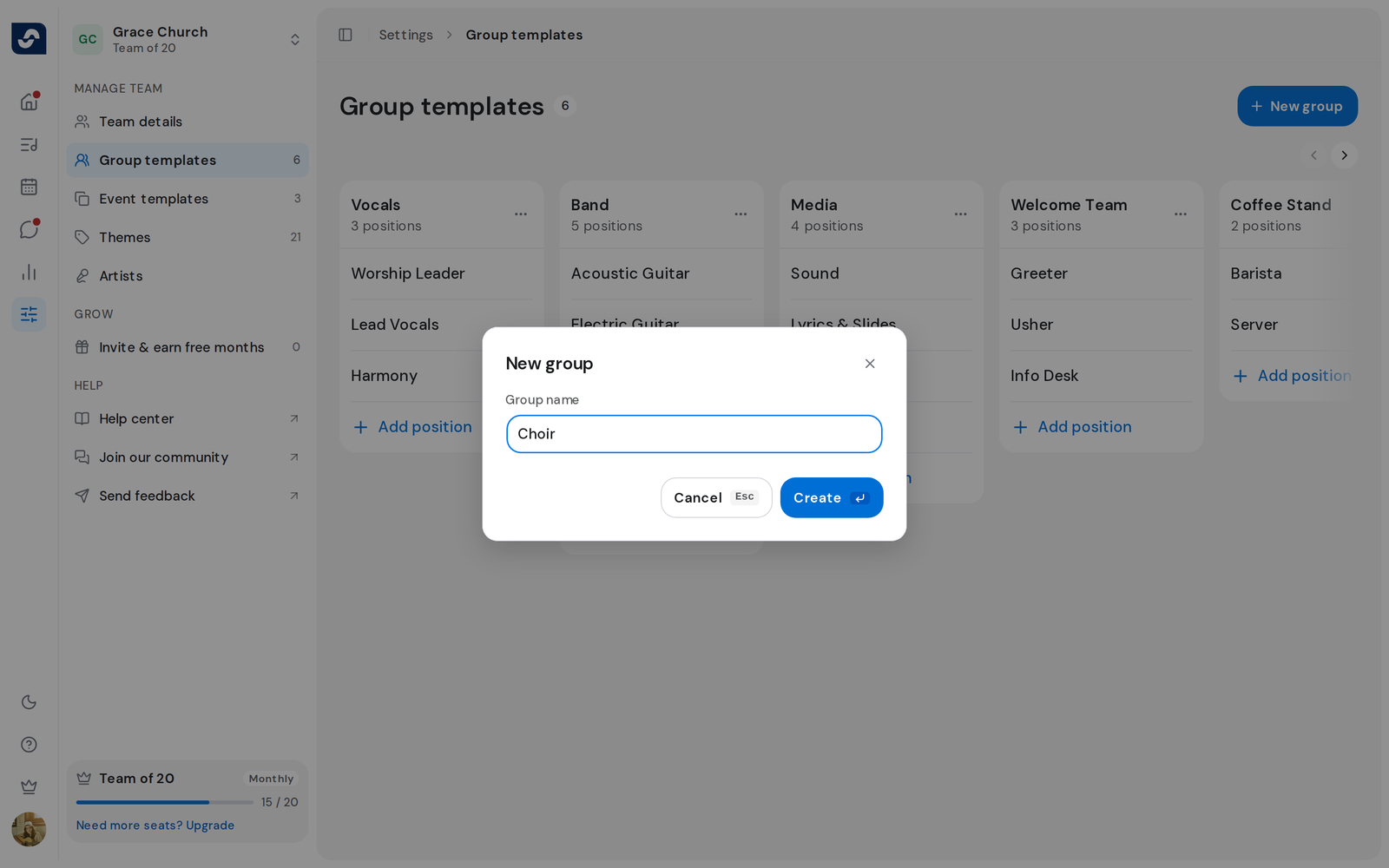
- Click Settings in the left rail, then Group templates under Manage team.
- Click New group, type a Group name such as Vocals, then click Create.
- On the group's card, click Add position.
- Type a Position name such as Lead Vocal and press Enter. The field stays open for the next one. Press Esc when you're done.
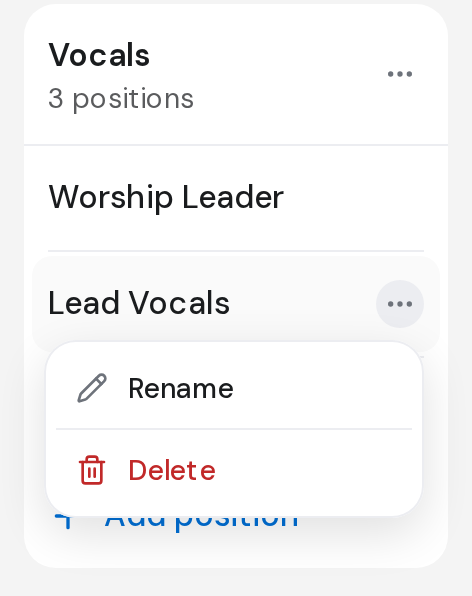
- To rename or delete a group or a position, click its three-dot button, then Rename or Delete.
- A rename happens in place: type the new name and press Enter. A delete asks first.
Good to know
- Deleting a group deletes its positions too. People scheduled in them on events become unassigned, and nobody is notified.
- A team needs at least one group, so the last one can't be deleted.
- A name that's already used shows Group with this name already exists.
- Creating a position doesn't schedule anyone. Invite someone to a position