Switch between teams
The Web App shows one team at a time. Switching changes which songs, events and chats you see.
Steps
Switch to another team
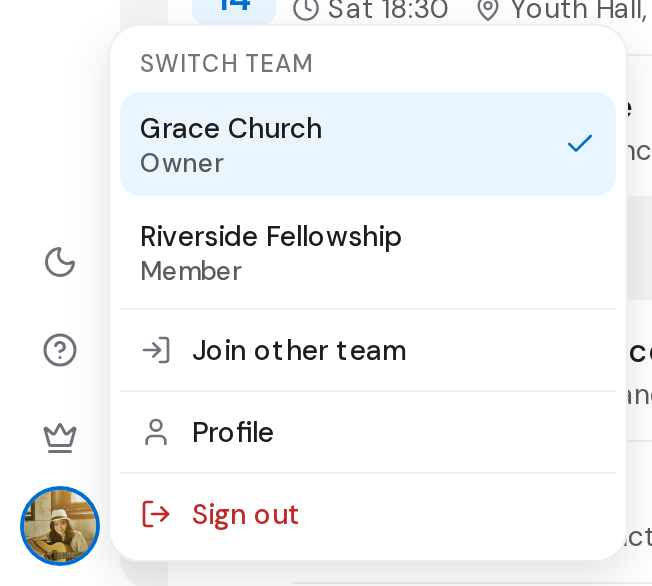
- Click your picture at the bottom of the left rail. In Settings, the team name at the top of the side panel opens the same list.
- Under Switch team, the team you're in has a check mark.
- Click the team you want. Switching team... shows briefly, then you land at the start of the section you were in.
Join another team with a code
- In the same menu, click Join other team.
- Type the six-character team code. OnStage looks it up once it's complete.
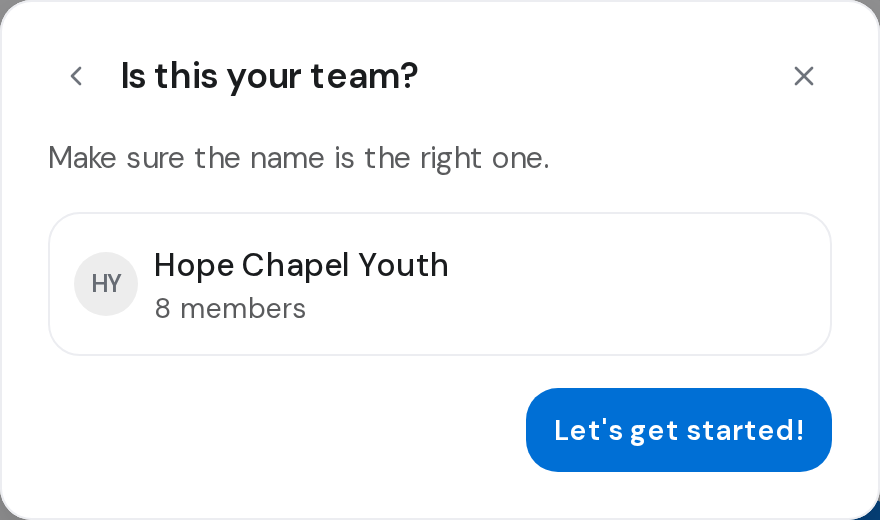
- Check the name under Is this your team?, then click Let's get started!.
- Click Switch team to move there now, or Close to stay where you are.
Good to know
- Create new team is in the menu only if you don't own a team. You can belong to many teams but own only one. A new team offers Share invite link or Skip.
- A code for a team you're already in shows Already part of and the team's name.
- If you have unsaved changes, OnStage asks before switching.