Change someone's role
Give someone a different set of abilities: for example, making a Member a Scheduler before a busy season.
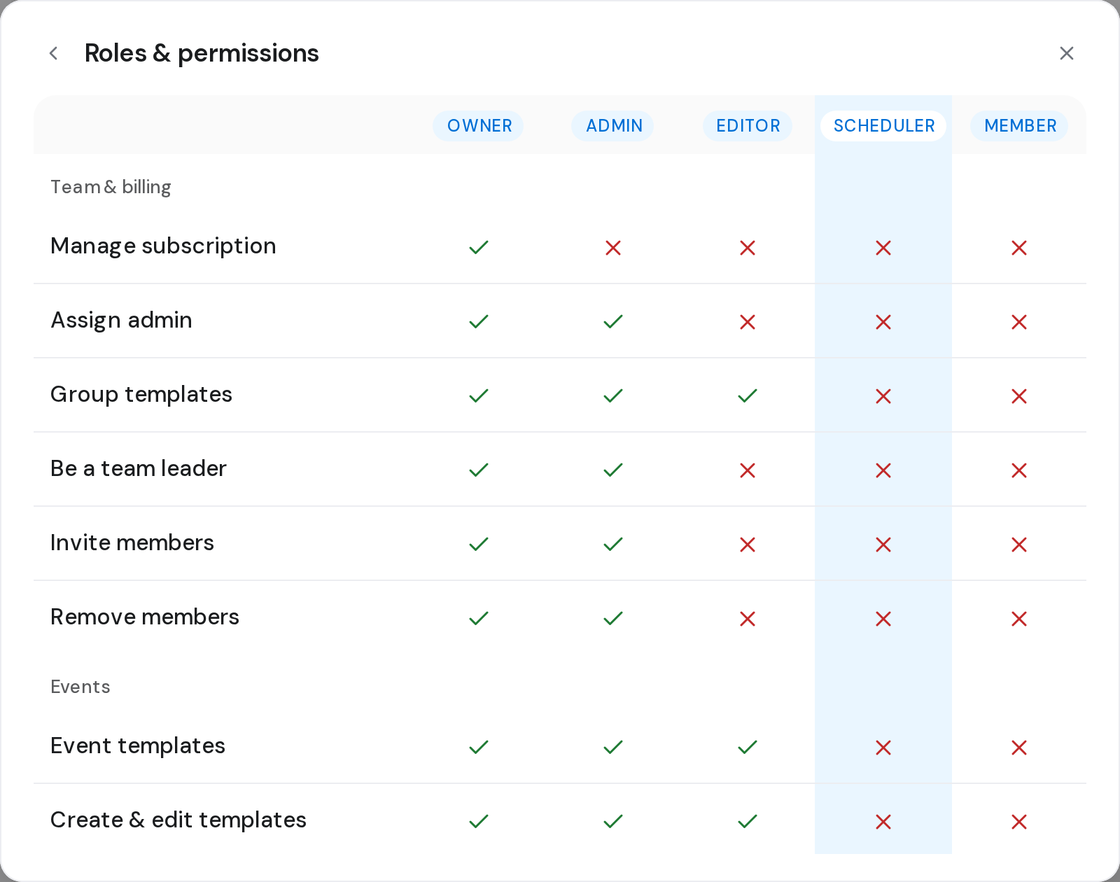
Who can do this: Owner, Admin. What the roles mean
Steps
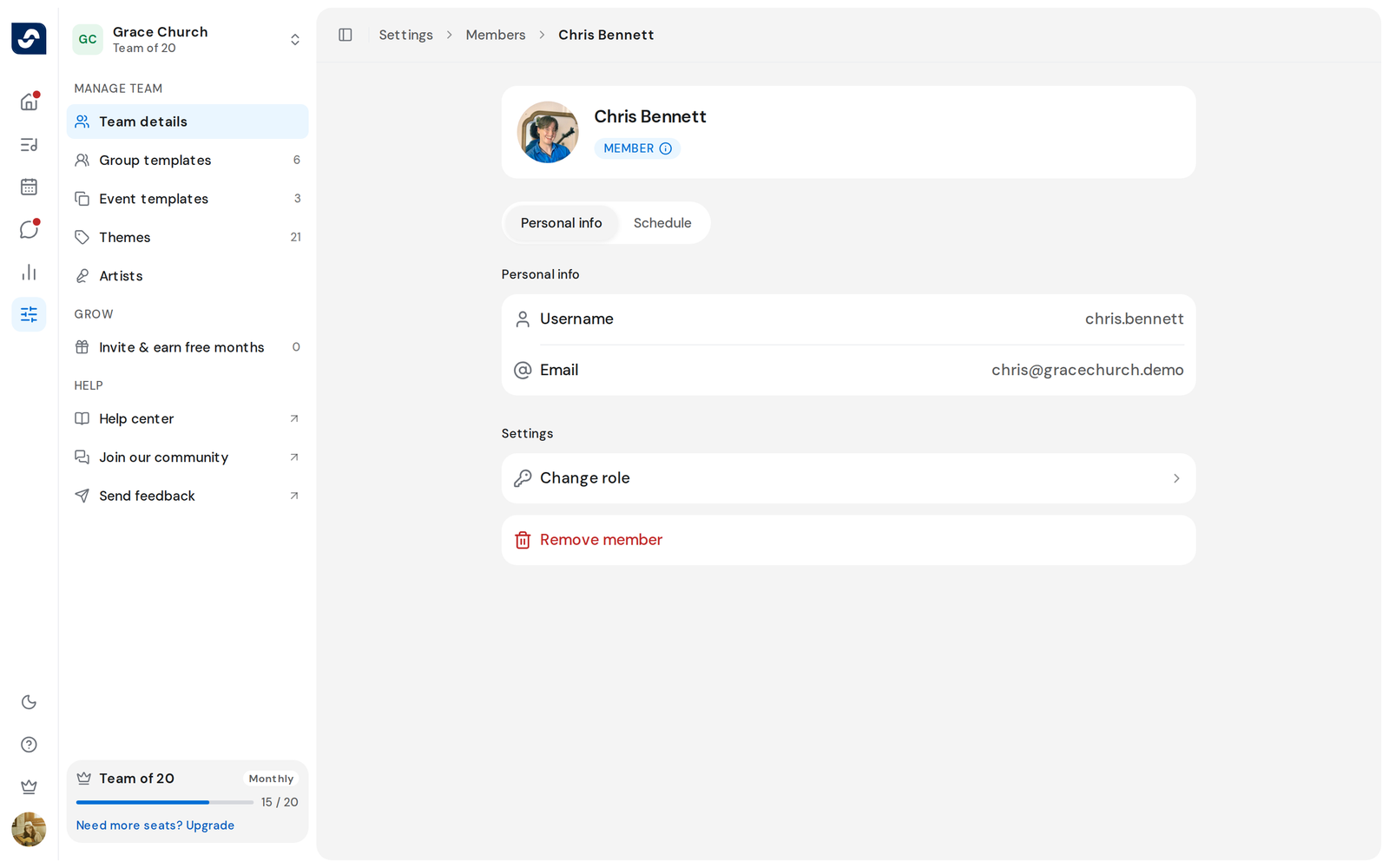
- Click Settings in the left rail, then click the person under Team members, or find them through View all.
- On their page, under Settings, click Change role.
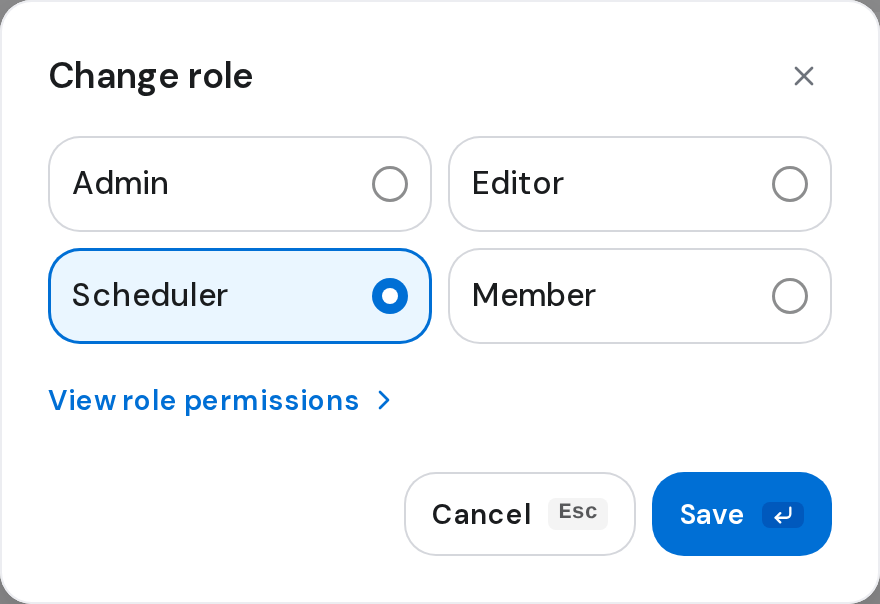
- Choose Admin, Editor, Scheduler or Member.
- To compare them first, click View role permissions, then Back.
- Click Save. Permissions have been updated appears, and their page shows the new one.
Good to know
- Owner isn't in the list, and the Owner can't be changed.
- Change role isn't on your own page or on the Owner's.
- Save stays greyed out until you choose something different.
- The change takes effect straight away. Tell the person, since buttons they're used to may appear or go.