See your team's members
The Members page lists everyone on your team, and each person has a page of their own.
Steps
- Click Settings in the left rail. Team details opens.
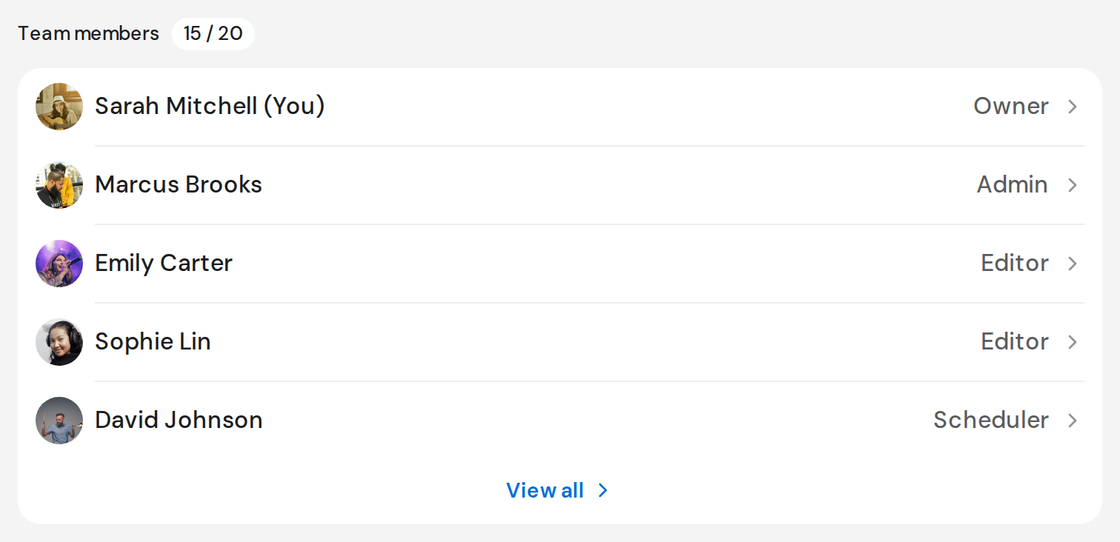
- Under Team members, click View all. It appears once your team has more than five people.
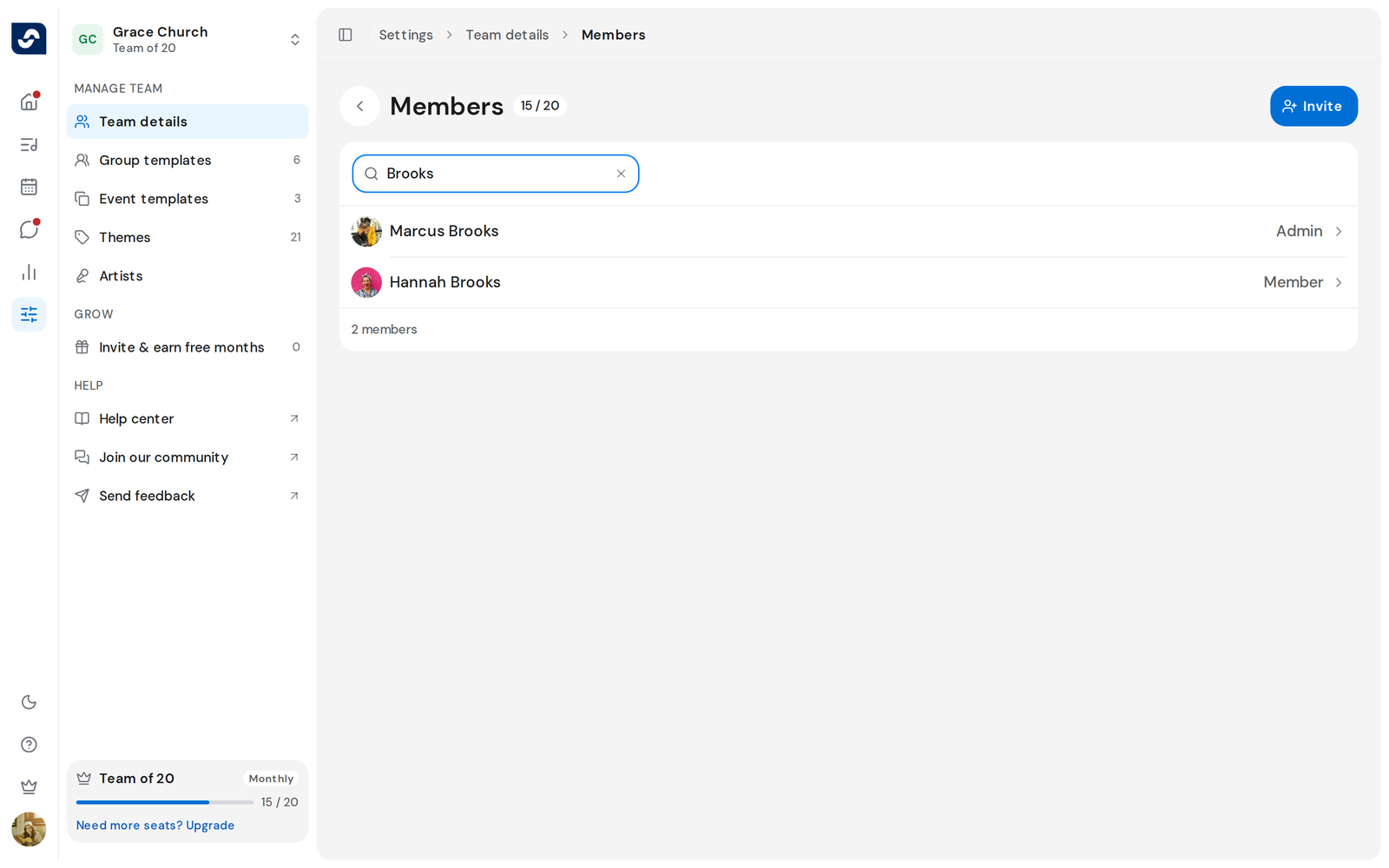
- Type a name in Search member to filter the list.
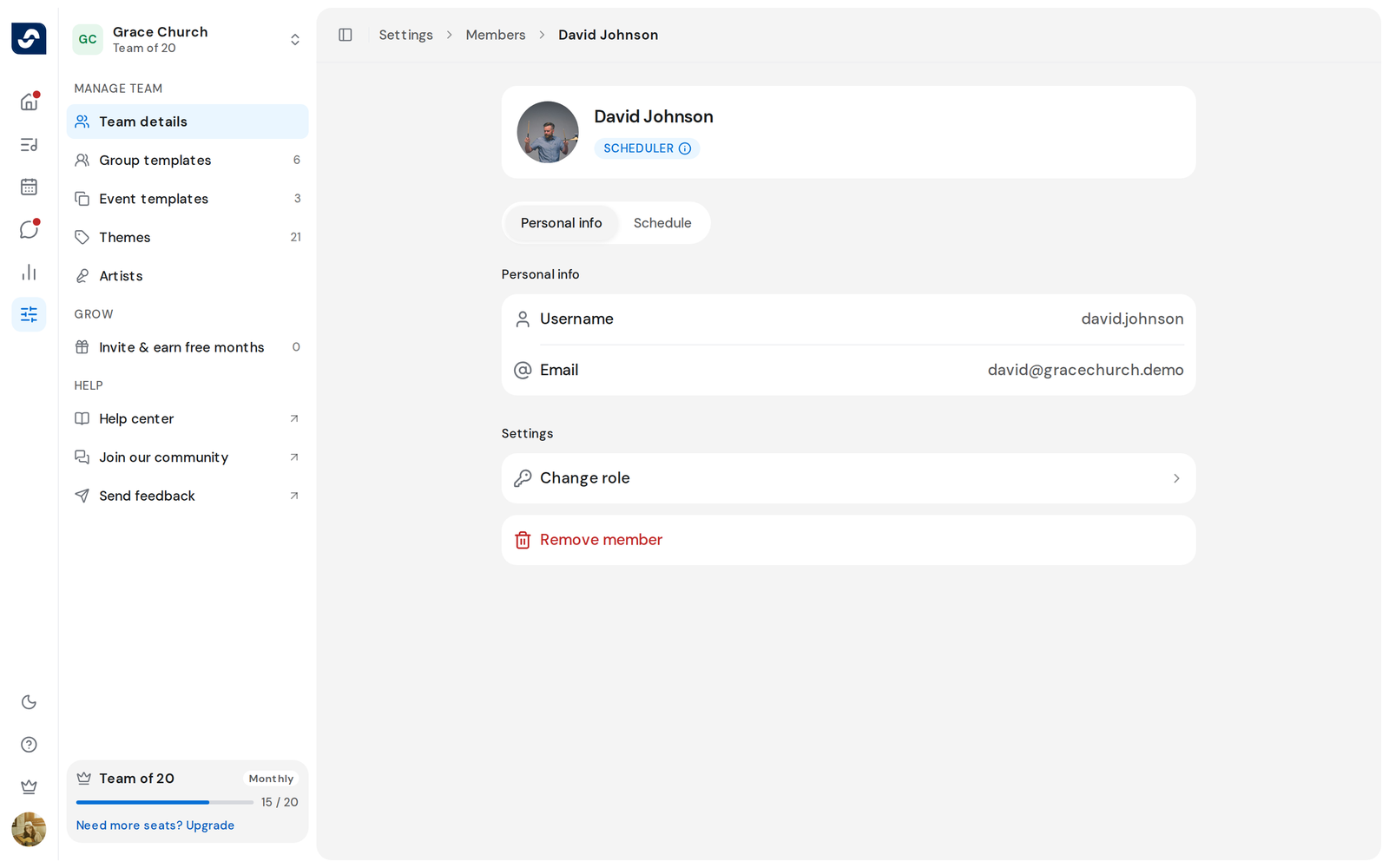
- Click a person to open their page. Personal info shows their username, email and phone when they've added them.
- Click the info icon on their badge to open Roles & permissions, a table of what each one can do.
- Click Schedule to see their events, rehearsals and blockouts.
Good to know
- People who have joined come first, Owner down to Member. Invitations come last and read Invited with how long ago, such as "Invited · 2d".
- The bottom of the list counts both, for example "12 members · 3 invited".
- On a smaller team, click a name on Team details to open their page.
- A teammate's schedule is read-only. You can only change your own blockouts. Add a blockout when you're away