See your team's details
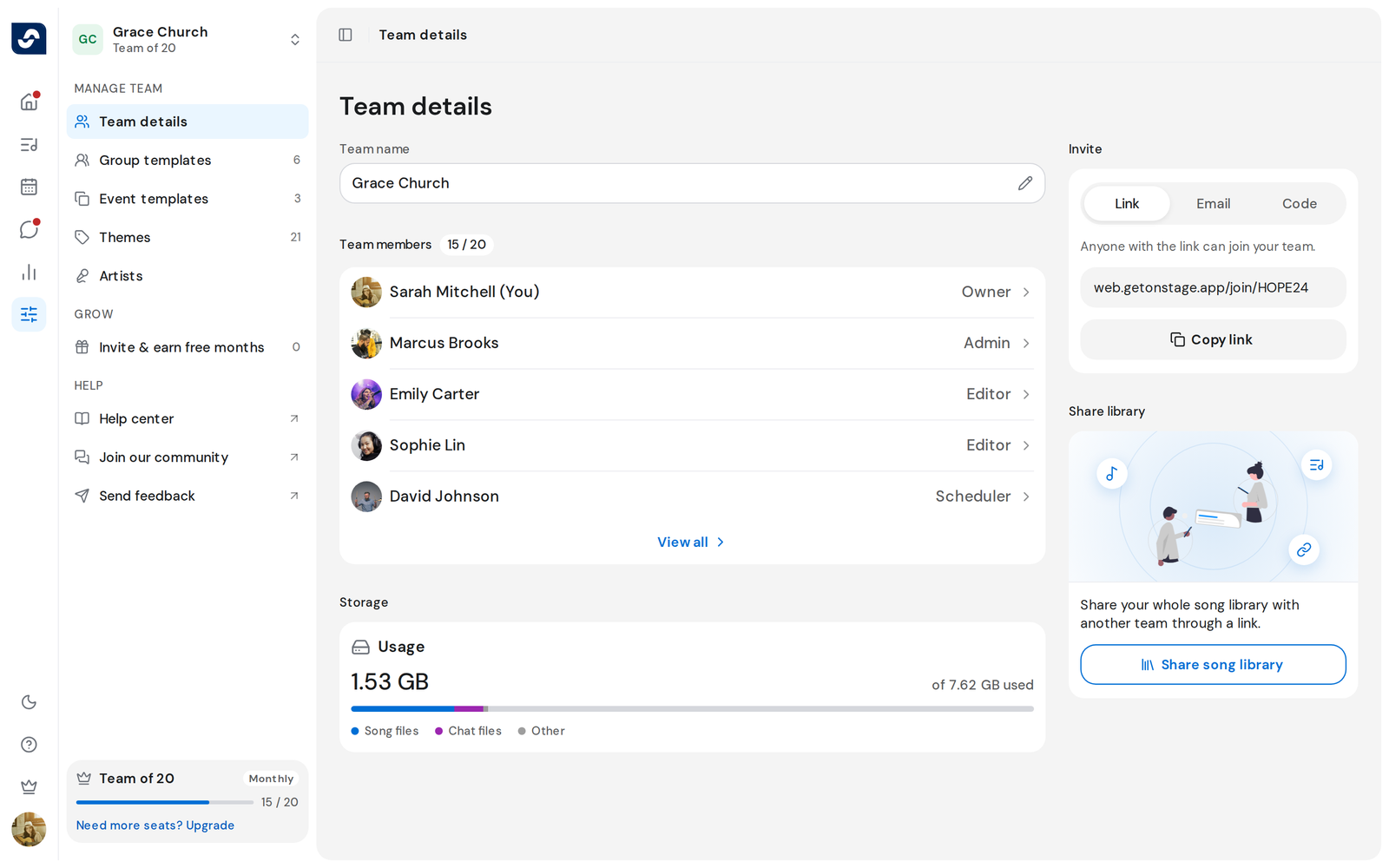
Your team's name, its people, your seats, and its storage all sit on one page.
Steps
- Click Settings in the left rail. Team details opens first.
- Find the Team name at the top.
- To rename the team, click the name, type the new one, then press Enter or click Save. Only the Owner and Admins can do this.
- Under Team members, see the first five people. The chip beside the label shows your seats, such as 12 / 20.
- Click View all to open the full list. It appears once the team has more than five people.
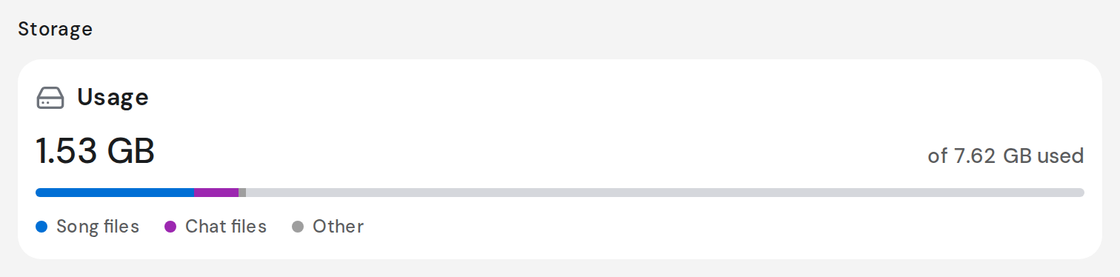
- Scroll to Storage. Usage shows song files and chat files against your plan's space.
Good to know
- A team name can be up to 60 characters. Press Esc or click Cancel to put the old name back.
- The seats chip counts people who have joined. Invitations still waiting don't count.
- The Owner and Admins also see the Invite card, with your team's link and code. Invite people to your team
- Group templates, Event templates, Themes and Artists sit in the same Settings panel, under Manage team, for roles that can use them.