Connect Claude, ChatGPT or another AI assistant
Connect an assistant to your team, then ask in plain language, such as "Who is serving this Sunday?"
Who can do this: Owner, Admin. What the roles mean
Before you start
- The full guide is at web.getonstage.app/connect-ai, open without signing in.
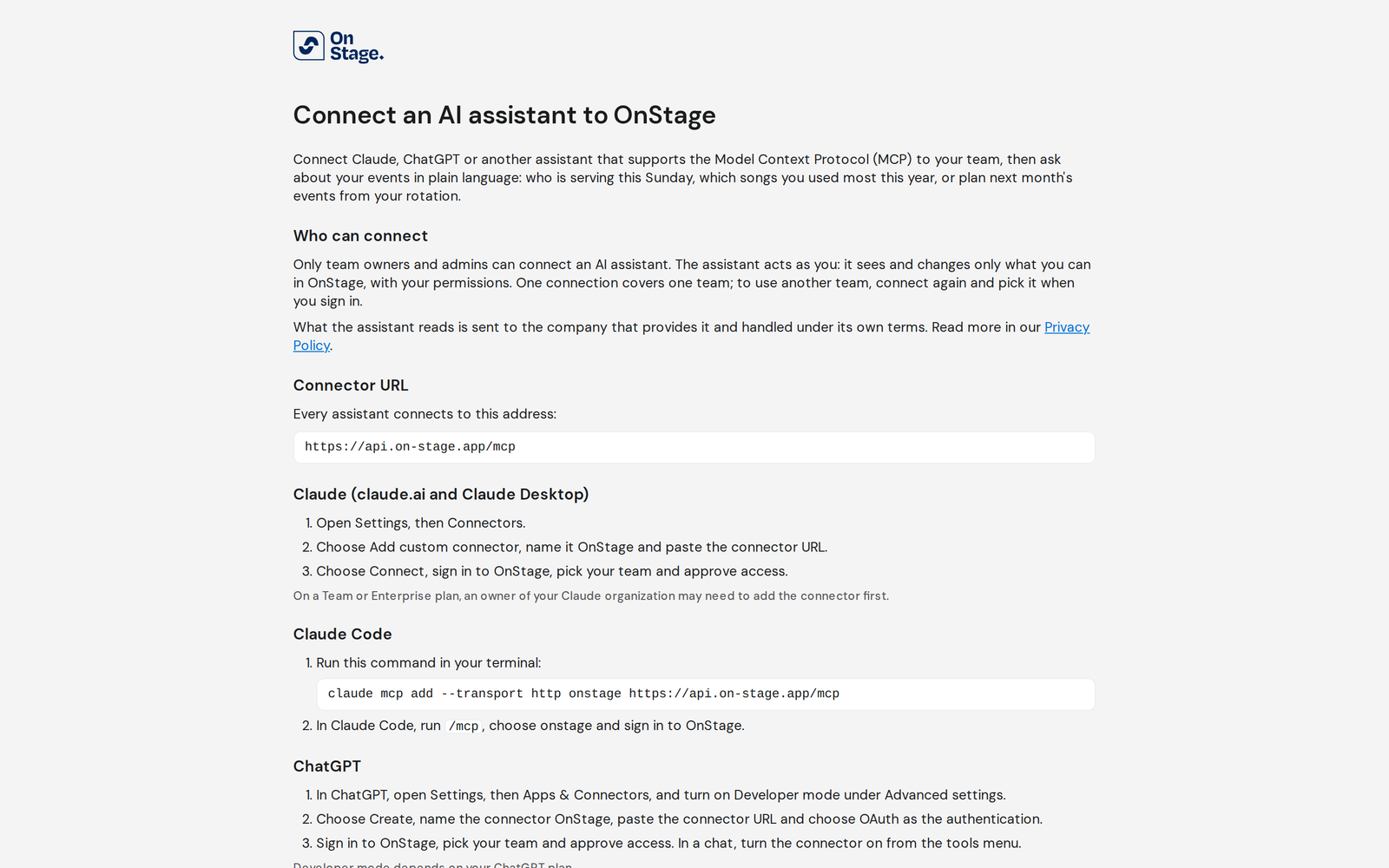
- Every assistant uses the connector URL
https://api.on-stage.app/mcp.
Steps
Claude
- In Claude, open Settings, then Connectors.
- Choose Add custom connector, name it OnStage and paste the connector URL.
- Choose Connect, sign in to OnStage, pick your team and approve access.
ChatGPT
- Open Settings, then Apps & Connectors, and turn on Developer mode under Advanced settings.
- Choose Create, name it OnStage, paste the URL and choose OAuth.
- Sign in, pick your team and approve. In a chat, turn the connector on from the tools menu.
Disconnect
- Remove OnStage from your assistant's connectors.
Good to know
- One connection covers one team. The assistant acts as you, with your permissions.
- It shows a preview of every change and applies it only after you confirm. Uploaded events start as drafts.
- Ask it to undo a change within 7 days. A deleted event can't be restored.
- Cursor, VS Code and other MCP clients add the URL as a remote (HTTP) MCP server.