Dark mode, browser notifications and cookies
These settings are yours alone. Nobody else on the team sees them.
Steps
Switch dark mode
- Click Dark mode near the bottom of the rail. The sun or moon icon switches the platform between dark and light.
Get notifications in your browser
- Click your picture at the bottom of the rail, then Profile.
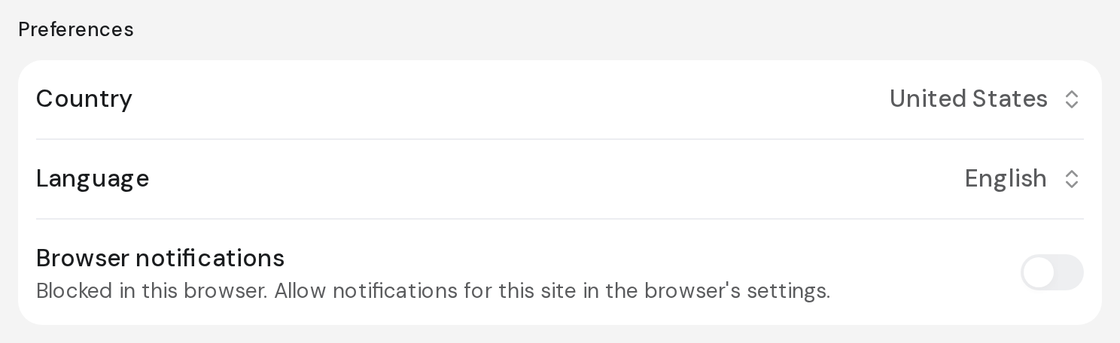
- Under Preferences, turn on Browser notifications.
- When your browser asks, allow notifications.
Choose your cookies
- Click Help in the rail, then About.
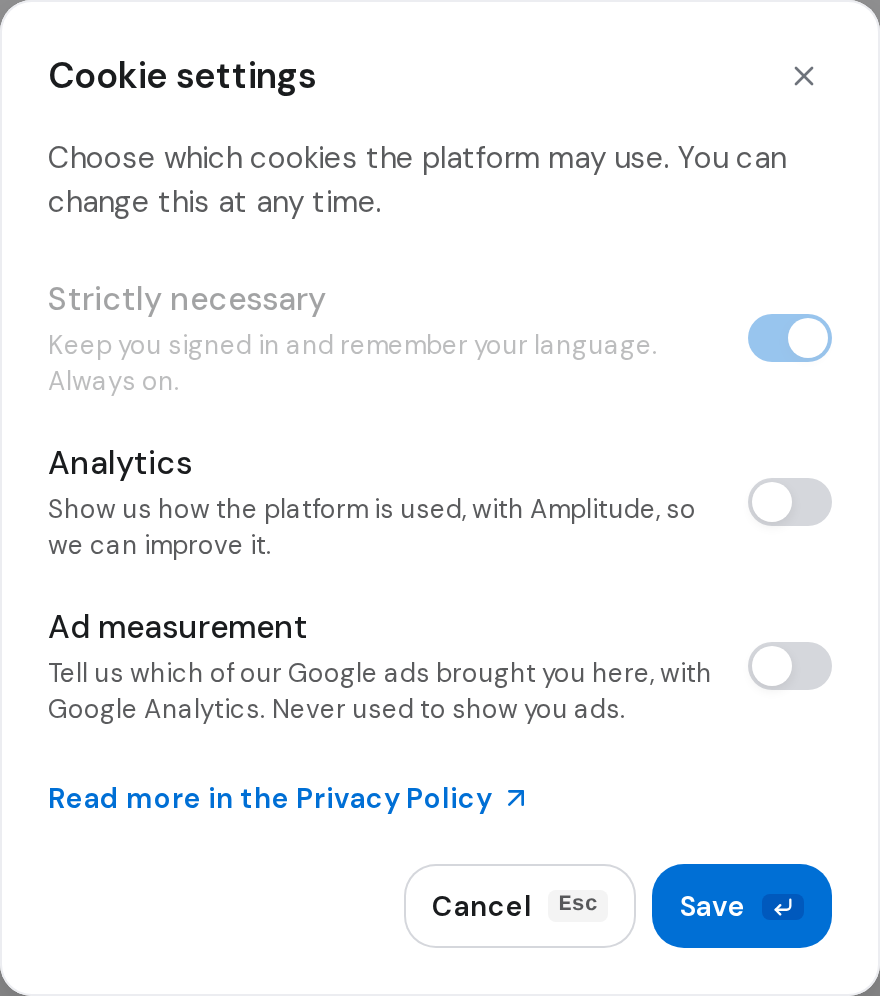
- Click Cookie settings, turn Analytics on or off, and click Save.
Good to know
- Your theme is saved to your account, so it follows you when you sign in again.
- If you blocked notifications in the browser, the switch is greyed out and says how to allow them in your browser's settings.
- Browser notifications only shows in browsers that support it. It works per browser, so turn it on in each one you use.
- Strictly necessary cookies always stay on.