Your chats: find one, see who's in it, delete an old one
Your team has one chat everyone is in, and each event has its own.
Steps
Find a chat
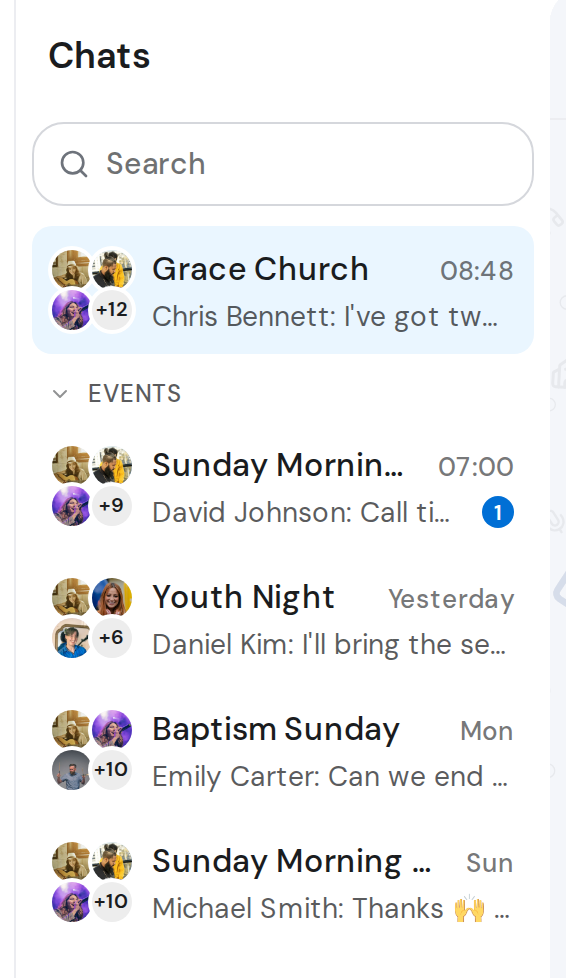
- Click Chats in the rail. A dot on it means unread messages.
- Your team chat is at the top of the list. Event chats sit under Events.
- Type in Search to find an older chat, or click Load more at the bottom of the list.
See who's in a chat
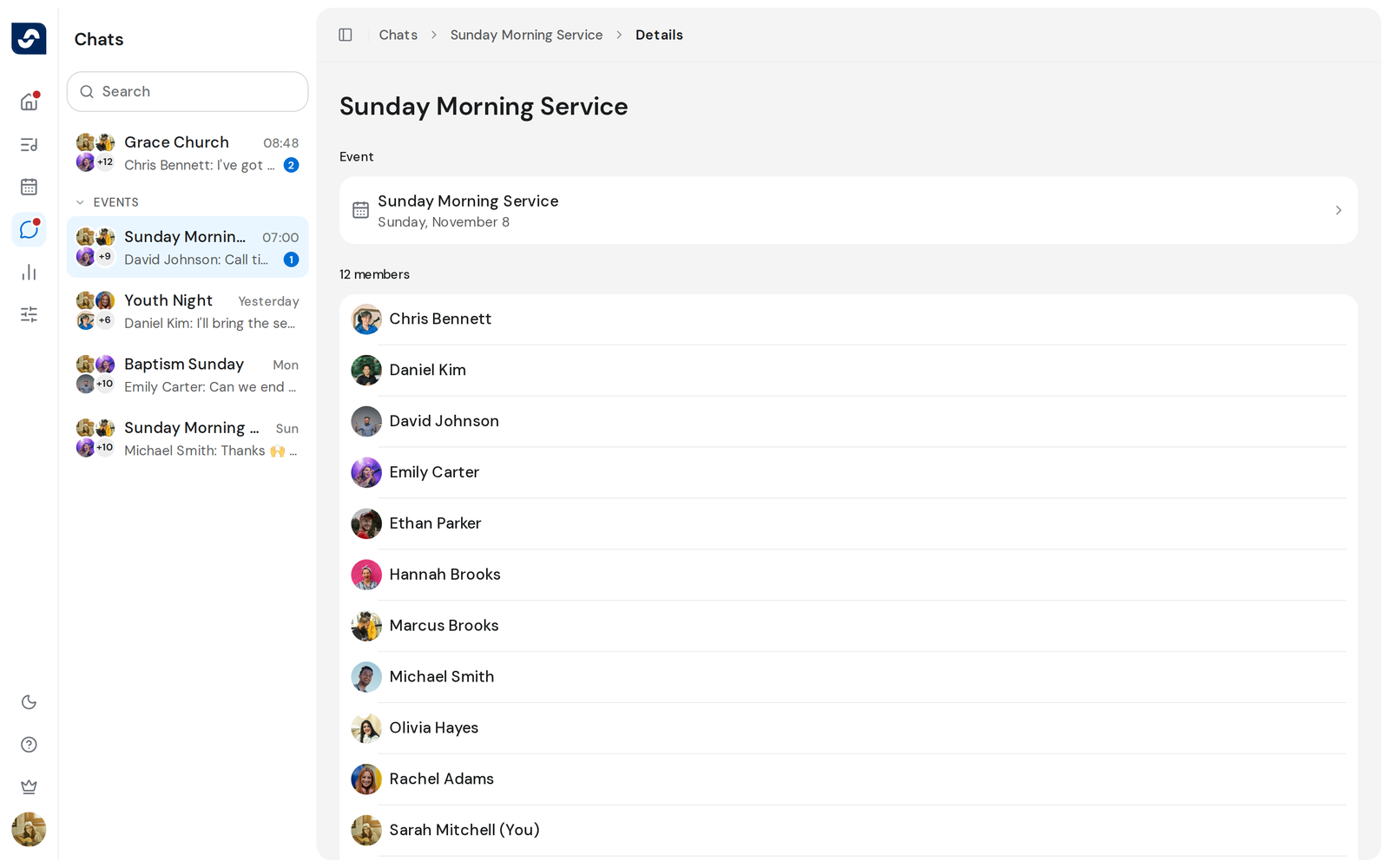
- Open the chat and click Details at the top. It lists the members, and an event chat has Open event.
Delete an event chat
Who can do this: Owner, Admin. What the roles mean
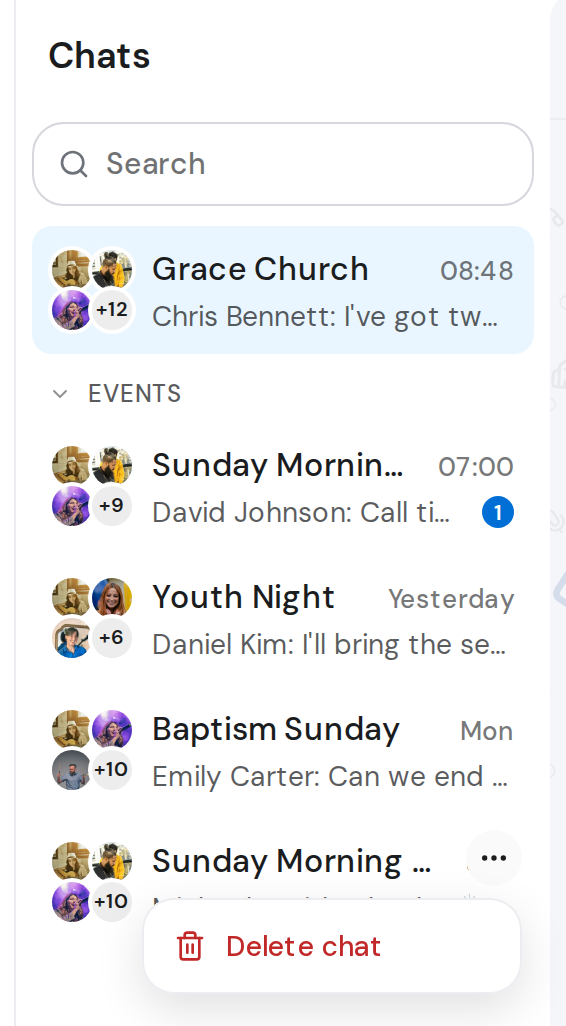
- In the list, click Chat actions beside the event chat.
- Click Delete chat, then Delete to confirm.
Good to know
- A chat for an event that hasn't happened yet can't be deleted. You see You can't delete a chat for an upcoming event. You'll be able to delete it once the event has passed.
- Deleting removes the conversation for everyone, for good. The event stays.
- The team chat has no Delete chat.