Polls: create, vote, and see who voted
Give the team a question and options to pick from. Anyone in the chat can vote. Only creating a poll needs a paid plan.
Steps
Create a poll
Paid plan: This needs a paid plan. What's included
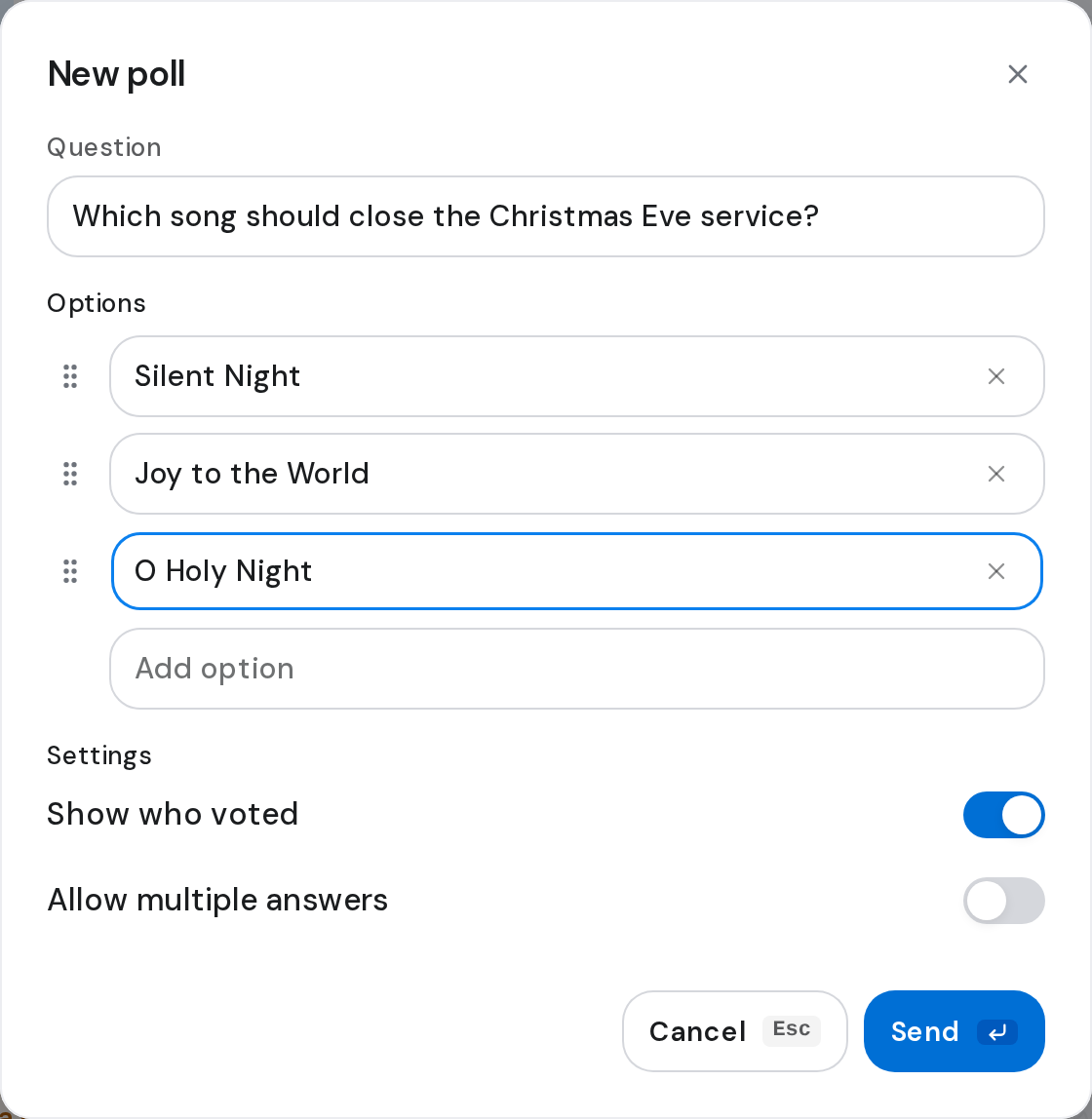
- Open the chat, click Attach, then Poll. New poll opens.
- Type your question under Question, then fill in the choices under Options. A new empty option appears each time you fill the last one.
- Under Settings, turn off Show who voted to keep names private, or turn on Allow multiple answers.
- Click Send.
Vote
- Click the option you want. If the poll allows more than one answer, tick each one, then click Vote.
- To change your mind, point at the poll, click Message actions, then Retract vote. Vote again.
See who voted
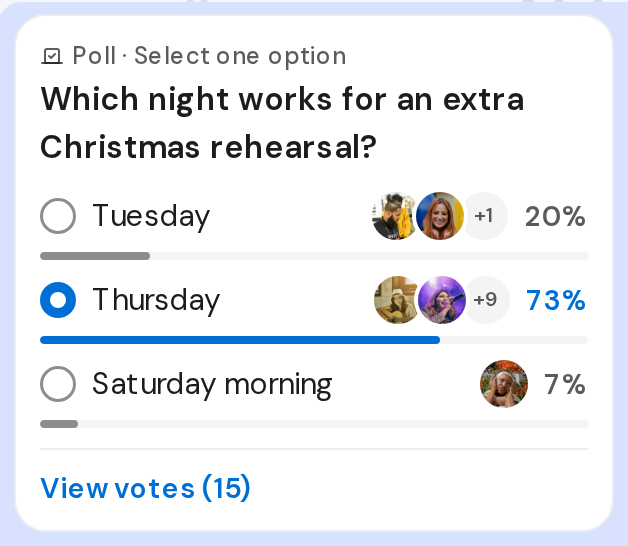
- Click View votes under the poll. Poll results lists who picked each option.
Good to know
- A poll needs a question and at least two options, up to 12.
- Drag an option by its handle to reorder it.
- With Show who voted off, the poll shows only a vote count.
- On the free plan, Poll opens Create Polls instead. Voting and results work on every plan.